How to Laser Engrave Photos on Wood?
On this page (8 sections)
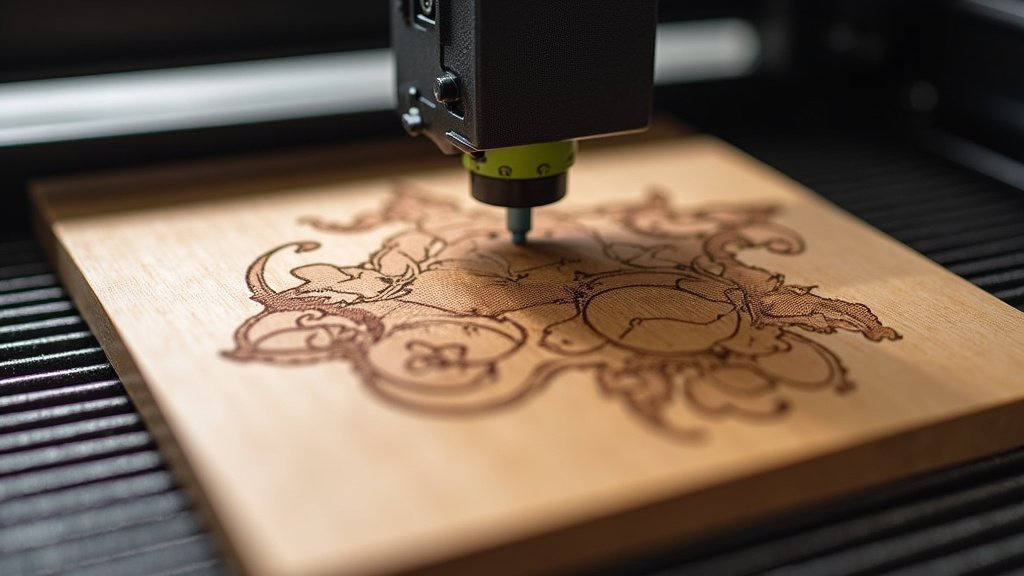
Yes, you absolutely can laser engrave photos on wood, and it’s a fantastic way to create unique gifts and personalized decor. The process involves using a laser engraver to etch an image directly onto a wood surface, turning your favorite pictures into lasting art. It’s more accessible than you might think!
Transforming a photograph into a wood engraving requires a few key steps. You’ll need to prepare your image file correctly. Then, you’ll select the right wood type. Finally, setting up your laser engraver with the appropriate settings is crucial for a clear and detailed result. Many people find it a rewarding project.
- Prepare your photo file for engraving.
- Choose the right type of wood for your project.
- Set your laser engraver for optimal results.
- Consider post-engraving finishing touches.
Ready to turn your photos into wood masterpieces? Let’s walk through exactly how this works step by step, so you can achieve stunning results with your laser engraver.
Creating Stunning Photo Engravings on Wood with Your Laser
Laser engraving photos onto wood is a wonderful way to create personalized art. You can transform your favorite memories into something tangible and beautiful. This process might seem daunting, but with a little guidance, you can achieve impressive results. We’ll walk you through each step, from preparing your image to finishing your engraved piece.
Preparing Your Photograph for Laser Engraving
The first step is making sure your photo is ready for the laser. A digital image needs to be optimized for the engraving process. This means converting it into a format that the laser cutter can understand and interpret. It’s not just about putting any picture into the software.
Choosing the Right Image Type
Not all photos translate well to wood engraving. High-contrast images tend to work best. Think about images with clear light and dark areas. Photos with a lot of subtle shading or very fine details can sometimes lose their definition during engraving. We found that images with strong silhouettes or dramatic lighting often produce the most striking results on wood.
Image Editing Basics
Before you send your image to the laser, you’ll want to do some editing. This usually involves converting your photo to grayscale. Most laser engraving software works best with black and white images. You’ll then adjust the contrast and brightness. The goal is to increase the difference between the light and dark areas. This helps the laser create a more defined engraving.
Many graphic design programs or even free online photo editors can help with this. You’re essentially telling the laser where to burn darker (black areas) and where to burn lighter (white areas). Think of it like creating a stencil. We recommend playing with the contrast sliders until you see a good range of tones. Too much gray can lead to a muddy engraving.
Understanding Dithering and Halftones
You might encounter terms like ‘dithering’ or ‘halftones’ when preparing your image. For another photo engraving project, see our guide to photo engraving on tile. Dithering is a technique used to simulate shades of gray using dots. Different patterns of dots can create the illusion of different tones. Halftoning is similar, converting continuous tones into patterns of dots of varying sizes or spacing.
Your laser engraving software might have built-in options for these. Experiment with different dithering patterns. Some look better on certain wood types than others. We found that the ‘Stucki’ or ‘Jarvis’ dithering algorithms often give good results for portraits. However, results can vary, so testing is key.
File Format and Resolution
Save your prepared image in a format that your laser software supports. Common formats include JPG, PNG, BMP, and sometimes SVG or DXF for vector-based engraving. For raster engraving (which is typical for photos), a resolution of 300 DPI (dots per inch) is generally recommended. This ensures enough detail for the laser to work with.
A higher resolution means more data for the laser. This can lead to a crisper, more detailed engraving. However, extremely high resolutions can also slow down your software and the engraving process. We suggest starting with 300 DPI and increasing it if you find your results lack fine detail. It’s a balance between detail and processing time.
Selecting the Right Wood for Your Project
The type of wood and wood photo engraver you choose will significantly impact the final look of your photo engraving. Different woods have different densities, grain patterns, and colors. These characteristics affect how well the laser etches and how the image appears.
Best Wood Types for Laser Photo Engraving
Generally, hardwoods with a fine, consistent grain work best. They offer a smooth surface for the laser to engrave on, which helps in achieving detail. Some popular choices include:
- Maple: Light-colored with a fine, even grain. It takes engraving very well, providing high contrast.
- Birch Plywood: Very consistent and affordable. The lighter color makes engraved details pop. Plywood often has a fine grain.
- Cherry: Has a beautiful natural color and a fine grain. It engraves with a nice warm tone.
- Walnut: Darker and rich in color. It offers good contrast, especially for lighter areas of your photo.
Softwoods like pine can be more challenging. They often have prominent grain patterns that can interfere with the image. They also tend to burn more erratically. We found that trying to engrave detailed photos on pine can sometimes result in a less defined, more rustic look, which might not be what you’re going for.
Understanding Wood Grain and Its Impact
The grain of the wood runs in a particular direction. When you engrave across the grain, the laser can create a slightly rougher or more textured line. Engraving with the grain can lead to smoother lines. This is why you often see recommendations to orient your photo to match the wood grain where possible.
Consider how the grain will interact with the details of your photograph. For portraits, a wood with a minimal and consistent grain is often preferred. For landscapes or more abstract images, a visible grain might add an interesting artistic element. It’s a creative choice that depends on the desired outcome.
Surface Finish and Preparation
Ensure the wood surface is clean and smooth. That preparation also matters for a cutting board; see our photo cutting board engraving guide for project-specific steps. Any dirt, dust, or imperfections can affect the engraving quality. You may need to sand the wood lightly before engraving. A smooth, sanded surface will allow the laser to etch more cleanly and precisely. If your wood has a coating, like varnish, you might need to remove it.
Different finishes can absorb or reflect the laser light differently. For the best results, start with raw, unfinished wood. If you have a pre-finished piece, test a small, inconspicuous area first. We found that a clean, dust-free surface is absolutely essential for sharp, detailed work.
Setting Up Your Laser Engraver for Photo Engraving
Laser engraver settings are critical for successful photo engraving. You need to tell the machine how fast to move, how much power to use, and how often the laser should fire. These settings are often referred to as speed, power, and frequency (or PPI/Hz).
Power and Speed Settings
These two settings work together to control the depth and darkness of the engraving. Generally, higher power and slower speeds will result in deeper, darker marks. Lower power and faster speeds will create lighter, more subtle marks. For photo engraving, you’re often looking for a range of tones, not just a single dark line.
You’ll need to find a balance. Too much power can scorch the wood, leading to a burnt appearance and loss of detail. Too little power won’t create a visible mark. We highly recommend doing a test run on a scrap piece of the same wood you’re using. This is where you’ll dial in the perfect settings.
Frequency (PPI/Hz) and DPI Settings
Frequency, measured in pulses per inch (PPI) or Hertz (Hz), determines how many laser pulses hit the wood per inch of travel. A higher frequency can lead to smoother, more continuous engraving. For photos, a setting between 300 and 600 PPI is common.
The DPI (dots per inch) setting in your software controls the resolution of the engraving file. It tells the laser how many lines of engraving to lay down per inch. A higher DPI means more detail but a longer engraving time. For photo engraving, 300-600 DPI is a good starting point. Many experts suggest that matching your DPI to your desired engraving detail is key. Your laser software’s LPI setting controls the resolution of the engraving file.
The Importance of Test Engravings
This is perhaps the most important step. You absolutely must test your settings on a piece of scrap wood. What works for one type of wood may not work for another. Even different batches of the same wood can behave differently.
Create a small test grid with varying power and speed settings. Engrave a small portion of your photo with each setting. Examine the results closely. You’re looking for the settings that provide the best contrast, the finest detail, and the least amount of scorching. Many users find this testing phase is where they learn the most.
Software Settings and Presets
Most laser engraving software comes with presets for different materials. While these are a good starting point, they are rarely perfect for photo engraving. You will likely need to adjust them based on your specific image and wood type.
Pay attention to the ‘dithering’ or ‘image mode’ settings within your software. Some software offers specific modes for photos. These modes are designed to translate the grayscale tones into the laser’s engraving actions. We found that understanding your software’s image processing capabilities is a big help.
Finishing Your Laser-Engraved Photo
Once the laser has done its work, there are a few things you can do to make your engraved photo look even better. These finishing touches can really make a piece pop.
Cleaning the Engraved Surface
After engraving, you’ll likely have some soot or dust on the wood surface. Gently clean this off using a soft brush or a cloth. Some people use a damp cloth, but be careful not to use too much water, as it can affect the wood. A vacuum cleaner with a brush attachment also works well.
Be sure to remove all loose debris. This will ensure that any protective finishes you apply go on smoothly. We found that a slightly damp paper towel, followed by a dry cloth, works wonders for removing soot.
Applying a Protective Finish
To protect your engraved photo and enhance its appearance, you can apply a clear finish. Options include polyurethane, lacquer, or a natural oil finish. These finishes can add a bit of sheen and protect the wood from moisture and dust.
Apply the finish in thin, even coats. Allow each coat to dry completely before applying the next. A matte finish can give a more natural look, while a gloss finish will make the engraved areas appear darker and more defined. It’s a matter of personal preference and the desired aesthetic. Many artists prefer a matte finish to keep the wood looking as natural as possible.
Optional: Coloring Your Engraving
For an extra creative touch, you can color your laser-engraved photo. You can use wood stains, acrylic paints, or even colored pencils to add hues to specific areas. This is a great way to bring more life to your image, especially if you’re working with a black and white photo.
Be selective with your coloring. You can tint areas to mimic original colors or get creative with an entirely new palette. Some people use very light washes of color so the wood grain and engraving still dominate. Testing colors on a scrap piece is a smart move before applying them to your finished piece.
Troubleshooting Common Issues
Even with careful preparation, you might run into a few hiccups. Knowing common problems and solutions can save you a lot of frustration.
- Burnt Edges: Often caused by too much power or too slow a speed. Try reducing power or increasing speed. Ensure your air assist is working effectively.
- Faint Engraving: This usually means not enough power or too fast a speed. Increase power or slow down your speed.
- Scorched Marks: Can be from excessive heat. Ensure proper air assist is used to blow away debris and cool the engraving area. Also, test different wood types, as some are more prone to scorching.
- Loss of Detail: May be due to a low-resolution image, incorrect dithering, or settings that are too aggressive. Check your DPI, try a different dithering pattern, or adjust power/speed.
Don’t get discouraged if your first attempt isn’t perfect. Laser engraving is a skill that improves with practice and experimentation. Every laser, every piece of wood, and every photo is a little different, requiring its own unique set of settings.
Conclusion
You’ve learned that laser engraving photos on wood is an achievable and rewarding project. By carefully preparing your image, selecting the right wood, and dialing in your laser settings, you can create stunning, personalized pieces. Remember, the key is practice and experimentation. Don’t be afraid to test different approaches. Your next step is to gather your materials, choose a cherished photo, and start your first engraving project. You’ve got this!
Frequently Asked Questions
Can I engrave a color photo on wood?
Laser engravers typically work with grayscale images, not color. You’ll need to convert your color photo to black and white, adjusting contrast and brightness for the best results. Some software can simulate color with dithering patterns, but the engraving itself will be monochrome based on the grayscale tones.
How do I prevent my wood from burning or scorching during engraving?
Scorching often happens from excessive heat or debris buildup. Ensure your laser’s air assist is properly functioning to blow away smoke and cool the engraving area. Adjusting your laser’s power and speed settings is also key; lower power and faster speeds can help prevent burning.
What is the best resolution (DPI) for laser engraving photos on wood?
A resolution of 300 DPI is generally a good starting point for laser photo engraving, providing enough detail for most projects. For very fine details or smaller engravings, you might consider increasing it to 600 DPI. Higher DPI means more detail but also a longer engraving time.
How can I tell if my wood is suitable for laser engraving photos?
Look for hardwoods with a fine, consistent grain and a light, uniform color, like maple or birch. These woods engrave clearly and provide good contrast for your photos. Woods with very dark colors or prominent, uneven grain can make details harder to see.
Is it possible to fix a mistake once the laser has started engraving?
Unfortunately, once the laser begins engraving a mistake, it’s very difficult to fix perfectly. Your best bet is to stop the job immediately and try to re-align your material and laser head to start again from the beginning. If the mistake is minor, you might be able to incorporate it into the design or use post-engraving coloring to disguise it.