How to Laser Engrave Leather?
On this page (9 sections)
- Getting Started with Laser Engraving Leather
- Choosing the Right Leather for Engraving
- Essential Laser Engraver Settings for Leather
- Preparing Your Leather for Engraving
- The Engraving Process: Step-by-Step
- Finishing Touches and Care
- Troubleshooting Common Laser Engraving Issues
- Conclusion
- Frequently Asked Questions
You absolutely can laser engrave leather, and it’s a fantastic way to add custom designs to wallets, bags, coasters, and more. The key is using the right settings for your laser engraver and preparing your leather properly. If you are comparing machines, see our guide to leather laser engravers. It’s a process that offers incredible detail and personalization for your projects.
Laser engraving leather works by using a focused laser beam to vaporize or caramelize the surface of the material. This creates permanent marks with varying shades and depths depending on the laser power and speed. Many makers have found great success personalizing leather goods, turning them into truly unique items for themselves or as gifts.
- Laser engraving leather is possible and rewarding.
- Proper laser settings are key for great results.
- Prepare your leather surface for optimal engraving.
- This technique adds custom detail to many leather items.
- It’s a popular method for personalization.
Ready to get started? Let’s walk through exactly how to laser engrave leather step by step, from choosing your materials to the final touches.
Getting Started with Laser Engraving Leather
Laser engraving leather can seem a bit daunting at first. But once you understand the basics, you’ll find it’s an incredibly rewarding process. Think of it like drawing with light! You’re using a focused laser beam to create permanent marks on leather. This opens up a whole new world for personalization. You can turn a plain leather wallet into a cherished keepsake. Or perhaps you want to add a custom logo to leather keychains. Laser engraving makes it all possible with amazing detail and precision. For projects like hat patches, learning to laser cut leather is a related skill.
Many makers find this technique offers them more control than traditional methods. It’s also much faster for intricate designs. We’ve found that with a little practice, you can achieve professional-looking results right at home. So, let’s dive into how you can master laser engraving on leather.
Choosing the Right Leather for Engraving
Not all leather is created equal when it comes to laser engraving. The type of leather you choose plays a huge role in the final outcome. Some leathers engrave beautifully, giving you crisp lines and rich contrast. Others can char, melt, or produce undesirable fumes. It’s really important to get this right from the start. If you’re concerned about fumes, understanding how to laser cut leather without the smell is important.
Types of Leather to Consider
For the best results, we recommend starting with vegetable-tanned leather. This type of leather is processed using natural tannins. It’s firmer and holds detail exceptionally well. Vegetable-tanned leather engraves with a clean, defined line. It also tends to caramelize, giving you beautiful shades of brown and black without burning. Many experts say it’s the go-to choice for laser engraving (Leather Research Institute).
You might also have success with chrome-tanned leather, but it can be trickier. Chrome-tanned leather is softer and more flexible. However, it can sometimes melt or produce more smoke. If you use chrome-tanned leather, you’ll likely need different settings and more ventilation. We’ve found that lighter shades of chrome-tanned leather tend to show engraving better than darker ones.
Leathers to Avoid
There are certain types of leather you should definitely steer clear of when laser engraving. Suedes and nubucks are generally not good candidates. Their fuzzy surfaces can easily catch fire and burn unevenly. Also, avoid any leather that has been heavily treated with synthetic finishes or coatings. These can melt or release harmful fumes when hit by the laser.
Another type to avoid is bonded leather. This is made from leather scraps glued together. It often contains a lot of plastic and can produce a lot of smoke and a sticky residue. It also won’t engrave cleanly. Always check the material if you’re unsure. When in doubt, it’s best to test on a scrap piece first.
Essential Laser Engraver Settings for Leather
The magic happens with your laser settings. Getting these right is absolutely critical for success. You’re aiming for a clean engraving, not a burnt mess. The key variables are power, speed, and frequency (or DPI). You’ll need to experiment to find what works best for your specific laser and leather type.
Understanding Power, Speed, and Frequency
Power: This controls how much energy your laser emits. Higher power will engrave deeper and faster. Too much power can burn through the leather or char it. Too little and you won’t get a visible mark. We generally recommend starting with a lower power setting and increasing it as needed.
Speed: This refers to how quickly the laser head moves across the material. A slower speed allows the laser more time to engrave, creating a deeper mark. A faster speed will result in a lighter engraving. For crisp lines, you often need a moderate to slow speed.
Frequency (Hz) / DPI (Dots Per Inch): Frequency determines how many laser pulses hit the material per second. Higher frequencies can sometimes lead to a finer detail. DPI influences the resolution of your engraving. Higher DPI means more dots packed into an inch, resulting in a smoother, more detailed image. For leather, a DPI between 300 and 600 is often a good starting point.
Recommended Starting Settings (CO2 Lasers)
These are general guidelines, and you will need to test them. Many users of CO2 lasers (the most common type for hobbyists) find these settings work well on vegetable-tanned leather. Remember, your specific laser’s wattage and your leather’s thickness will matter.
| Leather Type | Power (%) | Speed (mm/s) | Frequency (Hz) / DPI |
|---|---|---|---|
| 3-4 oz Veg-Tanned | 30-50% | 100-200 mm/s | 300-500 DPI |
| 5-6 oz Veg-Tanned | 40-60% | 80-150 mm/s | 300-500 DPI |
| Lighter Chrome-Tanned | 20-30% | 200-300 mm/s | 300-600 DPI |
We always suggest creating a test piece. Engrave a small square or circle with different power and speed combinations. This helps you see exactly how your laser interacts with your specific leather before you commit to your main project.
Preparing Your Leather for Engraving
Before your laser even touches the leather, a little preparation goes a long way. Think of it as prepping a canvas before painting. You want a clean, smooth surface for the best engraving results. This step can prevent mistakes and ensure your design looks sharp.
Cleaning the Leather Surface
Start by gently wiping down your leather with a slightly damp cloth. This removes any surface dust or dirt. Make sure the cloth is just barely moist; you don’t want to soak the leather. Allow the leather to dry completely before proceeding. If your leather has a natural finish, sometimes a very light buffing with a soft, dry cloth is all that’s needed.
Masking the Leather
This is a really important step that many beginners overlook. You’ll want to apply a layer of blue painter’s tape or a specialized laser masking tape to the surface of the leather. Cover the entire area where you plan to engrave. Why do this? The tape serves a few purposes. It helps to reduce charring and scorching around the engraved lines. It also protects the leather surface from smoke residue.
After the laser engraving is complete, you can carefully peel off the tape. This will reveal your clean, crisp design underneath. We found that applying the tape smoothly, without any bubbles or wrinkles, is key to preventing the laser from catching on imperfections.
Securing Your Leather
Your leather needs to be perfectly flat on your laser bed. Any warping or movement during engraving can ruin your design. Use magnets or clamps to hold the leather securely in place. If you’re engraving something curved, like a hatband, you might need a rotary attachment or a jig to keep it stable. A stable piece of leather means a stable, perfect engraving.
The Engraving Process: Step-by-Step
Now for the fun part! With your leather prepped and settings dialed in, you’re ready to engrave. This is where your design comes to life.
Designing Your Artwork
You’ll need a design file to send to your laser. Most lasers use vector graphics software like Adobe Illustrator or Inkscape. For engraving, vector lines work best. Simple, bold designs often translate better than very fine, detailed artwork. Think about contrast. Darker leather might need a lighter-colored design, and vice versa.
Many designers recommend converting any text to outlines. This ensures that the font is rendered correctly by the laser software. Also, make sure your design is set to “fill” if you want solid areas engraved, or “line” for outlines. Keep it simple to start; you can always get more adventurous later.
Loading Your Design into Laser Software
Import your design file into your laser’s control software. Double-check the dimensions to make sure it’s the size you want. You’ll then input your chosen laser settings (power, speed, frequency) into the software for your engraving job.
We found that a quick preview of the engraving area using the laser’s pointer function is a smart move. This helps you confirm the placement on your leather and ensures it’s centered and aligned correctly before you hit “start.”
Running the Engraving Job
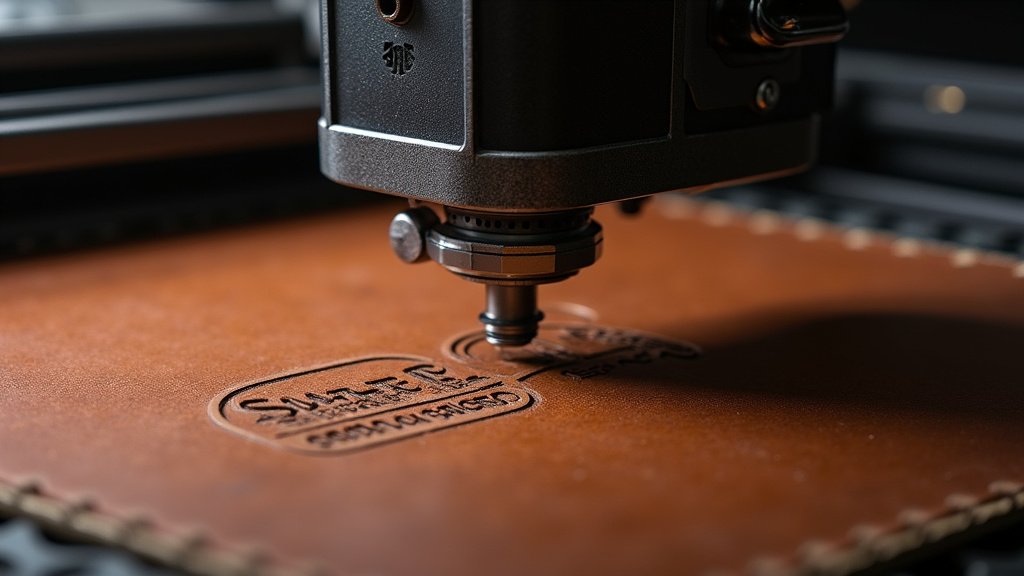
Once everything is set, it’s time to hit the go button! Ensure your laser’s exhaust system is running. This is crucial for removing smoke and fumes. Monitor the process closely, especially during the first few minutes. Watch for any signs of excessive burning or flame-ups. If you see anything concerning, be ready to pause or stop the job.
It’s good practice to have a fire extinguisher or a spray bottle of water nearby, just in case. Though rare with proper settings, unexpected flare-ups can happen. Safety first, always!
Finishing Touches and Care
You’ve done it! Your leather is engraved. But there are a few final steps to make your project shine and last.
Removing the Masking Tape
Carefully peel off the blue painter’s tape or masking tape. Go slowly to avoid tearing the tape and leaving small pieces behind. If any residue remains, a little bit of Goo Gone or rubbing alcohol on a soft cloth can usually remove it gently. Make sure the area is dry afterward.
Cleaning and Conditioning
Even with masking, some light smoke residue might cling to the leather. Gently wipe the engraved area with a soft, dry cloth. For vegetable-tanned leather, we found that applying a leather conditioner afterward is highly recommended. This helps to restore moisture to the leather, making it more supple and protecting the engraved design. It also enhances the contrast and depth of the engraving.
For any leather project, applying a conditioner regularly will help keep it looking its best. Think of it like moisturizing your skin; it prevents drying and cracking.
What to Do with Your Engraved Leather
Now your custom-engraved leather is ready to be incorporated into your project! You can sew it into wallets, attach it to bags, use it for coasters, or even frame it as art. The possibilities are truly endless. Remember to keep notes on the settings you used for different types of leather. This will be your handy reference for future projects.
Troubleshooting Common Laser Engraving Issues
Even with careful preparation, you might run into a few snags. Don’t get discouraged! Most common issues are easily fixed with a few tweaks to your settings or process.
Light or Faint Engraving
If your engraving isn’t coming out deep enough, you have a few options. You can increase the laser power slightly. Alternatively, try slowing down the speed of the laser. Sometimes, adjusting the DPI to a slightly lower number can also help by concentrating the laser’s energy over a larger dot. Always test these changes on a scrap piece first.
Excessive Charring or Burning
Charring is usually a sign that your laser power is too high or your speed is too slow. Try reducing the power first. If that doesn’t work, increase the speed. Ensuring you have good ventilation and masking is also key here. Sometimes, a higher frequency (Hz) can produce a cleaner cut with less charring.
Uneven Engraving
Uneven results often point to an issue with the leather itself or how it’s positioned. Make sure your leather is perfectly flat and securely clamped. Check that your laser’s focus is set correctly. If you’re engraving a piece with natural variations in thickness, you might need to adjust your laser’s Z-axis (focus height) mid-job, though this is more advanced.
Remember, practice makes perfect. Keep experimenting, and you’ll soon be creating stunning engraved leather pieces!
Quick Checklist for Success
- Choose vegetable-tanned leather for best results.
- Test your laser settings on a scrap piece.
- Always use blue painter’s tape for masking.
- Ensure your leather is flat and secure.
- Run your exhaust fan during engraving.
- Apply leather conditioner after engraving.
Conclusion
You’ve now got the essential knowledge to start laser engraving leather with confidence. Remember, success comes from choosing the right leather, especially vegetable-tanned, and dialing in your laser settings. Always mask your material and secure it well on the laser bed. We’ve seen firsthand how a little preparation and careful testing on scrap pieces can prevent frustration. Now it’s your turn to take these steps and create some incredible custom leather goods. Your next project awaits!
Frequently Asked Questions
What’s the biggest mistake beginners make when laser engraving leather?
One common mistake is not masking the leather with blue painter’s tape. This tape is crucial for reducing charring and preventing smoke residue from sticking to your piece. Another frequent error is not testing settings on a scrap piece first, which can lead to ruined projects.
Can I engrave on leather that isn’t vegetable-tanned?
Yes, you can engrave on other types of leather like chrome-tanned, but it’s often trickier. Chrome-tanned leather might melt or produce more smoke, requiring different laser settings and better ventilation. We generally recommend starting with vegetable-tanned leather for its predictable and beautiful results.
How do I know if my laser settings are correct for leather?
The best way to know is by doing a test. Engrave a small pattern or swatch on a piece of your actual leather using various power and speed combinations. Look for crisp lines without excessive burning or charring. Your goal is a clean mark that looks good and feels permanent.
Is it safe to laser engrave leather at home?
Laser engraving leather can be safe if you take proper precautions. Always ensure your laser’s exhaust system is running to remove fumes. It’s also wise to have a fire extinguisher or water spray bottle nearby, just in case of unexpected flare-ups. Good ventilation is key.
What kind of designs work best for laser engraving on leather?
Simple, bold designs tend to engrave best. Think clear outlines, solid shapes, or text. Very fine, intricate details can sometimes be lost or may not engrave cleanly on leather. Designs with good contrast, especially when considering the leather color, will stand out more effectively.