Cricut Explore vs Explore Air: What Is Different? (November 2026)
Choose Cricut Explore Air if you want Bluetooth wireless connection; choose the original Cricut Explore if USB is enough. Their core cutting purpose is similar, so the practical gap is mainly setup convenience and the exact model's age.
On this page (10 sections)
- Cricut Explore vs Explore Air: what is the main difference?
- Does wireless connection change what you can make?
- Which machine is easier for a small craft desk?
- Are the accessories interchangeable?
- Which cutting mats fit an older Explore?
- Does Cricut Explore Air 2 differ from the original Explore Air?
- Should you choose an older model or a newer Explore?
- What should you check before buying a used Explore?
- Can you use laser accessories with a Cricut Explore?
- Cricut Explore vs Explore Air: which should you choose?
Choose Cricut Explore Air if you want Bluetooth wireless connection; choose the original Cricut Explore if a USB setup works for you. In this Cricut Explore vs Explore Air comparison, the cutting purpose is similar, but wireless setup can make a real difference in a small craft space.
The original Explore and Explore Air are older members of the same machine family. Their exact cutting limits can vary by model, so confirm the name on the machine before buying mats, blades or other accessories.
For blade options, compare replacement blades for Cricut Explore.
If you are new to vinyl cutting, start with this guide to what is a vinyl cutting machine. It explains how a cutter differs from a printer and what the machine does with vinyl, paper and other materials.

 Best for long materials
WORKLION Cutting Mat 12x24 Compatible With Explore
Cricut Explore vs Explore Air: what is the main difference?
Bluetooth wireless connection is the clearest difference between Cricut Explore and Explore Air. The original Explore is commonly used with a USB connection, while Explore Air was designed to add wireless convenience.
That difference affects where you can place the machine and how you connect it to a computer or compatible device. It does not automatically mean that Explore Air cuts better or handles every material differently.
A wired machine can be perfectly practical if it stays beside your computer. Wireless becomes more useful when your desk is crowded, your computer is across the room or you switch between devices.
The name can also cause confusion because “Air” appears in several Cricut model names. Explore Air, Explore Air 2 and newer Explore generations are not identical machines, so check the full model name before ordering accessories.
Does wireless connection change what you can make?
Bluetooth changes the connection method, not the basic idea of designing and cutting. You still create or adjust a project in Design Space, prepare the material on a mat and follow the machine prompts.
Wireless connection can make a cleaner setup for decals, cards, labels and iron-on projects. For applying a vinyl design, see how to use vinyl transfer tape.
You do not need to keep the computer directly beside the machine when the connection and device requirements are met.
The original Explore remains useful for a fixed workstation. A USB cable can also make troubleshooting more direct because there is one physical connection to check.
For setup help with a later model, see how to use Cricut Explore Air 2. Its workflow is more relevant to Air 2 owners than to every older Explore model, but it shows the general Design Space process.
Which machine is easier for a small craft desk?
Explore Air is easier to place when Bluetooth matters, while the original Explore is simpler when your machine stays beside one computer. Choose based on your desk and connection habits rather than the word “Air” alone.
Measure the space around the machine, not only the closed body. You need room to load a mat, place material and remove the finished project without catching the mat on nearby objects.
A wired setup can be a good fit for a permanent craft table. Keep the computer close enough for the cable and leave the machine where you can reach the controls and material.
A wireless setup gives you more placement freedom, but it still depends on compatible devices, software and a stable connection. Bluetooth does not remove the need to follow the machine's setup requirements.
Are the accessories interchangeable?
Some accessories are sold across several Explore models, but compatibility must match the exact machine and accessory size. That model check also matters for Cricut Explore power cord replacements.
Do not assume that every Explore-branded tool or mat works with every Explore generation.
A tool that fits one machine may sit differently in another housing or need a different setting in Design Space. That is why the full model name matters more than the Explore name alone when you are shopping.
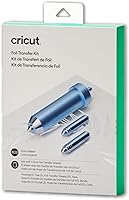
The Cricut Foil Transfer Kit is designed for Cricut Maker and Explore machines. It includes 3 interchangeable foil transfer tips, a tool housing, adhesive tape and 12 gold and silver foil transfer sheets sized 4 x 6 in.
The three tips are fine, medium and bold, so you can match the foil line to the detail in your design. A fine tip suits small lettering and delicate borders, while a bold tip is easier to see on larger shapes.
The system is pressure-activated, so it does not use heat in the way some other foil methods do. You follow the Design Space prompts, let the machine do its pass, then peel back the sheet to reveal the foil.
The adhesive tape is there to hold the transfer sheet and card together while the foil releases. Keeping the sheet still matters, because movement during the pass can break up a clean line or leave gaps in a filled area.
The 4 x 6 in sheet size also sets a practical limit on where foil can be placed. It works well on cards, invites and gift boxes, but you need to plan designs inside that area rather than treating the sheet as a full mat covering.
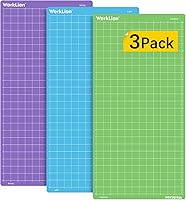
For a longer cutting area, the WORKLION Cutting Mat 12x24 Compatible With Explore includes 3 PVC mats with standard, light and strong adhesive. Its 12 x 24 in cutting area suits projects that need more length, but check that your exact machine accepts that mat size before ordering.
The three grip levels help you avoid using a strong surface for paper that only needs a light hold. A light grip is suited to lighter materials such as printer paper and vellum, while standard and strong grips are for cardstock, vinyl and thicker materials.
Having separate mats also makes daily care easier to manage. You can keep the strong grip mat for heavier work and protect the light grip surface from dust and scraps when it is not in use.
The trade off is storage, because three long mats need space and their clear covers need to stay with them. Keeping the film cover in place after a project helps protect the adhesive longer.
In other words, compatibility is a three way check between machine model, accessory type and size. Match those three points first, and the choice between a foil tool and a mat set becomes much clearer.
Which cutting mats fit an older Explore?
Choose the mat by machine support, size and grip level. For more options, see Cricut Explore cutting mats.
A light-grip mat suits lighter materials, while standard and strong grip options are intended for materials that need more hold.
The WORKLION set contains 3 rectangular PVC mats. The pack has standard, light and strong adhesive levels, so it gives you separate options instead of using one sticky surface for every project.
The EVISWIY 6PCS Cutting Mats Compitable with Explore set includes 12 x 24 in and 12 x 12 in mats, with standard, light, strong and fabric grip types. It also includes standard, deep cut and shallow cut blades.
That wider mix can help if your projects change from paper and vinyl to fabric or thicker craft materials. It also means you need to label or store the pieces carefully so you use the right grip and blade for the material.
Protect adhesive mats from dust and scraps after each project. Keep the clear film cover in place, remove scraps gently and use only the material type suited to the mat's grip.
Does Cricut Explore Air 2 differ from the original Explore Air?
Explore Air 2 is a later model, so do not treat “Explore Air” and “Explore Air 2” as the same machine. Both names point to wireless Air models, but the machine generation, controls and accessory details can differ.
The original Explore Air is mainly important when you are comparing an older machine, a used purchase or an existing setup. Explore Air 2 is more common in guides and accessory descriptions, which can make model matching harder.
Use the full name printed on the machine or its documentation. If the label only says Explore Air, avoid ordering a part described only for Air 2 until the compatibility information confirms it.
Our guide to how to use Cricut Explore 3 covers a newer Explore generation. It can help you understand the family workflow, but it is not a substitute for checking the controls and connection method on an older machine.
Should you choose an older model or a newer Explore?
Choose an older Explore Air for basic cutting with Bluetooth, and choose a newer Explore when you want current hardware, a simplified design and bundled supplies. The newer machine costs more in setup terms, but it may reduce the need to source older accessories.
If you are also considering a smaller Cricut, compare Cricut Joy Xtra bundles before deciding.
The Cricut Explore® 5 Essential Bundle + Digital is a 12 in cutting machine with Bluetooth connection through Design Space. It works with 100+ popular materials and can write, draw, foil, score and cut when the appropriate tools are used.
The bundle includes supplies for up to 65 projects, plus additional digital content. Its included materials cover options such as Smart Vinyl, Smart Iron-On, Value Cardstock, Insert Card Sets and Printable Vinyl.
That makes Explore 5 a starting package rather than a direct accessory for an older Explore. Choose it if you want a newer machine and supplies together, not simply because it has the Explore name.
Compare Cricut Maker vs Explore 5 if you are choosing between those newer machines.
For another newer-model workflow, see how to use Cricut Explore 4. If you are comparing brands instead, how to use Silhouette Cameo 4 gives you a useful look at a different cutter ecosystem.
What should you check before buying a used Explore?
Check the exact model, connection method, physical condition and included tools before buying an older Cricut Explore. A low price does not help if the machine needs an unavailable part or does not fit your computer setup.
Confirm whether the machine is the original Explore, Explore One, Explore Air or Explore Air 2. Ask for a clear photo of the model label and check which cable, power supply and tool housing are included.
Look for damage around the mat path, carriage and tool clamp. The machine should have enough space for the mat to move without hitting a wall or nearby storage.
Also check current Design Space requirements for your computer or mobile device. Older hardware may still suit simple projects, but software support and connection requirements can change.
Do not buy accessories by color alone. Match the tool, blade, mat size and material grip to the machine model and the project you plan to make.
For frosted vinyl, see cutting settings for frosted vinyl.
Can you use laser accessories with a Cricut Explore?
No. Cricut Explore and laser engravers are different kinds of machines, so laser accessories are not substitutes for Cricut tools.
A Cricut Explore uses cutting tools and compatible mats, while a laser engraver uses a focused beam and needs its own safety and airflow planning.
A laser air assist product is not a Cricut accessory. Read Best Air Assist For Laser Engraver only if you are researching laser equipment, and see Do You Need Air Assist for a Laser Engraver? for the role of airflow in that separate machine type.
Keeping these categories separate prevents a common buying mistake. Choose Cricut mats, blades and tools for Explore projects, and choose laser equipment only for a compatible laser system.
Cricut Explore vs Explore Air: which should you choose?
Pick the original Cricut Explore if USB connection and a fixed workstation meet your needs. Pick Explore Air if Bluetooth wireless connection makes your workspace easier.
That simple split still covers most of the real decision for older machines. If your computer sits beside the machine, a cable is not a problem, and a wireless model may not change your daily workflow.
If your desk is shared, your computer is across the room or you move between devices, Bluetooth can make setup cleaner. It removes cable length from the placement decision, but it does not remove the need to check device and software requirements.
Pick a newer Explore bundle if you want current hardware and supplies in one starting package. That is a different kind of choice from buying an older machine, because you are paying for a newer design as well as materials.
The Cricut Explore 5 Essential Bundle is built around a 12 in cutting machine with Bluetooth connection through Design Space. It is aimed at shoppers who want to start making decals, apparel, stickers and cards without sourcing a machine and materials separately.
Its bundle supplies are listed for up to 65 projects, which helps you judge how much you can make before you need to restock. The included materials cover practical basics such as Smart Vinyl, Smart Iron-On, Value Cardstock, Insert Card Sets and Printable Vinyl.
That supply list also shows who the bundle suits best. It suits a new owner who wants variety from the start, rather than someone who already has cardstock, vinyl and tools at home.
The best Cricut Explore machine for you depends on more than the Air name. Check the full model, software support, mat size, tool compatibility and the condition of any older machine.
For a used machine, condition can matter as much as the model label. Look at the mat path, carriage and tool clamp, and confirm that the cable, power supply and tool housing are included.
Check current Design Space requirements for your computer or mobile device before you commit. An older machine may still cover basic cutting needs, but support and connection rules can change over time.
If you already own an Explore, spend first on the accessories your projects actually need. A suitable mat or foil tool can improve the workflow more than replacing a working machine simply for a newer label.
Ask what you cut most often, and let that answer lead. Frequent card makers may value foil details, longer mats or stronger grip options, while decal makers may care more about connection and material range.
The honest trade off is that newer hardware feels simpler at first, but it does not make an older machine useless. Choose the option that matches your workspace, your materials and the projects you will actually finish.
Frequently asked questions
What is the difference between Cricut Explore and Explore Air?
The main practical difference is wireless connection. The original Cricut Explore is associated with a USB setup, while Cricut Explore Air adds Bluetooth wireless connection.
Both belong to the Explore family, so check the exact model before buying tools, mats or replacement parts.
Does Cricut Explore Air work without Bluetooth?
Yes, a Cricut Explore Air can still be used with a wired setup when the machine and computer support the needed connection. Bluetooth is useful because it reduces cable clutter, but it does not change the basic process of creating a design in Cricut Design Space and sending it to the machine.
Can Cricut Explore and Explore Air use the same mats?
Many mats made for the Explore family are marketed for both Explore and Explore Air models, but you should match the mat size and material grip to your machine and project. A 12 x 24 in mat gives a longer working area than a 12 x 12 in mat, if your machine supports that size.
Is Cricut Explore Air better than Cricut Explore?
Cricut Explore Air is usually the better choice when Bluetooth wireless connection matters to your workspace. The original Explore can still make sense when you find a suitable machine at a good cost and are comfortable using a USB connection.
Condition and software support also matter for older machines.
Should you buy an older Cricut Explore machine?
Buy an older Explore model only after checking its condition, connection method, software support and included tools. An older machine may cover your basic cutting needs, while a newer model such as Explore 5 adds a current design, Bluetooth connection and supplies in the Essential Bundle.