How to Use Cricut Explore 3
To use a Cricut Explore 3, connect it by Bluetooth, open Design Space, load a mat and material, set the dial or software material, and press Load and Go. You will learn the same basic flow for vinyl, iron-on, cardstock, and paper projects.
On this page (11 sections)
- How do I set up a Cricut Explore 3 for the first time?
- How does Design Space work on Explore 3?
- What materials can Cricut Explore 3 cut well?
- How do I cut vinyl on Cricut Explore 3 step by step?
- How do I cut cardstock and paper without tearing?
- How do I use pens, scoring, and foil tools?
- How do I load, unload, and care for mats and blades?
- How do I fix common Cricut Explore 3 problems?
- Should I buy the Explore 5 bundle instead of staying with Explore 3?
- What is the best first project for a new Explore 3 owner?
- How to Use Cricut Explore 3: quick checklist for every job
To use a Cricut Explore 3, connect it by Bluetooth, open Design Space, load a mat and material, set the dial or software material, and press Load and Go. This how to use cricut explore 3 guide covers setup, your first vinyl cut, cardstock cuts, pens, scoring, and common fixes.
A Cricut Explore 3 is a 12 in smart cutting machine for vinyl, iron-on, cardstock, paper, and printable materials. It does not cut fabric the way a Maker can, and it needs mats for most jobs.
If you want a plain-language look at machine types first, read what is a vinyl cutting machine.
How do I set up a Cricut Explore 3 for the first time?
Set up means power, Bluetooth pairing, Design Space sign-in, machine selection, and a test cut. Do that order and you will avoid most first-day problems.
Plug the machine into a wall outlet. If you need a replacement, compare Cricut Explore power cords.
Turn it on and keep your phone or computer close.
Open Design Space, sign in or create an account, choose your machine, and pair it by Bluetooth.
Design Space will prompt you to load a blade and do a test cut. Use a simple design and a forgiving material, such as cardstock or vinyl.
Watch the carriage move and listen for smooth travel.
What should I check before my first cut?
Check blade seating, mat stick, material type, and design size before you press Go. A loose blade can shift mid cut.
A weak mat can let corners lift.
Place material smooth and flat on the mat. Roll the mat through the rollers until the machine grips the top edge.
Press Load and confirm the mat sits straight.
How does Design Space work on Explore 3?
Design Space is where you add designs, size them, set materials, place tools, and send the job. It is the control screen for every Explore 3 cut.
Start with a blank canvas or a project template. Add an image, text, or shape.
Size it to fit your material and mat. Keep each design in the right color group for its mat and tool.
When you press Make It, Design Space groups the work by mat and tool. Choose your material from the list.
That choice sets blade depth and pressure.
Keep designs simple at first. Large text and simple shapes cut more cleanly than tiny detail.
Save the project before you cut so you can remake it later.
What materials can Cricut Explore 3 cut well?
Explore 3 handles vinyl, iron-on, cardstock, paper, printable vinyl, stickers, and many craft materials. Cricut says Explore machines work with 100 plus materials when you use the right blade and setting.
Vinyl is the classic first material. It weeds cleanly and suits decals, labels, and signs.
Iron-on suits shirts and bags, but it is a heat transfer material and not fabric cutting.
Readers comparing models can check the best cricut explore machine guide for how Explore 3 sits next to Explore Air 2, Explore 4, and Explore 5. That helps if you now want a newer bundle or a different tool set.
How do I cut vinyl on Cricut Explore 3 step by step?
Cut vinyl by loading it on a mat, selecting vinyl, cutting once, weeding while it stays on the mat, and applying it with transfer tape. That flow works for decals, labels, and layered designs.
Place vinyl face up on a clean mat. Smooth it flat with no bubbles.
Load the mat and select the exact vinyl type in Design Space. Press Go and let the machine finish.
Weed small pieces with a weeding tool while the vinyl still sits on the mat. For multi-color designs, cut each color on its own mat and layer from the bottom up.
A best cricut vinyl roll holder can help keep rolls straight for longer jobs.
The WORKLION set has three 12 x 24 in mats in standard, light, and strong grip. Compare Cricut Explore cutting mats by grip level and size.
Standard grip suits vinyl and cardstock.
Light grip suits light paper and vellum. Strong grip suits thicker cardstock and poster board.
Keep the clear cover on mats when stored so dust and scraps do not kill the grip.
How do I cut cardstock and paper without tearing?
Use the right cardstock setting, a clean mat, and a sharp blade, then remove cuts with a spatula instead of pulling. Paper fails fast when the blade drags or the mat grip is wrong.
Choose the exact cardstock weight in Design Space. Load the sheet flat and press it down evenly.
Cut once first. Unload the mat and flip it over for removal.
Bending the mat releases paper better than pulling up on the design.
When grip fades, wash the mat with lukewarm water and mild soap, let it air dry, and keep it covered. Score card blanks for a clean fold.
Draw text with a pen instead of cutting it. The best cricut explore pen guide helps if you plan lots of drawn labels.
How do I use pens, scoring, and foil tools?
Pens draw, scoring tools crease, and foil tools need the foil kit and a compatible tool housing. For tool options, see best Cricut Explore engraving tools.
Each tool changes the clamp and the Design Space action.
For pens, insert the pen, close the clamp, and choose the pen type in Design Space. Test on scrap paper first.
For scoring, use a compatible scoring tool and choose the score action. Fold along the score line after unloading.
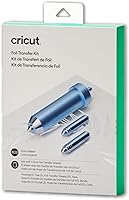
For foil, the Cricut Foil Transfer Kit works with Cricut Maker and Explore machines. It includes 12 foil sheets in gold and silver, 4 x 6 in each, plus fine, medium, and bold tips, a tool housing, and tape.
It uses pressure, not heat.
Use foil on cards, invites, and gift boxes. Tape the foil sheet over the card area, load the correct tip, and follow the Design Space prompts.
Peel after the machine stops to reveal the shine.
How do I load, unload, and care for mats and blades?
Load mats straight, unload by bending the mat not the material, and clean mats and blades before they fail. Good care keeps cuts clean and saves money.
Always load the mat through the rollers until the machine grips it. If the mat is crooked, unload and reload.
A crooked mat can waste a full sheet. Keep mats flat and store them covered.
Clean blades with a soft brush and check for tiny scraps around the tip. Change blades when cuts fray, drag, or leave tiny uncut bits.
A fine point blade suits most paper and vinyl work. Worn mats cause more bad cuts than bad settings.
If vinyl shifts or paper tears at corners, test a clean mat or a fresh grip level.
How do I fix common Cricut Explore 3 problems?
Most Explore 3 problems come from mats, blades, material settings, or Bluetooth pairing. Fix them in that order and you will solve most bad cuts.
If a cut will not start, check power, Bluetooth, and machine selection in Design Space. If the machine does not appear, turn Bluetooth off and on, move closer, and restart Design Space.
If vinyl tears, the blade may be dull, the setting may be too deep, or the mat grip may be too strong. If cardstock will not cut through, the setting may be too light, the blade may be worn, or the sheet may not sit flat.
If you came from an older machine, compare the flow in how to use cricut explore air 2. If you plan an upgrade, read how to use cricut explore 4 and how to use cricut explore 5 before you move your mats and tools.
Should I buy the Explore 5 bundle instead of staying with Explore 3?
Stay with Explore 3 if it cuts well and you only need vinyl, iron-on, and cardstock. Consider a newer bundle if you want digital content, fresh materials, and a more compact machine.
The Cricut Explore 5 Essential Bundle includes Smart Vinyl, Smart Iron-On, Value Cardstock, Insert Card Sets, and Printable Vinyl, plus bonus digital content. Cricut describes Explore 5 as a 12 in machine that precision cuts more than 100 materials.
That bundle suits new buyers more than Explore 3 owners who already own mats and blades. Explore 3 owners should spend first on mats, blades, vinyl, and cardstock.
If you want fabric cutting or rotary tools, compare the Maker line in how to use cricut maker 3.
What is the best first project for a new Explore 3 owner?
Start with a simple vinyl decal, a folded card, or a heat transfer shirt design. Pick one material, one mat, and one tool.
Finish it fully before you add pens, foil, or layers.
For a decal, cut text in vinyl, weed on the mat, add transfer tape, and apply it to a clean surface. For a card, cut cardstock, score the fold, and add a simple drawn detail.
For a shirt, cut iron-on with the shiny side down and follow the heat press steps for that material.
Keep first projects large enough to weed and apply by hand. Tiny text and tight layers hide setup errors.
Save each finished project in Design Space so you can remake gifts and party items.
How to Use Cricut Explore 3: quick checklist for every job
Use this checklist for how to use cricut explore 3 on every cut: clean mat, sharp blade, correct material, flat load, test run, then full cut. It beats guessing when a job fails.
- Confirm the machine is on and paired in Design Space.
- Place the material flat on the right grip mat.
- Load the mat straight and select the exact material.
- Insert the correct blade, pen, score, or foil tool.
- Run a test cut on scrap or a small design.
- Cut, unload, weed or remove, and store mats covered.
That simple routine is the core skill. Machines change, but mats, blades, and material settings decide most results.
Frequently asked questions
What is Cricut Explore 3 best for?
It is best for 12 in vinyl, iron-on, cardstock, paper, decals, stickers, cards, and simple layered crafts. It cuts, writes, scores, and foils with the right tools.
If you mainly need fabric or thick board, compare a Maker model before you buy extra blades.
How do I connect Cricut Explore 3 to my computer?
Turn on the machine, turn on Bluetooth, and open Design Space on a compatible computer or mobile device. Sign in, select your machine, and pair it when prompted.
Keep the machine near your device during setup so Bluetooth can find it reliably.
Can Cricut Explore 3 cut without a mat?
No. Most Explore 3 materials need a cutting mat, including vinyl, iron-on, and cardstock.
Smart materials may cut without a mat in some machines, but Explore 3 owners should plan on mats for normal projects.
Always check the material size and machine prompts before loading.
Why is my Cricut Explore 3 not cutting all the way through?
Start with a clean blade, a clean mat, and the correct material setting. Confirm the blade is seated, the material is flat, and the mat is fully loaded.
If cuts still fail, try a fresh blade or a new mat adhesive surface before changing settings again.