Cricut Maker vs Explore Air 2: Which Should You Choose? (November 2026)
Choose Cricut Maker 4 if you want the widest material and tool range; choose Explore Air 2 if your projects stay focused on common cutting tasks. Compare the materials you use most before deciding.
On this page (11 sections)
- Cricut Maker vs Cricut Explore Air 2: quick verdict
- How do the Cricut machines compare side by side?
- Which machine handles more materials?
- Do you need the Maker's extra tool functions?
- Which machine is better for printed stickers?
- What does each machine need from its cutting mats?
- Is Cricut Maker 4 too much for simple vinyl?
- Who should choose Cricut Maker 4?
- Who should choose Cricut Explore Air 2?
- What should you check before choosing?
- Cricut Maker vs Cricut Explore Air 2: final choice
Choose Cricut Maker 4 if you want the widest material and tool range; choose Explore Air 2 if your projects stay focused on common cutting tasks. In this Cricut Maker vs Cricut Explore Air 2 comparison, the right choice depends on how far your projects may grow beyond basic vinyl.
Cricut Maker 4 works with 300+ materials and supports cutting, drawing, foiling, scoring, engraving, debossing and perforating. Explore Air 2 may be enough for a crafter who mainly cuts familiar materials and doesn't need the broader range.
Your first decision should be the work you expect to do most often. If you need help understanding the category, start with our guide to what is a vinyl cutting machine.


Cricut Maker vs Cricut Explore Air 2: quick verdict
Cricut Maker 4 is the stronger choice for varied materials, printed stickers and projects that use more than basic cutting. Explore Air 2 is the simpler choice when your work stays within the cutting tasks and materials you already plan to use.
Maker 4's stated range covers leather, wood, vinyl, iron-on HTV, cardstock and stickers. It also supports functions beyond cutting, including drawing, foiling, scoring, engraving, debossing and perforating.
That extra range matters most when your craft plans are still changing. You may begin with labels and decals, then move into cards, iron-on designs, stickers or material experiments.
Explore Air 2 can still be sensible if your project list is narrow. A machine with fewer required decisions can be easier to choose when you already know the materials and finishes you want.
The key question is not which machine has the longer feature list. Ask whether you will use the additional material and tool options enough to justify choosing the broader platform.
How do the Cricut machines compare side by side?
Maker 4 has the clearer advantage in the product data available here because its material range and functions are defined. For Explore Air 2, confirm the exact tool and material compatibility needed for your projects before ordering.
| Factor | Cricut Maker 4 | Cricut Explore Air 2 |
|---|---|---|
| Best fit | Varied craft materials and functions | Common cutting projects |
| Material range | 300+ materials | Check against your project materials |
| Functions | Cuts, draws, foils, scores, engraves, debosses and perforates | Confirm the functions you need |
| Print-Then-Cut | Works with most inkjet printers | Confirm the printer workflow |
| Software | Design Space app | Confirm current software support |
| Active surface area | 270.25 sq in | Confirm the exact working area |
| Included Maker product | Fine-Point Blade, materials sampler, pen, Light Grip Mat, weeder and 30 bonus images | Not compared here |
The table shows why a direct feature count can be misleading. Maker 4 has a broad documented range, while your Explore Air 2 decision should be based on the specific projects you will make.
If you want a broader comparison between the product families, see Cricut Maker vs Explore. For the newer Explore model, read Cricut Maker vs Explore 5.
Which machine handles more materials?
Choose Maker 4 if you want to work across vinyl, leather, wood, iron-on HTV, cardstock and stickers. Its stated compatibility with 300+ materials gives you more room to change project types later.
A wider material range does not mean every project needs the Maker. It means you have fewer reasons to replace the machine when a new craft idea needs a different surface.
For example, a vinyl-focused crafter may only need smooth adhesive vinyl and transfer tape. Someone making layered cards, printed stickers, iron-on designs and heavier material projects may value the broader range more.
The material itself also affects setup. Paper and vellum call for light grip, while vinyl, cardstock and iron-on use standard grip on the compatible HTVRONT mats.
Heavy materials such as chipboard, leather and magnets call for strong grip, and fabric needs a fabric mat.
Use the Best Cricut Vinyl Cutters guide if vinyl remains your main material. It can help you compare the wider category before you decide that Maker 4's extra range is worth having.
Do you need the Maker's extra tool functions?
Buy Maker 4 when scoring, engraving, debossing, foiling or perforating is part of your plan. Stay with the simpler option if you only need to cut and occasionally draw.
Maker 4 is described as doing more than cutting. It can draw, foil, score, engrave, deboss and perforate, so it suits projects where the finish matters as much as the outline.
Those functions can change the kind of projects you design. Scoring can support folded paper work, while engraving, debossing and foiling can add a different surface effect than a cut vinyl layer.
The trade-off is planning. Before starting a project, identify the material, the required function and the compatible tool.
A broad machine is useful only when you can match those choices to the project.
A pen adapter may also matter if writing or drawing is central to your work. See our guide to the best Cricut Maker pen adapter before adding that part of your setup.
Which machine is better for printed stickers?
Maker 4 is the better fit for full-color stickers because it supports Print-Then-Cut with most inkjet printers. Check your printer and design workflow before making this the deciding factor.
Print-Then-Cut lets you create a printed design first, then use the cutting machine to follow the design. Maker 4's stated compatibility with most inkjet printers makes that workflow part of its appeal.
This feature matters if your stickers need colors, illustrations or detailed printed artwork rather than only cut vinyl shapes. It can also make a broader sticker range practical from one machine.
The printer remains part of the process. You need an inkjet printer that works with your design setup, and you should plan the print size, material and cut outline before starting.
If your stickers are simple single-color shapes, the extra workflow may not matter. If full-color designs are a regular goal, Maker 4 has the clearer documented advantage in this comparison.
What does each machine need from its cutting mats?
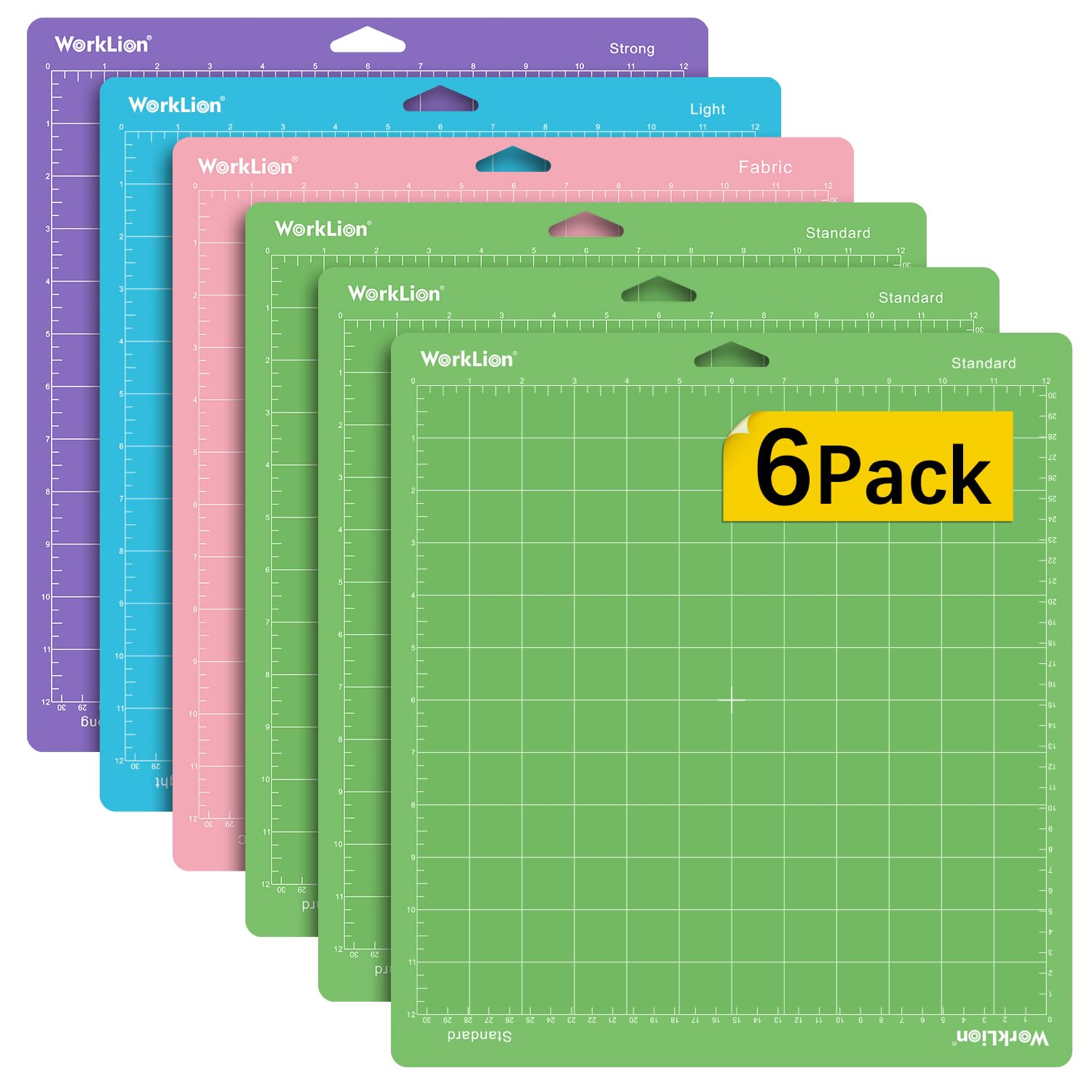
Use the mat grip that matches the material, and choose the HTVRONT set when you want several grip levels in one pack. The set includes 6 square mats measuring 12 x 12 in.
The pack contains 3 standard mats, 1 light mat, 1 strong mat and 1 fabric mat. The color-coded system identifies light as blue, standard as green, strong as purple and fabric as pink.
That variety helps when your projects move between paper, vinyl, cardstock, heavier materials and fabric. A single mat type is less flexible because too much grip can make delicate material harder to remove, while too little grip can let material shift.
HTVRONT states that the mats work with Cricut Maker and Explore Air 2. The set also includes a free scraper for removing excess pieces and a spatula for lifting cut images carefully.
{{product B08R8LDWV7}} The 6-pack gives Cricut Maker and Explore Air 2 users 4 grip levels for different materials, plus a free scraper.
The mats are made from PVC and should be wiped with a damp lint-free cloth, air dried completely and stored flat with the protective cover sheet in place. Avoid towel drying because lint can reduce the mat's useful grip.
Is Cricut Maker 4 too much for simple vinyl?
Maker 4 may be more machine than you need if every project is a basic vinyl cut. Its broader range becomes more useful when you expect to add cardstock, stickers, iron-on HTV, leather, wood or other materials.
Simple vinyl work often depends more on clean design setup, correct mat grip and careful material placement than on having every available function. If you already know that decals and labels are your main projects, a narrower machine choice can be reasonable.
Still, future plans matter. Some crafters begin with adhesive vinyl and later want shirts, cards, stickers or decorative materials.
Maker 4 reduces the chance that those changes will require a new machine.
Think about the next 12 months of projects, not just the first one. Write down the materials you expect to use, then mark which ones need cutting only and which ones need another function.
If the list stays short, Explore Air 2 may be enough. If the list keeps growing, Maker 4's 300+ material range offers more flexibility.
Who should choose Cricut Maker 4?
Choose Cricut Maker 4 if you want one machine for varied materials and multiple craft functions. It is the better fit for a growing project list that includes more than common vinyl cuts.
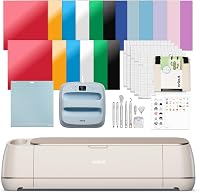
The bundle includes the Maker 4 machine, Fine-Point Blade, a materials sampler, Fine Point Pen, Light Grip Mat, weeder and 30 bonus images in Design Space. The sampler includes Smart Vinyl, Matless Vinyl, Smart Iron-On, Matless Heat Transfer Vinyl, cardstock and transfer tape.
That mix gives a new owner several material types to consider during setup. It also shows the difference between a machine intended for one material and a machine built around a wider craft system.
Maker 4 connects to the Design Space app. The free content library includes 3,000+ images and 100+ fonts, while the optional Cricut Access subscription adds access to a larger paid library.
{{product B0DTQBZ3J3}} Maker 4 suits varied projects with 300+ materials, multiple tool functions, Print-Then-Cut support and starter materials in the bundle.
The machine has a 270.25 sq in active surface area and measures 7.1 in deep by 22.1 in wide by 6.2 in high. Measure your work area before setup, including room for materials and the tools you plan to use.
Who should choose Cricut Explore Air 2?
Choose Explore Air 2 when your projects are centered on familiar cutting tasks and you don't need Maker 4's broader material range. It can be the more sensible match when your project list is stable and specific.
Start by checking your actual materials. List the vinyl, paper, cardstock, iron-on or other surfaces you expect to cut, then confirm that the exact machine and tool combination supports them.
Also check the functions you need. If your plans include engraving, debossing, foiling or perforating, Maker 4 has those functions stated in its product information.
If your plans only require standard cutting and perhaps drawing, the extra range may not affect your daily work.
The HTVRONT mats support both Cricut Maker and Explore Air 2, so mat replacement does not have to decide between these machines. Your grip choice still matters, especially when changing from paper to vinyl, cardstock or fabric.
For another nearby comparison, see Cricut Maker vs Cricut Joy. The smaller machine category may clarify whether you need broad capability or a more focused setup.
What should you check before choosing?
Choose by your next several projects, available workspace and required tools, then confirm compatibility before ordering. A short checklist can prevent you from paying for features you won't use or choosing a machine that limits your plans.
First, name the materials. Separate common vinyl and paper from projects involving leather, wood, fabric, stickers or iron-on HTV.
Next, name the functions. Cutting is only one part of the decision.
Decide whether you need drawing, foiling, scoring, engraving, debossing, perforating or Print-Then-Cut.
Then check your workspace. Maker 4 measures 7.1 x 22.1 x 6.2 in and has a 270.25 sq in active surface area.
Leave practical room for the machine, cutting mats and material handling.
Finally, plan care. Keep mats covered between uses, clean them with a damp lint-free cloth and let them air dry.
Match the grip level to the material instead of treating every project the same.
Laser accessories are not part of this Cricut choice, but readers who also use an engraver may want to compare the Best Air Assist For Laser Engraver and Do You Need Air Assist for a Laser Engraver? guides.
Cricut Maker vs Cricut Explore Air 2: final choice
Pick Cricut Maker 4 if you want broad material support, multiple tool functions and Print-Then-Cut with most inkjet printers. Pick Explore Air 2 if your projects stay with common cutting tasks and you have confirmed that its capabilities match your material list.
Maker 4's 300+ material range is the deciding advantage for a growing craft setup. Its included blade, pen, mat, weeder and materials sampler also give a new owner several project paths to explore.
Explore Air 2 makes more sense when simplicity and a known project list matter more than expansion. Don't choose by machine name alone.
Compare the exact materials, tools and functions you expect to use.
For the Cricut Maker vs Cricut Explore Air 2 decision, the best rule is simple: choose Maker 4 for future variety, and choose Explore Air 2 for a focused cutting routine that you have already confirmed.
Frequently asked questions
Is Cricut Maker better than Cricut Explore Air 2?
Cricut Maker is the better choice for varied materials and expanded tool functions. Cricut Maker 4 works with 300+ materials and can cut, draw, foil, score, engrave, deboss and perforate.
Explore Air 2 may suit you better if your projects stay with common vinyl, paper and cardstock tasks.
Can Cricut Maker and Explore Air 2 use the same cutting mats?
The HTVRONT 12 x 12 in cutting mats are compatible with Cricut Maker and Explore Air 2. The set includes standard, light, strong and fabric grip levels, so choose the mat type based on the material rather than using one grip for every project.
Which Cricut is better for vinyl projects?
Both machines can make sense for vinyl projects, but Cricut Maker 4 is the better long-term choice if you may add leather, wood, iron-on HTV, cardstock, stickers or other materials. If you only plan simple vinyl designs, Explore Air 2 may provide enough capability.
Does Cricut Maker work with an inkjet printer?
Cricut Maker 4 supports Print-Then-Cut with most inkjet printers. That makes it useful for full-color stickers and similar printed designs, provided your printer and design workflow fit the project.