How to Use a Sawgrass SG500 Printer
To use a Sawgrass SG500 printer, load sublimation ink and paper, prepare your artwork, print the transfer, and press it onto a compatible blank. Use coated sublimation paper and follow the correct settings for your transfer material.
On this page (10 sections)
- What do you need before using a Sawgrass SG500?
- How do you load paper into the Sawgrass SG500?
- How do you prepare artwork for the SG500?
- How do you print a transfer?
- How do you prepare the blank?
- What heat press should you use?
- How do you press the transfer?
- What common SG500 mistakes should you avoid?
- How do you care for the printer and work area?
- What is the simplest SG500 workflow?
To use a Sawgrass SG500 printer, load sublimation ink and paper, prepare your artwork, print the transfer, and press it onto a compatible blank. The basic workflow is simple, but paper choice, image direction, color settings, and heat application all affect the result.
The SG500 is a sublimation printer, not a general-purpose inkjet printer. Start with the official sublimation printer machine buying guide if you are still choosing equipment or comparing printer types.
What do you need before using a Sawgrass SG500?
You need the SG500, sublimation ink, coated sublimation paper, a compatible blank, heat-resistant tape, and a heat press. Your blank should be white or light-colored polyester, contain suitable polyester content, or have a coating made for sublimation.
Keep the printer on a stable surface with room for paper handling. Connect it according to the manufacturer’s instructions, install the required Sawgrass software, and complete any setup or alignment steps shown on screen.
Use sublimation ink only for sublimation transfers. For help comparing ink options, see the best sublimation ink for Sawgrass SG500.
How do you load paper into the Sawgrass SG500?
Load the coated side of the sublimation paper in the print direction shown by the paper maker. Paper orientation differs between products, so check the package instructions before loading a full stack.
Keep the sheets clean and dry. Handle them by the edges to reduce fingerprints, and avoid bending the paper before printing.
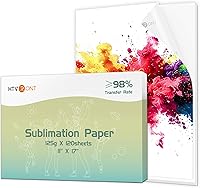
The A-SUB Sublimation Paper 8.5x11 Inch 110 Sheets is an option for projects that use standard letter-size transfers. It has 110 coated sheets, a 125g title weight, and is designed for sublimation ink rather than regular ink.
A-SUB describes this paper for white or light-colored polyester, materials with cotton content of 30% or less, and coated ceramic, tile, phone case, metal plate, tumbler, and mug surfaces. It is a practical match when you need a larger supply of letter-size sheets.
Choose paper based on the blank, transfer size, and the print settings available in your software. Read the best sublimation paper for Sawgrass SG500 before settling on a paper for regular production.
How do you prepare artwork for the SG500?
Prepare artwork at the size you want to press and leave enough space around the edges for trimming. Use a high-quality image with clear text and sharp lines, especially when printing logos or small lettering.
Mirror the artwork when the transfer process requires it. A mirrored print is placed face down so the finished design reads correctly after pressing.
Some transfer products use different instructions, so confirm the correct setting before printing.
Set the paper size to match the sheet in the printer. For an 8.5 x 11 inch sheet, select that size in the document and print settings.
A mismatch can shift the design or crop part of the image.
Use the Sawgrass software settings recommended for your ink, paper, and blank. If the software offers a profile for your material, select the closest approved option rather than guessing at color adjustments.
How do you print a transfer?
Print one transfer after checking paper orientation, image direction, sheet size, and ink settings. Send the design to the SG500, then remove the printed sheet by its edges.
Let the transfer dry as directed for the paper you use. Avoid rubbing the printed area, stacking fresh prints face to face, or placing the inked surface against a dirty worktop.
Trim close to the design when the blank needs a clean edge. You can use scissors for simple shapes or a cutting machine for more detailed outlines.
Avery Heat Transfer Paper, 8.5" x 11", for Dark Fabrics, 5 Sheets is made for dark-colored cotton and cotton/polyester fabrics with inkjet printers. It is an iron-on transfer paper rather than standard sublimation paper, so it suits a different project path.
Avery includes instructions and describes the paper for shirts, bags, gifts, and other fabric projects. It can be used with a standard iron or heat press, but it should not be treated as a substitute for sublimation paper in the SG500 workflow.
Choose this paper only when your project calls for an inkjet iron-on transfer on dark fabric. For a Sawgrass sublimation project, use paper designed for sublimation ink and a compatible blank.
How do you prepare the blank?
Prepare the blank by making sure its surface is clean, dry, and suitable for sublimation. Remove lint and loose debris, then place the printed transfer where you want the design to appear.
Use heat-resistant tape to hold the transfer in place when needed. Keep the printed side against the blank, and avoid shifting the paper once it is positioned.
Sublimation works best on white or light-colored surfaces because the process adds color but does not create an opaque white layer. A dark blank can change or hide the design.
Polyester fabric and coated hard goods need different handling. Follow the blank maker’s heat instructions for temperature, time, pressure, protective paper, and cooling.
What heat press should you use?
Use a heat press that gives you controlled temperature, time, and pressure. A flat press is useful for shirts, bags, mouse pads, and other flat blanks, provided the item fits the platen.
The Fancierstudio Digital Heat Press 15 x 15 Sublimation Rhinestone Heat T-Shirt Machine15x15 B/BLK has a 15 x 15 inch heat press sheet, electronic time and heat control, adjustable pressure, a silicon-gel base board, and a Teflon-coated heat platen. It uses 110 volts and 1800 watts.
Its upward-opening design can suit a workspace where front clearance matters. The stated temperature range is 0–699°F, while the upper temperature rating is 500°F, so follow the settings for your blank and press rather than choosing a temperature at random.
Place the blank flat, position the transfer, cover it as instructed, and close the press evenly. Keep hands clear of the heated platen and use ventilation appropriate for the materials in your project.
How do you press the transfer?
Set the press using the instructions for the blank, paper, and ink system. Temperature, time, and pressure must work together, so changing one setting can change the final result.
Press the transfer without sliding the paper. When the cycle ends, open the press carefully and remove the blank according to the cooling instructions for that material.
Do not judge a print only by the transfer paper before pressing. Sublimation ink changes when heated, and the final color depends on the blank, paper, heat, pressure, and design settings.
If the transfer has pale areas, inspect the contact between paper and blank. If the design is blurry, check for movement during pressing.
If colors look wrong, review the color profile, paper selection, ink, and blank compatibility.
What common SG500 mistakes should you avoid?
Avoid regular ink, regular paper, dark untreated blanks, incorrect paper orientation, unmirrored artwork, and movement during pressing. These mistakes can waste paper and blanks before you identify the cause.
Do not reuse a transfer sheet after pressing. Keep unused paper sealed and protected from moisture, and clean the printer and work area according to Sawgrass instructions.
If ink flow or print quality changes, use the printer’s approved maintenance process. Do not refill or replace cartridges based on guesswork.
See Sawgrass SG500 refillable ink cartridges for the cartridge question before changing your setup.
The SG500 is separate from a shipping label printer. If you also sell finished craft items, the guide to the Best Label Printer For Etsy Shop covers that different task.
How do you care for the printer and work area?
Keep the SG500 free from dust, paper scraps, and spilled ink. Store sublimation paper flat or as directed, and keep blank items clean before pressing.
Follow Sawgrass instructions for cartridge handling, cleaning cycles, software updates, and waste management. If you see an alert or waste-related message, use the correct replacement procedure.
The guide to the Sawgrass SG1000 waste collection unit covers a related maintenance part for the SG500 and SG1000 family.
Record the paper, blank, profile, temperature, time, and pressure used for successful projects. This gives you a repeatable starting point when you make the same item again.
What is the simplest SG500 workflow?
The simplest workflow is prepare a compatible blank, load sublimation paper, mirror the design when required, print, tape the transfer, and press it using the blank’s instructions. Start with one small project so you can check alignment and color before using several blanks.
Choose A-SUB paper for standard letter-size sublimation transfers. Choose the Fancierstudio press when a 15 x 15 inch flat pressing area and adjustable controls suit your workspace.
Choose Avery paper for a separate inkjet iron-on project on dark cotton or cotton/polyester fabric.
For the SG500, the key decision is compatibility. Match the ink, paper, blank, software profile, and heat settings before troubleshooting the finished transfer.
How do you use a Sawgrass SG500 printer successfully?
To use a Sawgrass SG500 printer successfully, use sublimation ink, coated sublimation paper, a suitable blank, mirrored artwork when required, and controlled heat pressing. Make one test transfer, note the settings, and repeat only after the design and color look correct.
Frequently asked questions
Can the Sawgrass SG500 print on regular paper?
The Sawgrass SG500 is intended for sublimation printing, so use sublimation ink with coated sublimation paper for transfers. Regular paper and regular ink do not create a sublimation transfer.
Choose paper that matches your design size and use a compatible blank for the finished project.
Do you mirror images on the Sawgrass SG500?
Follow the transfer paper and blank instructions for mirroring. Sublimation transfers commonly require a mirrored design because the printed side is pressed face down onto the blank.
Check the Sawgrass software settings and the instructions for your specific project before printing.
What can you sublimate with a Sawgrass SG500?
Use the SG500 with compatible sublimation blanks, such as white or light-colored polyester items and coated ceramic, metal, phone case, mug, and tumbler surfaces. The blank must have a suitable sublimation coating or polyester content for the image to transfer correctly.
Why is my Sawgrass SG500 print faded?
Faded results can come from the wrong ink, paper, color settings, heat-press settings, or blank. Confirm that you are using sublimation ink, coated sublimation paper, and a compatible blank.
Check the paper orientation, print settings, temperature, time, and pressure before changing the design.