How to Choose a Fiber and Diode Dual Laser Engraver
Choose a fiber and diode dual laser engraver by matching each laser source to your materials: use the fiber laser for metal work and the diode laser for wood, acrylic, leather and other non-metal jobs. Then check the work area, safety class, camera system and workflow before you buy.
On this page (11 sections)
- Why choose a fiber and diode dual laser engraver?
- Which laser source handles each material?
- How much power do you need for your projects?
- What work area should you look for?
- Do cameras make setup easier?
- Which dual laser machine features matter for production?
- Which accessory helps with cylindrical objects?
- How should you compare compact and larger machines?
- What controls can improve daily use?
- How do safety and maintenance affect the choice?
- What is the best way to choose your machine?
The right fiber and diode dual laser engraver depends on the materials you use most. Choose a machine with a fiber laser for metal work and a diode laser for non-metal materials, then compare the work area, power, safety class and workflow.
A dual-source machine can cover more jobs than a single laser, but it doesn't automatically suit every workshop. You still need to check the material, thickness, object size and safe operating method before starting a project.
This guide compares the main buying decisions and explains how the available xTool accessories fit around a dual-laser setup. For a wider starting point, read our guide to the Best Dual Laser Engraver options.
Why choose a fiber and diode dual laser engraver?
A fiber and diode dual laser engraver makes sense when your work spans both metal and non-metal materials. The fiber source handles metal-focused tasks, while the diode source covers materials such as wood, acrylic, leather, glass, rubber and fabric.
A single machine can therefore support several project types:
- Metal marking and deep engraving
- Color engraving on compatible metals
- Wood and acrylic engraving
- Non-metal cutting
- Leather, rubber and fabric processing
- Work that combines different material categories
The main benefit is material range in one workspace. You don't need to move every job to a different type of laser just because the material changes.
The trade-off is that you must learn which source fits each job. A fiber laser is not a universal replacement for a diode laser, and a diode laser is not a universal metal tool.
You should also consider the machine's safety class. The xTool F2 Ultra 60W MOPA & 40W is a Class 4 laser engraver, so it requires serious attention to enclosure use, operating procedures and laser safety.
The U.S. Food and Drug Administration explains basic laser product safety information in its laser products and safety guidance.
Choose a dual laser only when both material groups are part of your real workflow.
Which laser source handles each material?
Use the fiber laser for metal-focused work and the diode laser for many non-metal jobs. That division is the most important rule when choosing a dual laser engraver.
Fiber laser work
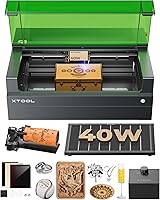
A fiber laser is designed around metal processing. The xTool F2 Ultra uses a 60W MOPA fiber laser for tasks that include metal marking, 3D deep engraving, color engraving and cutting up to 2 mm metal.
Its MOPA design gives control over pulse width and frequency. That matters when you need different metal effects, fine textures or more control over the appearance of a mark.
The product data also describes black marking on aluminum, laser cleaning and thin metal welding. Those functions may appeal to a workshop that handles metal signs, tools, jewelry components or personalized goods.
Diode laser work
The same machine includes a 40W diode laser for non-metal processing. The stated material range includes wood, acrylic, leather, glass, rubber and fabric.
The product data gives cutting limits of up to 20 mm acrylic and 23 mm wood. Treat those as machine claims and starting points, not as a promise for every material, color or design.
Glass, rubber and fabric can behave differently from wood or acrylic. Test settings on suitable material, use the correct ventilation method and follow the machine's safety instructions before processing a customer project.
Match the source to the material before you think about speed or output power.
How much power do you need for your projects?
Power should follow the work you plan to do, not a general desire for the largest number. A 60W MOPA fiber laser and 40W diode laser give the xTool F2 Ultra a wide range, but more output also comes with more responsibility.
The 60W fiber source is intended for demanding metal work. It supports metal marking, color effects, deep engraving and cutting up to 2 mm metal according to the product information.
The 40W diode source targets non-metal work. Its stated limits reach up to 20 mm acrylic and 23 mm wood, although the result depends on the specific material and the chosen settings.
Power affects more than the ability to cut. It can change:
- How quickly a job finishes
- How many passes a cut needs
- How much control you have over a deep mark
- The range of thicknesses you can attempt
- The amount of heat and smoke a job creates
More power doesn't remove the need for focus, material tests or ventilation. It also doesn't guarantee a clean edge on every board or sheet.
For a small shop doing light marking, a high-output dual system may be more machine than you need. For a shop handling metal personalization and thicker non-metal work, the extra range may justify the cost and space.
Choose the lowest power level that covers your confirmed jobs, then leave room for your busiest material.
What work area should you look for?
Choose a work area based on the largest object you expect to process, not the average item. The xTool F2 Ultra has an 8.7 x 8.7 in desktop fiber laser work area, expandable to 8.7 x 19.7 in with the auto conveyor.
That size can suit many small product jobs, signs, tags and personalized objects. It may not suit large panels or projects that need a broad single-pass layout.
The conveyor option changes the workflow for longer material. Instead of treating the whole job as one fixed square, you can process a longer piece through an expanded path.
Work area also affects how you position blanks. A camera may help you preview placement, but it doesn't make an object fit when the physical work area is too small.
Before choosing, write down the largest:
- Metal plate
- Wooden sign
- Acrylic sheet
- Leather panel
- Product batch
- Cylindrical item with a rotary tool
If your projects are mostly small gifts, jewelry pieces or compact signs, a desktop area may be enough. If you process long boards or repeated batches, a conveyor-compatible design deserves more attention.
Measure your largest real project and compare it with the usable work area.
Do cameras make setup easier?
Camera tools can make placement and preview easier, but they don't replace material checks or careful focusing. The xTool F2 Ultra uses dual 48MP AI cameras with stated positioning accuracy of 0.2 mm.
The product information says the cameras can help with material detection, settings suggestions, one-click focus and preview. That may reduce the number of manual steps between placing an item and starting a job.
A camera system is most useful when your work involves:
- Irregular placement
- Repeated blanks
- Small personalization areas
- Multiple objects in one setup
- Layouts that need precise alignment
You still need to inspect the material, confirm the correct laser source and check that the object is flat or secured. Camera accuracy also doesn't change the physical limits of the work area.
For batch work, consistent positioning can save time because you spend less effort lining up each item. For one-off projects, it may make the setup feel more direct without changing the basic safety steps.
Compare camera tools with the rest of the machine rather than treating them as the main reason to buy. A camera cannot compensate for the wrong laser source, an unsuitable material or an object that doesn't fit.
Use cameras to improve placement, but keep material choice and focus under your control.
Which dual laser machine features matter for production?
For production, prioritize repeatable setup, work area, speed and the ability to process several pieces in one run. The xTool F2 Ultra is described as operating at speeds up to 15,000 mm/s, with a work area that can expand through an auto conveyor.
The machine also has a stated 3D embossing time reduction of up to 80% compared with 20W fiber lasers. This is a manufacturer claim, so treat it as a performance target rather than a guaranteed result for every file or material.
A production-focused setup should answer four questions:
- Can the material fit without awkward repositioning?
- Can you repeat the same placement for the next item?
- Can the machine switch between the needed laser sources?
- Can you keep smoke, heat and access under control?
The dual-camera system may support repeatable positioning. The conveyor may help with longer work or batch processing.
The MOPA fiber source may help with detailed metal effects.
High speed is useful only when the rest of the workflow keeps up. If you spend more time loading, focusing or sorting than engraving, the advertised top speed won't define your daily output.
For occasional work, simple setup may matter more than maximum throughput. For orders, repeatability and material handling usually matter more than a single fast pass.
Choose production features around the full workflow, not the speed number alone.
Which accessory helps with cylindrical objects?
Choose a rotary attachment when you need to engrave around objects instead of across a flat surface.
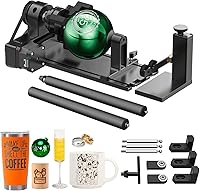
It is designed for cylindrical and rounded objects such as wine glasses, tumblers, baseball bats, rings, balls and mugs with handles. Its jaws can hold objects from 0 mm to 100 mm in diameter, while the separate support module helps with irregular cylinders.
The RA2 Pro uses an anodized aluminum alloy construction and has an adjustable Z-axis and chuck diameter. Its maximum vector engraving speed is stated as 360 degrees per second, with a minimum angle of 0.45 degrees.
Compatibility includes xTool S1, F1, F1 Ultra, P2, D1 Pro and M1 Ultra, plus most laser engravers according to the product information. It must be used with a riser.
A rotary tool adds flexibility, but it also adds alignment and object-support steps. Measure the item, secure it correctly and confirm that the attachment fits your machine before planning a job.
For a closer comparison of machine choices, see xTool F1 Ultra vs F2 before selecting a compact or larger setup.
Add a rotary only when rounded objects are a regular part of your work.
How should you compare compact and larger machines?
Compare compact and larger machines by object size, material range and how often you change jobs. A smaller machine may suit personalized goods and limited bench space, while a larger dual-laser system may better fit metal work, non-metal cutting and batch orders.
The xTool F2 Ultra measures 16.88 x 11.57 x 20.51 in and weighs 67.9 lb. That makes placement a real planning step, especially if your workbench, doorway or storage area is tight.
A compact system can make sense when your projects are small and your main need is quick access to two laser sources. A larger machine may make more sense when you need a wider material range, a larger work area or stronger production capacity.
Ask yourself:
- What is the largest object you process now?
- What material do you expect to add next?
- Will the machine stay in one place?
- Do you need a conveyor for longer pieces?
- Is the safety class suitable for your workspace?
- Can you keep the correct clearance and ventilation?
Don't choose based on the machine's footprint alone. Leave space for loading, cleaning, cable access, material storage and safe operation.
Our xTool F1 laser engraver review can help if your projects lean toward a smaller xTool format.
Choose the machine that fits your workspace and your next real project, not an imagined maximum.
What controls can improve daily use?
A simple control can help when you repeatedly start jobs, adjust placement or handle batches.
It uses a push button, manual operation and a normally open contact. The switch has a one-way circuit, screw terminals and a metal contact material, with a lightweight aluminum alloy design described for the product.
This accessory is not a second laser source or a material-processing upgrade. Its value is in the control step, especially when you want a direct physical button during repeated engraving work.
Check compatibility before ordering. The listed compatible devices are specific, so don't assume that a similar xTool model will use the same switch.
An accessory like this can help reduce repeated reaching during a batch, but it doesn't remove the need to supervise the machine. Keep your hands, clothing and other objects clear of the active work area.
If you are comparing machines and control layouts, our xTool F2 Ultra vs F2 Ultra UV comparison covers another decision between related systems.
Use a button switch to simplify control, not to replace supervision.
How do safety and maintenance affect the choice?
Safety should be part of the buying decision from the first comparison. The xTool F2 Ultra is a Class 4 laser engraver, with a 60,000 mW fiber laser output and 40,000 mW diode laser output stated in the product information.
Class 4 equipment requires careful control of access, reflections, materials, smoke and operating procedures. Read the machine's safety instructions before use, and keep the workspace arranged so you can stop or supervise the process safely.
General care includes:
- Keeping the work area clear
- Checking that material is suitable
- Removing residue according to the machine instructions
- Inspecting the rotary attachment before use
- Keeping the camera view and working surface clean
- Checking cables and connectors
- Using the correct focus and material settings
- Keeping ventilation and smoke control in place
Don't assume that a familiar material is always safe in every form. Coatings, adhesives and mixed materials can change how a job behaves.
The dual-laser design also means you must confirm which source is active before processing. A setting suited to wood may be wrong for metal, and a metal-focused job may not belong on the diode source.
Safety should influence where the machine lives, who can operate it and what projects you accept. If those conditions are not ready, delay the job until they are.
Choose a dual laser only when you can support its safety class and care needs.
What is the best way to choose your machine?
The best fiber and diode dual laser engraver is the one that covers your materials without creating a workflow or safety problem. Start with the laser-source split, then narrow the choice by work area, power, cameras, rotary needs and production pace.
Use this decision path:
- Choose dual-laser technology if you work with both metal and non-metal materials.
- Confirm that the fiber source covers your metal tasks.
- Confirm that the diode source covers your wood, acrylic or other non-metal jobs.
- Compare the largest object with the work area.
- Check whether a conveyor is useful for longer work.
- Decide whether camera positioning will save time.
- Add the RA2 Pro only if cylindrical or rounded objects matter.
- Add the Button Switch only if compatible manual control will help your batch workflow.
- Confirm the safety class, space and ventilation plan.
- Test suitable material settings before accepting a final job.
The xTool F2 Ultra suits buyers who want a 60W MOPA fiber laser and 40W diode laser in one machine, with camera tools, a desktop fiber work area and optional conveyor expansion.
The xTool RA2 Pro suits users who need rotary work across cylinders, spheres and rings. The xTool Button Switch suits compatible xTool users who want a simple manual control for repeated operation.
Choose the fiber and diode dual laser engraver that matches your actual material list, then build accessories around the jobs you really do.
Frequently asked questions
What is a fiber and diode dual laser engraver?
A fiber and diode dual laser engraver combines a fiber laser for metal work with a diode laser for many non-metal materials. The two sources let you switch between jobs such as metal marking, wood engraving, acrylic cutting and leather work, but you still need to confirm each material and setting before processing it.
Is a dual laser engraver better than a single laser?
A dual laser engraver can be more useful than a single laser when your work includes both metal and non-metal materials. It may reduce the need for two separate machines, but it can cost more, require more space and bring added safety and setup requirements.
What should I engrave with the fiber laser?
Use the fiber laser for compatible metal work such as marking, color engraving, deep engraving and some cutting tasks. A MOPA fiber laser adds control over pulse width and frequency, which can help with fine metal effects, but material compatibility and safe settings still matter.
What should I engrave with the diode laser?
Use the diode laser for many non-metal jobs, including wood, acrylic, leather, glass, rubber and fabric when the machine and material are compatible. Diode output can also support thicker non-metal cutting than a small marking laser, but the stated thickness limits vary by material.
Do I need a rotary attachment for a dual laser engraver?
You need a rotary attachment when you want to engrave around cylindrical, spherical or ring-shaped objects. A rotary tool can help with items such as tumblers, wine glasses, mugs, balls and rings, but it adds setup steps and must match the machine and object size.