How to Replace the Epson F170 Maintenance Box
Epson F170 maintenance box replacement means removing the full waste ink box and installing the correct replacement, commonly identified as S210125. Turn off the printer, replace the box carefully, and follow the printer's prompts before resuming work.
On this page (8 sections)
- When does the Epson F170 need maintenance box replacement?
- What should you prepare before replacing the box?
- How do you replace the Epson F170 maintenance box?
- What should you check after installing the new box?
- Which related products help with a sublimation workspace?
- How can you prevent maintenance problems?
- What should you do with the old maintenance box?
- What is the final Epson F170 maintenance box replacement checklist?
Epson F170 maintenance box replacement is a simple part swap: remove the full waste ink box, install the correct replacement, and follow the printer's instructions to clear the warning. The part is commonly identified as the Epson F170 maintenance box S210125.
The maintenance box collects waste ink from printer cleaning and related service routines. It isn't the same as an ink bottle, paper feed part, or ink cartridge, so identify the part before starting.
If you're still choosing an Epson sublimation printer, our guide to sublimation printer machine options explains the main features to compare. For F170-specific setup questions, see our epson f170 sublimation printer reviews.
When does the Epson F170 need maintenance box replacement?
Replace the Epson F170 maintenance box when the printer shows a maintenance-box warning or stops a maintenance function. A warning may appear before the box is completely full, giving you time to obtain the replacement.
The box stores waste ink produced during automatic cleaning and other maintenance routines. It is designed to be replaced as a unit, so don't pour out the contents or attempt to rinse and reinstall it.
Keep the printer's model information nearby when ordering. A similar-looking maintenance box from another Epson printer may not be the right part for the F170.
What is the Epson F170 maintenance box S210125?
The Epson F170 maintenance box S210125 is the replacement waste ink container associated with the F170. Treat the S210125 number as an identification point, then compare it with the printer's documentation and the part packaging.
The F170's maintenance box is separate from the ink used for sublimation printing. If you need to check ink choices, read what ink the Epson F170 uses.
What should you prepare before replacing the box?
Prepare the replacement box, a clean work surface, and a disposable cloth or paper towel. The cloth helps protect the surface if a small amount of waste ink is present around the old box.
Save the printer's instructions until the replacement is complete. You'll want the exact access panel, release method, and confirmation steps for your unit.
Before touching the box, stop the printer normally and wait until moving parts finish. Do not pull on the power cord while the printer is active unless the instructions specifically tell you to do so.
How do you replace the Epson F170 maintenance box?
Turn off the printer, open the maintenance-box access area, remove the old box, and insert the new one in the same orientation. Use gentle pressure and stop if the box does not slide into place.
- Turn off the Epson F170 using its power control.
- Wait for the printer to finish shutting down.
- Open the access cover for the maintenance box.
- Remove the retaining piece or fastener, if your unit uses one.
- Pull the old box straight out without tipping it.
- Place the old box on the protected surface.
- Insert the replacement box fully and evenly.
- Refit the cover and any retaining piece.
- Turn the printer on and follow the on-screen confirmation steps.
The old box may contain waste ink, so keep it upright. Avoid touching the ink around the opening, and wash your hands if contact occurs.
Do not force the cover closed. A box that is not seated correctly can prevent the printer from recognizing the replacement or can leave the access panel unsecured.
What should you check after installing the new box?
Confirm that the warning clears and that the printer returns to its normal ready state. If the warning remains, turn the printer off and check that the new box is fully seated and that the cover is closed.
Don't start a large sublimation job immediately if the printer shows another maintenance message. Read that message first and complete the requested step.
Run only the checks allowed by the printer's instructions. Avoid creating extra cleaning cycles just to test the new box, since cleaning uses ink and sends more waste ink to the maintenance system.
Paper quality also affects routine printing. See our guide to the best sublimation paper for Epson F170 before choosing paper for future jobs.
Which related products help with a sublimation workspace?
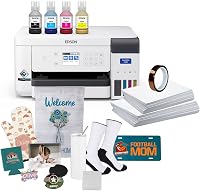
These products serve different printing tasks, so choose based on your workflow rather than treating them as replacements for an Epson F170 maintenance box. If you are choosing an F170 printer setup, compare Epson F170 sublimation bundles.
The Epson EcoTank ET-15000 is an all-in-one printer with printing, faxing, copying, and scanning. It has Wi-Fi, USB 2.0, and LAN connectivity, prints up to 17 pages per minute in black and white and 9 pages per minute in color, and supports media up to 11 x 17 in.
Its listed dimensions are 29.6 in deep, 19.6 in wide, and 14.3 in high, with a 26.5 lb weight. Measure your available space before selecting any wide-format printer.
The Liene M100 is a 4 x 6 in photo printer that uses thermal dye sublimation. It includes 100 sheets of photo paper and 3 color cartridges, supports smartphones, laptops, and PCs, and uses a built-in hotspot for wireless printing.
The Liene M100 prints up to 4 x 6 in and measures 7.48 in deep, 9.84 in wide, and 7.48 in high. Its stated weight is 200 g, so it suits a smaller print station better than a wide-format setup.
The Epson EcoTank ET-2800 combines color printing, scanning, and copying in a compact all-in-one design. It uses refillable ink tanks, connects through Wi-Fi, and prints up to 10 pages per minute in black and white and 5 pages per minute in color.
The ET-2800 measures 14.8 in deep, 22.8 in wide, and 10 in high, and it supports media up to 8.5 x 14 in. Epson recommends genuine ink for this model, so follow its ink guidance when planning ongoing care.
How can you prevent maintenance problems?
Use the printer's normal maintenance controls and respond to warnings before they become shutdowns. Avoid repeated cleaning cycles unless the printer instructions or print condition calls for them.
Keep the printer on a stable, level surface and protect the access area from dust. Store paper in a clean, dry place so paper debris does not add to routine feed or print problems.
For broader equipment care, our laser cutter maintenance schedule and checklist shows how planned checks can reduce avoidable interruptions. The same habit applies to sublimation equipment: record warnings, cleaning, and part changes.
If you use more than one type of printer, our guide to the Sawgrass SG1000 waste collection unit explains that another sublimation printer can use a different waste-collection part and replacement process.
What should you do with the old maintenance box?
Keep the old box upright and dispose of it according to local waste rules. Do not empty it into a sink, do not trash it while leaking, and do not reuse it in the printer.
Seal the old box in a bag if ink is present on its exterior. This helps contain any residue while you move it to a safe holding area.
Keep the sealed box away from children, pets, food, and fabric until you can dispose of it safely. Waste ink can stain surfaces and should not be treated like ordinary household rubbish.
Place the box on a stable surface while it waits, with the opening facing up. Do not stack items on top of it or tilt it to check the contents.
Check your local guidance for ink waste disposal before you throw it away. Some areas have specific rules for printer consumables and contaminated packaging.
Wash your hands after handling the box, especially if you touched the opening or nearby parts. Avoid touching your face or clothing until you have cleaned up.
A maintenance box is a consumable service part, not a refillable container. It should not be stored as a backup after the printer has reached its service limit.
Recording the replacement date and part number can help you plan the next change. Clear notes make it easier to compare the warning timing with your printing routine.
What is the final Epson F170 maintenance box replacement checklist?
For Epson F170 maintenance box replacement, identify S210125, power down normally, replace the box upright, close the access cover, and confirm that the warning clears. If the message remains, check seating and the cover before repeating the replacement.
Start by checking the printer model and the part number on the replacement packaging. Confirm that S210125 matches your F170 documentation before you open the access area.
Power down the printer using its normal control and wait for it to finish shutting down. This gives moving parts time to stop and reduces the risk of disturbing the box during removal.
Prepare a clean, protected work surface and a disposable cloth before you begin. The cloth can catch a small amount of waste ink if residue is present around the old box.
Open the maintenance box access cover and remove any retaining piece your unit uses. Pull the old box straight out without tipping it, then place it upright on the protected surface.
Insert the replacement box fully and evenly, using the same orientation as the old box. Refit the retaining piece and close the cover without forcing it.
Turn the printer on and follow the on-screen confirmation steps until the maintenance warning clears. If another message appears, read it fully before starting any print job.
Avoid running extra cleaning cycles just to test the new box, because cleaning uses ink and sends more waste ink to the maintenance system. Use only the checks allowed by the printer instructions.
Note the replacement date, part number, and any messages you saw during the change. A short record helps you spot patterns the next time the printer reports a full box.
Choose the correct paper and ink for the F170 and keep the workspace tidy for future jobs. For laser projects that share your workspace, How to Design & Make a Laser Cut Wood Box offers a separate project guide.
Frequently asked questions
What maintenance box does the Epson F170 use?
The Epson F170 maintenance box is commonly identified as S210125. Confirm the part number against your printer documentation and the replacement packaging before ordering, because a maintenance box must match the printer model.
How do you know the Epson F170 maintenance box is full?
The printer normally displays a maintenance-box warning when its waste ink container needs attention. Replace it when prompted rather than trying to empty, wash, or reuse the box, because the printer tracks the box as a replaceable maintenance part.
Can you keep printing with a full Epson F170 maintenance box?
You should replace the Epson F170 maintenance box when the printer reports that it is full or nearly full. Continuing without replacing it can stop printing and may allow waste ink to spill inside the printer.
How often should you replace the Epson F170 maintenance box?
There is no single replacement interval for every user. The timing depends on cleaning cycles, ink use, and other maintenance activity, so follow the F170 warning and replace the box when the printer requests it.