9 Best Laser Engravers for Plastic (November 2026)
The best laser engravers for plastic include the xTool S1 40W Laser Cutter and Laser for large flat projects, the BlazeX M3 10W Laser Engraver Machine for camera-guided placement, and the xTool F2 5W IR & 15W Diode for switching laser types.
On this page (7 sections)
- How we chose the best laser engravers for plastic
- Compare laser engravers for plastic by laser and work area
- Which laser engravers suit different plastic jobs?
- What should you check before engraving plastic?
- Which laser type fits a plastic engraving job?
- How do cameras, enclosures and work areas affect the choice?
- Which plastic laser engraver should you choose?
The best laser engraver for plastic depends on the plastic, laser type and mark you need. The xTool F2 combines IR and diode lasers, while the xTool M2 can take an optional IR module for fine engraving on plastic.
Plastic is a broad category, not a single laser material. A machine that can mark one kind of acrylic may not suit clear acrylic, polycarbonate, PVC or a coated plastic.
Use this roundup to compare the machines by their stated features, then verify the exact material before you run a job. For acrylic-specific options, see our Best Laser Engraver For Acrylic guide.
Our picks at a glance
-
1
-
2
 Best for camera-guided placement
BlazeX M3 10W Laser Engraver Machine
9.4/10 our score
See it on Amazon -
3

- 4
 Best for an optional IR upgradeCheck it
 - 5
 Check it
Creality Falcon 5W Laser Engraver Machine
Best for a wide flat work area - 6
 Check it
Twotrees TTS-55 Pro Laser Engraver 5500mW Laser
Best for hobby projects with air assist - 7
 Best for fine-detail acrylic workCheck it
 - 8
 Check it
Twotrees TTS-10 Pro Laser Engraver
Best for dark acrylic and coated plastics - 9
 Check it
Twotrees TTS-20 Pro Laser Engraver
Best for larger diode projects
How we chose the best laser engravers for plastic
We compared the listed laser types, stated material compatibility, work areas, positioning features and safety details. Plastic compatibility is specific to the material, so a broad claim such as “works with plastic” is not enough to confirm a safe, clean result.
We gave more weight to products that name a relevant plastic or offer a laser type suited to the intended mark.
The scores weigh listed specs and features against the needs of someone shopping for a plastic laser engraver. They do not guarantee a particular result on an unverified material.
Compare laser engravers for plastic by laser and work area
The xTool S1 has the largest stated bed here, while the xTool F2 and M2 offer multiple laser options. Compare the material match first, then use bed size and workflow features to narrow your choices.
| Product | Best for | Laser power | Bed size | Max engraving speed | Our score |
|---|---|---|---|---|---|
| xTool S1 40W Laser Cutter and Laser | large flat projects | 40W | 23.93 x 15.16 in | 600 mm/s | 9.5 |
| BlazeX M3 10W Laser Engraver Machine | camera-guided placement | 10W | 9.4 | ||
| xTool F2 5W IR & 15W Diode | switching laser types | 9.4 | |||
| xTool M2 10W Laser Engraver | an optional IR upgrade | 9.3 | |||
| Creality Falcon 5W Laser Engraver Machine | a wide flat work area | 9.2 | |||
| Twotrees TTS-55 Pro Laser Engraver 5500mW Laser | hobby projects with air assist | 5.5W | 9.2 | ||
| ACMER S2 Laser Engraver | fine-detail acrylic work | 9.0 | |||
| Twotrees TTS-10 Pro Laser Engraver | dark acrylic and coated plastics | 8.9 | |||
| Twotrees TTS-20 Pro Laser Engraver | larger diode projects | 20W | 8.4 |
Which laser engravers suit different plastic jobs?
The strongest choice depends on what you need to mark, the exact plastic and whether the job is large, detailed or repeated. These picks cover different workflows, but none removes the need to verify the material.
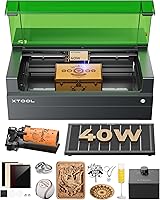
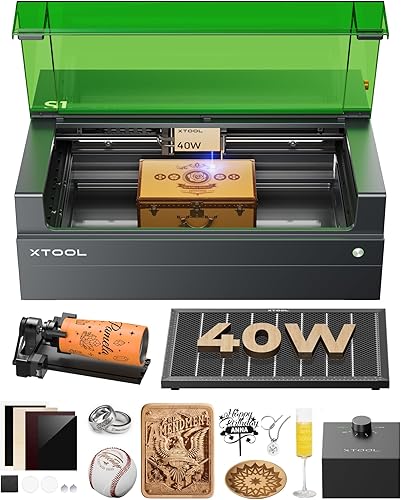
xTool S1 40W Laser Cutter and Laser: Best for large flat projects
- 40W laser
- 23.93 x 15.16 in bed
- Up to 600 mm/s engraving speed
- Enclosed design
A large bed and enclosed design suit sizable flat work. Confirm that your specific plastic is compatible before engraving.
Pros
- Large stated bed size
- Auto-focus and material settings in XCS
- Enclosed design with lid-open stop
Cons
- Plastic compatibility needs checking by material type
- Large projects need room for the machine
The xTool S1 suits larger flat jobs, with a 23.93 x 15.16 in bed and speeds up to 600 mm/s. The enclosed body, auto-focus and xTool Creative Space software may make setup easier when you need repeatable layouts.
Its listed material examples include acrylic, but the right result depends on the exact plastic formulation and color. Confirm compatibility and safe handling before choosing it for a plastic laser engraving machine setup.
The bed size is useful for batches or wider panels, but it also calls for enough workbench space. xTool describes a protective cover, lid-open stop and flame sensors, though you should still follow the machine's operating instructions.
BlazeX M3 10W Laser Engraver Machine: Best for camera-guided placement
- 10W laser
- Smart camera guidance
- Protective enclosure
- 13 engraving materials included
Camera previews help position designs on the work surface. Its stated material range includes acrylic, but check the exact plastic you plan to mark.
Pros
- Camera preview for placement
- Enclosure and honeycomb bed included
- Compatible with LightBurn and CutLabX
Cons
- Plastic types beyond acrylic need confirmation
- Optional accessories expand the setup
The BlazeX M3 is a camera-guided option for placing designs on small blanks or pre-cut pieces. Its smart camera previews the design on the work surface, and the bundle includes an enclosure, honeycomb bed and 13 engraving materials.
The machine is described for acrylic, but that does not guarantee compatibility with every plastic. Check the exact material and intended mark before starting, especially if you plan to engrave anything beyond the named examples.
LightBurn and CutLabX support give you two software options for preparing work. The enclosure and exhaust fan can help manage light and smoke, but confirm that the ventilation plan suits the material and your workspace.
xTool F2 5W IR & 15W Diode: Best for switching laser types
- 5W IR and 15W diode lasers
- Built-in 50MP camera
- Up to 0.1 mm alignment accuracy on small pieces
- Enclosed design
The dual-laser setup offers two marking approaches, and the camera helps align small workpieces. Match the laser to the plastic and intended mark before buying.
Pros
- Combines IR and diode lasers
- Camera preview for small pieces
- Built-in material presets
Cons
- Specific plastic compatibility needs confirmation
- Class 4 laser requires suitable safety controls
The xTool F2 makes sense when you want both a 5W IR laser and a 15W diode in one desktop unit. Its built-in camera helps align small parts, and xTool includes material presets to guide setup.
The provided compatibility details describe the laser's wider material range but do not name each plastic type. Ask xTool whether the specific plastic and finish are suitable before you buy it for that job.
The enclosed design is described as Class 4, so follow its safety instructions and use appropriate protection. The camera and fast operation are useful for small-batch personalization, but speed does not replace a material test.
xTool M2 10W Laser Engraver: Best for an optional IR upgrade
- 10W diode laser
- Dual cameras
- Class 1 enclosed design
- Optional 3W IR laser sold separately
The standard diode setup covers many craft materials, while the optional IR module is intended for fine engraving on plastic and metal. The module is an extra purchase.
Pros
- Dual-camera workspace preview
- Optional IR module for plastic marking
- Enclosed Class 1 design
Cons
- IR module is not included
- Confirm the specific plastic's compatibility
The xTool M2 is a camera-guided craft machine with a standard 10W diode laser and a separately sold 3W IR option. The IR module is described for fine engraving on plastic and metal, making this a flexible route if you want to add that capability later.
The module is not included with the standalone M2, so account for it when comparing setups. Confirm that your plastic type and desired mark are supported before relying on the upgrade.
Its enclosed Class 1 design and dual cameras focus on workspace visibility and protection. The M2 also supports a wide range of craft workflows, though the plastic job still needs its own material-specific settings and safety check.
Creality Falcon 5W Laser Engraver Machine: Best for a wide flat work area
- 5W laser output
- 400 x 415 mm work area
- Up to 10,000 mm/min speed
- Eye-protective cover
Its broad work area suits larger flat items. The stated material range includes acrylic, so verify suitability for your exact plastic.
Pros
- Large work area for a desktop engraver
- Supports offline use
- Rotary roller and risers can be added
Cons
- 5W output may not fit every marking job
- Rotary roller and risers are extra
The Creality Falcon 5W offers a 400 x 415 mm work area, useful when your plastic blanks are wider than a typical small desktop piece. Its stated materials include acrylic, and the maker describes an eye-protective cover and motion stop.
The listed material examples don't confirm every plastic. Check the exact type before use, and consider whether 5W output fits the detail and depth you need.
A rotary roller and risers are optional if your projects include cylindrical or taller objects. This open-frame style also means you need to plan the work area and protective setup carefully.
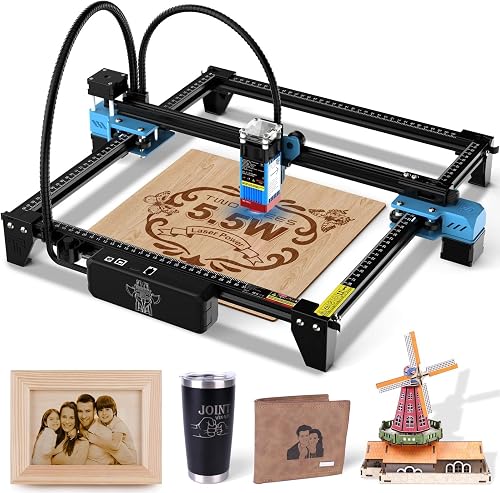
Twotrees TTS-55 Pro Laser Engraver 5500mW Laser: Best for hobby projects with air assist
- 5.5W laser
- 300 x 300 mm work area
- Metal air-assist nozzle
- Up to 30,000 mm/min speed
Air-assist support and a 300 mm square work area suit smaller maker projects. Confirm the plastic type and marking method before using it.
Pros
- Air-assist nozzle included
- Supports offline TF card engraving
- Compatible with LightBurn and LaserGRBL
Cons
- Plastic compatibility is not specified by type
- Open-frame setup needs careful safety planning
The Twotrees TTS-55 Pro is a compact frame with a 300 x 300 mm work area and a metal air-assist nozzle. Its stated compatibility includes acrylic, along with wood, leather, paper and stainless steel.
Air assist can help with cutting work, but plastic type still determines whether this is the right tool. Confirm suitability for the exact material and marking method before running a job.
This model supports LightBurn and LaserGRBL, plus TF card offline engraving. The open frame needs a suitable enclosure or protective setup for your workspace and material.
ACMER S2 Laser Engraver: Best for fine-detail acrylic work
- 7W laser output
- 0.08 x 0.08 mm laser spot
- 300 x 300 mm work area
- Engraves acrylic and coated metal
The fine spot and stated acrylic compatibility may suit detailed marks on compatible acrylic. Check the material and color before planning a job.
Pros
- Fine stated laser spot
- Supports ACMER Studio, LightBurn and LaserGRBL
- Optional enclosure and air assist
Cons
- Plastic types beyond acrylic need confirmation
- Open-frame base setup needs added safety care
The ACMER S2 is aimed at detailed work, with a 0.08 x 0.08 mm laser spot and stated compatibility with acrylic. Its 300 x 300 mm area provides room for small signs, labels and craft blanks.
The material guidance does not identify every plastic type, so treat acrylic as the named example and verify other plastics separately. A fine spot describes the beam, not a guaranteed mark quality on any given surface.
ACMER Studio, LightBurn and LaserGRBL are supported. The machine also has an anti-UV shield and motion detection auto-pause; use suitable ventilation and follow the material safety guidance.
Twotrees TTS-10 Pro Laser Engraver: Best for dark acrylic and coated plastics
- 10W optical power
- 300 x 300 mm work area
- Wi-Fi, USB and TF card options
- Supports LightBurn and LaserGRBL
The blue diode is described for acrylic and coated materials, including dark glass and coated metal. Check the exact plastic; bare or clear materials may need a different approach.
Pros
- Three connection options
- Offline TF card engraving
- Air-assist pump and tubing included
Cons
- Not recommended for bare stainless steel without preparation
- Plastic compatibility depends on type and color
The Twotrees TTS-10 Pro is a 10W blue diode engraver for dark acrylic and coated materials. Its 300 x 300 mm area fits smaller jobs, and Wi-Fi, USB and TF card options provide flexible ways to send work.
The product guidance warns against bare stainless steel without marking spray or surface preparation. For plastic, the relevant point is to identify the coating and base material, then confirm the expected result before choosing this machine.
LightBurn and LaserGRBL are supported, and an air-assist pump with tubing is included. Its open-frame format calls for careful planning around eye protection, fumes and access to the work area.
Twotrees TTS-20 Pro Laser Engraver: Best for larger diode projects
- 20W diode laser
- 418 x 418 mm work area
- Up to 30,000 mm/min speed
- Wi-Fi, USB and TF card options
A large work area fits broad flat projects, and its stated material range includes plastic. Confirm the specific plastic and intended mark before choosing it.
Pros
- Large 418 mm square work area
- Supports Wi-Fi, USB and offline TF card work
- Air assist can be added
Cons
- Air assist is not included in the standard package
- Compatibility varies by plastic type
The Twotrees TTS-20 Pro combines a 20W diode laser with a 418 x 418 mm work area. Its material examples include plastic, acrylic and coated stainless steel, making it a candidate for larger flat jobs once the exact plastic is confirmed.
The large work area can help reduce repositioning for wide designs. Air assist and a honeycomb panel are optional, so check what accessories your planned workflow needs.
It supports Wi-Fi, USB and TF card engraving, with LightBurn and LaserGRBL compatibility. Choose it for size and diode power only after verifying the material's suitability and the safe method for processing it.
What should you check before engraving plastic?
Check the plastic's exact type, the laser wavelength it responds to and the kind of mark you want. Then confirm ventilation, enclosure and machine settings for that material.
Some plastics absorb laser energy differently from others, and coatings can change the result. If the material is unidentified, pause the job until you can confirm its composition and safety guidance.
For broader cutting considerations, read our guide to choosing a laser cutter for plastic. If you're still learning the process, How Does a Laser Engraver Work? explains how the machine turns a design into a mark.
Which laser type fits a plastic engraving job?
A diode laser may work with some dark plastics and acrylics, while an IR laser may suit certain fine marks on other plastics. For another wavelength option, compare our UV laser engraver guide.
The exact answer depends on the material and finish, so match the machine to manufacturer guidance rather than assuming one laser works on all plastic.
A dual-laser model such as the xTool F2 offers both IR and diode options. The xTool M2 can add an IR module separately, while the diode models here name acrylic or coated materials as examples.
A plastic suitable for engraving is not automatically safe to cut or heat in the same way. Use the material's safety information and the machine's approved guidance for the exact task.
How do cameras, enclosures and work areas affect the choice?
A camera helps position a design, an enclosure can help control laser exposure and smoke, and a larger bed accommodates wider pieces. These features improve workflow, but they don't confirm plastic compatibility by themselves.
For repeat jobs, camera previews can make placement easier. For larger work, compare the dimensions of the blank with the machine's usable area and leave space for any required fixture or ventilation setup.
If your project is a rubber stamp rather than a plastic blank, compare the Best Laser Engraver For Rubber Stamps recommendations. Material-specific guidance matters because rubber and plastic can need different handling.
Which plastic laser engraver should you choose?
Choose the xTool F2 if you want both IR and diode lasers in an enclosed desktop machine, or the xTool M2 if you prefer a diode base with an optional IR upgrade. For larger flat pieces, compare the xTool S1 and Twotrees TTS-20 Pro by bed size.
If you already know the plastic is compatible with a diode, the Twotrees TTS-10 Pro names dark acrylic and coated materials as examples. For any plastic laser engraver, verify the exact type, mark and ventilation needs before you start.
Our top 3 picks at a glance
-
1
-
2
Best for camera-guided placement
BlazeX M3 10W Laser Engraver Machine
9.4/10 our score
See it on Amazon -
3
Frequently asked questions
Can a laser engraver mark any type of plastic?
No. Plastic types respond differently to laser wavelengths and heat, and some can release harmful fumes when heated.
Identify the exact material first, then check the machine maker's compatibility guidance and the plastic maker's safety information before engraving.
Do not assume that a machine described for acrylic is suitable for every plastic.
Is a diode or IR laser better for plastic?
It depends on the plastic and the mark you want. A diode may work on some acrylics and coated plastics, while infrared can be useful for certain fine marks on plastic.
Check compatibility for the exact material and color, then choose a machine that supports the needed laser type.
Can a diode laser engrave clear plastic?
A blue diode laser may not mark clear plastic well because the beam can pass through transparent material. Results depend on the plastic, surface and marking method.
Check material guidance first, and consider a different laser type or a material made for laser marking if the diode is unsuitable.
How do I choose a plastic laser engraving machine?
Start with the plastic's exact name, then match it to a laser type and an intended mark, such as a surface mark or cut. Compare the work area, enclosure, camera and software only after confirming material compatibility.
Ventilation and safe handling also matter when heat is applied to plastic.
What safety steps matter when engraving plastic?
Use only plastics confirmed as suitable for your machine, and follow the material and machine safety instructions. Keep the work area ventilated and use an enclosure and exhaust setup appropriate to the material.
Stop if you cannot identify the plastic or confirm how its fumes should be managed.