How to Use a Brother Sublimation Printer
To use a Brother sublimation printer, prepare the artwork, load sublimation paper correctly, print with sublimation ink, and press the transfer onto a coated blank. Use the correct temperature, time, pressure, and blank instructions for each project.
On this page (10 sections)
- What do you need before using a Brother sublimation printer?
- How do you prepare artwork for sublimation?
- How do you load sublimation paper?
- What ink does a Brother sublimation printer use?
- How do you print a sublimation transfer?
- How do you use a heat press for sublimation?
- Can you use heat transfer paper with a sublimation printer?
- How do you press a shirt or hard blank?
- What mistakes should new Brother sublimation owners avoid?
- How do you choose supplies for your first project?
To use a Brother sublimation printer, prepare the design, load sublimation paper, print with sublimation ink, and apply the transfer to a compatible blank with a heat press. The result depends on correct paper loading, mirrored artwork when required, and heat settings that match the blank.
Sublimation is a transfer process for white or light-colored polyester materials and specially coated blanks. Before buying supplies, review our guide to the sublimation printer machine so the printer, ink, paper, and blank all fit the same workflow.
What do you need before using a Brother sublimation printer?
You need a Brother sublimation printer, compatible sublimation ink, sublimation paper, a suitable blank, design software, heat-resistant tape, and a heat press. A clean workspace also helps keep lint and dust away from the printed transfer.
Use a white or light-colored polyester item for fabric projects. For hard goods, choose a blank with a sublimation coating, such as a coated mug, tumbler, tile, phone case, or metal plate.
Do not treat ordinary copy paper as a substitute for sublimation paper. For the Brother SP1, compare the best Brother sublimation printer paper before choosing a paper size and finish.
Which paper works with a Brother sublimation printer?
Sublimation paper made for sublimation ink is the correct choice. The paper needs to hold the printed design until heat transfers the ink into the polyester or coating.
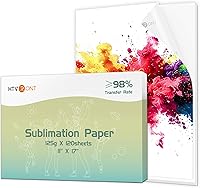
A-SUB Sublimation Paper 8.5x11 Inch 110 Sheets is an 8.5 x 11 inch coated paper with 110 sheets. Its product information specifies sublimation ink only and lists use with white or light-colored polyester, materials with cotton content of 30% or less, and coated ceramics, tiles, phone cases, metal plates, tumblers, and mugs.
Choose this paper when your design fits an 8.5 x 11 inch sheet and your blank matches its stated material range. It is not the right paper for regular ink, and the printer must use sublimation ink for the transfer process.
How do you prepare artwork for sublimation?
Create the artwork at the size of the blank, then check colors, edges, and text before printing. Leave enough space around the design for trimming and positioning.
Measure the printable area of the blank rather than relying only on its advertised size. A tumbler, mug, tile, and shirt each need a different layout because their surfaces curve or have seams.
Mirror the artwork if the transfer method requires it. Text and directional logos are the most obvious problems when a design reaches the blank backward, so check the print dialog before sending the job.
Save the final design in a format your software supports. Keep an unmirrored copy for editing, then create the mirrored print version separately so you can reuse the original layout later.
How do you load sublimation paper?
Load the paper according to the printer's feed direction and print on the coated side. The printable side matters because the coating holds the sublimation ink before pressing.
Handle the sheet by its edges. Fingerprints, dust, and moisture can affect the printed area, especially on a design with large blocks of color.
Set the paper size in the design software and printer dialog. If the sheet is 8.5 x 11 inches, both settings should match that size when your printer supports it.
Feed one sheet first if you are learning the paper path. Confirm that it moves straight through without curling or catching before printing a larger batch.
What ink does a Brother sublimation printer use?
A Brother sublimation printer needs compatible sublimation ink, not regular inkjet ink. Sublimation ink is designed to transfer into suitable polyester or coated surfaces under heat.
For more detail about the Brother SP1, read what ink the Brother SP1 sublimation printer uses. Do not mix ordinary ink into a sublimation workflow, because regular ink does not produce the same heat-transfer result.
If you are unsure whether an ink can be used in a particular printer, see can sublimation ink be used in any printer. Printer compatibility should be confirmed before filling or changing an ink system.
How do you print a sublimation transfer?
Choose the correct paper size, mirror the artwork when needed, and print on the coated side using sublimation ink. Let the transfer dry as instructed before placing it on the blank.
Check the preview for missing edges, backward text, and unexpected scaling. A design that looks correct on screen can still print at the wrong size if the software adds a border or scales it to fit.
Keep the printed side clean. Avoid touching the design, folding the paper, or placing it face down on a dusty surface.
Trim close to the artwork when the blank requires clean edges. For larger designs, heat-resistant tape can hold the transfer in place and reduce movement during pressing.
How do you use a heat press for sublimation?
Set the temperature, time, and pressure for the blank and transfer instructions, then press on a stable, heat-safe surface. The correct settings change with the material, coating, thickness, and shape of the blank.
A digital heat press can make time and temperature easier to set consistently, but it does not replace the instructions for the specific blank. Preheat only as directed, and keep hands away from the hot platen.
The Fancierstudio Digital Heat Press 15 x 15 Sublimation Rhinestone Heat T-Shirt Machine15x15 B/BLK has a 15 x 15 inch heat press sheet, 110-volt power, 1800 watts, electronic time and heat control, adjustable pressure, and a Teflon-coated heat platen. Its listed temperature range is 0–699°F, with an upper temperature rating of 500°F.
This press suits projects that fit within a 15 x 15 inch working area. Its upward-opening design can save space, while the adjustable pressure helps you set up different materials.
Place it where you have room for the 33 x 23 x 20 inch machine dimensions.
For a combined setup, compare how to choose a sublimation printer and heat press bundle. If your project needs larger transfers, see which sublimation printer prints 13x19 transfers.
Can you use heat transfer paper with a sublimation printer?
Heat transfer paper and sublimation paper are different supplies for different transfer methods. Do not assume that paper made for inkjet iron-on projects is interchangeable with sublimation paper.
Avery Heat Transfer Paper is 8.5 x 11 inch paper for dark fabrics, with 5 sheets in the pack. It is designed for inkjet printing on dark-colored cotton and cotton/poly fabrics, and it works with standard irons and heat presses.
This Avery paper fits an inkjet iron-on workflow, not a standard sublimation transfer workflow. It may help when your project is a dark cotton shirt, while sublimation is better suited to white or light-colored polyester and coated blanks.
Follow the paper's instructions for cutting and applying the design. If you want to compare blank options for another project, see the best tumbler blanks for sublimation and laser.
How do you press a shirt or hard blank?
Secure the transfer, protect the press, and use the blank's recommended settings. Keep the design aligned before closing the press because movement can blur edges or create a shadow.
For shirts, place the transfer on a smooth, lint-free area and check that seams, collars, and pockets do not create uneven pressure. For tumblers and mugs, use equipment and settings designed for the curved shape.
After pressing, let the item cool as directed before removing the paper. Some materials need a warm peel, while others need to cool first, so follow the blank and transfer instructions.
Do not judge the finished color before the transfer process is complete. Sublimation ink changes as it moves from the paper into the heated polyester or coating.
What mistakes should new Brother sublimation owners avoid?
The most common mistakes are using the wrong ink, printing on the wrong side, skipping the mirror setting, and pressing an unsuitable blank. A careful setup check prevents most wasted transfers.
Avoid these errors:
- Using regular ink with sublimation paper.
- Printing on the uncoated side.
- Forgetting to mirror text or directional artwork.
- Pressing onto dark cotton with sublimation paper.
- Choosing a blank without a sublimation coating.
- Using heat settings from a different blank.
- Moving the transfer while the press is closed.
- Ignoring the printer's paper-size setting.
Keep the printer area dry and free from dust. Store paper flat and handle it by the edges so the coated surface stays clean.
How do you choose supplies for your first project?
Match the paper, ink, blank, and heat settings before you print. Start with a simple white or light-colored polyester item or a coated hard blank that fits your press.
Choose A-SUB when you need 8.5 x 11 inch sublimation sheets and your project uses sublimation ink. Choose Avery when you need inkjet iron-on paper for dark cotton or cotton/poly fabric.
Choose the Fancierstudio press when a 15 x 15 inch working area suits your transfers.
For a small shop, a label printer may help with shipping tasks after production. Our guide to the best label printer for an Etsy shop covers that separate workflow.
A Brother sublimation printer works best when every part of the process matches: compatible ink, coated paper, suitable blanks, accurate artwork, and blank-specific heat settings. Start with one test design, record the settings that suit the material, and adjust only one part of the process at a time.
Frequently asked questions
Can you use regular printer ink for sublimation?
No. Sublimation paper requires sublimation ink, and regular ink does not work for this process.
Use paper and ink made for a compatible sublimation printer, then transfer the printed design to a suitable coated or polyester blank with heat.
Do sublimation designs need to be mirrored?
Mirror the design when the blank or transfer instructions require it, especially for text and directional artwork. Check the Brother software and the instructions for your paper and blank before printing, because transfer methods can differ.
What paper size should you use in a Brother sublimation printer?
Use a paper size supported by your Brother printer and selected in the print settings. The A-SUB paper in this guide is 8.5 x 11 inches, so it suits projects designed for that sheet size when the printer accepts it.
What can you sublimate with a Brother printer?
You can sublimate onto suitable white or light-colored polyester materials and coated blanks made for sublimation. Examples include coated ceramic, tile, phone cases, metal plates, tumblers, and mugs, but each blank needs its own heat settings.