How to Refill Epson F170 Ink Tanks
Epson F170 ink refill starts with the correct Epson bottle for each tank color. Prepare the printer, match the bottle label to the tank, refill slowly, and confirm the ink level before printing.
On this page (6 sections)
Epson F170 ink refill requires the correct Epson sublimation bottle for each tank color. Prepare a clean work area, match the bottle label to the tank, refill slowly, and confirm the level before sending another transfer job.
This guide is for people who run regular transfer jobs and want a calm refill routine that protects color output. A careful refill takes a few minutes, but it can prevent a spoiled batch of blanks.
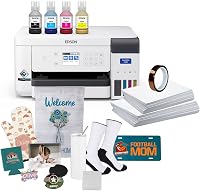
The F170 is a dedicated sublimation printer, so the refill process is not the same as topping up a general office inkjet. If you are comparing complete setups, see Epson F170 sublimation bundles.
The ink, the bottle format, and the printer checks are made for sublimation work.
That difference matters because sublimation ink behaves differently in the printer and on transfer paper. Use only the bottle type the F170 calls for, and do not swap in ordinary inkjet ink.
Before buying supplies, read what ink the Epson F170 uses and confirm the bottle type for your exact printer. Check the name on the bottle against the manual, not just the color in your hand.
Keep the work area clear of blanks, paper, and drinks before you start. A clean, level surface makes it easier to hold the bottle upright and watch the tank level.
Set out only the color you need to refill, so you are not sorting through several open bottles at once. This simple step reduces the chance of a wrong-color refill.
Work slowly and stop at the fill guidance for the tank. Overfilling does not help the printer, and it makes leaks and cleanup more likely.
After the refill, close the cap securely and check the printer display before you print. That pause is worth it when the next job uses valuable blanks.
What should you check before an Epson F170 ink refill?
Check the bottle model, color, and printer instructions before opening any bottle. Set out only the color you plan to refill, keep the printer level, and protect the work surface from ink.
Start with the printer manual and the labels on the bottles. The manual is the source for access steps, status checks, and any maintenance that should follow a refill.
Do not rely on a bottle's shape or cap color alone. Read the printed label and compare it with the tank marking, including the model guidance for the F170.
Model and color checks both matter. The right color in the wrong bottle format is still the wrong supply, and it can create a service problem.
If the bottle does not clearly match the Epson F170 and the needed color, stop and verify it through Epson's official support page. Do not force a bottle that does not fit naturally.
Keep paper, transfer blanks, food, and drinks away from the refill area. Paper near wet ink can pick up color, and a spill on a blank is wasted work.
Wear clothing that can handle a stain, and keep a clean disposable cloth nearby for small drips. A cloth within reach is better than searching for one after ink has spread.
Place the printer on a stable, level surface before you open anything. A level printer helps you read the tank level and keeps the bottle position steady.
Check each tank in turn and note which color is actually low. Refilling a tank that does not need ink adds risk without any benefit.
Keep other colors closed and out of the way until their turn comes. One bottle at a time keeps the label check simple and reduces mix-ups.
Read the fill guidance before you begin, so you know when to stop. Stopping at the mark is part of a clean refill, not a suggestion to fill to the top.
If the printer needs to be on for a status check, follow the manual's direction for that step. Do not guess at power or access steps when the instructions are available.
Take a moment to confirm the work surface is protected and dry. Ink on a glossy or porous surface can be hard to remove and can transfer later.
How do you refill Epson F170 ink tanks?
Refill one tank at a time, using the matching bottle and a slow, controlled motion. Follow the F170 manual for the exact access steps, cap position, and fill guidance.
- Place the printer on a stable, level surface.
- Check the tank color and bottle label before opening the bottle.
- Open the correct tank access area as shown in the manual.
- Hold the bottle upright and position it without forcing the connection.
- Let ink flow slowly and watch the tank level.
- Stop at the printer's fill guidance instead of overfilling.
- Close the tank cap and access cover securely.
- Repeat only after checking the next color.
Never guess a color from memory. Cyan, magenta, yellow, and black bottles should go into their matching tanks, and a wrong-color refill can create a larger service problem than a low tank.
If a bottle does not fit naturally, do not press harder. Recheck the bottle model, tank color, and printer instructions before continuing.
How can you avoid Epson F170 ink spills?
The safest refill setup is clean, level, and slow. Keep the bottle upright, avoid squeezing it, and close the tank before moving to another color.
Open only one bottle at a time. Place the cap where it will not touch the work surface, and do not leave an open bottle beside the printer while you work.
Holding the bottle upright keeps the flow controlled and makes it easier to stop at the fill guidance. Squeezing the bottle can speed the flow in a way you cannot undo.
Watch the tank level as ink enters, and pause if the flow looks uneven. A slow refill is easier to manage than a sudden surge.
If ink reaches the outside of the tank or printer, stop and clean the area according to Epson's instructions. Do not allow wet ink to spread into buttons, electrical openings, or paper paths.
Use a clean disposable material for cleanup and avoid spreading the ink farther. Check the cap and the surrounding area after cleaning before you continue.
Do not move the printer while a tank is open or while ink is wet on the surface. Moving it can turn a small drip into a wider spill.
Close the tank cap and access cover fully before you reach for the next color. A closed tank is one less open surface that can be knocked or splashed.
Store remaining bottles upright and closed in a suitable place. Keep the label visible so you can identify the color and bottle type later.
Keep stored bottles away from the refill area so they are not knocked over during the job. Upright, closed, and labeled is the safest routine between refills.
How do you confirm the refill worked?
Check the tank level and printer display before printing. A visible refill does not replace the F170's own status checks or any required maintenance steps.
After closing the tank, inspect the cap and surrounding area for seepage. Make sure the cover is shut, then follow the printer's instructions for checking ink status, cleaning, or nozzle verification.
If the printer reports an ink issue, do not keep printing through repeated warnings. Check that the correct bottle was used, the tank cap is closed, and the access cover is fully seated.
For transfer work, paper choice affects the finished result too. Compare the options in best sublimation paper for Epson F170 before changing settings or blaming the refill.
Which printer products fit related printing needs?
The following products solve different printing problems, so they are not replacements for the Epson F170. The Epson models use refillable tanks for general color printing, while the Liene model is a small photo printer with proprietary cartridges.
The Epson EcoTank ET-15000 prints, faxes, copies, and scans, with Wi-Fi, LAN, and USB 2.0 connectivity. It supports media up to 11 x 17 inches and has a 250-sheet front tray plus a rear specialty-paper feed.
It suits a home office that needs a wider media size and several office functions. It is a poor fit if you specifically need the SureColor F170's dedicated sublimation workflow.
The Liene M100 is made for 4 x 6 inch photo printing rather than Epson F170 tank refills. It connects through its built-in hotspot, supports up to 5 simultaneous connections, and works with its proprietary cartridges.
It suits quick phone photo printing when you want a small print size and app-based controls. It does not use Epson F170 bottles, so do not treat its cartridges as sublimation supplies.
The Epson EcoTank ET-2800 combines color printing, scanning, and copying in a compact black printer. It uses refillable tanks, supports Wi-Fi and USB, and handles media up to 8.5 x 14 inches.
It suits basic home or office printing where a smaller all-in-one is useful. Epson recommends genuine ink for this model, and its ink system is separate from the Epson F170's sublimation workflow.
For other Epson conversion questions, read what to know before using an Epson ET-15000 for sublimation. You can also compare the best sublimation ink for Epson ET-15000 and the best sublimation ink for Epson ET-2803 when evaluating related equipment.
What should you do after refilling Epson F170 ink?
After an Epson F170 ink refill, confirm the color levels, close every cap, and run the printer's recommended check before a large transfer job. Start with a small test print if the instructions call for one.
Keep the printer's manual nearby for maintenance alerts and refill guidance. If you see unusual color output, missing lines, or an ink warning, pause the job and check the bottle match and tank closure.
Choose the F170 bottle made for the printer, refill only the matching tank, and protect the work area from spills. For a broader equipment decision, start with sublimation printers: the complete buying guide or read Epson F170 sublimation printer reviews before changing your setup.
Frequently asked questions
What ink does the Epson F170 use?
The Epson SureColor F170 uses Epson dye-sublimation ink bottles made for the printer. Match every bottle to the color and model guidance shown in the printer manual or Epson support instructions before opening it, because ordinary inkjet ink is not a substitute for sublimation ink.
How do you refill Epson F170 ink tanks?
Turn on the printer if the manual directs you to do so, open the correct tank access area, match the bottle color, and refill slowly without forcing the bottle. Stop at the tank's fill guidance, close the cap securely, and check the printer display before printing.
Can you mix different sublimation inks in an Epson F170?
Avoid mixing ink brands or formulas in the Epson F170 unless Epson specifically permits it. Different inks can affect color output, clogging, and printer operation, so use the correct Epson bottle type and follow the printer's instructions for changing or replenishing ink.
How do you prevent spills during an Epson F170 ink refill?
Keep the printer level, place it on a protected surface, and handle one bottle at a time. Check the color before opening, keep the bottle upright, avoid squeezing it, wipe any spill with an appropriate disposable material, and close the tank before moving to another color.