How to Choose a Laser for Cutting Metal
The best laser for cutting metal depends on the metal type, thickness, and finish you need: a MOPA fiber laser is the strongest fit for steel cutting, while a diode machine suits lighter engraving and mixed-material work. Compare power, workspace, safety, and setup before you choose.
On this page (10 sections)
- What type of laser is best for cutting metal?
- How much power do you need for steel?
- What should you know about laser cutting steel?
- Which machine suits a metal-focused workshop?
- Can a diode laser cut or mark metal?
- Is a large bed more important than metal power?
- What safety features matter for metal laser work?
- Which software and positioning tools help?
- How do you compare speed, size, and batch work?
- Which laser should you choose for your projects?
The best laser for cutting metal is usually a fiber laser when steel cutting is the main job. A diode laser can still suit metal marking and mixed projects, but you should match its stated material range and power to the work you actually plan to do.
Steel places more demand on a machine than wood, leather, or acrylic. You need to think about the metal type, thickness, cut depth, edge quality, work area, software, ventilation, and laser safety before comparing product names.
This guide explains the main choices and then compares three machines with different strengths. For a broader look at the material itself, start with our guide to can you laser cut metal.
What type of laser is best for cutting metal?
A MOPA fiber laser is the strongest choice for regular metal cutting, especially when your work includes steel, stainless steel, brass, titanium, or other metals. Diode lasers are more useful for marking, engraving, and mixed-material projects where metal cutting is occasional.
The laser source changes what the machine can do. A fiber laser sends concentrated energy into metal, while a diode laser is often chosen for wood, acrylic, leather, and surface work on some metals.
A fiber laser makes more sense when you need:
- Steel cutting as a regular part of your work
- Deeper metal engraving
- Marking on stainless steel, aluminum, brass, or titanium
- Color engraving on metal
- More control over pulse width and frequency
- A machine built around metal-focused work
A diode laser may be enough when you mainly cut wood and acrylic, then add occasional metal engraving. It can cost less to operate as a general craft machine, but its metal-cutting ability may be much narrower.
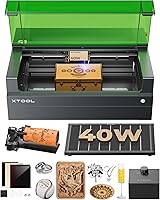
The xTool F2 Ultra combines a 60W MOPA fiber laser and a 40W diode laser, so it covers both metal work and non-metal cutting. The Creality Falcon 10W and xTool S1 40W are more mixed-use choices, with their product information emphasizing wood, acrylic, leather, and engraving alongside metal work.
Choose the laser source before comparing extra features.
How much power do you need for steel?
For steel cutting, power is only useful when you know the stated cutting thickness and laser type. A 60W MOPA fiber laser is a more direct fit for metal cutting than a 40W diode laser, because the xTool F2 Ultra specifically states that its fiber laser can cut up to 2 mm of metal.
Power labels can be confusing. The Creality Falcon is titled as a 10W laser engraver, while its product information also describes an effective 72W machine output.
Those numbers do not mean the same thing, so avoid comparing them as if they were identical measurements.
The xTool F2 Ultra gives the clearest metal-specific limit in this group:
- 60W MOPA fiber laser
- Up to 2 mm metal cutting
- 3D deep engraving
- Color engraving
- Black marking on aluminum
- Metal work involving gold, silver, stainless steel, brass, titanium, and more
The xTool S1 has a 40W laser and is described for wood and metal engraving, along with large cutting projects. Its product information does not give a metal cutting thickness, so treat it as a mixed-material machine rather than assuming it will cut steel at a particular depth.
The Creality Falcon 10W is described as working with metals, but its listed one-pass cutting examples are 12 mm wood and 5 mm black acrylic. Those figures should not be transferred to steel.
Use a stated metal thickness as your buying limit, not the watt number alone.
What should you know about laser cutting steel?
Steel cutting requires you to confirm the exact steel type, thickness, finish, and process supported by the machine. Stainless steel, mild steel, coated steel, and thin sheet can behave differently, so a general phrase such as “works with metal” is not enough.
The xTool F2 Ultra is the only option here with a stated metal-cutting depth. Its 60W MOPA fiber laser can cut up to 2 mm metal, and the product information specifically names stainless steel among the metals it can process.
That still does not mean every steel job will have the same result. Your design, settings, surface condition, and required edge finish all affect the process.
Start with small samples and record the settings that give you the result you need.
For a diode machine, separate surface marking from through-cutting. A machine may engrave or mark metal without being suitable for cutting a steel sheet.
This distinction matters for signs, tags, panels, brackets, and other parts where the laser must pass fully through the material.
The xTool S1 can engrave wood and metal and has a large bed, but its product information does not state a steel-cutting thickness. The Creality Falcon works with metals and many other materials, yet its stated cutting examples focus on wood and black acrylic.
Never assume a metal engraving claim means steel cutting capability.
Which machine suits a metal-focused workshop?
Its dual-laser design gives you a 60W MOPA fiber laser for metal and a 40W diode laser for non-metal materials.
The F2 Ultra supports metal cutting up to 2 mm, along with 3D deep engraving, color engraving, black marking on aluminum, laser cleaning, and thin metal welding. It also supports work on gold, silver, stainless steel, brass, and titanium.
Its MOPA system gives you control over pulse width and frequency. That matters when you want different tones, fine details, layered reliefs, or color effects rather than one simple mark.
The machine has an 8.7 x 8.7 in working space, expandable to 8.7 x 19.7 in with the auto conveyor. Its stated speed reaches 15,000 mm/s, and dual 48MP cameras support positioning accuracy to 0.2 mm.
The trade-off is size and class. It weighs 67.9 lb, measures 16.88 x 11.57 x 20.51 in, and is a Class 4 laser.
The machine includes the xTool F2 Ultra Dual laser machine and a base material kit.
Pick the F2 Ultra when metal capability is the main reason you are buying.
Can a diode laser cut or mark metal?
A diode laser can be useful for metal engraving and mixed-material cutting, but you should not treat every diode model as a steel-cutting machine. The Creality Falcon and xTool S1 show how diode machines can serve broader craft workflows.
Creality Falcon 10W for mixed materials
The Creality Falcon 10W suits a buyer who wants one machine for wood, acrylic, leather, fabrics, and metal-related projects. It has a 15.7 x 16.3 in workspace and a stated work speed of up to 10,000 mm/min.
{{product B0D9VWCHM8}} Choose this machine for a broad craft workspace and work across wood, acrylic, leather, fabrics, and metals, with LightBurn or LaserGRBL support.
Its compressed laser spot measures 0.06 x 0.06 mm. The product information also gives a 72W effective power figure, a 32-bit chip, and stated accuracy within 0.004 in for engraving or cutting.
The cutting examples are specific: up to 12 mm wood boards and 5 mm black acrylic in one pass. Do not use those limits as a promise for steel.
The product is described as working with metals, but it does not provide a steel thickness limit.
The Falcon supports more than 200 material types and works with LightBurn on listed Windows systems and LaserGRBL on Windows, Mac, and Linux. It also supports offline creation with an SD card.
Its module has an anti-UV acrylic filter described as reducing 97% of ultraviolet rays, and the machine includes goggles. It weighs 10.93 lb.
Pick the Falcon for mixed craft work where metal is one material, not the whole workflow.
Is a large bed more important than metal power?
A large bed matters when your projects are wide, repeated, or difficult to reposition. Metal power comes first for steel cutting, but workspace becomes critical for signs, panels, batches, and large layouts.
The xTool S1 has a 23.93 x 15.16 in bed and reaches speeds up to 600 mm/s. That gives it the largest stated bed in this comparison and makes it appealing for large wood, acrylic, and mixed-material projects.
{{product B0CQ84BDTX}} Choose this machine when a large 23.93 x 15.16 in bed, 40W power, and rotary-bundle format matter more than a stated steel-cutting thickness.
The S1 can cut up to 18 mm cherry wood in one pass according to its product information. It can also engrave at a stated speed of up to 600 mm/s and handle projects such as door signs or up to 119 dog tags in one go.
Its AutoPassthrough Technology supports projects up to 118 in, or 3,000 mm. Pin-point Positioning supports curved-surface engraving, including spoons and plates.
The product information describes the S1 for wood and metal engraving, acrylic, tumblers, and large projects. It does not state a metal cutting thickness, so do not choose it solely for cutting steel.
The S1 is 86.8 lb and measures 19.6 x 19.6 x 0.04 in in the supplied product dimensions. It uses corded electric power and comes in a Black Rotary configuration.
Choose a larger bed only after confirming that the laser source fits your material.
What safety features matter for metal laser work?
The right safety setup depends on the laser class, enclosure, smoke control, fire detection, and the material you process. Treat a Class 4 fiber laser as a serious workshop tool and follow the machine's safety instructions every time.
The xTool F2 Ultra is a Class 4 laser. Its product information identifies the fiber output as 60,000 mW and the diode output as 40,000 mW.
That class calls for disciplined access control and a setup appropriate for high-power laser work.
The xTool S1 is described as Class 1 with a protective cover that filters 99% of laser light. Its enclosed design is also described as blocking smoke and noise, with 5 flame sensors, an emergency stop button, and a lid-open stop feature.
The Creality Falcon uses an anti-UV acrylic filter on the laser module and includes goggles. The product information describes the filter as reducing 97% of ultraviolet rays.
These features are not interchangeable. Goggles, an enclosure, a filter, and a flame sensor each address different risks.
You still need to control the work area, keep the material flat, and use suitable ventilation for smoke and fumes.
Do not process an unknown coating just because the base material is steel. Some finishes can create harmful fumes or unexpected results.
Match safety controls to the laser class and material, then follow the manufacturer's instructions.
Which software and positioning tools help?
Software matters because repeatable cuts depend on accurate design placement, focus, settings, and material records. Choose the machine that supports the software and workflow you will actually use.
The Creality Falcon supports LightBurn on Windows 7, Windows 8, Windows 10, and Windows XP, as well as LaserGRBL on Windows, Mac, and Linux. It also supports offline creation through an SD card.
The xTool F2 Ultra uses dual 48MP AI cameras. Its product information describes automatic material detection, setting suggestions, one-click focus, and preview functions.
The cameras are also described as supporting 0.2 mm positioning accuracy.
The xTool S1 uses xTool Creative Space, or XCS. Its product information describes auto-focus, pre-tested settings for more than 400 materials, step-by-step project tutorials, and AI-assisted design from a few words.
Those software differences affect setup more than the headline speed. A machine that fits your design habits can reduce repeated alignment work, while a system that feels unfamiliar may slow your first projects.
Create a material notebook with the metal type, thickness, finish, focus position, speed, power, passes, and result. Start with a test grid on scrap from the same material.
For the engraving side of the decision, compare our best metal for laser engraving guide. If marking rather than cutting is your goal, our can you laser engrave metal guide covers that separate use case.
Buy for the workflow you can repeat, not the feature list you may never use.
How do you compare speed, size, and batch work?
Speed helps most when the machine can also hold the material, position it accurately, and repeat the job without constant adjustment. Compare speed and workspace together because one cannot replace the other.
The xTool F2 Ultra has the highest stated speed here, up to 15,000 mm/s, and its fiber workspace measures 8.7 x 8.7 in. With the auto conveyor, that workspace can expand to 8.7 x 19.7 in for automated batch processing.
The Creality Falcon reaches up to 10,000 mm/min and has a 15.7 x 16.3 in work area. Its larger stated bed than the F2 Ultra's fiber area may suit broad craft pieces, even though the machines use different speed units and laser systems.
The xTool S1 reaches up to 600 mm/s on a 23.93 x 15.16 in bed. Its AutoPassthrough Technology supports work up to 118 in, or 3,000 mm.
Do not compare these numbers without checking the unit. Millimeters per second and millimeters per minute are different measures, and the advertised maximum may not describe every material or design.
For batch work, think about loading time, alignment, material handling, and whether your finished pieces fit the bed. A slower machine with a better layout can be more useful than a faster machine that requires frequent repositioning.
Compare the complete production cycle, not the maximum speed alone.
Which laser should you choose for your projects?
Choose the xTool F2 Ultra for regular steel cutting, deeper metal engraving, color work, and a dual-laser workflow. Its 60W MOPA fiber laser has the clearest metal-cutting specification here, up to 2 mm metal, and it also handles non-metal materials through its 40W diode laser.
Choose the Creality Falcon 10W for a lighter, broad-material craft setup. Its 15.7 x 16.3 in workspace, 200-plus material claim, LightBurn and LaserGRBL support, and stated wood and black acrylic cutting examples make it a flexible option when steel is not your main material.
Choose the xTool S1 40W when bed size, rotary work, and large mixed-material projects matter most. Its 23.93 x 15.16 in bed, 600 mm/s speed, rotary-bundle format, AutoPassthrough support, and enclosed Class 1 design suit projects that need space and a guided workflow.
For a machine focused specifically on metal engraving rather than cutting, compare the best fiber laser for metal. If most of your work is wood, the best laser cutter for wood may point you toward a different balance of bed size and diode power.
Before ordering, write down the metal types, maximum thickness, largest project size, finish quality, software, safety class, and expected batch size. Then remove any machine that fails one of your required limits.
The best laser for cutting metal is the one with a stated metal limit that matches your real work.