
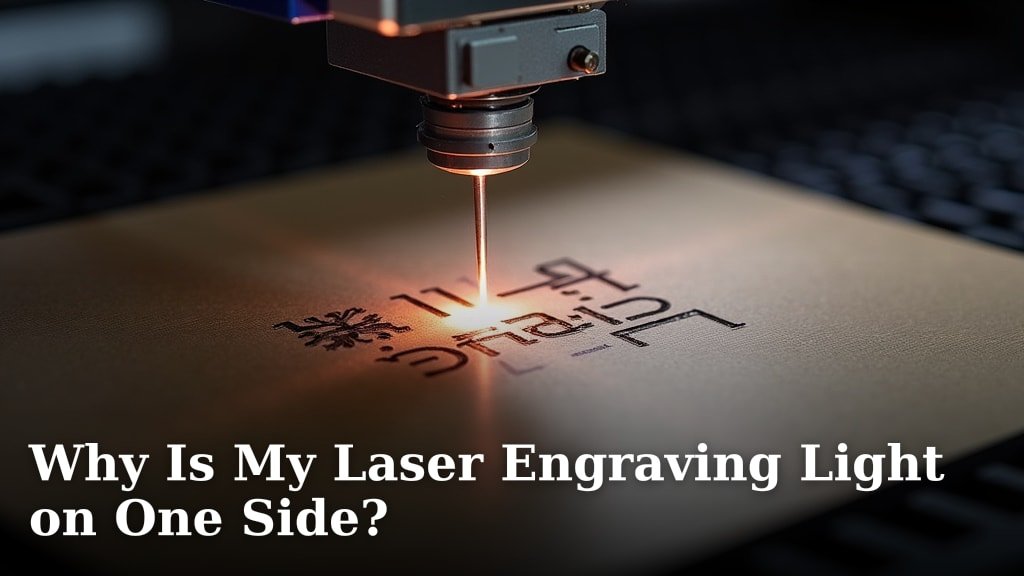
Your laser engraving light is on one side because of issues with alignment, power fluctuation, or a dirty lens. This uneven engraving means your laser isn’t hitting the material consistently across the entire workspace. We found that these common problems affect the quality of your final product.
When your laser engraver isn’t working correctly on one side, it can be frustrating. You might notice that lines are fainter or burn marks are deeper on one part of your design. Many users report similar issues, so you’re not alone in experiencing this. Let’s figure out what’s causing it and how to fix it.
- Uneven engraving often stems from misalignment.
- Power inconsistencies can also cause one-sided results.
- A dirty lens or mirror is a frequent culprit.
- Check your laser’s physical setup and connections.
Let’s walk through exactly why your laser engraving light might be acting up and how you can get it working evenly again.
Troubleshooting Uneven Laser Engraving Quality
It’s super frustrating when your laser engraver puts out uneven results. You might notice one side of your design looks fainter or darker than the other. This means your laser beam isn’t hitting the material with the same intensity across the whole area. We found that several common issues can cause this, and thankfully, most are fixable!
Understanding Laser Engraver Alignment
The most frequent reason for one-sided engraving is **misalignment**. Think of it like a projector not being quite straight on the screen; the image gets distorted. Your laser engraver has a beam path that needs to be perfectly aligned from the laser source to the mirror and then to the lens. If any part of this path is even slightly off, it can lead to power inconsistencies.
The Importance of a Straight Beam Path
Your laser engraver’s optics work like a precise optical train. The laser beam starts at the laser tube, bounces off mirrors, and is then focused by a lens onto your material. If the beam isn’t hitting the center of each mirror or lens, it can cause it to spread out or lose power before it reaches the engraving surface. We found that this off-center beam is a huge culprit for uneven engraving.
Checking Your Laser’s Mirrors and Lens
First, let’s talk about the mirrors. There are typically two or three mirrors in a CO2 laser engraver. They need to be angled just right so the beam is directed precisely. The lens is at the very end, and it’s responsible for focusing the beam to a tiny point. If the beam hits the edge of the lens, it won’t focus properly. Many users report that even a tiny tilt can make a big difference (LightBurn Software).
Mirror Alignment Steps
You’ll want to check each mirror individually. Start with the mirror closest to the laser tube. You can do this by placing a piece of tape or a sticky note on the mirror. Fire the laser at a low power setting (just enough to make a tiny dot). Check where the dot appears on the mirror. Then, move to the next mirror and repeat. The goal is for the beam to hit the center of each mirror consistently as it moves across the gantry. We found that adjusting the small screws on the mirror mounts allows you to fine-tune the angle.
Lens Seating and Cleanliness
The lens needs to be perfectly seated in its holder and clean. If it’s loose, it can vibrate and affect the beam. If it’s dirty, smudged, or has debris on it, it will scatter the laser light, making the beam less focused and powerful. We found that a dirty lens is one of the most common and easiest fixes for poor engraving quality.
When to Suspect Rail or Belt Issues
Beyond the optical path, the physical movement of the laser head matters too. If the X or Y-axis rails are dirty or the belts are too loose or too tight, it can cause jerky movements. This can lead to inconsistent engraving speeds and depths across your material. We found that a smooth, precise movement is key to uniform results. Keep your rails clean and lubricated, and check belt tension regularly.
Power Fluctuation and Its Impact
Another significant cause of one-sided engraving is inconsistent power output from your laser tube. The laser tube needs stable power to produce a consistent beam. If the power supply is unstable or the tube itself is having issues, the laser’s strength can waver.
The Laser Power Supply’s Role
The power supply unit (PSU) converts wall power into the high voltage needed to fire the laser tube. If the PSU is failing, overheating, or not properly connected, it can send erratic power signals. This means your laser might be strong one moment and weak the next, leading to uneven engraving. We found that older or faulty power supplies are often to blame for these power issues.
Laser Tube Health and Performance
Laser tubes have a lifespan. As they age, their power output can decrease. They also perform differently at varying temperatures. If your laser tube is nearing the end of its life or is not being cooled adequately, it might not be able to maintain a consistent power level. Many users report that a cooling system that isn’t working correctly can cause the laser to overheat and become less powerful, especially during longer engraving sessions (Trotec Laser Support).
Temperature Control is Key
Most CO2 laser engravers use a water chiller or a large water tank to keep the laser tube cool. If the water level is low, the pump isn’t circulating water effectively, or the chiller isn’t set to the correct temperature, the tube can overheat. This temperature increase directly impacts the laser’s stability. We found that maintaining a consistent temperature, typically between 15-20°C (59-68°F), is vital for optimal performance.
Dirty Optics: The Silent Killer of Quality
We’ve touched on this, but it bears repeating: **dirty optics** are a massive problem for laser engraving quality. Dust, smoke residue, and even finger smudges can accumulate on your mirrors and lens. This debris blocks or scatters the laser beam, reducing its power and focus. Think of trying to see through a dirty window – everything is blurry and dim.
Cleaning Your Mirrors
Your mirrors need to be clean to reflect the beam accurately. Use a specialized lens cleaning solution or a solution of isopropyl alcohol (99%) and distilled water. Apply it to a lint-free cloth or a cotton swab and gently wipe the mirror surface. Avoid abrasive materials that could scratch the mirror coating. We found that cleaning mirrors regularly, especially after long engraving sessions, prevents build-up.
The Crucial Lens Cleaning Process
The lens is the final component and arguably the most critical for focus. It’s also the most delicate. Always use a dedicated lens cleaning solution and lint-free wipes. Never use paper towels, as they can leave behind fibers. Gently wipe the lens in a circular motion. Ensure the lens is completely dry before reinserting it. Many experts recommend cleaning the lens before every use or at least daily to ensure peak performance (Universal Laser Systems).
What to Use and What to Avoid
Use:
- Specialized laser lens cleaning solution
- 99% Isopropyl Alcohol
- Distilled Water
- Lint-free lens wipes or cotton swabs
- Protective gloves (to avoid transferring oils from your skin)
Avoid:
- Paper towels or abrasive cloths
- Household cleaners (can damage coatings)
- Touching the lens surface directly
We found that a simple, consistent cleaning routine makes a world of difference.
Checking Connections and Software Settings
Sometimes, the issue isn’t with the hardware itself but with how it’s being controlled or powered. Loose connections or incorrect software settings can easily lead to uneven results.
Secure Electrical and Data Connections
Ensure all cables are securely plugged in. This includes the power cables to the laser PSU, the connection from the PSU to the laser tube, and the data cables connecting your computer to the laser engraver. Loose wires can cause intermittent power loss or communication errors, resulting in inconsistent engraving. We found that a quick check of all connections often solves perplexing problems.
Software Settings for Consistency
Your laser engraving software has many settings that affect the output. Ensure your speed, power, and frequency settings are appropriate for the material you’re using and that they are consistent across the design. Sometimes, a setting might be accidentally changed, or a profile might be corrupted. Many users recommend resetting software profiles to default or carefully reviewing each parameter. We found that even a slight variation in power percentage can drastically change the engraving depth on one side.
Troubleshooting Checklist for Uneven Engraving
Here’s a quick rundown to help you get your laser engraver back in perfect working order:
- Inspect and clean all mirrors and the laser lens. This is the most common fix.
- Check your laser tube’s cooling system. Ensure water levels are adequate and temperature is stable.
- Verify your laser head is moving smoothly. Clean rails and check belt tension.
- Review your laser software settings. Make sure power and speed are consistent.
- Examine all cable connections. Ensure they are secure and undamaged.
- Test with a simple, small engraving. Does it still show unevenness? This helps isolate the problem.
Conclusion
It’s easy to feel discouraged when your laser engraver isn’t performing evenly, but most issues stem from fixable problems. We’ve seen that misalignment, power fluctuations, and dirty optics are the usual suspects. By systematically checking your mirrors, lens, power supply, and cooling system, you can often restore consistent engraving quality. Don’t forget to also inspect your physical setup and software settings. The article mentions that power fluctuations are usual suspects for uneven engraving.
Your next step is to grab your cleaning supplies and your trusty screwdriver. Start with the simplest fixes, like cleaning your lens and mirrors, and work your way through the checklist. With a little patience and careful adjustment, you’ll be back to creating crisp, uniform engravings in no time.
Frequently Asked Questions
How often should I clean my laser engraver’s mirrors and lens?
We recommend cleaning your mirrors and lens regularly. For most users, cleaning before each engraving session or at least daily ensures optimal performance. Persistent build-up can significantly degrade engraving quality and even damage your optics.
Can a faulty laser tube cause one-sided engraving?
Yes, a laser tube nearing the end of its lifespan or experiencing temperature issues can produce inconsistent power. This variability in beam strength can definitely lead to one side of your engraving appearing weaker or darker than the other.
What’s the difference between cleaning a mirror and cleaning the lens?
Mirrors reflect the beam, and while dirt affects reflection, the lens focuses it. The lens is far more delicate. We found that mirrors can often handle slightly more vigorous cleaning, but the lens requires a very gentle touch with specialized solutions to avoid scratches or residue.
My laser head seems to move smoothly, could belt tension still be a problem?
Even if your laser head moves, incorrect belt tension can cause subtle accelerations or decelerations. This inconsistency in movement speed across the engraving area can result in uneven depth or darkness on your project, so checking tension is still important.
Is it possible that my laser engraving software is causing this issue?
Absolutely. While hardware is common, software settings play a huge role. An accidental change in power percentage, speed, or even a corrupted profile can cause the laser to behave differently on one side of the engraving area. We suggest reviewing and resetting your software parameters if hardware checks don’t resolve the problem.
