
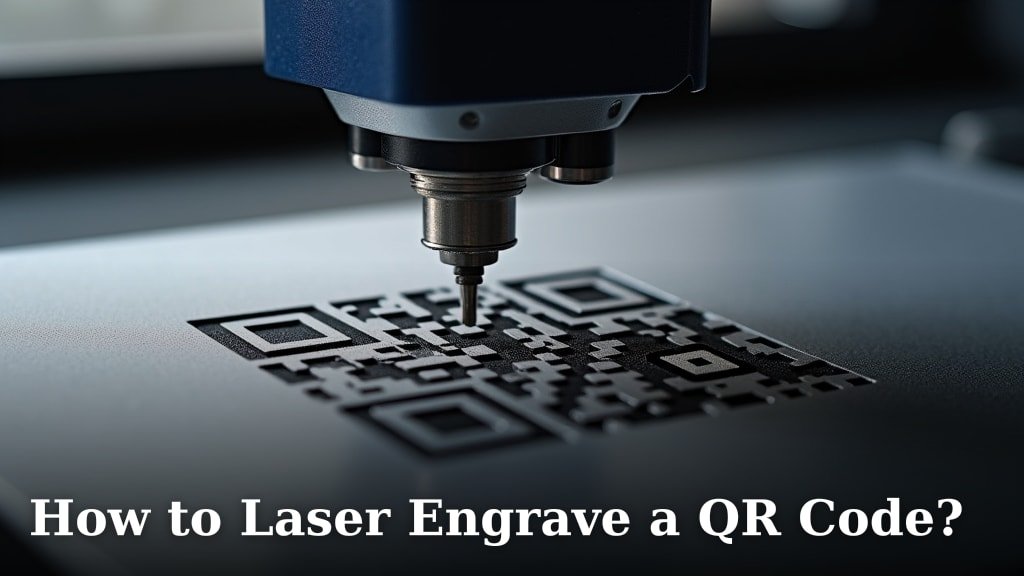
Yes, you absolutely can laser engrave a QR code onto many different materials. It’s a fantastic way to add interactive elements to your projects. We found that with the right settings, you can create a perfectly scannable QR code that looks great on wood, acrylic, metal, and more.
Laser engraving offers a permanent and professional way to display QR codes. Unlike stickers or printed labels, engraved codes won’t peel off or fade over time. Many makers and businesses are using this technique for custom gifts, signage, and even product tracking. It’s a smart way to bridge the physical and digital worlds.
- Laser engraving QR codes is possible on many materials.
- It creates a durable and permanent mark.
- Settings matter for scannability.
- It connects physical items to online content.
Let’s walk through exactly how you can get started with laser engraving your own QR codes, step by step. Our guide can help you get started with laser engraving.
Creating Scannable QR Codes with Your Laser Engraver
You’re probably wondering if your laser engraver can handle those little square codes. The answer is a resounding yes! With the right approach, you can engrave QR codes that are not just cool-looking, but also perfectly scannable. Think of it as giving your physical items a direct link to the digital world.
Understanding QR Codes for Laser Engraving
QR codes are like a barcode’s smarter cousin. They store information both horizontally and vertically. This makes them hold more data than a standard barcode. For laser engraving, we need to ensure the dots and lines are clear enough for a scanner to read.
The Anatomy of a Scannable Code
A standard QR code has a few key parts. There are finder patterns in the corners. These help the scanner orient itself. There’s also alignment and timing patterns. These ensure the scanner knows where everything is. The main part is the data itself, encoded in black and white squares. We need our laser settings to preserve these distinct areas.
Choosing the Right Material for Engraving
Not all materials behave the same way under a laser. Some engrave cleanly, others might melt or char. For QR codes, you want a material that gives you good contrast and detail. We found that woods like maple or cherry work wonderfully. They engrave with a nice brown contrast. Acrylic is also a popular choice. It engraves with a frosted white look.
Metals and Their Quirks
Metals can be a bit trickier. Stainless steel often engraves well, producing a dark, permanent mark. Coated metals are fantastic. The laser removes the coating, revealing a different color underneath. This often creates a high-contrast QR code. Anodized aluminum is another great option.
What to Watch Out For
Some materials, like certain plastics, can produce toxic fumes when lasered. Always check your material’s safety data sheet. It’s important to engrave in a well-ventilated area. You don’t want to breathe in any nasty stuff. For QR codes, avoid materials that are too reflective or too porous. These can make the engraved details blurry.
Preparing Your QR Code for Laser Engraving
Getting your QR code ready is more than just downloading an image. You need to think about its size, resolution, and how it will be converted for your laser software. We found that a little prep work goes a long way. It ensures your code will be scannable the first time.
Generating Your QR Code
There are tons of free QR code generators online. You just type in your website address, text, or contact info. Then, you download the QR code image. Most generators let you choose the size and format. For laser engraving, a vector format (like SVG) is ideal. However, a high-resolution PNG or JPG will also work.
Vector vs. Raster Images
A vector image is made of mathematical lines and curves. It can be scaled infinitely without losing quality. This is perfect for laser engraving. A raster image is made of pixels. If you scale it up too much, it can get blurry. If your generator only offers raster, make sure to download the largest size possible.
Optimizing the QR Code Design
When you generate your QR code, look for settings that affect its density or error correction. Error correction is like a QR code’s built-in insurance. It allows the code to still be scanned even if part of it is damaged or obscured. Higher error correction means more data is used for redundancy.
The Error Correction Trade-off
Most generators offer different levels of error correction: L (low), M (medium), Q (quartile), and H (high). For laser engraving, especially on materials that might have slight imperfections, we recommend using Level Q or H. This gives your QR code the best chance of being scannable. Just remember, higher error correction makes the QR code denser, with more small squares. This means your laser needs to be precise.
Converting Your QR Code for the Laser
This is where you’ll get your QR code into a format your laser software understands. If you have a vector file (SVG), you can often import it directly. If you have a PNG or JPG, you’ll need to convert it. Some laser software can import these directly. Others might require you to trace the image into a vector format first.
Using Image Tracing Software
Software like Adobe Illustrator or Inkscape has image tracing tools. These tools can convert a pixel-based image into vector paths. You’ll want to adjust the tracing settings carefully. Look for options that create clean, sharp lines. You might need to experiment a bit to get it right. The goal is to turn the black and white squares into solid shapes your laser can cut or engrave.
Setting Up Your Laser Engraver for Success
Laser settings are everything when it comes to engraving. Too much power, and you’ll burn through the material. Too little, and the engraving will be too faint to read. We found that testing is absolutely key. Every laser, material, and even batch of material can be slightly different.
Understanding Power, Speed, and Frequency
Your laser engraver has several settings you can control:
- Power: How strong the laser beam is.
- Speed: How fast the laser head moves.
- Frequency (PPI/Hz): How many laser pulses happen per second.
For QR codes, you generally want settings that create a clear, defined mark without scorching. We often find that a medium power, higher speed, and moderate frequency works well for raster engraving.
Recommended Settings (A Starting Point)
These are general guidelines, and you should always test! Many users find success with these starting points:
| Material | Power (%) | Speed (mm/s) | Frequency (Hz) | Focus |
|---|---|---|---|---|
| Maple Wood | 20-30 | 300-500 | 500-1000 | Standard |
| Acrylic (Clear) | 15-25 | 200-400 | 500-1000 | Standard |
| Anodized Aluminum | 40-60 | 200-300 | 300-600 | Standard |
| Coated Metal | 30-50 | 200-300 | 300-600 | Standard |
Remember to adjust based on your specific laser and material. For vector engraving (like cutting outlines), you’ll use different settings.
The Importance of Focus
Ensuring your laser is properly focused is critical. A blurry focus will result in a fuzzy engraved QR code. Always set your focus according to the material thickness and your laser’s recommended settings. This ensures the laser beam is concentrated for the cleanest possible mark.
Performing the Engraving and Testing
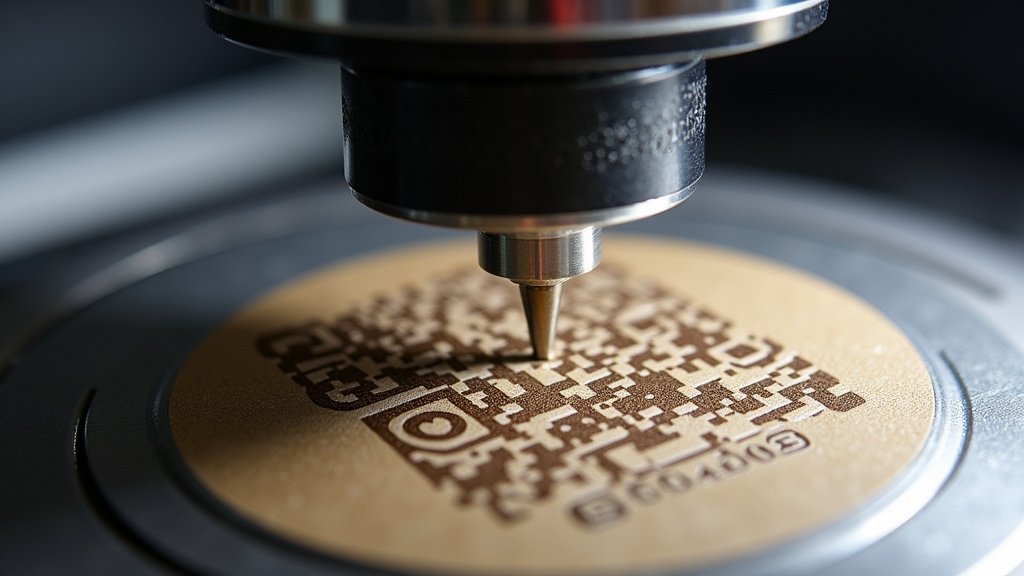
Now for the exciting part! With your design ready and your laser calibrated, it’s time to engrave. We always recommend doing a test run first. This saves you from ruining a whole project.
Test Engraving on Scrap Material
Before you hit engrave on your final piece, grab a scrap piece of the exact same material. Engrave a small test QR code on it. Use the settings you’ve chosen. You want to see how the code looks and, more importantly, if it scans.
The Scannability Test
Use your smartphone or a dedicated QR code scanner app to test the engraved code. Point your camera at it. Does it register immediately? If it struggles, you’ll need to adjust your laser settings. You might need to increase power slightly or decrease speed for a deeper, clearer engraving.
Troubleshooting Common Scanning Issues
If your code isn’t scanning, here are a few things we often check:
- Contrast: Is the engraved area dark enough or light enough against the background?
- Depth: Is the engraving deep enough to be distinct, but not so deep it burns the edges?
- Focus: Was the laser perfectly focused during the engraving?
- Resolution: Was the original QR code image high enough resolution?
- Settings: Did your power/speed/frequency settings create clean lines?
Often, a simple tweak to power or speed can make all the difference. You might need to engrave it twice if the material is porous, ensuring each pass is precise.
Final Engraving Tips
Once you’re confident your settings produce a scannable code, you can proceed with your main project. Ensure the material is securely fixtured. Double-check your laser’s origin point. Then, let the laser do its magic!
Here’s a quick checklist to help you through the process:
- Generate QR code with high error correction (Q or H).
- Save as vector (SVG) if possible, or high-res raster.
- Prepare QR code in laser software, ensuring clean lines.
- Perform test engravings on scrap material.
- Test scanned code with your phone.
- Adjust laser settings for clarity and scannability.
Conclusion
You’ve now seen that laser engraving a QR code is totally achievable! By understanding your materials, preparing your digital file correctly, and mastering your laser settings, you can create functional and professional-looking codes. Remember, error correction levels Q or H and thorough testing on scrap material are your best friends for scannability. Don’t be afraid to experiment with power and speed. Your next step? Grab that scrap wood or acrylic and engrave your first scannable QR code project!
Frequently Asked Questions
What’s the best material for engraving a scannable QR code?
We found that materials with good contrast and a clean engraving surface work best. Woods like maple or cherry offer a nice natural contrast, while coated metals and anodized aluminum provide excellent sharpness. Acrylic engraves well with a frosted appearance.
Can I engrave a QR code from a regular JPG image?
Yes, you can, but it’s not always ideal. If you must use a JPG, download the highest resolution possible. You may also need to use image tracing software to convert it into clean vector paths for your laser engraver.
How do I ensure my engraved QR code is scannable?
The key is to use a QR code generator with high error correction (Level Q or H). This allows the code to be read even if parts are slightly unclear. Always test your engraved code with your phone to confirm scannability before finalizing your project.
What laser settings are generally best for QR codes?
For raster engraving QR codes, a good starting point is often medium power, a higher speed, and moderate frequency. However, these settings vary greatly by material. Always perform test engravings on scrap material to dial in the perfect settings for your specific laser and material combination.
Why do some engraved QR codes not scan correctly?
Several factors can cause scanning issues. Poor contrast between the engraved mark and the material, incorrect laser focus, insufficient engraving depth, or a low-resolution original QR code image can all be culprits. Adjusting your laser’s power or speed is often the first step in troubleshooting.
