
Making your own laser cut maps is totally doable! You can create stunning, personalized maps for your home or as gifts with the right tools and a bit of guidance. It all starts with finding or creating a design file and then using a laser cutter to precisely engrave or cut your map.
Laser cutting offers incredible detail for cartography projects. We’ve found that this method allows for creating everything from simple wooden coasters to elaborate multi-layered city maps. Getting the design right is key to a successful laser cut map project, ensuring accuracy and aesthetic appeal.
- Find or create your map design file.
- Choose your material (wood, acrylic, paper).
- Prepare your laser cutter settings.
- Cut and engrave your map precisely.
- Assemble if creating a layered map.
Ready to bring your favorite locations to life with laser precision? Let’s walk through the steps to make your own incredible laser cut maps!
Creating Your Own Laser Cut Maps
Making a laser cut map can seem daunting, but it’s an incredibly rewarding process. You get to transform a simple digital design into a tangible piece of art. We’ve found that laser cutting is perfect for achieving sharp lines and fine details that are hard to replicate by hand. Whether you’re a hobbyist, a gift-giver, or just someone who loves maps, this guide will walk you through how to make your own unique laser cut maps.
Getting Your Map Design Ready for the Laser
The first step is all about the design. You need a digital file that your laser cutter can understand. Think of it like giving instructions to a very precise robot. Your design will determine the final look and complexity of your map.
Where to Find Existing Map Designs
Sometimes, the easiest way to start is by using a design that’s already out there. Many online platforms offer free or paid map designs. These can range from city streets to topographic elevations. You can often find these files in formats like SVG, DXF, or AI. We found that sites dedicated to laser cutting designs are a great resource. They often have community-shared projects you can adapt.
Designing Your Map From Scratch
If you have a specific location in mind or want a truly custom map, you’ll need to create your own design. This usually involves using vector graphics software. Popular options include Adobe Illustrator, Inkscape (which is free!), or CorelDRAW. You’ll be drawing lines to represent roads, rivers, and coastlines. The key is to keep your lines clean and well-defined for the laser cutter.
Many people start by importing geographic data into their design software. You can sometimes get this data from open-source mapping services. Then, you trace or clean up the paths to create your desired map features. For a topographic map, you’d be tracing contour lines. For a city map, you’d focus on street layouts and maybe major landmarks.
Deciding on Your Map’s Visual Style
Consider what kind of map you want. Do you want a simple outline of a country? Perhaps a detailed street map of your hometown? Or maybe a topographical map showing elevation changes? The style impacts how much detail you need to include. A topographic map, for instance, will require precise contour lines. A city street map might focus on the main roads and neighborhoods.
We found that for beginners, starting with a simpler design is often best. This helps you learn the process without getting overwhelmed. You can always try more complex maps later. Think about the level of detail you want to achieve and how that will translate to laser cutting.
Making Your Design Laser-Ready
Once you have your design, you need to prepare it for the laser cutter. This involves a few key steps:
- Outline your paths: Ensure all lines you want cut or engraved are clearly defined paths.
- Set line weights: For engraving, line weight can sometimes affect the depth or darkness of the engraving. For cutting, it’s less important.
- Convert text: Any text on your map needs to be converted to outlines or curves. This ensures the font looks the same on the laser cutter’s software as it does on your computer.
- Clean up stray points: Remove any unnecessary points or overlapping lines. This prevents the laser cutter from making errors.
- Color coding for different operations: Some laser cutters can perform different actions based on color. For example, you might assign red to cutting and blue to engraving.
We found that spending time cleaning up your vector file pays off. It avoids frustrating errors during the cutting process and ensures a cleaner final product. A well-organized file is easier for the laser software to interpret.
Choosing the Right Materials for Your Map
The material you choose will significantly impact the look and feel of your laser cut map. There are several popular options, each with its own advantages.
Working with Wood
Wood is a classic choice for laser cut maps. It offers a warm, natural aesthetic. Plywood, like Baltic birch, is very popular because it’s stable and has a beautiful grain. Hardwoods such as maple or cherry also work well but can be more expensive. Thinner wood sheets (like 1/8 inch or 3mm) are easier to cut and assemble for layered maps. Thicker wood can be used for single-layer engraved pieces.
We found that wood engraves beautifully, creating a nice contrast. The laser can leave a slightly burnt edge, which adds character to the map. Always ensure your wood is smooth and free of knots or defects where you plan to engrave or cut. Some woods might have a stronger smell when laser cut, so good ventilation is important.
Exploring Acrylic and Plastics
Acrylic is another fantastic material for laser cut maps. It comes in a wide range of colors, including clear, frosted, and mirrored finishes. Acrylic cuts very cleanly, often with a polished edge, giving a very professional look. For layered maps, clear or colored acrylic can create striking visual effects.
It’s important to use cast acrylic if possible, as it cuts better and is less prone to cracking than extruded acrylic. You’ll also want to leave the protective film on during cutting to prevent scratches and make cleanup easier. Many people like acrylic for its modern and sleek appearance. It can be a great alternative to wood for a different aesthetic.
Paper and Cardstock Options
For a more delicate and affordable option, paper or cardstock can be used. This is great for smaller projects like coasters or framed art. Laser cutting paper allows for incredibly fine details and intricate cutouts. You can layer different colors of cardstock to create depth and dimension. It’s important to use thicker cardstock (like 80-100 lb cover stock) for better results.
Be cautious when laser cutting paper. It is flammable. You’ll want to use lower power settings and higher speed to avoid scorching or igniting the paper. Always supervise the laser cutter when working with paper. A quick pass with a damp cloth can remove any soot marks after cutting. This method is excellent for creating unique wall art or personalized stationery.
Setting Up Your Laser Cutter for Success
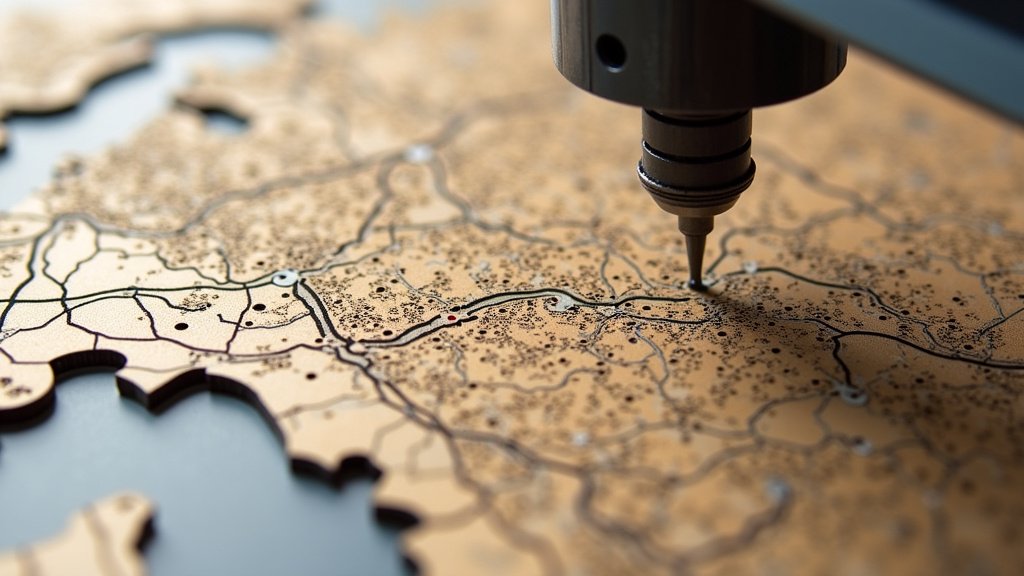
Getting your laser cutter settings right is critical for a clean and accurate map. These settings control the power, speed, and frequency of the laser beam. They vary greatly depending on your specific laser cutter model, the material you’re using, and its thickness.
Cut vs. Engrave Settings
Laser cutters typically have two main modes: cutting and engraving. * Cutting uses a higher power and slower speed to pass through the material completely. You’ll want to adjust these so the laser makes a clean cut without burning or melting the edges too much. * Engraving uses lower power and often a higher speed to mark the surface of the material. This is how you create the lines, text, and details on your map that aren’t cut all the way through.
Many laser cutter software programs allow you to assign different settings to different colors in your design. This is a huge time-saver. For instance, you can set your red lines to cut through the material at a certain speed and power, and your blue lines to engrave at a different power and speed. It’s a smart way to control multiple operations in one go.
Performing Test Cuts and Engraves
Before you commit to cutting your final map, always do test runs. Use a scrap piece of the exact same material and thickness you plan to use for your project. Cut out a small shape or engrave a test line. This helps you dial in the perfect settings.
We found that test cuts are essential for avoiding wasted material and disappointment. A small test piece can reveal if your settings are too high, too low, or just right. Keep a log of your successful settings for different materials. This will be your go-to reference for future projects. It’s like creating your own cheat sheet.
Airflow and Focus
Good airflow is vital when laser cutting. It helps remove smoke and debris, which can obscure the laser beam and lead to poor cuts or uneven engraving. Many laser cutters have exhaust systems to vent fumes outside. For paper or wood, you might also use an air assist nozzle, which directs a stream of air at the cutting point. This helps clear debris and can reduce flaming.
The focus of the laser beam is also critical. The laser needs to be precisely focused on the surface of your material for the cleanest cut or deepest engrave. Check your laser cutter’s manual for instructions on how to properly focus the beam for your specific material thickness. Proper focus ensures the laser energy is concentrated where it needs to be.
Assembling Your Multi-Layered Map
If your laser cut map design involves multiple layers, assembly is the next exciting step. This is where your map really starts to come to life!
Putting It All Together
The goal is to perfectly align each layer on top of the one below it. If you’ve designed your map with precise registration marks or outlines, this should be straightforward. For materials like wood or acrylic, a strong wood glue or acrylic cement works well.
We found that using a jig or a simple alignment system can be incredibly helpful. For example, you could design small pegs that fit into corresponding holes on each layer. This ensures perfect alignment every time. Apply a thin, even layer of adhesive to the back of each piece before placing it. Too much glue can squeeze out and make a mess, so a little goes a long way.
Adding the Final Flourishes
Once the glue is dry, you can add any final touches. This might include sanding down any rough edges, applying a protective sealant or varnish, or adding mounting hardware. For wooden maps, a light sanding and a coat of polyurethane can really enhance the grain and protect the wood. For acrylic maps, a gentle polish can remove any minor scuffs.
Consider how you want to display your map. Will it hang on a wall? Sit on a desk? Adding a frame or a stand can complete the look. Think about the overall presentation of your finished piece.
Your Laser Cut Map Checklist:
- Design file is ready and cleaned up.
- Material type and thickness confirmed.
- Laser cutter settings tested and optimized.
- Ventilation and safety precautions in place.
- Adhesive and assembly tools prepared.
- Final finishing supplies gathered.
Conclusion
You’ve learned how to transform digital designs into tangible laser cut maps! From sourcing your design and selecting the perfect material like wood, acrylic, or paper, to mastering laser cutter settings for precise cuts and engravings, you’re ready to create. Remember to test your settings and assemble layered maps with care. Your personalized map awaits its creation. Your next step is to choose a location you love and start designing your very first laser cut map project!
Frequently Asked Questions
What’s the best software for designing laser cut maps?
For designing laser cut maps, vector graphics software like Adobe Illustrator or the free alternative Inkscape are excellent choices. They allow you to create clean, scalable paths that lasers can easily interpret. We found that starting with simpler shapes makes the learning curve smoother.
Can I use my home printer’s design software for laser cutting?
While some home design software might be able to export files, it’s generally not ideal for laser cutting. Vector-based software is preferred because it defines lines as mathematical paths rather than pixels. This ensures sharp, clean cuts regardless of zoom level.
How do I choose between wood, acrylic, and paper for my map?
Wood offers a natural, warm feel and engraves beautifully. Acrylic provides a modern, sleek look with clean edges and color options. Paper is affordable and great for delicate, layered designs but requires caution due to flammability. Your choice depends on the aesthetic you want and the complexity of your project.
My laser cut map has scorch marks. How can I prevent this?
Scorch marks often happen with wood and paper. Using an air assist on your laser cutter helps blow away smoke and debris, reducing charring. You may also need to adjust your laser’s speed and power settings, possibly using a lower power and higher speed for engraving. Always test on scrap material first.
What’s the easiest way to align layers for a multi-layered map?
For precise alignment, we recommend adding registration marks or small locator holes in your design that will be cut on each layer. These marks help you line up each piece perfectly before you glue them. Some people also find using a simple jig or template beneficial for consistent results.
