
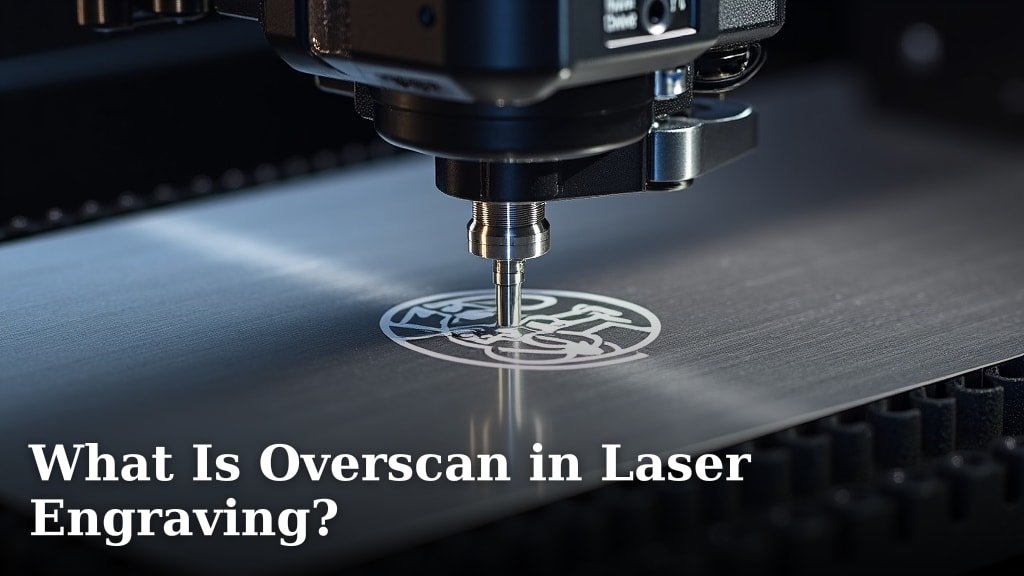
Overscan in laser engraving is when the laser head moves slightly beyond the intended boundary of your design. This is usually an unwanted effect that can ruin your engraving. It happens because of slight mechanical imperfections or software settings. Understanding overscan helps you prevent it.
When your laser engraver moves too far, it can create blurry edges or unwanted marks. This often affects the precision of detailed work. Many users notice this issue when engraving small text or intricate patterns. It’s important to calibrate your machine correctly to avoid it.
- Overscan is when your laser goes past the design edge.
- It causes fuzzy lines or extra marks on your work.
- This happens due to machine setup or software choices.
- Fixing overscan improves your engraving’s detail.
Let’s break down what overscan is and how you can get rid of it from your laser engravings.
You’ve seen it before, right? That slightly fuzzy edge on a small text or a perfectly drawn circle that looks just a tiny bit *off*. That’s often the culprit: overscan in laser engraving. It’s like your laser engraver has a mind of its own, deciding to take a little extra stroll past the finish line.
Understanding Laser Engraver Overscan
So, what exactly is this “overscan” we’re talking about?
In simple terms, overscan happens when your laser engraver’s head moves beyond the defined edges of your design file. Think of it like a painter’s brush accidentally smudging the canvas just outside the intended line. This stray movement can leave unwanted marks or blurry edges on your material.
Why Does Overscan Happen?
This isn’t usually a sign that your machine is plotting against you! It’s typically a result of how the machine’s motors and software communicate. We found that mechanical factors and settings are the main drivers.
Sometimes, the tiny delays in motor response are the cause. When the laser head needs to make a sharp turn or stop, there’s a split-second lag. The laser might fire for a moment longer than it should, or the head might coast a bit further due to momentum. This is especially noticeable on designs with sharp corners or very fine details.
Mechanical Imperfections
Your laser engraver is a precise machine, but no machine is perfect. Small imperfections in the mechanical components, like the belts or gears, can lead to slight inaccuracies in movement. These can translate into that extra little “nudge” beyond the design boundary. It’s a bit like a tire on a car having a tiny wobble – you might not see it from afar, but up close, it affects the path. Small imperfections in the mechanical components, like belts or gears, can lead to inaccuracies.
Software Settings and Acceleration
This is where you have a lot more control. Your laser engraving software has settings that dictate how the laser head moves. These include acceleration and deceleration values. If these are set too high, the laser head might overshoot its target before slowing down properly. Think of a car accelerating too quickly around a bend; it’s likely to drift wide.
We found that many users encounter overscan when trying to engrave at higher speeds. Pushing the machine to go faster without adjusting other parameters can exacerbate this issue. It’s a balancing act between speed and precision.
The Impact of Overscan on Your Engravings
So, why should you care about this little extra movement? Because it directly affects the quality and precision of your work.
On materials like wood or acrylic, overscan can create a faint, fuzzy line or a slightly darker border where the laser shouldn’t have touched. For fine details, like small text or intricate logos, this can make the difference between a clean, professional look and something that appears sloppy. Imagine trying to read a book with slightly blurry letters – it’s frustrating!
Blurry Edges and Fuzzy Lines
The most common symptom is a softness around the edges of your design. Instead of a crisp, sharp line, you get a slightly feathered or blurred effect. This is particularly noticeable on vector engravings where sharp lines are expected.
Unwanted Marks and Double Lines
In some cases, overscan can result in faint “double lines” or ghosting effects. This happens when the laser retraces a path slightly off-center, or when the overscan creates a mark adjacent to the intended line. This can make your engraving look messy and unprofessional, especially on darker materials where these marks are more visible.
Loss of Fine Detail
For projects requiring high accuracy, like engraving tiny serial numbers or delicate patterns, overscan can be a deal-breaker. It essentially reduces the effective resolution of your engraving, making those tiny details disappear or become illegible. It’s like trying to sculpt a tiny figurine with a giant chisel – you’re bound to lose the delicate features.
How to Prevent and Fix Overscan
The good news is that overscan is not an insurmountable problem. By understanding its causes, you can take steps to prevent it. Often, it’s a matter of fine-tuning your machine and software settings.
Adjusting Software Settings
Your laser engraving software is your primary tool for combating overscan. Many programs offer specific settings to help mitigate this. We found that fiddling with these parameters can make a world of difference.
Acceleration and Deceleration Settings
These settings control how quickly your laser head speeds up and slows down. Lowering acceleration values tells the machine to be gentler when changing direction. This reduces the likelihood of overshooting. Deceleration settings work in tandem; a good deceleration will help the head stop precisely where it needs to.
Think of it like driving. Slamming on the brakes (high deceleration) might make you lurch forward. Gentle braking (low deceleration) allows you to stop smoothly. Many experts suggest starting with lower acceleration values and increasing them gradually until you find a balance between speed and quality (RDWorks Forum Discussions).
Overscan/Corner Settings in Software
Some software packages have a dedicated “overscan” or “corner setting” that allows you to specify how much extra movement is allowed, or to tell the software to decelerate more aggressively at corners. By setting this to zero or a very small value, you can instruct the laser to stop precisely at the edge. Some users report success by enabling “smooth acceleration” or similar features if available in their software.
Line Interval and Speed
While not directly an overscan setting, adjusting your line interval (the distance between passes for fills) and engraving speed can indirectly affect how overscan appears. If your line interval is too large, slight overscan on each line can create more noticeable gaps or overlaps. Engraving at slower speeds generally allows the machine more time to react and stop accurately.
Calibrating Your Laser Engraver
Sometimes, the issue isn’t just software. The physical setup of your machine plays a big role. Proper calibration ensures that your machine moves exactly as it’s told.
Checking Belt Tension
Loose belts on your X and Y axes can cause slop or backlash. This means the motor might move, but the laser head doesn’t follow perfectly. When the direction reverses, the belt has to “catch up,” leading to inaccuracies. You want your belts to be snug, but not so tight that they strain the motors. A good rule of thumb is that they should make a low “twang” sound when plucked (LightBurn User Guide).
Ensuring Smooth Rail Movement
The linear rails your laser head moves on need to be clean and free of debris. Any resistance can cause jerky movements or missed steps. Regularly cleaning and lubricating these rails ensures smooth, consistent motion, which is key to preventing overshooting.
Motor Driver Settings (Advanced)
For some machines, you can adjust motor driver settings (like microstepping). While this is a more advanced topic, incorrect settings here can lead to skipped steps or jerky motion, indirectly contributing to overscan. Research your specific machine’s controller for guidance if you suspect this might be an issue.
Test Engravings for Overscan
Before committing to a full project, always run test patterns. This helps you dial in your settings and identify overscan without wasting material.
We recommend creating simple test files that include:
- Sharp corners (e.g., squares, triangles)
- Small circles
- Small text (different fonts and sizes)
- Lines of varying lengths
Engrave these at different speeds and with various acceleration settings. Carefully inspect the results under magnification to see where overscan is most apparent. This methodical approach allows you to pinpoint the exact settings that work best for your machine and material combination.
Material Considerations
The material you’re engraving on can also influence how overscan manifests. Some materials are more forgiving than others.
For instance, on coated materials, overscan might leave a slightly more visible discolored edge. On reflective materials, stray laser light can cause even more noticeable artifacts. Understanding your material’s behavior will help you anticipate and mitigate overscan effects. Many laser users find that darker materials show overscan more prominently than lighter ones.
By carefully adjusting your software settings, ensuring your machine is mechanically sound, and performing diligent test engravings, you can significantly reduce or eliminate overscan. This leads to cleaner lines, sharper details, and ultimately, much more professional-looking results from your laser engraver.
Conclusion
You’ve now seen how overscan can affect your laser engravings, turning crisp lines into fuzzy blurs. It’s usually a combination of your machine’s mechanics and software settings. The good news is you have the power to fix it! By carefully adjusting acceleration, deceleration, and exploring your software’s specific corner settings, you can regain that precision.
Don’t forget to keep your machine well-maintained with clean rails and properly tensioned belts. The next step is simple: grab a scrap piece of material and run some test patterns. You’ll be amazed at how much cleaner your engravings become with just a few tweaks.
Frequently Asked Questions
What’s the easiest way to test for overscan?
We found that creating a simple test file with sharp corners, small circles, and tiny text is the best approach. Engrave these at different speeds and carefully inspect the results under magnification. This helps you quickly identify where overscan is most noticeable on your specific machine and material.
Can engraving speed cause overscan?
Yes, engraving too fast without adjusting other settings can definitely worsen overscan. Your laser head needs time to slow down and stop precisely. We recommend starting with slower speeds and increasing them gradually as you find a good balance between speed and detail.
Is overscan always visible on every material?
Not always. Overscan might be more apparent on certain materials, like dark acrylics or coated metals, where it creates a visible discoloration. On some lighter or more forgiving materials, it might be subtle or nearly invisible. You’ll need to test on your specific materials.
Do all laser engraver software programs have overscan settings?
Most professional laser engraving software will have settings related to acceleration, deceleration, or cornering that indirectly affect overscan. Some programs might have a dedicated “overscan” or “corner off” setting. It’s worth checking your software’s documentation for these options.
If my belts are tight, can overscan still happen?
Yes, even with tight belts, overscan can still occur due to software settings like acceleration or the physical momentum of the laser head. Mechanical issues like worn bearings or debris on rails can also contribute. It’s important to check both mechanical and software factors.
