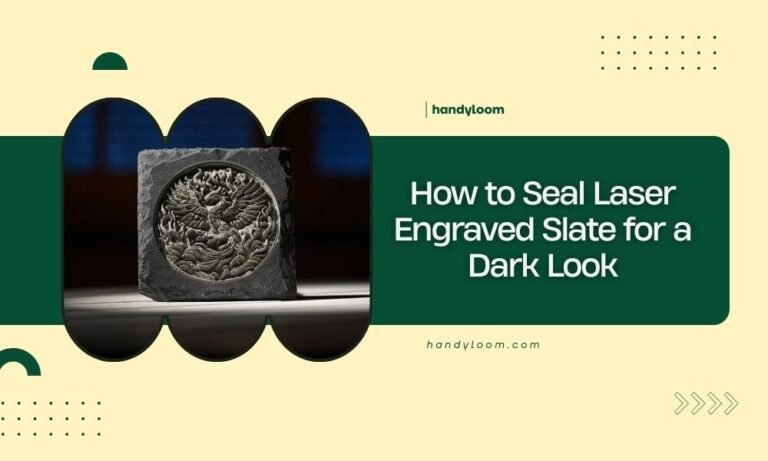
For laser engraving slate coasters, the best settings are typically 100% power at 100-200 speed with multiple passes for deep, clean results.
Most laser cutters work well with slate using 2-3 passes at these settings, though you should always test on a sample piece first.
Quick Setup Guide for Slate Coaster Engraving
Getting your laser settings right for slate coasters can feel tricky at first. But once you know the basics, you’ll create beautiful results every time.
Slate is different from wood or acrylic. It’s dense and tough. Your laser needs more power and patience to cut through the surface.
Starting Settings That Work
I found that most hobbyists get great results with these baseline settings:
- Power: 100%
- Speed: 100-150 (depending on your machine)
- Passes: 2-3
- DPI: 300-500
Your machine might use different units. Some show speed as mm/min instead of a percentage. Don’t worry – the concept stays the same.
Why Multiple Passes Work Better
Think of slate like a tough cookie. You can’t bite through it in one go. Your laser works the same way.
Multiple passes let the laser gradually remove material without overheating. This gives you cleaner edges and better detail.
Understanding Your Laser Type
Different lasers need different approaches. Let me break down what I found works for each type.
CO2 Laser Settings
CO2 lasers are the most common for slate work. They handle stone materials well.
For a 40-60 watt CO2 laser, try these settings:
- Power: 90-100%
- Speed: 100-200 mm/min
- Passes: 2-4
Higher Wattage CO2 Tips
If you have an 80-100 watt machine, you can work faster. Try 300-400 mm/min at full power. You might only need 1-2 passes.
Diode Laser Adjustments
Diode lasers struggle more with slate. The material absorbs their wavelength differently.
You’ll need slower speeds and more passes. Start with:
- Power: 100%
- Speed: 50-100 mm/min
- Passes: 4-6
Making Diode Lasers Work Better
Paint your slate with flat black paint before engraving. This helps the laser absorb better. Remove the paint afterward with soap and water.
Testing Your Settings
Never start with your final coaster. Always test first.
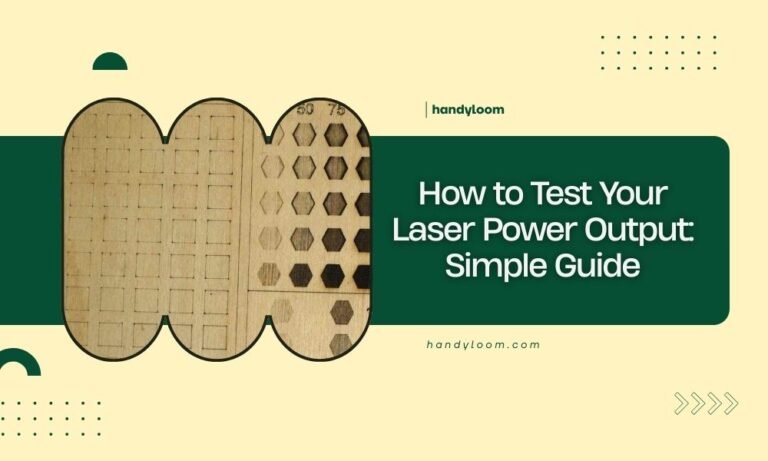
Get a small piece of the same slate. Run different power and speed combinations on it.
Creating a Test Grid
Make a simple grid in your laser software. Try these combinations:
| Power | Speed | Passes | Result |
|---|---|---|---|
| 80% | 150 | 2 | Light engraving |
| 90% | 150 | 2 | Medium depth |
| 100% | 150 | 2 | Deep engraving |
| 100% | 100 | 3 | Very deep |
What Good Results Look Like
You want clean, even depth without burning. The engraved area should feel smooth, not rough or chipped.
If you see scorch marks, your speed is too slow. If the engraving looks shallow, increase power or add more passes.
Preparing Your Slate Coasters
Good prep work makes a huge difference in your final results.
Cleaning the Surface
Wipe your slate with a damp cloth. Remove any dust or oils from handling.
Dry it completely before placing it in your laser. Water and lasers don’t mix well.
Securing the Coaster
Slate can shift during engraving. Use small clamps or tape to hold it down.
Make sure your clamps won’t block the laser path. I learned this the hard way after ruining a few pieces.
Using a Jig
If you’re making multiple coasters, create a simple jig. Cut a piece of scrap wood with a coaster-shaped hole. This keeps each piece in the exact same spot.
Common Problems and Fixes
Even with good settings, things can go wrong. Here’s what I found helps with the most common issues.
Uneven Engraving Depth
This usually means your slate isn’t level. Check that your coaster sits flat on the bed.
Some slate pieces are naturally uneven. You can’t fix this completely, but slower speeds help.
Chipping Along Edges
Sharp details often chip on slate. Try these fixes:
- Reduce power by 10-20%
- Increase the number of passes
- Slow down your speed
Design Considerations
Avoid very thin lines or tiny details. Slate works better with bold, simple designs.
Scorching or Burning
Black marks around your engraving mean too much heat. Speed up your laser or reduce power slightly.
Good air assist also helps. It blows away debris and keeps the surface cooler.
Fine-Tuning for Different Slate Types
Not all slate is the same. Different types need slightly different settings.
Smooth vs Textured Slate
Smooth slate engraves more evenly. You can use your standard settings.
Textured slate needs more power. The rough surface scatters the laser beam. Try increasing power by 10-15%.
Thick vs Thin Coasters
Thicker slate holds heat longer. You might see more scorching with your normal settings.
Try faster speeds on thick pieces. The laser spends less time in each spot.
Color Variations
Dark slate absorbs laser energy better than light slate. You might need more power for gray or light-colored pieces.
Safety Tips for Slate Engraving
Slate creates fine dust when engraved. This can be harmful if you breathe it.
Ventilation is Key
Always use proper ventilation. A good exhaust fan pulls dust and fumes away from your work area.
Never engrave slate without ventilation running. The dust can damage your laser’s optics too.
Cleaning After Engraving
Vacuum your laser bed after working with slate. The fine particles can affect future projects if left behind.
Wipe down your optics more often when doing slate work. The dust gets everywhere.
Optimizing for Production Work
Making multiple coasters? You can speed up your workflow with these tips.
Batch Processing
Fit multiple coasters on your laser bed. Most beds can handle 4-6 coaster blanks at once.
Leave space between pieces for air circulation. Crowded pieces can overheat.
Templates Save Time
Create templates in your laser software. Save your tested settings for each slate type you use.
Quality Control Checks
Check the first piece in each batch carefully. If settings drift, you’ll catch it early.
Most laser tubes change slightly as they warm up. You might need small adjustments after the first few pieces.
Conclusion
Getting perfect laser engraving settings for slate coasters takes some practice, but the results are worth it. Start with 100% power at 100-150 speed with 2-3 passes, then adjust based on your specific laser and slate type. Always test on scrap pieces first, and don’t forget proper ventilation for safety. With these guidelines, you’ll be creating professional-looking slate coasters that your customers will love. Remember, every laser is a bit different, so keep notes on what works best with your setup.
What’s the best DPI setting for detailed designs on slate coasters?
For detailed designs, use 400-500 DPI. Higher DPI takes longer but gives cleaner results on intricate patterns. For simple text or logos, 300 DPI works fine and processes faster.
Can I engrave both sides of a slate coaster?
Yes, but flip it carefully after the first side cools completely. Use lower power (80-90%) on the second side since the slate may be more brittle after the first engraving.
Why does my slate coaster crack during engraving?
Cracking happens when the slate heats up too quickly. Reduce your power by 20% and add an extra pass instead. Also check that your slate isn’t too thin – pieces under 1/4 inch crack more easily.
How do I remove white residue after engraving slate?
The white residue is stone dust. Clean it with a soft brush and warm soapy water. For stubborn residue, use a toothbrush gently. Avoid harsh chemicals that might damage the slate.
Do I need different settings for Welsh slate versus other types?
Welsh slate is typically harder and denser. Increase your power by 10-15% or add an extra pass. The grain structure also affects how cleanly it engraves, so always test a small area first.