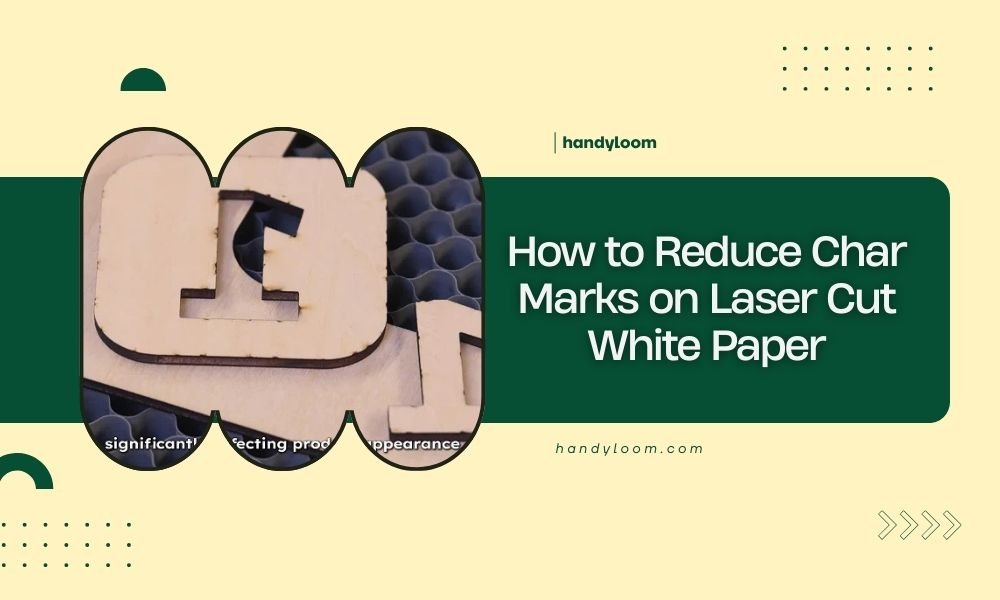
To reduce char marks on laser cut white paper, lower your laser power by 10-20% and increase cutting speed by 15-25% from your current settings.
You can also use masking tape on both sides of the paper and ensure proper air assist flow to blow away burning debris during cutting.
Understanding Why Char Marks Appear on White Paper
Char marks happen when your laser burns paper instead of cleanly cutting through it. Think of it like using a magnifying glass in sunlight – too much heat creates burns.
White paper shows every tiny burn mark. What might look acceptable on colored cardstock becomes obvious on bright white surfaces.
Heat vs. Clean Cutting
Your laser needs just enough power to cut through paper fibers. Too much power creates excess heat that burns surrounding areas.
The sweet spot is cutting with minimum necessary power. This takes practice to find for each paper type.
Essential Power and Speed Adjustments
Start with these baseline settings and adjust from there. I found through research that most white paper cuts cleanly with lower power than you might expect.
Recommended Starting Settings
| Paper Weight | Power % | Speed (mm/min) | Passes |
|---|---|---|---|
| 80gsm copy paper | 15-25% | 1200-1500 | 1 |
| 120gsm cardstock | 25-35% | 1000-1300 | 1 |
| 200gsm heavy paper | 35-45% | 800-1200 | 1-2 |
Fine-Tuning Your Settings
Cut small test squares first. If you see brown edges, reduce power by 5%. If the cut doesn’t go through completely, increase speed before adding power.
Multiple light passes often work better than one heavy pass. You get cleaner edges with less heat buildup.
The Speed vs. Power Balance
Faster cutting means less time for heat to spread into surrounding paper. Think of running your finger through a candle flame – quick movement prevents burns.
When you slow down the laser, heat has more time to travel beyond the cut line. This creates wider char marks.
Using Masking Tape Effectively
Masking tape acts like a protective barrier. It absorbs some heat and prevents char marks from staining your paper surface.
Choosing the Right Tape
Use low-tack masking tape designed for delicate surfaces. Regular masking tape can leave residue or tear your paper when removed.
Paper masking tape works better than plastic tape. It cuts cleanly and doesn’t melt onto your paper.
Application Technique
Apply tape to both sides of your paper. Smooth out air bubbles that could cause uneven cutting.
Overlap tape edges slightly. Gaps in coverage let char marks reach your paper surface.
Removal Tips
Remove tape immediately after cutting while it’s still warm. Wait too long and adhesive becomes harder to remove cleanly.
Pull tape at a 45-degree angle, not straight up. This prevents paper tearing.
Air Assist Setup and Optimization
Air assist blows away burning particles before they can settle on your paper. Without it, debris creates more char marks.
Proper Air Pressure
Use moderate air pressure – enough to clear debris but not so much that it moves your paper. I found that 10-15 PSI works well for most white papers.
Too much air pressure can actually blow char particles onto clean areas of your paper.
Air Nozzle Position
Keep your air nozzle close to the cutting surface. The closer it is, the more effective it becomes at clearing debris.
Check that air flow hits the cut line directly. Angled airflow misses burning particles.
Alternative Air Assist Methods
If your laser doesn’t have built-in air assist, try a small aquarium pump with tubing. Position the tube to blow across your cut line.
Desktop fans can help too, though they’re less precise than dedicated air assist systems.
Paper Selection and Preparation
Not all white papers cut the same way. Some are more resistant to charring than others.
Best Paper Types for Clean Cutting
Copy paper and printer paper usually cut cleanly because they’re designed to handle heat from printers and copiers.
Avoid papers with heavy coatings or glossy finishes. These tend to burn and char more easily.
Paper Moisture Content
Slightly damp paper cuts with less charring. Store paper in normal humidity, not bone-dry conditions.
Very dry paper burns more easily. Very wet paper doesn’t cut cleanly either. You want just normal room humidity levels.
Focus and Lens Maintenance
A perfectly focused laser beam cuts more efficiently. Out-of-focus beams spread heat over larger areas, creating char marks.
Checking Your Focus
Use your laser’s focus tool or measure the distance manually. Even small focus errors affect cut quality on thin materials like paper.
Test focus by cutting small dots at different heights. The sharpest, cleanest dot shows perfect focus.
Lens Cleaning
Clean lenses cut more efficiently. Dirty lenses scatter light, creating heat in wrong places.
Use lens cleaning solution and cotton swabs. Clean before every major cutting session.
Bed Setup and Material Support
How you position your paper affects cut quality. Proper support prevents paper movement that can cause uneven cuts.
Using the Right Cutting Surface
Honeycomb cutting beds work well because they support paper without creating much contact area. Less contact means less heat transfer.
Avoid solid metal beds that conduct heat into your paper from below.
Paper Positioning
Keep paper flat but not stretched tight. Tension can cause paper to move during cutting.
Use small weights at corners if needed, but keep them away from cut lines.
Advanced Techniques for Difficult Projects
Some projects need extra care to avoid char marks. Here are techniques I found work for challenging cuts.
Multiple Light Passes
Instead of one full-power cut, try two or three passes at lower power. Each pass removes more material with less heat.
This works especially well for thick papers or detailed designs with lots of small cuts.
Pause Between Passes
Let paper cool between passes. Heat buildup from continuous cutting makes char marks worse.
A 30-second pause lets heat dissipate naturally.
Cutting Order Optimization
Cut detailed areas first when paper is coolest. Save outer boundaries for last.
This prevents heat from earlier cuts affecting precision areas.
Troubleshooting Common Problems
Even with perfect settings, you might still get char marks. Here’s how to fix common issues.
Char Marks Only in Corners
Corner char usually means your laser slows down too much at direction changes. Increase your corner speed settings.
Some laser software lets you set minimum speeds for corners and curves.
Uneven Charring Across the Sheet
This often indicates focus problems or an unlevel cutting bed. Check both carefully.
Also verify your laser tube is producing even power across its beam width.
Char Marks Despite Low Power
If you still get char marks at very low power, your lens might need cleaning or replacement. Damaged lenses create hot spots.
Check that your air assist is working properly too.
Conclusion
Reducing char marks on white paper comes down to balance – enough power to cut cleanly but not so much that you create burns. Start with lower power settings than you think you need, use proper air assist, and don’t skip the masking tape.
Remember that every laser and paper combination is different. Take time to find your perfect settings through small test cuts. The extra few minutes spent testing will save you from ruined projects later.
Why does my white paper char more than colored paper?
White paper often has different coatings and bleaching agents that make it more sensitive to heat. The bright white surface also shows every tiny burn mark that might be invisible on darker materials.
Can I remove char marks after cutting?
Light char marks can sometimes be removed with a soft eraser or fine sandpaper, but prevention works much better than trying to clean up afterwards. Deep char marks usually can’t be removed without damaging the paper.
Should I use different settings for different white paper brands?
Yes, different manufacturers use different paper compositions and coatings. Test each new paper brand with small cuts to find optimal settings, even if the weight seems similar to papers you’ve used before.
Is it better to do multiple passes or one strong pass?
Multiple passes at lower power typically produce cleaner cuts with less charring. The paper has time to cool between passes, preventing heat buildup that causes char marks.
How do I know if my air assist pressure is correct?
Correct air assist pressure clears smoke and debris without moving your paper. If paper shifts during cutting, reduce pressure. If you see smoke lingering around cuts, increase pressure slightly.