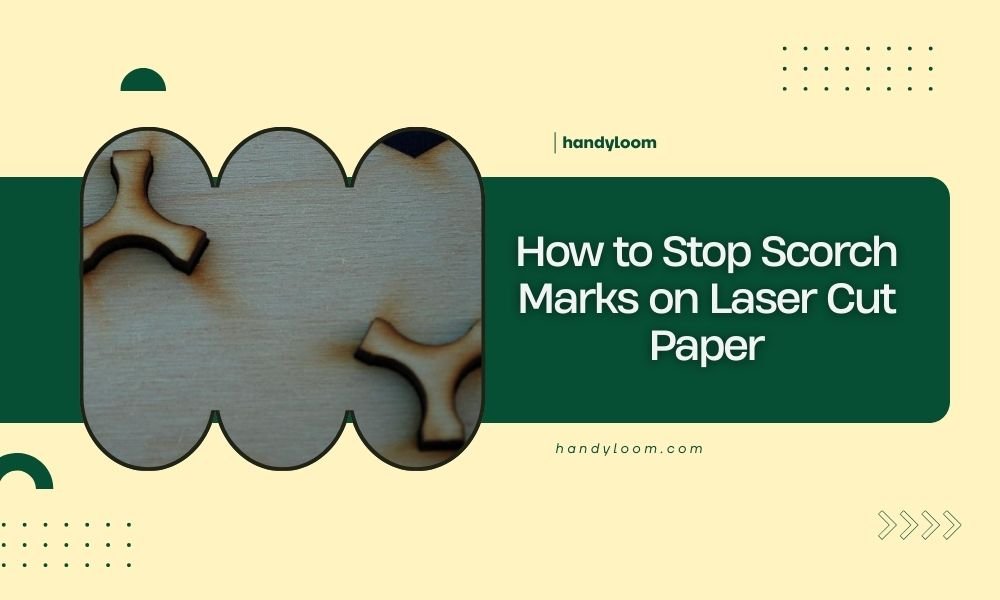
To stop scorch marks on laser cut paper, reduce your laser power by 10-20% and increase cutting speed while using compressed air assist to blow away heat and debris.
The main causes of scorch marks are excessive heat buildup, wrong power settings, and poor ventilation during the laser cutting process.
Understanding Why Scorch Marks Happen
Laser cutting works by burning through material with intense heat. When that heat stays too long in one spot, you get those ugly brown or black marks around your cuts.
Think of it like cooking toast. Leave it in too long, and it burns. Your laser beam is the toaster, and your paper is the bread.
Heat Buildup Creates the Problem
Paper is made of cellulose fibers that burn easily. When your laser moves slowly or uses too much power, the heat doesn’t have time to dissipate.
The edges start to char before the laser moves on to the next section.
Material Thickness Matters
Thick cardstock needs different settings than thin copy paper. I found that many people use the same settings for all paper types, which leads to burning.
Thicker materials trap more heat. They need lower power but more passes to cut cleanly.
Essential Machine Settings to Prevent Scorching
Power Settings That Work
Start with 60-70% power for most paper projects. You can always increase if it doesn’t cut through completely.
Multiple light passes work better than one heavy pass. Your paper will thank you with clean, scorch-free edges.
Speed Settings for Clean Cuts
Faster speeds mean less heat buildup. Try speeds between 200-400mm per minute for most papers.
If your laser moves too slowly, it’s like holding a magnifying glass over paper in sunlight. Eventually, something will burn.
Pulse Settings and Frequency
Lower pulse frequencies (around 500-1000 Hz) give better results on paper. High frequencies create more heat concentration.
Some laser cutters let you adjust pulse width too. Shorter pulses mean less heat per spot.
Air Assist Is Your Best Friend
Air assist blows away hot debris and cools the cutting area. Without it, you’re basically asking for scorch marks.
Set your air pressure to medium-high. Too little won’t help. Too much can blow your paper around.
Paper Preparation Techniques
Choose the Right Paper Types
Some papers handle laser cutting better than others. Cardstock with high cotton content burns less than cheap copy paper.
Avoid glossy or coated papers. The coating melts and creates more heat problems.
Papers That Work Well
- 100% cotton cardstock
- Watercolor paper
- High-quality copy paper
- Uncoated craft papers
Papers to Avoid
- Glossy photo paper
- Plastic-coated papers
- Very thin tissue paper
- Papers with metallic finishes
Proper Paper Positioning
Keep your paper flat against the cutting bed. Warped or lifted edges get more heat exposure and burn faster.
Use low-tack masking tape to hold corners down if needed. Just don’t let the laser hit the tape.
Advanced Techniques for Perfect Results
The Multiple Pass Method
Instead of trying to cut through in one pass, use 2-3 lighter passes. Each pass removes a little material without overheating.
This technique works especially well for thick cardstock or detailed designs.
How to Set Up Multiple Passes
Reduce your power to 40-50% of normal. Set your software to repeat the cut 2-3 times.
Make sure your paper doesn’t shift between passes. Even tiny movements will show up as double lines.
Strategic Cut Order Planning
Cut inside details first, then outside edges. This prevents small pieces from falling through and getting re-burned.
If you have multiple shapes, space out where the laser works. Don’t cut adjacent areas back-to-back.
Troubleshooting Common Issues
Still Getting Scorch Marks?
Check your laser focus. An out-of-focus beam spreads heat over a wider area and takes longer to cut.
Clean your laser lens too. Dirty optics reduce cutting efficiency and create more heat buildup.
Testing Your Settings
Always test on scrap material first. Cut a small square with your planned settings before committing to your full project.
Keep notes on what works for different paper types. You’ll build your own reference guide over time.
Environmental Factors
Room humidity affects how paper burns. Dry air makes paper more likely to scorch.
Store your paper in a controlled environment. Paper that’s too dry or too damp cuts differently.
Maintenance Tips for Consistent Results
Keep Your Machine Clean
Paper dust builds up in your laser cutter and reduces air flow. Clean it regularly for best results.
Check your air assist nozzle for clogs. Blocked air flow means more heat and more scorching.
Weekly Cleaning Checklist
- Wipe down the cutting bed
- Clean the laser lens
- Check air assist tubing
- Empty debris collection areas
When to Replace Consumables
Worn laser tubes lose power consistency. You might think you need higher power when you actually need maintenance.
Replace air filters regularly. Clogged filters reduce air pressure and cooling effectiveness.
Quick Reference Settings Table
| Paper Type | Power % | Speed (mm/min) | Passes |
|---|---|---|---|
| Copy Paper | 50-60 | 300-400 | 1 |
| Light Cardstock | 60-70 | 250-350 | 1-2 |
| Heavy Cardstock | 40-50 | 200-300 | 2-3 |
| Watercolor Paper | 55-65 | 200-250 | 2 |
Conclusion
Stopping scorch marks comes down to managing heat. Lower power, higher speed, and good air assist solve most problems.
Remember that every laser cutter behaves differently. What works on your friend’s machine might need adjustment on yours.
Start conservative with your settings and work up gradually. It’s easier to increase power than to fix burned edges.
Keep practicing and taking notes. Soon you’ll know exactly what settings work for each type of paper in your collection.
Why do my laser cut edges look brown even with low power settings?
Brown edges usually mean your cutting speed is too slow, allowing heat to build up even at low power. Try increasing your speed by 25-50mm per minute while keeping the same power level.
Can I remove scorch marks after cutting?
Light scorch marks can sometimes be reduced with fine sandpaper or an eraser, but prevention works much better than trying to fix burned edges after the fact.
Should I use different settings for intricate designs versus simple shapes?
Yes, detailed designs with lots of corners and curves need slightly lower power because the laser slows down at direction changes, creating more heat buildup in those areas.
How do I know if my air assist pressure is correct?
You should see light debris blowing away from the cut line but not so much air that it moves your paper. A small piece of tissue paper near the nozzle should flutter but not fly away.
What’s the best way to test new paper types?
Cut a small test pattern with multiple power and speed combinations on one piece of scrap material. Label each test area so you can identify the best settings for future projects.