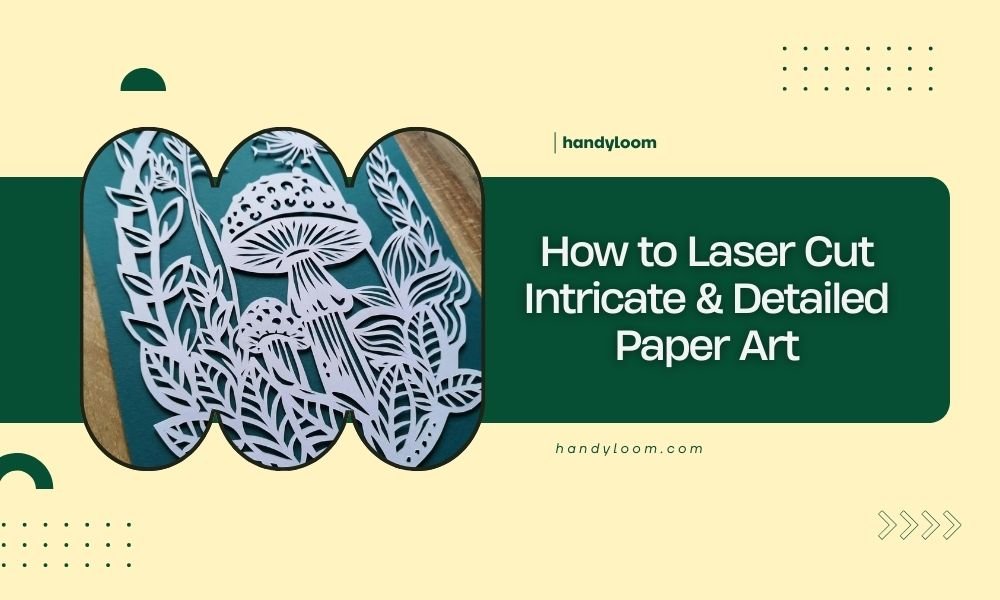
Laser cutting paper art requires precision settings, high-quality paper, and careful speed adjustments to achieve clean, detailed cuts without burning or tearing.
Success comes from using vector graphics, proper ventilation, and testing your settings on sample pieces before cutting your final design.
Essential Equipment for Paper Laser Cutting
You’ll need the right tools to create stunning paper art. A CO2 laser cutter works best for paper, offering clean cuts and fine detail work.
Desktop laser cutters like those from Glowforge or Epilog handle most paper projects well. They give you enough power without overwhelming beginners.
Power Requirements
Paper needs low power settings. Most projects work with 10-30 watts of power. Higher power burns through delicate materials too quickly.
Start with the lowest setting. You can always increase power if needed. It’s easier than fixing burned artwork.
Speed Settings Matter
Fast cutting speeds prevent burning. Slow speeds create more heat, which damages paper fibers.
I found that speeds between 500-1000 mm/min work well for most paper types. Test different speeds on scraps first.
Choosing the Right Paper Types
Not all papers cut equally. Some materials work beautifully, while others frustrate even experienced crafters.
Best Paper Choices
- Cardstock (200-300 GSM) – holds detail well
- Watercolor paper – sturdy and cuts cleanly
- Bristol board – smooth surface, precise cuts
- Decorative scrapbook paper – adds color and texture
Papers to Avoid
Skip glossy or coated papers. The coating melts and creates messy edges. Newspaper tears easily and doesn’t hold fine details.
Avoid papers with metallic foil. The foil reflects laser light and creates uneven cuts.
Paper Thickness Guidelines
Thin papers (under 120 GSM) need gentle handling. They cut fast but may warp from heat.
Thick papers (over 300 GSM) require multiple passes. Plan extra time for these projects.
Design Preparation Steps
Your design software choice affects your final results. Vector graphics work best for laser cutting.
Vector vs. Raster Graphics
Vector files scale without losing quality. Programs like Adobe Illustrator or Inkscape create these files.
Raster images (photos, JPEGs) don’t cut cleanly. Convert them to vectors or use them only for engraving.
Design Considerations
Think about how pieces connect. Floating elements need small tabs to stay attached during cutting.
Plan your cut order. Inside cuts happen first, then outside edges. This prevents pieces from shifting mid-cut.
Minimum Feature Sizes
Details smaller than 1mm often don’t survive cutting. The laser beam width limits how fine you can go.
Test small features on scraps. What looks good on screen might not work in reality.
Optimizing Laser Settings
Settings make or break your project. Each paper type needs specific adjustments.
| Paper Type | Power (%) | Speed (mm/min) | Passes |
|---|---|---|---|
| Copy paper | 15-25 | 800-1000 | 1 |
| Cardstock | 25-35 | 600-800 | 1-2 |
| Watercolor paper | 30-40 | 500-700 | 2-3 |
Test Cutting Protocol
Always test on scraps first. Cut a small section with your planned settings.
Look for clean edges without brown burn marks. Adjust power down if you see burning.
Multi-Pass Cutting
Multiple light passes often work better than one heavy pass. This reduces heat buildup and burning.
Try three passes at 30% power instead of one pass at 90%. You’ll get cleaner results.
Advanced Cutting Techniques
Master these methods to create professional-looking pieces.
Layered Compositions
Cut multiple layers in different colors. Stack them with small offsets to create depth and shadow effects.
Use spray adhesive or double-sided tape between layers. Position carefully – you won’t get a second chance.
Scoring vs. Cutting
Scoring creates fold lines without cutting through. Use 10-20% of your cutting power.
This technique works great for popup cards or dimensional pieces that need crisp folds.
Perforation Techniques
Create tear-away sections with dotted cut lines. Alternate short cuts with uncut spaces.
Perforations work well for interactive art pieces or removable elements.
Common Problems and Solutions
Even experienced crafters face challenges. Here’s how to fix the most common issues.
Burning and Charring
Brown edges ruin delicate artwork. Reduce power or increase speed when this happens.
Better ventilation helps too. Smoke removal prevents heat buildup around your work.
Incomplete Cuts
Paper stays connected in spots? Increase power slightly or add another pass.
Check your focus too. An unfocused beam won’t cut cleanly through material.
Warping Issues
Heat causes paper to curl and warp. Use hold-down pins or weights around your material.
Cut faster to reduce heat exposure. Slower isn’t always better with delicate materials.
Finishing Your Paper Art
The work isn’t done when cutting stops. Proper finishing makes your art look professional.
Cleaning Cut Edges
Light sanding smooths rough edges. Use fine-grit sandpaper (220 or higher).
A craft knife trims small imperfections. Work carefully to avoid tearing.
Assembly Tips
Dry-fit everything before applying adhesive. Complex pieces have specific assembly orders.
Use tweezers for small parts. Your fingers are too big for delicate work.
Mounting and Display
Float your art between glass sheets for a clean look. This protects delicate cuts from damage.
Shadow boxes add depth and drama. They protect three-dimensional pieces while showing them off.
Safety Considerations
Laser cutting generates smoke and fumes. Always work with proper ventilation running.
Paper can ignite if settings are too aggressive. Keep a fire extinguisher nearby and never leave the machine unattended.
Personal Protection
Laser safety glasses protect your eyes from reflected beams. Even low-power lasers can cause damage.
The laser cutter should have interlocks that stop operation when opened. Never bypass these safety features.
Conclusion
Laser cutting opens up amazing possibilities for paper art. Start with simple designs and basic papers while you learn your machine’s personality. Every laser cutter behaves slightly differently, so expect a learning curve.
Practice makes perfect with this craft. Your first attempts might not match your vision, but each project teaches you something new. Soon you’ll be creating paper art that amazes friends and family.
Remember to prioritize safety and take your time with setup. Rushing leads to mistakes and wasted materials. With patience and practice, you’ll master this rewarding creative skill.
What’s the best beginner project for laser cut paper art?
Start with simple greeting cards using cardstock. They require basic cuts, teach you essential techniques, and give quick, satisfying results. Avoid tiny details until you master the basics.
How do I prevent my paper from catching fire during cutting?
Use lower power settings, increase cutting speed, and ensure proper ventilation. Never leave the laser unattended, and keep a spray bottle of water nearby for emergencies. Test settings on scraps first.
Can I cut multiple sheets of paper at once to save time?
Stacking paper rarely works well. The laser loses focus through multiple layers, creating uneven cuts. Cut one sheet at a time for best results, even though it takes longer.
What software should I use for designing paper art templates?
Adobe Illustrator works best for professional results, but Inkscape offers similar features for free. Both create vector files that laser cutters read easily. Avoid using photo editing software for cut designs.
How do I fix small tears that happen during cutting?
Small tears usually mean your power is too high or speed too slow. For existing tears, use tiny amounts of clear craft glue applied with a toothpick. Prevention works better than repairs though.