

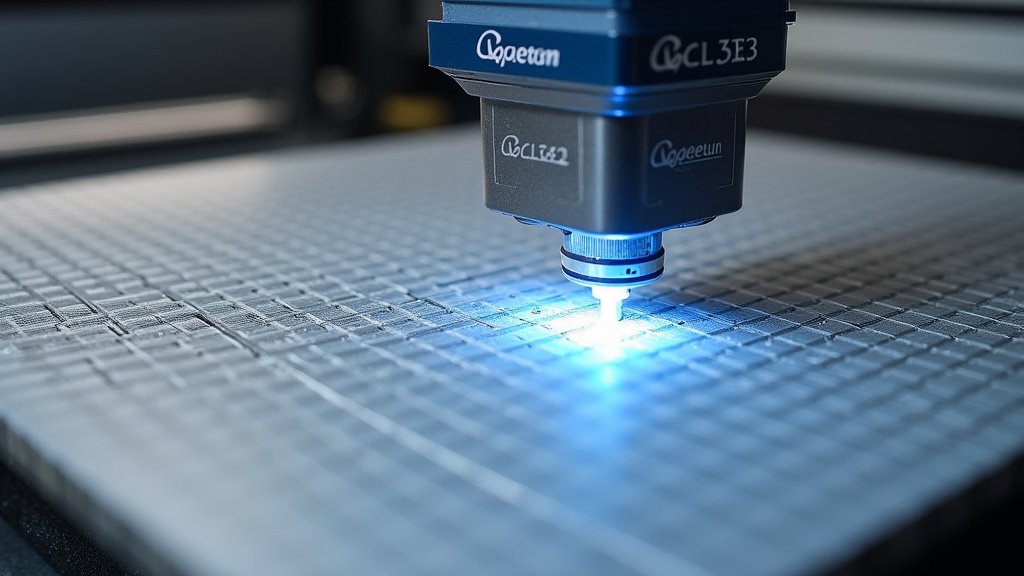
Making a laser material test grid is essential for finding the perfect laser settings for different materials. You can create a test grid by arranging a series of small, uniformly spaced squares on your material. Then, you’ll systematically adjust your laser’s power, speed, and frequency for each square to see how it affects the cut or engrave. This helps you dial in the best results without wasting material.
When you’re laser cutting or engraving, material behaves differently based on its composition and thickness. A test grid is like a cheat sheet for your laser cutter. It helps you achieve clean cuts and detailed engravings by showing you exactly which settings work best. Many makers use this method to avoid frustrating trial-and-error. It’s a smart way to get reliable outcomes.
- A laser material test grid helps find optimal laser settings.
- You create it by making a grid of test squares on your material.
- Adjust laser power, speed, and frequency for each square.
- It saves time and material by avoiding guesswork.
- This method ensures consistent and high-quality results.
Let’s walk through exactly how to set up and run your own laser material test grid step by step.
Creating Your Laser Material Test Grid
Getting your laser settings just right can feel like a puzzle. You want to make sure your cuts are clean and your engravings are crisp. That’s where a laser material test grid comes in handy. It’s a systematic way to discover the ideal power, speed, and frequency for any material you work with. You’ll save yourself time and material by testing it all at once.
Think of it like this: before you bake a new recipe, you might do a small taste test to see if you need more salt or sugar. A laser test grid is that same idea, but for your laser cutter. It helps you avoid making a huge project only to find out your settings were a little off. We’ve found this method to be incredibly effective for consistent results.
Designing Your Grid Layout
The first step is to design the grid itself. You’ll need to decide how many squares you want and how you’ll label them. This layout will be imported into your laser software. Keep it simple but effective. Many makers start with a 5×5 or 6×6 grid.
Determining Grid Dimensions
Your grid needs to fit on a manageable piece of your material. Consider the size of your laser bed. You don’t want the grid to be so large that it wastes precious material. A common size for the entire grid might be 4×4 inches. This allows for enough test squares without being too big.
Spacing Your Test Squares
Even spacing is key to a good test grid. You want each square to be its own distinct test. Make sure there’s a small gap between each square. This gap prevents settings from one square bleeding into another. A gap of 0.1 inches or 2-3 millimeters is usually sufficient. We found that too small a gap makes it hard to see the individual results.
Labeling Your Grid Squares
Clear labeling is vital for tracking your tests. You’ll typically want to label each row or column with the setting you’re changing. For example, one axis could represent different power levels, and the other could represent different speeds. You might also include a separate column for frequency.
Ensure the labels are small and placed where they won’t interfere with the test itself. Often, labels are placed above or to the side of each column or row. This makes it easy to reference your results later. Many find using simple numbers or letters for labels works best.
Setting Up Your Laser Software
Once your grid design is ready, you need to translate it into instructions for your laser. This is done within your laser cutting software. You’ll import your design and then assign different settings to each individual square.
Creating Individual Test Objects
Your grid design should consist of separate shapes for each test square. This allows your software to treat each one as a unique object. You can then apply specific laser parameters to each shape. This is the core of the test grid process. Without individual objects, you can’t assign unique settings.
Assigning Laser Parameters
This is where you link your grid to your desired settings. For each square, you’ll assign a specific combination of power, speed, and frequency. Start with a range of settings that you think might work. You can always adjust these ranges based on your initial results.
For example, if you’re testing a new type of acrylic, you might decide to test power levels from 20% to 80% in 10% increments. For speed, you could test from 100 mm/s to 500 mm/s in 100 mm/s increments. Frequency might be tested at 500 Hz, 1000 Hz, and 1500 Hz. It’s a bit like cooking; you adjust seasonings until it tastes right.
| Speed (mm/s) | Power (30%) | Power (50%) | Power (70%) |
|---|---|---|---|
| 100 | Test 1A (30% @ 100) | Test 1B (50% @ 100) | Test 1C (70% @ 100) |
| 200 | Test 2A (30% @ 200) | Test 2B (50% @ 200) | Test 2C (70% @ 200) |
| 300 | Test 3A (30% @ 300) | Test 3B (50% @ 300) | Test 3C (70% @ 300) |
Setting Up the Laser Job
Once all settings are assigned, you’re ready to send the job to your laser. Double-check all your settings in the software preview. Make sure the software is set to engrave or cut each square with its assigned parameters. We found that a quick preview can save a lot of headaches.
Running the Test Grid
With your design and software set up, it’s time to run the test. Place your material on the laser bed. Ensure it’s properly focused and aligned. Then, start the laser job.
The laser will go through each square, applying the specific settings you assigned. This process might take a few minutes, depending on the size of your grid and the speed of your laser. It’s exciting to watch it all come together! Remember to stay near the laser while it’s running, as always.
Analyzing Your Results
After the laser job is complete, you’ll have your test grid printed on the material. Now comes the important part: figuring out which settings worked best. You’ll need to carefully examine each square.
Evaluating Cut Quality
For cutting tests, look for a clean, complete cut through the material. The edges should be smooth, not jagged or melted. If a square didn’t cut all the way through, that combination of settings was too weak. If it melted excessively, the settings might have been too hot or too slow.
We found that using a magnifying glass can be really helpful here. It lets you see the finer details of the cut edges. Look for any signs of charring or burning. These often indicate settings that are too slow or too powerful. Many experts suggest that a clean cut with minimal charring is the ideal outcome (National Institute of Standards and Technology).
Assessing Engraving Detail
If you’re testing for engraving, you’ll want to see clear detail and good contrast. The engraving should be deep enough to be visible but not so deep that it goes through the material. Look for any signs of smudging or shallow marks.
The power setting often affects the depth and darkness of an engraving. Speed influences how quickly the laser moves, which can affect detail. Frequency can sometimes impact the perceived smoothness or texture. It’s a balancing act to find what looks best for your specific artwork.
Identifying the Sweet Spot
Your goal is to find the combination of settings that gives you the best result for your material. This is often called the “sweet spot.” It might be one specific square or a small group of squares that look superior. Circle or mark the squares that yielded the best results.
Take notes on the specific settings used for those best squares. This information will be your go-to guide for future projects with the same material. You can even create a small chart or spreadsheet to keep track of your optimized settings. Many makers like to have a binder of these test results.
Tips for Perfecting Your Grid
Even with a good test grid, you might want to fine-tune your results. Here are a few extra tips we’ve gathered.
- Material Thickness Matters: Thicker materials will always require different settings than thinner ones. Always test on material that’s the same thickness as your project.
- Material Density Varies: Even within the same material type (like wood), density can change. A test grid for pine might not be perfect for oak.
- Consider Lens and Air Assist: Your laser’s lens and whether you use air assist can affect results. Test with the same setup you plan to use for your project.
- Keep Records: Save your test grid designs and results. You’ll thank yourself later when you need those settings again.
- Don’t Be Afraid to Re-test: If you get a new batch of material or change a laser component, it’s always a good idea to run a quick test grid.
Here’s a quick checklist to make sure you’re ready:
- Design your grid layout in design software.
- Ensure squares are distinctly separated.
- Assign unique laser settings to each square.
- Place material accurately on the laser bed.
- Analyze cut and engraving quality carefully.
- Record your optimal settings for future use.
By following these steps, you’ll build a reliable library of laser settings. This will make all your future laser projects smoother and more successful. You’ll be a laser settings pro in no time!
Conclusion
You’ve now learned how to create a laser material test grid, a powerful tool for achieving perfect laser settings. This systematic approach helps you avoid guesswork, saving both time and material. By carefully designing your grid, assigning specific parameters, and analyzing the results, you gain the knowledge needed for consistent, high-quality cuts and engravings. Start building your library of optimized settings today to make every future project a success. Your next project will be smoother because of this process!
Frequently Asked Questions
How many squares should I include in my test grid?
A grid size of 5×5 or 6×6 squares is a great starting point. This offers enough variations without making the grid too large for your material. You can adjust this based on how many settings you want to test.
What is the best gap size between test squares?
We found that a gap of about 0.1 inches (or 2-3 millimeters) works well. This small separation ensures that the laser effects on one square don’t overlap or influence the results of adjacent squares.
Can I use the same test grid for different thicknesses of the same material?
No, you should create a separate test grid for each material thickness. Thicker materials often require significantly different power and speed settings compared to thinner versions of the same substance.
What if my laser software doesn’t allow assigning different settings to individual shapes?
Some older or simpler laser software might not support this. In such cases, you would need to run each test square as a separate, small laser job. This is more time-consuming but still achieves the same goal of testing specific settings.
How do I record my “sweet spot” settings after testing?
After identifying the best results on your material grid, take clear photos of those squares. Note down the exact power, speed, and frequency settings used for each successful square. Storing this information in a spreadsheet or a dedicated notebook will be incredibly helpful for future projects.
