
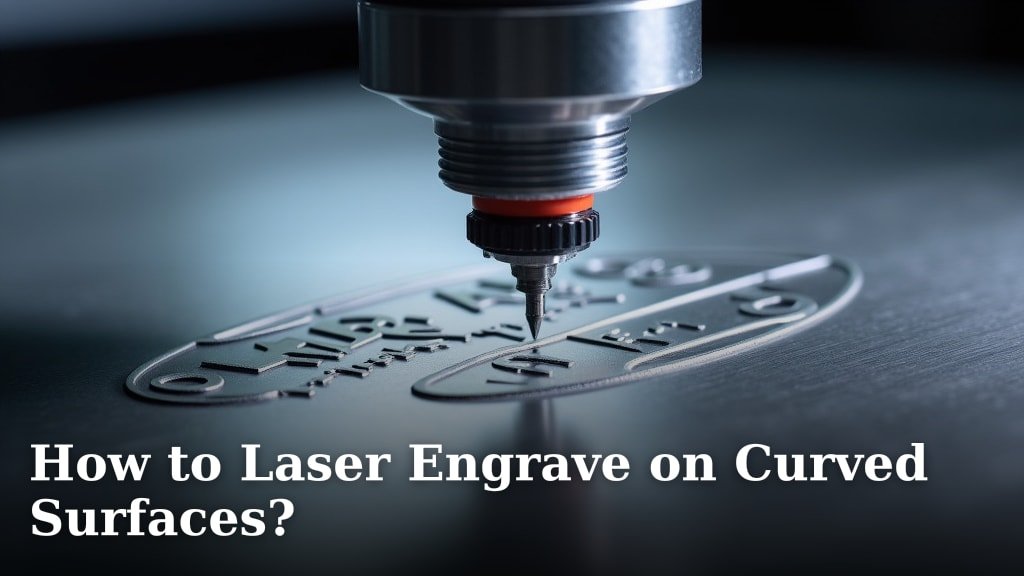
Yes, you can laser engrave on curved surfaces. You need specialized equipment or specific techniques to do this successfully. It’s a common request for custom projects and product personalization.
Engraving on non-flat items like mugs, bottles, or rings requires careful setup. We found that using a rotary attachment is the most effective method. This tool spins your object, allowing the laser to maintain focus across the curved area.
- Understand your laser’s capabilities.
- Choose the right rotary attachment.
- Calibrate your machine correctly.
- Prepare your curved item for engraving.
- Adjust settings for optimal results.
Let’s walk through exactly how to set up your laser engraver and achieve crisp, beautiful designs on all your curved items.
Mastering Curved Surface Laser Engraving
Engraving on curved surfaces might seem tricky, but with the right tools and approach, it’s quite achievable. You’re looking to personalize items like drinkware, jewelry, or even sports equipment. The secret lies in understanding how to maintain the laser’s focus and position as the object spins or changes shape.
We found that the most reliable method for achieving crisp, consistent results on curved items involves a specialized attachment. This attachment works by rotating your object during the engraving process. It ensures the laser beam hits the surface at the correct angle and distance.
Understanding Rotary Attachments
A rotary attachment is your best friend when it comes to curved items. Think of it like a potter’s wheel for your laser. It allows you to engrave around the entire circumference of an object, like a mug or a wine bottle, without having to reposition it.
There are a few main types of rotary attachments. Each has its own strengths and is designed for slightly different uses. Knowing the differences helps you pick the right one for your projects.
Chuck Rotary
The chuck rotary is similar to a lathe. It uses a three-jaw or four-jaw chuck to firmly grip your object from the inside or outside. This type is excellent for items with a consistent cylindrical shape, like bottles, tumblers, or even baseball bats. You’ll get a very secure hold, which means precise engraving.
Roller Rotary
A roller rotary, on the other hand, uses two sets of rollers that the object rests on. As the rollers turn, your object rotates. This is ideal for objects that might be slightly irregular or tapered, like wine glasses, mugs with handles, or items that can’t be gripped by a chuck. It offers more flexibility for various shapes but might require more careful positioning.
Preparing Your Workstation and Machine
Before you even think about placing your curved item, you need to prepare your laser engraver and the rotary attachment. This setup phase is crucial for success. Skipping steps here can lead to frustrating mistakes and wasted materials.
- Ensure your laser engraver is clean and well-maintained.
- Install the rotary attachment according to your machine’s instructions.
- Connect all necessary cables.
- Power on your laser and computer.
Think of this as warming up for a workout. You wouldn’t just jump into heavy lifting without preparing your body. Similarly, you shouldn’t start engraving without preparing your equipment.
Calibrating Your Rotary Attachment
Calibration is perhaps the most important step. It tells your laser software how to translate your flat design into a rotating movement. Without proper calibration, your design will be distorted or misaligned. We found this step is where many beginners struggle, but it’s simpler than it sounds.
Measuring Your Object
You’ll need two key measurements: the diameter of your object and its circumference. Most software only asks for the diameter, then calculates the circumference. A quick check with a caliper or even a ruler for basic items works well. For tapered items, measure the diameter at the engraving line.
Software Settings
In your laser software, you’ll need to activate the rotary mode. You’ll then input the object’s diameter. The software uses this information to determine how much the rotary device needs to turn for each increment of your design. Many expert engravers suggest performing a small test engrave on a scrap piece first to fine-tune these settings (Laser Engraving Pros).
This table summarizes the different rotary types and their common uses:
| Rotary Type | Best For | Advantages | Considerations |
|---|---|---|---|
| Chuck Rotary | Cylinders, bottles, tumblers, dowels | Secure grip, high precision, handles heavy items | Limited to consistent shapes, potential for clamping marks |
| Roller Rotary | Mugs, wine glasses, tapered items, irregular shapes | Versatile for various shapes, easier setup for some items | Less secure grip, potential for slippage on heavy or smooth items |
Positioning Your Curved Item
Once calibrated, it’s time to carefully place your object in the rotary attachment. This requires a gentle touch and an eye for alignment. You want your item to be as level as possible and centered in the rotary device. Even a slight tilt can throw off your engraving.
For chuck rotaries, make sure the chuck jaws are firmly gripping the item without over-tightening. For roller rotaries, ensure the item rests securely on both sets of rollers. If it has a handle, like a coffee mug, you’ll need to rotate the handle out of the laser’s path. Sometimes, you might need to prop up one end of a tapered item to keep it level with the laser beam.
Focusing the Laser for Optimal Results
Focus is king when it comes to laser engraving. A laser that’s out of focus will produce blurry, weak, or incomplete engravings. On curved surfaces, maintaining focus is a bit more complex than on a flat surface.
With a rotary attachment, the laser is usually focused on the highest point of the curve as it rotates. Some advanced systems have “auto-focus” features that adjust during the process, but many require manual focus. We found that manually focusing at the center-top of your object’s curve typically yields the best results.
Adjusting Laser Settings for Curved Engraving
Laser settings—power, speed, and frequency—are critical. They determine how deep and dark your engraving will be. For curved surfaces, you might need to tweak these settings slightly compared to flat engravings.
Many experts suggest starting with slightly lower power settings and higher speeds, then doing test runs. This helps you avoid burning through thinner materials or making the engraving too deep. Because the laser is constantly moving relative to the surface on a curve, minor adjustments can make a big difference.
Material Considerations
Different materials react differently to the laser. Wood, glass, metal, and plastic all require unique power and speed settings. You wouldn’t engrave a delicate wine glass with the same power you’d use for a thick stainless steel tumbler. Always consult your laser’s manual or material charts as a starting point. Experimentation on scrap pieces is always recommended.
Executing the Engrave and Troubleshooting
With all your settings dialed in and your object positioned, it’s time to engrave! It’s always a good idea to stay near your machine during the process. Watch for any issues, such as the object slipping or the laser losing focus.
What if something goes wrong? Don’t panic. Here are a few common issues and solutions:
- Distorted Image: Recheck your rotary calibration settings (diameter/circumference).
- Blurry Engraving: Re-focus the laser. Ensure the object is stable and not wobbly.
- Inconsistent Depth: Check if your object is perfectly level in the rotary. Adjust power/speed settings.
- Object Slipping: For chuck rotaries, tighten the grip. For roller rotaries, ensure the object is correctly balanced or consider adding temporary stops.
Remember, practice makes perfect. Your first curved engrave might not be flawless, and that’s okay. Each attempt provides valuable learning.
Your Curved Surface Engraving Checklist
Before you hit that start button, run through this quick checklist. It helps ensure you’ve covered all the essential steps for a successful curved engraving project.
- Is the rotary attachment securely installed and connected?
- Have you accurately measured your object’s diameter?
- Are the rotary settings correctly entered into your laser software?
- Is your object securely positioned and level in the rotary?
- Is the laser properly focused on the curved surface?
- Are your power, speed, and frequency settings appropriate for the material?
Conclusion
Successfully engraving on curved surfaces truly opens up a new world of creative possibilities for your laser projects. As we’ve explored, the right rotary attachment and careful calibration are your greatest assets. Take your time with setup, accurately measure your items, and always run test engraves.
You now have a solid roadmap to tackle mugs, bottles, and other non-flat items with confidence. Don’t be afraid to experiment with settings for different materials. With practice, you’ll achieve those crisp, professional results you’re aiming for. Go ahead and start personalizing!
Frequently Asked Questions
Can any laser engraver be used with a rotary attachment?
Most modern laser engravers are designed to be compatible with rotary attachments. However, you’ll need to check your machine’s specifications and available ports. Some older or very basic models might not have the necessary connections or software support.
How do I prevent my curved item from slipping during engraving?
For chuck rotaries, ensure the jaws are securely tightened without causing damage. For roller rotaries, proper balancing is key; you might need to use foam inserts or temporary stops to keep the object stable. Always confirm your item is snug before starting the laser.
What’s the best way to clean an item after engraving on a curved surface?
The cleaning method depends on your material. For glass, a damp cloth with rubbing alcohol often works well to remove residue. For wood, a brush or compressed air can clear away debris. Always let the item cool completely before handling or cleaning.
Can I engrave on items with highly irregular or non-uniform curves?
Engraving on very irregular shapes can be challenging and might not always yield perfect results. Roller rotaries offer more flexibility for varied shapes than chuck rotaries. You’ll need meticulous focusing and potentially multiple passes with adjusted settings for complex curves.
How do I align my design correctly on a curved surface?
Precise alignment starts with accurately setting your design origin in the software. Physically marking your item with a non-permanent marker can help. Many engravers also use a “frame” function in their software to project the design outline before starting the actual engrave, allowing for visual alignment checks.
