
Yes, you can absolutely laser cut cardboard! It’s a fantastic material for many laser cutting projects. With the right settings, you can achieve clean cuts and impressive engraving results on cardboard, making it perfect for everything from intricate models to custom packaging. We found it’s a forgiving material to work with.
When laser cutting cardboard, focusing on air assist and correct power settings is key. Different cardboard thicknesses will require adjustments. You’ll want to experiment to find the sweet spot for a clean cut without excessive charring. Many hobbyists find it an accessible entry point into laser cutting.
- Use the right laser power and speed.
- Air assist helps prevent burning.
- Test on scrap pieces first.
- Watch for fumes – good ventilation is important.
- Cardboard is great for prototypes and crafts.
Ready to get started? Let’s walk through exactly how to laser cut cardboard step by step to get the best results for your creations.
Getting Started with Laser Cutting Cardboard
Laser cutting cardboard is a fantastic way to bring your creative ideas to life. You can make prototypes, custom boxes, or even cool decorations. It’s a material many beginners find easy to work with. We found that with a little know-how, you’ll be cutting like a pro in no time.
Understanding Your Cardboard and Laser Cutter
Choosing the Right Cardboard
Not all cardboard is created equal. For laser cutting, you’ll want to look for plain, unprinted cardboard. Corrugated cardboard is popular, but the wavy layer inside can sometimes affect the cut quality. Thinner, chipboard-style cardboard often gives cleaner results for detailed work. Avoid anything with plastic coatings or heavy inks, as these can produce toxic fumes. Many manufacturers use soy-based inks, which are generally laser-safe. Always check the material’s origin if you can.
Essential Laser Cutter Settings
Finding the right settings is key. This is where the magic happens! Laser cutters have three main adjustable settings: power, speed, and frequency. Power determines how much energy the laser delivers. Speed controls how fast the laser head moves. Frequency (or DPI for engraving) affects the dots per inch. Different thicknesses and types of cardboard will need different settings. It’s like tuning a radio to get the clearest station.
Power and Speed: The Dynamic Duo
For cutting through cardboard, you generally need enough power to go all the way through. But if the power is too high, you’ll get a lot of charring and burning. Speed is your counterbalance. A slower speed allows the laser more time to cut, but too slow will burn the material. A faster speed cuts quicker but might not go all the way through. The goal is a clean, crisp cut with minimal dark edges. We found that a balance between moderate power and a medium-slow speed often works best.
Frequency and Engraving
Frequency is more important for engraving designs onto cardboard. A higher frequency can create finer details. For cutting, you might set the frequency to a lower value or even turn it off, depending on your machine. Engraving settings will vary widely. You might want a light engraving for a subtle look or a deeper one for contrast. Always start with a lower power setting for engraving to avoid burning through the material too quickly.
The Importance of Air Assist
Air assist is your best friend when laser cutting cardboard. It’s a small compressor that blows air directly onto the laser’s cutting point. This does a few things. First, it blows away smoke and debris. This smoke is what causes the burnt, charred look. Second, the airflow helps cool the material. This reduces flaming and burning. Many laser cutters have this built-in. If yours doesn’t, it’s a worthwhile upgrade for cleaner cuts. Many hobbyists find that increasing air assist pressure helps immensely.
Preventing Fires and Excessive Charring
Cardboard is flammable. While laser cutting is generally safe, unattended fires can happen. Air assist is your first line of defense. Keeping your laser lens clean also helps. A dirty lens can scatter the laser beam, leading to inefficient cutting and more charring. Another tip is to avoid complex designs that require the laser to linger too long in one spot. The faster the laser moves, the less time there is for burning.
Setting Up Your Laser Cutter for Success
Focusing the Laser Beam
Proper focus is absolutely critical for a clean cut. Your laser cutter has a lens that focuses the beam to a tiny point. If the beam isn’t focused correctly, it will be wider and less intense. This means it won’t cut effectively. Most laser cutters have a focusing tool or a method to adjust the distance between the nozzle and the material. You want the laser beam to be at its narrowest point when it hits the surface of the cardboard. We found that taking a moment to focus precisely saves a lot of frustration later.
Using a Test Grid or Scrap Pieces
Before you commit to your main project, always test your settings! This is non-negotiable. Create a small test grid with different power and speed combinations. Or, just cut out small squares using various settings. This allows you to see exactly how your cardboard reacts. You can compare the results and pick the settings that give you the cleanest cut with the least charring. Many experienced users keep a logbook of successful settings for different materials. Don’t skip this step; it’s like proofreading your work before sending it off.
Ventilation: Your Lungs Will Thank You
Laser cutting cardboard produces smoke and fumes. Some of these fumes can be unpleasant, and others can be harmful to your health. Good ventilation is essential. Most laser cutters come with an exhaust fan and a hose that you can vent outside or into an air filtration system. Make sure this system is working correctly. Never operate your laser cutter in a poorly ventilated space. Health guidelines often recommend a specific air exchange rate to keep the environment safe (CDC). Think of it as wearing a mask when painting; it’s just a good safety practice. Ensure you have the right safety equipment for laser engraving, including proper ventilation.
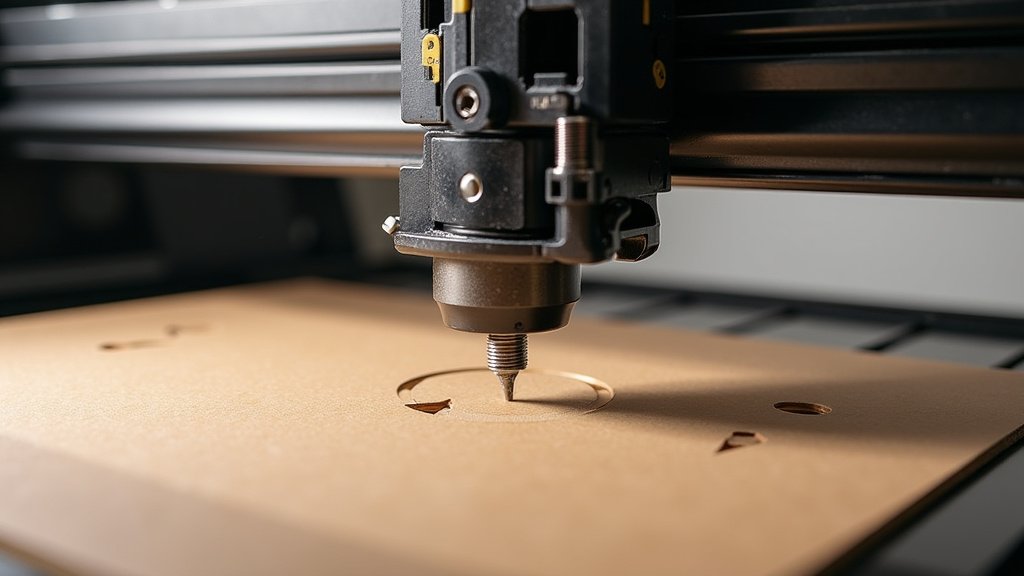
Common Cardboard Laser Cutting Settings (Starting Points)
These are just starting points, and your mileage may vary. Always test first! These are based on a typical 60-watt laser, but adapt them for your machine’s power.
| Cardboard Type/Thickness | Power (%) | Speed (mm/s) | Frequency (Hz) | Air Assist |
|---|---|---|---|---|
| Thin Cardboard (e.g., 1mm chipboard) | 15-25% | 100-150 mm/s | 500-1000 Hz | Medium |
| Standard Corrugated (e.g., 3mm) | 30-50% | 50-80 mm/s | 200-500 Hz | High |
| Thick Cardboard (e.g., 5mm+) | 50-75% | 20-40 mm/s | 200-400 Hz | High |
| Engraving (General) | 10-20% | 150-200 mm/s | 1000-2000 Hz | Low/Off |
Fine-Tuning for Perfect Results
Once you have your basic settings, you might need to fine-tune. If cuts aren’t going all the way through, try increasing the power slightly or reducing the speed a little. If you see too much charring, decrease the power or increase the speed. For engraving, if it’s too faint, increase power or slow down the speed. If it’s burning too much, reduce power or speed up. It’s a dance between these settings. We found that a slight adjustment can make a big difference. Don’t be afraid to experiment!
Safety First: Keeping Yourself and Your Equipment Safe
Safety should always be your top priority. Laser cutting, while fun, involves a powerful tool and potentially flammable materials. Following proper safety procedures will ensure you have a positive experience. Always supervise your laser cutter when it’s in operation. Never leave it unattended. Keep a fire extinguisher nearby, just in case. Many users recommend a CO2 extinguisher as it’s safe for electrical fires. Understanding the risks and taking precautions is essential.
A Quick Safety Checklist
Before you hit that “start” button on your next cardboard project, run through this quick checklist:
- Ensure your ventilation system is on and working.
- Clear the laser bed of any debris.
- Have a fire extinguisher within easy reach.
- Confirm your test cuts are satisfactory.
- Never leave the laser cutter unattended.
- Keep flammable materials away from the laser area.
Conclusion
You’ve learned how to turn ordinary cardboard into amazing creations with your laser cutter. We’ve covered everything from picking the right cardboard to dialing in your settings. Remember that air assist and testing on scrap pieces are your secret weapons for success. Always prioritize safety with good ventilation and a fire extinguisher nearby. With these tips, you’re ready to tackle your next cardboard laser cutting project with confidence. Go ahead and start designing!
Frequently Asked Questions
What is the best type of cardboard for laser cutting?
Look for plain, unprinted cardboard with minimal coatings. Thinner chipboard often yields cleaner cuts for detailed work. Avoid cardboard with plastic or heavy inks, as these can release harmful fumes when lasered.
How do I prevent cardboard from catching fire during laser cutting?
Proper air assist is your primary defense against fires, as it blows away smoke and cools the material. Ensure your laser’s focus is correct for efficient cutting. Always supervise the laser cutter and keep a fire extinguisher close by.
My cardboard cuts are leaving dark, burnt edges. What can I do?
This usually means your laser’s power is too high or the speed is too slow. Try reducing the power slightly or increasing the speed. Ensure your air assist is set to a higher pressure to help clear away debris and smoke.
Can I laser cut printed cardboard boxes?
It’s generally best to avoid heavily printed cardboard. The inks can produce fumes that are unpleasant or potentially harmful. If you must use printed cardboard, test a small, inconspicuous area first and ensure excellent ventilation.
How do I know if my laser cutter is focused correctly on cardboard?
Proper focus means the laser beam is as narrow and concentrated as possible at the surface of the cardboard. Use your laser cutter’s focusing tool or method to achieve this. A quick test cut will show you if the focus is right – a clean cut indicates good focus.
