
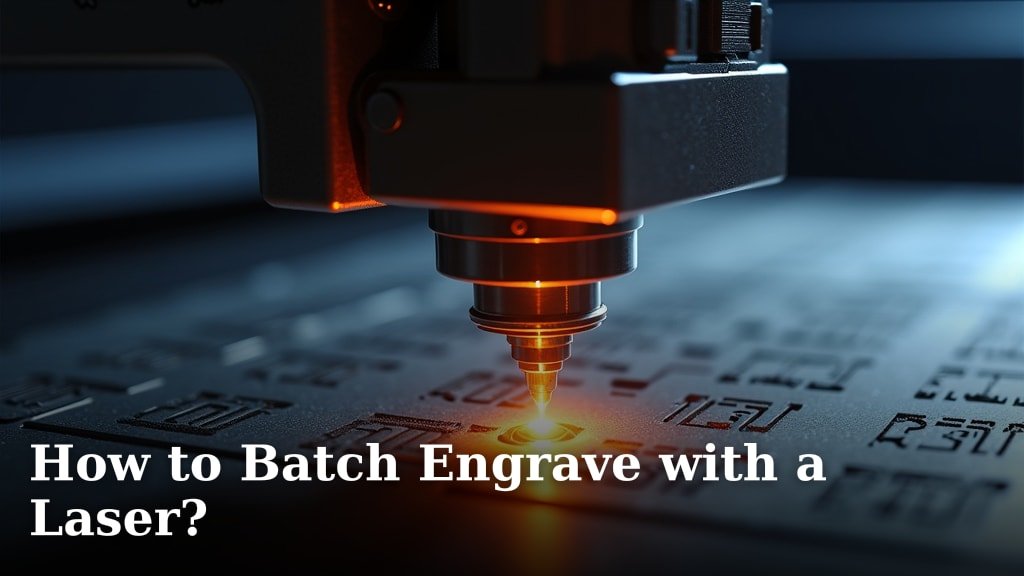
You can absolutely batch engrave with a laser by setting up your design files to repeat automatically. This is a huge time-saver for making multiples of the same item. Properly preparing your files means less manual intervention and more finished products. You’ll spend less time babysitting the machine.
Batch engraving involves arranging your artwork in a way that allows the laser cutter to work efficiently. Think of it as setting up a print job for multiple copies all at once. We found that this technique is essential for anyone producing items like coasters, keychains, or personalized gifts in larger quantities. It really helps boost your production capacity.
- Batch engraving saves you time.
- It lets you make many items at once.
- Proper file setup is key for efficiency.
- This method increases your output.
- It’s great for personalized gifts and more.
Ready to speed up your laser engraving process? Let’s walk through exactly how to set up your files for batch engraving, step by step.
Streamlining Your Laser Engraving with Batch Production
Batch engraving is your secret weapon for boosting output. It’s about setting up your laser cutter to run multiple items with minimal fuss. Think of it like printing 100 copies of a flyer versus printing them one by one. You get much more done in less time. We found that mastering this technique is essential for anyone making more than a handful of items.
Understanding the Basics of Batch Engraving
The core idea behind batch engraving is simple: tell your laser cutter to repeat a job automatically. This means you prepare one master design, arrange it efficiently, and let the machine do the repetitive work. It’s incredibly satisfying to watch. It frees you up for other tasks.
Why Batch Engrave? The Efficiency Payoff
Let’s be honest, repeating the same steps over and over is tedious. Batch engraving cuts down on that repetition. You spend less time loading and unloading materials. You also reduce the chances of errors from manual restarts. Many laser users report saving hours each week this way. It’s a real productivity booster. It helps you fulfill larger orders much faster.
Key Principles for Successful Batching
Before you dive in, understand a few key concepts. Your success hinges on careful planning. You need to think about material alignment. You also need to consider your design software’s capabilities. The goal is to minimize manual intervention between each piece.
Material Alignment is Everything
Getting your materials perfectly lined up is crucial. If your pieces aren’t in the same spot each time, your engraving will be off. This leads to wasted materials and frustration. We found that using jigs or fixtures makes a huge difference here. A jig holds your material securely in the exact same position every time.
Software Features for Repeating Designs
Most laser engraving software has tools to help with batching. Look for features like “array,” “pattern repeat,” or “tiling.” These allow you to duplicate your design across a larger area. You can then place multiple items within that duplicated area. Knowing these tools is half the battle.
Preparing Your Design Files for Batching
This is where the magic happens. Your design file needs to be set up correctly before you send it to the laser. We’ll cover arranging your artwork and optimizing your workspace. Learn how to speed up laser engraving by optimizing your design files and software workflow.
Arranging Your Artwork on the Laser Bed
First, you need to decide how many items you want to engrave at once. Then, arrange your design elements to fit. Imagine your laser bed as a grid. You’ll place your design in each cell of the grid.
Using Software Arrays and Grids
Most design software allows you to create an array of your artwork. You define the spacing between each piece. This spacing needs to account for the material size and how you’ll load it. For example, if you’re engraving coasters, you might place them with a small gap between each one. Then, you repeat this pattern across your virtual workspace. This ensures consistent spacing for every item.
Optimizing Material Usage
Think about how you can fit the most items onto your material. This often involves arranging them closely together. Measure your material carefully. Then, use your software’s arrangement tools to nest the designs efficiently. We found that a little time spent planning this can save a lot of material waste. It’s like playing a perfect game of Tetris.
Setting Up for Multiple Operations (Engrave and Cut)
If your project involves both engraving and cutting, you need to be strategic. You don’t want the laser to cut through your material until the engraving is done. Most software lets you set different power and speed settings for different steps. You can assign colors to different operations.
Layering and Order of Operations
Assign your engraving tasks to one color and your cutting tasks to another. Then, tell the laser software to perform the engraving first. This is typically done by setting the engraving layer’s speed and power higher (slower speed, higher power). The cutting layer will have different settings. Ensure the engraving finishes completely before the cut begins. Many users prefer to group their engraving operations together and their cutting operations together.
Test Runs Are Your Best Friend
Before committing to a full batch run, always do a test. Engrave or cut just one item. Check the results carefully. Are the dimensions correct? Is the engraving depth satisfactory? Is the cut clean? Once you’re happy, you can confidently proceed with your batch job. This small step prevents costly mistakes.
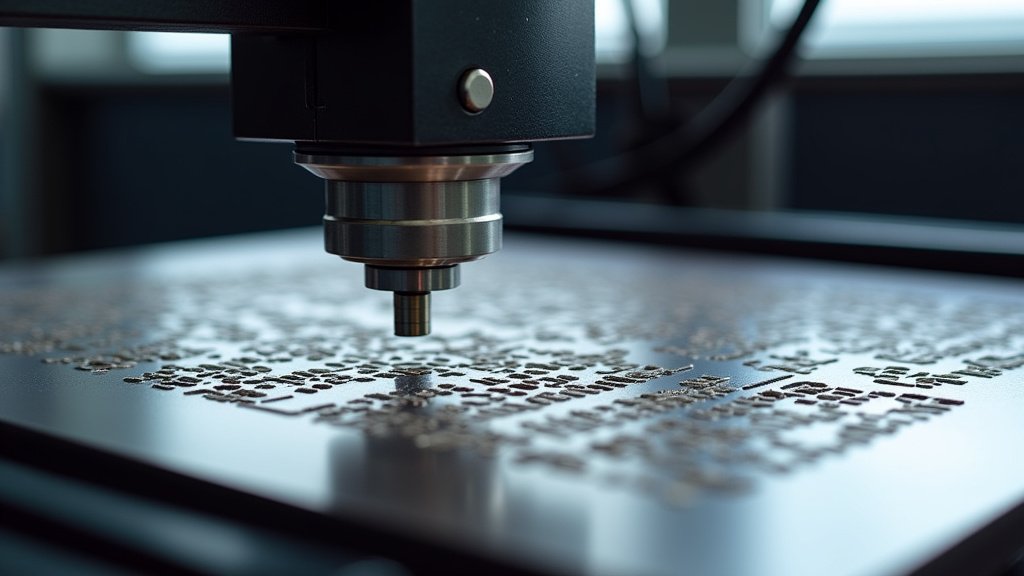
Achieving Perfect Alignment Every Time
Consistent alignment is the cornerstone of successful batch engraving. Without it, your beautiful repeated designs will look messy. Let’s look at ways to ensure your materials are always in the right place.
The Power of Jigs and Fixtures
A jig is a custom tool that holds your workpiece in a precise location. For batch engraving, a jig designed for your specific material size and shape is ideal. For example, a jig for round coasters would have circular cutouts.
Creating Simple Jigs
You can often make simple jigs using scrap material. Trace your item onto a piece of acrylic or wood. Then, carefully cut out the shape, leaving a snug space for your workpiece. You can add registration marks to the jig itself. These marks help you quickly place the jig in the same spot on your laser bed for every batch. Some laser users create a template file that engraves or cuts alignment marks directly onto the laser bed liner or a dedicated jig material.
Software Alignment Tools vs. Physical Jigs
While software can help you arrange designs, physical jigs ensure your material placement is accurate. Software alignment is about design placement; jig alignment is about physical object placement. Both are important, but jigs offer a higher level of repeatability for physical objects. We found that a combination of well-arranged software designs and a precise physical jig yields the best results. It’s a two-pronged approach to perfection.
Setting Up Your Laser Cutter for the Job
Once your design is ready and you have your alignment method sorted, it’s time to prepare the machine. This involves checking your material and settings.
Material Placement on the Bed
With your jig in place (if using one), carefully position your first piece of material. Ensure it sits snugly and correctly. If not using a jig, carefully measure and mark the starting corner of your first item. This marked spot becomes your reference point. Then, position your design file’s origin point in the software to match this physical starting point.
Confirming Laser Settings
Double-check your power, speed, and frequency settings. These settings might be slightly different for batch jobs compared to single items. Sometimes, running at high speeds for many repetitions can affect heat buildup. It’s wise to do a quick test burn on a scrap piece of the same material. This confirms your settings are still optimal for consistent results across all items. Many sources suggest performing a calibration test for engravings after making significant changes to your workflow (NCBI).
Troubleshooting Common Batch Engraving Issues
Even with the best preparation, things can sometimes go awry. Here are a few common hiccups and how to fix them.
Inconsistent Engraving Depth or Quality
This is often due to slight variations in material thickness or inconsistent power output from the laser. Ensure your material is perfectly flat. Check that your laser tube is properly cooled and functioning optimally. If using a lens, ensure it’s clean. A dirty lens can diffuse the laser beam, leading to weaker engraving. Many laser maintenance guides emphasize regular cleaning of optics (Industry Standards).
Misaligned Engravings Between Pieces
This almost always points to an alignment problem. Your jig might have shifted, or your material might have moved during the process. Re-check your jig’s stability. Ensure it’s securely fastened to the laser bed. If you’re not using a jig, re-verify your material placement method. Even a millimeter of drift can be noticeable on multiples.
Cutting Issues with Batch Jobs
If your cuts aren’t going all the way through or are burning excessively, review your cut settings. Heat can build up during long batch jobs, especially on thicker materials. You might need to slightly adjust your speed or power. Sometimes, increasing the air assist can help clear debris and achieve a cleaner cut. Experimentation is key here, but always start with a test piece.
Here’s a quick checklist to keep you on track:
- Confirm your software is set up for array/repeat.
- Ensure consistent material alignment with jigs or marks.
- Verify your engraving and cutting order.
- Perform a test run on a single item.
- Double-check all laser settings before starting.
- Inspect your first finished piece before running the full batch.
Conclusion
You’re now equipped to conquer batch engraving! We’ve seen how proper file setup, smart software use, and precise alignment transform your workflow. By treating your laser bed like a production line and utilizing tools like jigs, you significantly cut down on tedious repetition. This technique isn’t just about speed; it’s about increasing your output and reducing errors. So, take that knowledge and put it into practice. Your next batch of items is waiting to be created with efficiency and ease!
Frequently Asked Questions
How do I decide the best spacing for my batch engraved items?
Spacing depends on your material size and how much edge room you need. We recommend measuring your items and adding a small buffer. Test different spacings on scrap material to find what works best for your design and laser. Ensure there’s enough room so engravings don’t overlap between pieces.
Can I batch engrave different designs at the same time?
Yes, you can! You’ll set up your laser bed as a grid, similar to batching one design. However, you’ll need to carefully align each different design file to its correct position on the grid. This requires more meticulous setup and potentially multiple test runs.
What’s the difference between using software arrays and physical jigs?
Software arrays arrange your designs digitally. Physical jigs ensure your materials are placed accurately on the laser bed. We found that using both is ideal for the most consistent results. Jigs provide the physical certainty that your materials are always in the exact same spot.
How do I avoid burn marks on my material when batch engraving?
Burn marks often come from too much heat buildup. Ensure your air assist is at an optimal level. You might need to slightly increase your laser’s speed or decrease its power for long batch jobs. Always perform a test run to confirm your settings are preventing excessive charring.
Is it worth investing in custom jigs for batch engraving?
For high-volume production or for very specific shapes, custom jigs are absolutely worth it. They drastically reduce setup time and ensure perfect alignment every single time. If you frequently engrave the same size items, a custom jig will quickly pay for itself in saved time and materials.
