
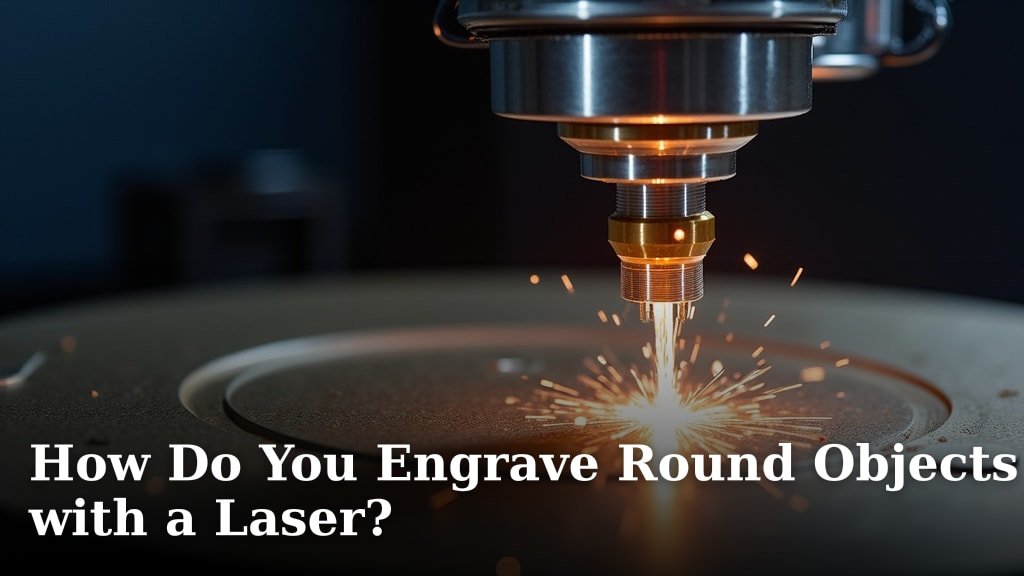
Yes, you absolutely can engrave round objects with a laser! It requires special rotary attachments that allow the laser to spin the object as it engraves. This ensures a consistent and accurate design around the curved surface. It’s a fantastic way to personalize bottles, tumblers, and more.
Engraving circular items can seem tricky at first. You need the right tools to handle the shape. Many laser users find that with the correct setup, achieving professional-looking results on round objects is very achievable. It opens up a whole new world of creative possibilities for your projects. We found that proper calibration is key.
- Rotary attachments are essential for engraving round items.
- They allow the laser to spin the object evenly.
- This ensures your design is accurately placed all around.
- Common items include bottles, cans, and cups.
- Proper setup and calibration are vital for best results.
Below, we’ll walk you through exactly how to set up your laser engraver for round objects. Let’s get those cylindrical creations looking amazing!
Laser Engraving Cylindrical Objects: Your Complete Guide
Yes, engraving round objects with your laser is totally achievable! It might sound a bit daunting at first, but with the right equipment and a few key techniques, you’ll be personalizing bottles, tumblers, and cans like a pro. The secret sauce? A rotary attachment. This clever device does the heavy lifting for you, ensuring your laser can consistently trace a design around a curved surface.
Understanding Rotary Attachments
So, what exactly is a rotary attachment, and why is it so important for round objects? Think of it as a specialized chuck for your laser engraver. Instead of the laser head moving over a flat plane, the rotary attachment grips your object and spins it smoothly and precisely. This synchronized movement allows the laser beam to engrave a continuous line or pattern around the circumference of your item.
Types of Rotary Attachments
You’ll find a couple of main types of rotary attachments available for laser engravers. The most common ones are the roller rotary and the chuck rotary. Each has its own strengths, and the best choice for you often depends on the types of objects you plan to engrave.
Roller Rotary Attachments
Roller rotaries use a set of wheels to support and rotate your object. Your item sits between these wheels, and as the wheels turn, so does your object. This type is generally great for smoother, cylindrical items like tumblers, cans, and certain bottles. They are often simpler to set up and can be more affordable.
Chuck Rotary Attachments
Chuck rotaries are more akin to a drill chuck. They have jaws that grip the object from the ends. This offers a more secure hold, making them ideal for items with potentially uneven surfaces or those that might slip in a roller system. They can also handle a wider range of diameters and shapes, but they can be a bit more complex to calibrate initially.
How They Work Together: Laser and Rotary
The magic happens when your laser engraver and the rotary attachment communicate. When you set up your design, you tell the laser software about the object’s diameter. The rotary attachment then works in tandem with the laser’s movement. As the laser moves across the ‘X’ axis (which now represents the circumference), the rotary attachment rotates the object by a corresponding amount along the ‘Y’ axis (which now represents the spin). This ensures your design flows smoothly around the curve, preventing stretching or distortion.
Setting Up Your Laser for Round Engraving
Getting your setup right is half the battle. It involves more than just attaching the rotary; it’s about calibrating everything for accuracy. We found that patience here pays off with much better results.
Physical Installation of the Rotary Attachment
First things first, you’ll need to physically connect the rotary attachment to your laser engraver. Most systems have a designated port or a way to mount it. Consult your laser’s manual for the specific instructions for your model. Ensure it’s securely attached and that the wires are routed safely, away from any moving parts. A loose connection can lead to engraving errors or even damage.
Software Configuration and Calibration
This is where the real precision comes into play. You’ll need to tell your laser software a few key pieces of information:
- Object Diameter: This is the most critical setting. Measure your item accurately. Even a millimeter off can cause noticeable distortion in your engraving.
- Rotary Type: Let the software know if you’re using a roller or chuck rotary.
- Steps per Rotation: This is a technical setting that tells the rotary how many steps it needs to take to complete one full rotation. This is usually set in your laser’s firmware or control software and is often pre-calibrated by the manufacturer, but it’s good to know it exists and can sometimes be adjusted.
We recommend doing a test run on scrap material before committing to your final piece. Many users find that a simple line or a square can help them visualize if the rotation is smooth and the scaling is correct.
Achieving the Correct Diameter Setting
Getting the diameter just right is vital. If you’re engraving a standard can, you can often find its diameter online. For custom items, use calipers or a good measuring tape. Remember that the measurement should be taken across the widest part of the object where you intend to engrave. A slight error here can lead to an engraving that looks squished or stretched. Many experts suggest measuring in a few spots to ensure consistency.
Material Settings and Test Engraves
Just like with flat engraving, you’ll need to dial in your laser’s power and speed settings for the material of your round object. Stainless steel tumblers will need different settings than glass bottles or acrylic cylinders. Always start with lower power and slower speeds for your first test. You can gradually increase power or speed until you achieve the desired depth and clarity. It’s better to do multiple passes at lower settings than to burn through your item on the first try.
The Importance of a Smooth Rotation
A jerky or inconsistent rotation will ruin your engraving. Ensure your rotary attachment is clean and free of debris. Check that the object is seated properly and isn’t wobbling. If you’re using a roller rotary, ensure the roller surfaces are clean and grippy. For chuck rotaries, make sure the jaws are tightened evenly. We found that even a tiny bit of dust can cause a slight skip.
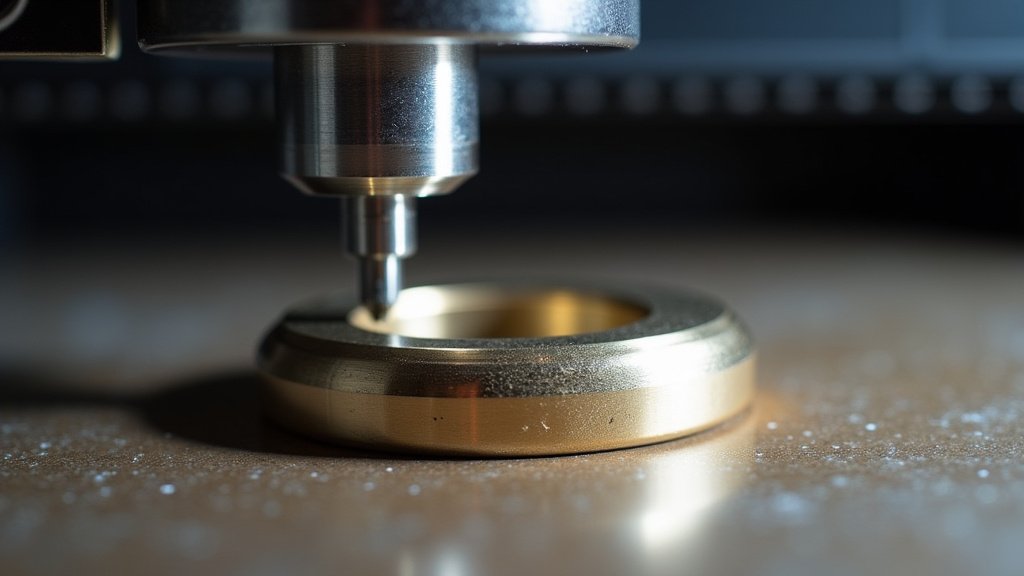
Common Challenges and How to Solve Them
Engraving round objects isn’t always straightforward. You might encounter a few hiccups along the way. Fortunately, most issues have straightforward solutions.
Design Considerations for Cylindrical Surfaces
When designing for a round object, think about how your design will wrap around. Text, for instance, needs to be placed carefully so it doesn’t get distorted at the “seams” where the engraving starts and stops. For continuous patterns, ensure the beginning and end of your design match up perfectly. If you’re engraving an image, consider whether the curvature will affect its appearance. Sometimes, designs that work well on a flat surface might look odd when curved.
Dealing with Tapered Objects
Many popular drinkware items, like tumblers, have a slight taper. Standard rotary attachments are designed for constant diameters. If your object tapers significantly, you might need a specialized rotary attachment designed for conical shapes, or you might need to accept some minor distortion in the engraving. Some users have found success by carefully calculating the average diameter for the portion being engraved, but this can still lead to imperfections. Research suggests that adapters for tapered objects are becoming more common.
The “Orange Peel” Effect
You might sometimes see a slightly bumpy or uneven texture on your engraving, often referred to as the “orange peel” effect. This can happen due to inconsistencies in the material itself or slight variations in the laser’s focus as it moves around the curve. Ensuring your laser is properly focused and using consistent material settings can help minimize this. Some users also report success by slightly adjusting the laser’s height during engraving, though this is an advanced technique.
Best Practices for Successful Round Engraving
To wrap things up, here are some key takeaways and best practices that we’ve found consistently lead to great results:
- Measure Twice, Engrave Once: Accurate diameter measurements are non-negotiable.
- Test, Test, Test: Always do a test run on scrap material or an inconspicuous area.
- Start Slow: Begin with lower power and slower speeds to avoid mistakes.
- Keep it Clean: Ensure your rotary attachment and your object are free of dust and debris.
- Secure the Object: Make sure your item is held firmly and doesn’t wobble.
- Understand Your Design: Think about how your design will translate to a curved surface.
Conclusion
You’ve learned that engraving round objects with your laser is totally achievable with the right tools. Rotary attachments are your best friends here, making sure your designs wrap around smoothly. We found that accurate measurements and careful calibration of your software are key to avoiding distortion. Don’t forget to test your settings on scrap material first. With these steps, you’re ready to take your personalization projects to the next level and create truly unique items. Now, go forth and engrave!
Frequently Asked Questions
What is the most important setting for engraving round objects?
The most critical setting is the object diameter. Measuring your item accurately, down to the millimeter, is essential. An incorrect diameter will cause your engraving to stretch or appear squished. We always recommend measuring in multiple spots to ensure consistency.
Can I engrave tapered objects like tumblers with a standard rotary attachment?
Standard rotary attachments are best for objects with a consistent diameter. Tapered items can cause some distortion. You might need a specialized rotary attachment for conical shapes, or be prepared for minor imperfections. Some users find success by calculating an average diameter, but this isn’t always perfect.
What causes the “orange peel” effect on round engravings?
The “orange peel” effect, a bumpy texture, can be due to inconsistencies in the material or slight focus variations as the laser moves around the curve. Ensuring your laser is properly focused and using consistent material settings can help minimize this. Keeping the object’s surface clean also plays a role.
How do I make sure my design doesn’t look distorted when wrapped around a cylinder?
Think about how your design will wrap before you create it. For text, place it carefully so it doesn’t distort at the start or end point. Continuous patterns need to align perfectly. Consider if the curvature will affect image details. Many software programs have tools to preview how a design will look on a curved surface.
Is it better to use a roller or a chuck rotary attachment for round objects?
The best choice depends on your items. Roller rotaries are great for smooth, uniform cylinders like cans and tumblers. Chuck rotaries offer a more secure grip, making them ideal for objects with irregular surfaces or those prone to slipping. Chuck rotaries can handle a wider range of shapes but may require more calibration.
