For photo engraving on wood, use 10-15% power with 80-100% speed for light woods like pine, and 20-30% power with 60-80% speed for hardwoods like oak.
The key to detailed photo engraving lies in using 300+ DPI images, proper dithering settings, and multiple light passes rather than one heavy burn.
Getting crisp photo engravings on wood feels like magic when you nail the settings. But one wrong move and your precious memory turns into a charred mess.
I’ve researched hundreds of laser cutting forums and found that most beginners make the same mistakes. They crank up the power thinking more equals better detail. Wrong move.
Understanding Wood Types for Photo Engraving
Not all woods play nice with photo engraving. Some woods give you smooth gradients while others create blotchy disasters.
Best Woods for Photo Details
Maple tops the list for photo engraving. Its tight grain creates smooth tonal transitions that make faces look natural.
Birch plywood runs a close second. The light color gives you great contrast, and it engraves evenly without grain interference.
Basswood works well for beginners. It’s forgiving, soft, and engraves predictably across the entire surface.
Woods to Avoid for Photos
Skip oak for detailed photos. Those bold grain lines will compete with your image details and create visual noise.
Pine can work but watch out for resin pockets. They burn differently and create dark blotches in random spots.
Walnut looks gorgeous but the natural dark color reduces contrast. You lose subtle details in shadows.
Power Settings for Different Wood Types
Power control makes or breaks your photo engraving. Too much power burns away fine details. Too little leaves you with faint, barely visible images.
Softwood Power Guidelines
For pine, basswood, and poplar, start with 8-12% power. These woods burn easily, so gentle wins the race.
Test on scraps first. What looks perfect at 10% power might turn into charcoal at 15%.
Hardwood Power Guidelines
Maple and birch need 15-25% power depending on thickness. The denser wood requires more energy to create visible marks.
Oak demands 20-30% power but remember – you’re fighting that grain pattern for photo quality.
Power Testing Method
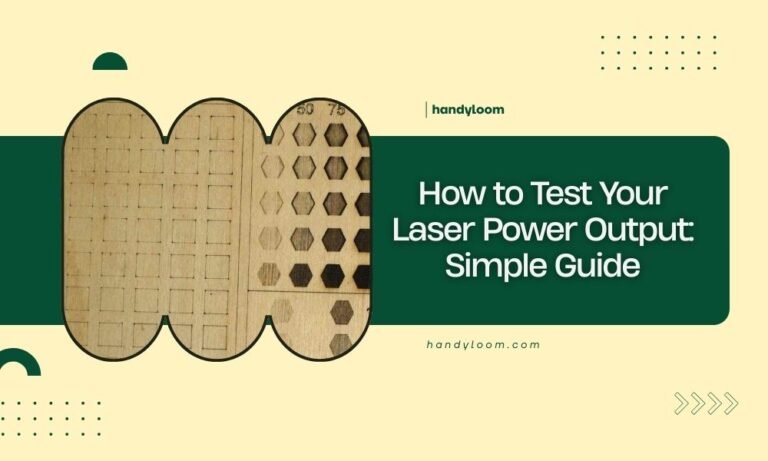
Create a power test grid. Run the same small image at 5%, 10%, 15%, 20%, and 25% power. Pick the setting that gives you the best balance of detail and contrast.
Speed Settings for Maximum Detail
Speed works opposite to power. Faster speeds create lighter burns. Slower speeds dig deeper into the wood.
Finding Your Sweet Spot Speed
For photo engraving, aim for 70-100% speed on most woods. This keeps the laser moving fast enough to avoid over-burning small details.
Slow speeds around 30-50% work better for line art or text. But photos need that quick, light touch.
Speed and Power Balance
Think of speed and power like a dance. High speed needs slightly higher power to compensate. Low speed requires lower power to prevent burning.
| Wood Type | Power (%) | Speed (%) | Passes |
|---|---|---|---|
| Basswood | 8-12 | 80-100 | 1-2 |
| Maple | 15-20 | 70-90 | 1-2 |
| Birch Plywood | 12-18 | 75-95 | 1 |
| Oak | 20-30 | 60-80 | 2-3 |
Image Preparation for Wood Engraving
Your laser settings mean nothing if your image isn’t prepared right. Garbage in, garbage out applies here big time.
Resolution Requirements
Use 300 DPI minimum for photo engraving. Higher resolution captures more detail that translates into better wood burns.
I found that 600 DPI works even better for faces and portraits. The extra detail helps with skin texture and facial features.
Contrast and Brightness Adjustments
Boost contrast by 15-20% before engraving. Wood doesn’t have the dynamic range of paper printing, so you need extra punch.
Increase brightness slightly for dark woods like walnut. This prevents shadow areas from disappearing completely.
Image Sizing Tips
Smaller images show more detail per square inch. A 4×6 inch photo will look crisper than the same image stretched to 8×10.
Dithering Settings for Realistic Photos
Dithering converts your photo’s gray tones into dot patterns the laser can handle. Get this wrong and your photo looks like newspaper print.
Best Dithering Methods
Floyd-Steinberg dithering works best for faces and portraits. It creates smooth transitions between light and dark areas.
Stucki dithering handles landscapes and scenery well. It preserves texture details in things like tree bark and grass.
Dithering Density
Set dithering density between 75-90%. Lower density loses shadow details. Higher density can muddy the highlights.
Multiple Pass Techniques
Sometimes one pass isn’t enough. Multiple light passes often beat one heavy burn for photo quality.
When to Use Multiple Passes
Hard woods like oak benefit from 2-3 light passes. Each pass builds up the burn gradually without scorching fine details.
Photos with lots of shadow detail need multiple passes. The first pass establishes the image. Later passes deepen the dark areas.
Pass Timing and Cooling
Wait 2-3 minutes between passes. Let the wood cool down to prevent heat buildup that causes uneven burning.
Progressive Power Method
Try starting at 60% of your target power for the first pass. Then run a second pass at 100% power to deepen shadows and add contrast.
Troubleshooting Common Photo Engraving Problems
Even with perfect settings, things can go sideways. Here’s how to fix the most common issues.
Blotchy or Uneven Burning
This usually means inconsistent wood density or grain interference. Switch to a tighter-grain wood like maple or birch.
Check your laser’s condition too. Dirty lenses create uneven power delivery across the image.
Lost Detail in Highlights
Your power is too high or you need more contrast in the original image. Drop power by 3-5% and try again.
Muddy Shadow Areas
Either your dithering density is too high or the wood is too dark. Try lighter wood or reduce dithering to 70%.
Fixing Smoke Stains
Good ventilation prevents most smoke staining. If you get stains anyway, light sanding with 220-grit paper usually removes them.
Advanced Settings for Professional Results
Ready to take your photo engraving to the next level? These advanced techniques separate amateur work from pro quality.
Variable Power Engraving
Some laser software lets you vary power based on image density. Dark areas get more power while highlights get less.
This mimics how traditional photography works and creates more natural-looking results.
Grain Direction Considerations
Align your engraving direction with the wood grain when possible. This reduces grain interference and creates smoother tones.
Focus Distance Fine-Tuning
Perfect focus is critical for photo detail. Use a focus test pattern and adjust in 0.5mm increments until lines are sharpest.
Conclusion
Photo engraving on wood requires patience, practice, and the right settings for your specific wood type. Start with conservative power settings and work your way up. Remember that multiple light passes often beat one heavy burn for photo quality. Most importantly, spend time preparing your images properly – great engraving starts with great image prep. Test your settings on scraps first, and don’t be afraid to adjust based on what you see. With these guidelines, you’ll be creating stunning photo engravings that capture every detail and preserve memories in beautiful wood.
What DPI should I use for photo engraving on wood?
Use 300 DPI minimum for good results, but 600 DPI works better for portraits and faces. Higher resolution captures more detail that translates into better wood burns, especially for fine facial features and texture.
Why do my photo engravings look blotchy on some woods?
Blotchy results usually come from woods with inconsistent grain or density variations. Oak and pine are common culprits. Switch to maple, birch, or basswood for smoother, more even photo engravings.
Should I use one heavy pass or multiple light passes for photos?
Multiple light passes work better for photo engraving, especially on hardwoods. Start with 60% of your target power for the first pass, then add a second pass at full power to deepen shadows without burning fine details.
How do I prevent smoke stains during photo engraving?
Use strong ventilation and air assist if your laser has it. Cover surrounding areas with masking tape, and clean the wood surface before starting. If stains occur anyway, light sanding with 220-grit paper removes most residue.
What’s the best wood thickness for detailed photo engraving?
Use wood between 1/8 inch and 1/4 inch thick for best results. Thinner wood can warp from laser heat, while thicker wood requires more power that can burn away fine details. Quarter-inch maple or birch plywood works perfectly for most photo projects.