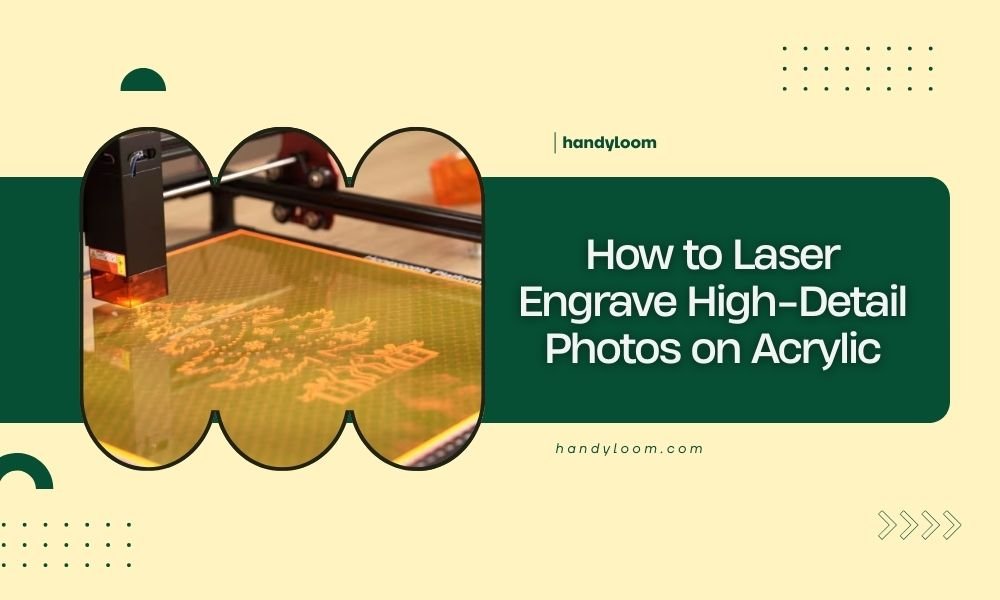
To laser engrave high-detail photos on acrylic, you need to convert your image to grayscale, adjust the contrast and brightness, then use specific laser settings with low power (10-30%) and high speed (80-100%) for the best results.
The key to successful photo engraving on acrylic lies in proper image preparation and using the right laser parameters to create smooth tonal gradations without melting the material.
Why Acrylic Works So Well for Photo Engraving
Acrylic is like the perfect canvas for laser photo engraving. When you hit it with a laser, it creates beautiful white marks that contrast nicely with the clear material. This happens because the laser disrupts the molecular structure, creating tiny fractures that scatter light.
Cast acrylic works better than extruded acrylic for photo engraving. I found through research that cast acrylic produces more consistent results with less melting around the edges. The material is denser and responds more predictably to laser energy.
Preparing Your Photo for Laser Engraving
Image Resolution Requirements
Your photo needs to be at least 300 DPI for crisp results. Higher resolution gives you more detail, but files over 600 DPI don’t show much improvement on most laser systems. Think of it like printing a photo – the same rules apply.
Resize your image to match the exact size you want on the acrylic. If you want a 4×6 inch engraving, make your image exactly 4×6 inches at 300 DPI.
Converting to Grayscale
Color photos won’t work for laser engraving. Your laser can only create one “color” – those white marks we talked about. Convert your image to grayscale first, then you can fine-tune the contrast.
Most photo editing software has a simple grayscale conversion tool. Don’t just desaturate the image – use the proper grayscale conversion for better tonal range.
Adjusting Contrast and Brightness
Here’s where the magic happens. You want to boost the contrast slightly to make features pop, but not so much that you lose the subtle details in faces or textures.
Aim for a histogram that uses the full range from black to white, but avoid crushing the shadows or highlights. Many experts suggest keeping most of the image in the mid-tones for smooth laser engraving.
Shadow and Highlight Details
Pay special attention to shadow areas. Very dark sections might not engrave well, leaving muddy results. Lighten the shadows just enough to see the details you want to keep.
Bright highlights should stay bright – these will be the unengraved areas that remain clear on your acrylic.
Choosing the Right Acrylic
Thickness Considerations
Most photo engraving works best on 1/8 inch to 1/4 inch thick acrylic. Thinner material can warp from heat, while thicker pieces might not show the engraving contrast as well.
I found that 3/16 inch thick cast acrylic hits the sweet spot for most photo projects. It’s thick enough to handle without breaking but thin enough to show good contrast.
Color Options
Clear acrylic gives you the best contrast for photos. The white engraving marks really stand out against the transparent background. You can always add colored backing later if you want.
White or colored acrylic can work, but you lose some of the dramatic contrast that makes acrylic photo engraving so appealing.
Laser Settings for Photo Engraving
Power Settings
Start with low power – around 15-25% for most CO2 lasers. Acrylic melts easily, and too much power will create rough, uneven surfaces instead of smooth engraving.
You want just enough power to create the white marking without melting through or creating raised edges around your engraving lines.
Speed Settings
High speed is your friend here. Run at 80-100% of your laser’s maximum engraving speed. Fast passes with low power give you better control over the engraving depth.
Slower speeds with the same power will create deeper marks, which might look good for text but can ruin the smooth gradations you need for photos.
DPI and Line Spacing
Set your laser software to 300-400 DPI for photo engraving. Higher DPI settings take much longer without adding much visible detail.
Use the finest line spacing your laser can handle. Overlapping lines create smoother tonal gradations in photos.
| Laser Power | Material Thickness | Recommended Speed | DPI Setting |
|---|---|---|---|
| 40W CO2 | 1/8 inch | 1200-1500 mm/min | 300 DPI |
| 60W CO2 | 3/16 inch | 1500-2000 mm/min | 300-400 DPI |
| 80W+ CO2 | 1/4 inch | 2000+ mm/min | 400 DPI |
Setting Up Your Laser
Focus Distance
Perfect focus is critical for photo quality. Even slightly off focus will make your image look soft and blurry. Take the time to focus precisely on the acrylic surface.
Some laser operators prefer to focus slightly above the surface for photo engraving, but start with perfect focus until you get comfortable with the process.
Air Assist Settings
Use gentle air assist to blow away debris, but don’t overdo it. Too much air can cool the acrylic too quickly and affect the engraving quality.
You want just enough airflow to keep the lens clean and remove any small particles from the engraving area.
Running Your First Test
Start with a Small Sample
Don’t jump straight to engraving your full-size photo. Cut a small piece of acrylic and test a portion of your image first. This saves time and material if you need to adjust settings.
Pick a section of your photo that has good contrast and detail – maybe a face or an area with both light and dark elements.
Document Your Settings
Write down what works. Photo engraving involves a lot of variables, and you’ll want to remember the settings that gave you great results.
Keep notes on the acrylic brand, thickness, laser power, speed, and any image adjustments you made.
Troubleshooting Common Issues
Melted or Rough Edges
This usually means too much power or too slow speed. Reduce power by 5-10% or increase speed. The goal is to mark the surface, not melt through it.
Weak or Faint Engraving
Not enough power or too fast speed. Increase power gradually – small changes make big differences in acrylic.
Uneven Tones
Check your image preparation first. Make sure the contrast is appropriate and the image is properly sized. Also verify your laser focus across the entire engraving area.
Banding or Lines in the Image
This often comes from mechanical issues like belt tension or inconsistent laser power. Check your laser maintenance and consider using a higher DPI setting.
Finishing Your Engraved Photo
Cleaning the Surface
Use a damp cloth to remove any residue from the engraving process. Avoid harsh chemicals that might damage the acrylic or affect the engraved areas.
Adding Background Color
You can paint the back of clear acrylic to make your photo really pop. Black backing creates dramatic contrast, while white gives a softer look.
Use acrylic paint or even colored paper mounted behind the engraving. The choice depends on whether you want a permanent or changeable background.
Advanced Techniques
Multiple Pass Engraving
For extra depth in darker areas, you can run multiple passes at low power. This gives you more control over the tonal range but takes longer.
Combining with Edge Lighting
LED edge lighting makes engraved photos glow beautifully. The light travels through the clear acrylic and illuminates the engraved areas from within.
Mounting and Display Options
Consider how you’ll display your finished piece. Standoffs, frames, or floating mounts all create different visual effects with the engraved acrylic.
Conclusion
Laser engraving photos on acrylic combines technical precision with artistic vision. The key is starting with proper image preparation, using conservative laser settings, and testing thoroughly before committing to your final piece. With practice, you’ll develop an eye for the contrast and detail that translate well to this medium. Remember that each photo is different, so stay flexible with your approach and document what works. The results are worth the effort – a professionally engraved photo on acrylic has a unique beauty that’s hard to match with other methods.
What’s the best image format for laser engraving photos on acrylic?
Use high-resolution JPEG or TIFF files at 300 DPI minimum. Avoid PNG files with transparency, as most laser software handles solid backgrounds better for consistent engraving results.
Can you engrave colored photos directly without converting to grayscale?
No, lasers can only create one mark color on acrylic. You must convert color photos to grayscale first. Your laser software might do this automatically, but manual conversion gives you better control over the tonal balance.
How long does it take to engrave a typical 5×7 inch photo?
Expect 15-45 minutes depending on your laser power, DPI settings, and image complexity. Higher detail settings and lower power levels take longer but often produce better results.
Why do some areas of my photo look cloudy or uneven after engraving?
Uneven engraving usually comes from inconsistent laser focus, dirty lenses, or acrylic that moved during engraving. Check your material is flat and secure, and clean your laser optics regularly.
What’s the smallest detail size that shows up clearly in acrylic photo engraving?
Most lasers can reproduce details as small as 0.5-1mm clearly. Fine details like individual hair strands or small text might not show up well, so choose photos with good overall contrast and defined features.