
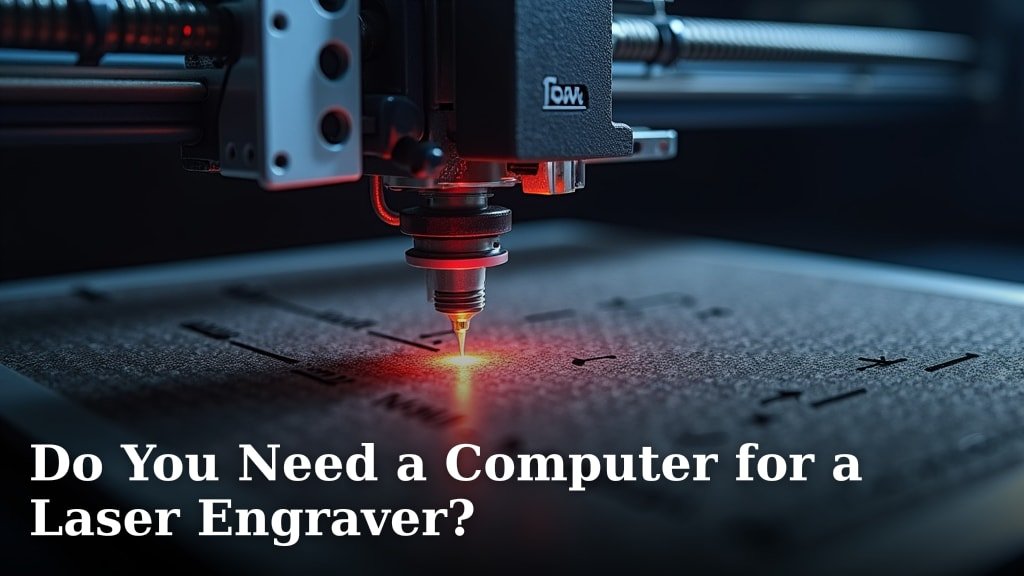
Yes, you absolutely need a computer to operate a laser engraver. Your computer acts as the brain of the operation, sending the designs and instructions to the laser. Without it, your laser engraver simply wouldn’t know what to make.
Think of your computer as the artist and your laser engraver as the skilled hand. You’ll use your computer to create or import your artwork, and then use specialized software to tell the laser exactly where to cut or etch. It’s how you bring your creative ideas to life on different materials.
TL;DR:
- Yes, a computer is essential for laser engraving.
- Your computer sends designs and commands to the laser.
- You’ll need design software and driver software.
- The computer controls speed, power, and movement.
- It’s how you make your laser engrave specific patterns.
Let’s walk through exactly what your computer does for your laser engraver and what you’ll need to get started.
Why You Absolutely Need a Computer for Your Laser Engraver
You might be wondering if you can get by without a computer when you’re setting up your laser engraver. The short answer is no, you really can’t. Your computer is more than just a helpful tool; it’s the central command center for your entire engraving operation. Without it, your laser engraver is essentially a very sophisticated, but very quiet, piece of hardware.
Think of it this way: your laser engraver has a powerful laser and precise motors, but it doesn’t have its own brain. It needs instructions. Your computer provides those instructions. It’s where you design what you want to engrave or cut, and it’s how you send those specific designs to the laser so it knows exactly what to do.
The Computer’s Role: More Than Just a Pretty Picture Sender
Your computer does a lot more than just display your designs. It translates your creative vision into a language the laser understands. This involves several key functions that are absolutely essential for operation.
Design Creation and Import
First, you need a way to create or get your artwork onto the laser. This is usually done using design software on your computer. You can draw your own designs from scratch using vector graphics programs like Adobe Illustrator or Inkscape. Alternatively, you can import existing images or logos. Your computer is where you’ll open these files, arrange them, and make any necessary edits before sending them to the engraver.
Sending Instructions to the Laser
Once your design is ready, your computer sends it to the laser engraver. This isn’t just a simple “send” button. There’s specialized software involved, often called driver software or a laser control program. This software communicates with the laser engraver, telling it the exact path the laser beam needs to follow.
Controlling Laser Settings
This is where the real power lies. Your computer, through the control software, allows you to dictate critical settings for the engraving process. You’ll adjust things like:
- Power: How strong the laser beam is. This affects how deeply it cuts or etches.
- Speed: How quickly the laser head moves across the material. A slower speed usually means a deeper engrave.
- Frequency: This is relevant for certain laser types, controlling pulse rate.
- Focus: Ensuring the laser beam is perfectly sharp on the material’s surface.
Getting these settings right is key to successful engraving. Too much power or too slow a speed can burn through your material, while too little might not engrave deeply enough. Your computer is your control panel for all of this.
Managing Movement and Precision
The computer tells the laser engraver’s motors exactly where to move. This is done in tiny increments to create precise lines and curves. The software calculates the path based on your design file. It ensures that the laser head moves smoothly and accurately to reproduce your artwork on the material. This level of precision is what separates a professional-looking engrave from a shaky mess.
What Kind of Computer Do You Actually Need?
Now that you understand why a computer is essential, you might be asking about the specs. Do you need a super high-end gaming rig? The good news is, generally, no. Most laser engraving software isn’t as demanding as the latest video games.
General Recommendations for Most Laser Engravers
For the majority of home or small business laser engravers, a modern, reasonably capable computer will do the job perfectly. Here’s what we generally see as sufficient:
- Operating System: Windows or macOS are the most common. Make sure your operating system is up-to-date.
- Processor (CPU): A mid-range processor from the last 5-7 years should be fine. Something like an Intel Core i5 or AMD Ryzen 5 is a good benchmark.
- RAM (Memory): 8 GB of RAM is usually the minimum required. 16 GB is better if you plan to work with very large or complex designs, or run multiple programs at once.
- Storage: A solid-state drive (SSD) will make a big difference in loading times for your software and design files. A traditional hard drive (HDD) will work, but will be slower.
- Graphics Card (GPU): Most laser engraving tasks are not graphically intensive. A dedicated graphics card is usually not necessary unless your design software specifically requires it. Integrated graphics on your CPU are often sufficient.
We found that for typical vector designs and bitmap images, even a computer that’s a few years old can handle the workload without issues. If you’re just starting out, an older laptop or desktop that you already own might be perfectly adequate.
Specific Software Requirements to Consider
The software you use for your laser engraver is the biggest determining factor in your computer’s needs. Some design programs are more resource-hungry than others.
- Vector Design Software: Programs like Adobe Illustrator or CorelDRAW can sometimes benefit from more processing power and RAM, especially with very complex, high-point-count vector files.
- Raster Image Editing: Software like Adobe Photoshop or GIMP is used for photo-based engraving. Larger, higher-resolution images will require more memory.
- Laser Control Software: The specific software that comes with or is recommended for your laser engraver usually has its own minimum system requirements listed. Always check these!
Many laser engravers come with bundled software. Often, this bundled software is designed to run well on a wider range of computers. Research the software you plan to use most often and check its official system requirements. This is often the most accurate way to gauge your computer’s needs.
Can You Use a Tablet or Smartphone?
This is a common question for people who are used to doing everything on their mobile devices. For the most part, the answer is no, you cannot solely rely on a tablet or smartphone to run a laser engraver.
Why Mobile Devices Fall Short
While tablets and smartphones are powerful, they typically lack the robust computing environment needed for laser engraving:
- Limited Software: Professional-grade design and laser control software are almost exclusively built for desktop or laptop operating systems (Windows and macOS). Mobile apps are often simplified versions, lacking the full functionality.
- File Management: Managing complex design files, transferring them, and organizing them can be much more cumbersome on a mobile device.
- Connectivity: Connecting a laser engraver directly to a tablet or phone via USB or other reliable methods can be difficult or impossible.
- Processing Power: While some high-end tablets are powerful, they may still struggle with the demands of real-time control and complex calculations involved in sending precise instructions to a laser.
We’ve seen some hobbyists find workarounds, like using a tablet to display designs that are being sent from a connected computer. However, the primary control and operation will almost always require a traditional computer. Think of your phone as a remote control for some smart devices, but you wouldn’t use it to edit a movie – a laser engraver is similar in its need for a dedicated computing platform.
What About Dedicated Controllers or Standalone Operation?
Some high-end or industrial laser systems might have options for standalone operation or use dedicated controller units. However, for the vast majority of desktop or hobbyist laser engravers that you’ll encounter, this is not the case. These systems are designed to be computer-interfaced.
The Role of USB Drives in Some Systems
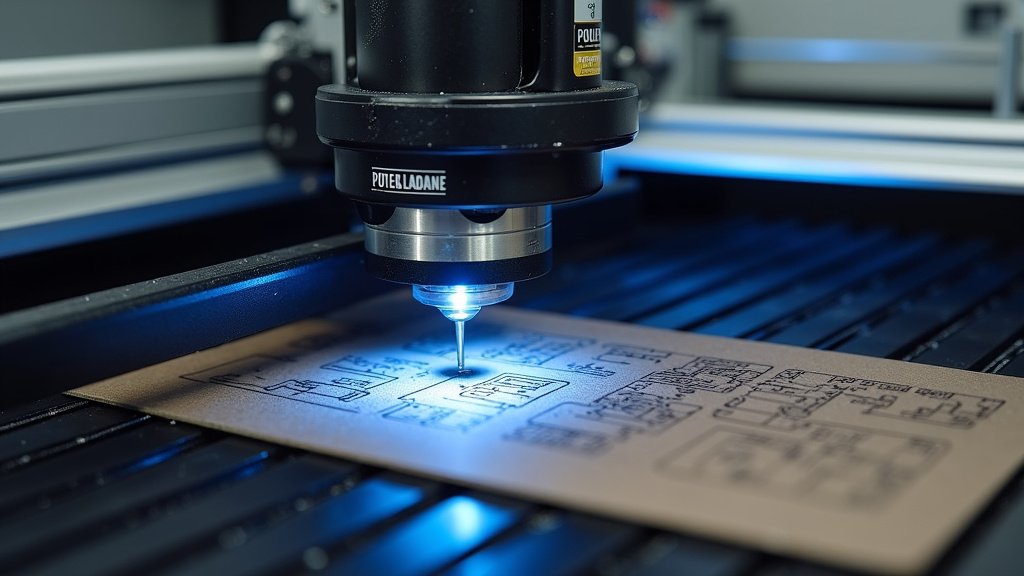
You might see some laser engravers advertising the ability to run jobs from a USB drive. This sounds like standalone operation, but it’s important to understand how it works. Typically, you would still design and set up your job on a computer. Then, you save the job file to a USB drive. You insert this USB drive into the laser engraver, and the engraver’s internal controller runs the job directly from the drive. In this scenario, the computer was still essential for the initial setup and creation of the file.
This USB drive feature is convenient because it means you don’t need the computer tethered to the laser during the actual engraving process. This can free up your computer for other tasks. However, the initial design, parameter setting, and file preparation must be done on a computer. It’s a way to offload the job, not to bypass the computer entirely.
Setting Up Your Computer for Laser Engraving: A Quick Checklist
To make sure you’re all set up for success with your new laser engraver, here’s a handy checklist:
- Confirm Software Compatibility: Ensure your chosen design and laser control software runs on your computer’s operating system.
- Install Necessary Drivers: Download and install any specific drivers required for your laser engraver model.
- Connect Your Laser: Set up the physical connection between your computer and the laser engraver (usually USB).
- Update Your Software: Make sure both your operating system and your design/control software are updated to the latest versions.
- Test a Small Project: Before tackling anything ambitious, run a simple test file to ensure everything is communicating correctly.
- Organize Your Files: Create a dedicated folder on your computer for your laser engraving designs.
Conclusion
As we’ve seen, a computer isn’t just a helpful accessory for your laser engraver – it’s the essential brain that brings your designs to life. You’ll use it to create artwork, send precise instructions, and fine-tune every setting from power to speed. While most modern computers are capable, checking your design and laser software’s requirements is key. Ready to get started? Your next step is to gather your software and connect your laser engraver to your computer, then run a small test project to ensure everything is working smoothly.
Frequently Asked Questions
Can I use an older computer for laser engraving?
Yes, you likely can! We found that many older computers from the last 5-7 years are perfectly adequate for most laser engraving tasks, especially if you’re working with standard design software and common engraver models. Just ensure your operating system is up-to-date and check the specific software requirements.
Do I need a powerful graphics card for my laser engraver computer?
Generally, no. Most laser engraving software is not graphically intensive. Integrated graphics often suffice for creating and sending designs. A dedicated graphics card is usually only necessary if your design software explicitly requires it for its features.
What if my laser engraver software has specific requirements?
Always check the official system requirements for your laser control software and any design programs you plan to use. This is the most accurate way to determine what your computer needs. Some professional design suites might benefit from more RAM or a faster processor.
Can I design on a tablet and send the file to a computer to engrave?
While you might be able to design on a tablet, you’ll still need a computer for the final step. Professional laser control software typically runs only on Windows or macOS. You’ll likely need to transfer your design from the tablet to your computer to send it to the engraver.
What’s the difference between using a USB drive and needing a computer?
Some engravers let you run jobs from a USB drive. However, you still need a computer to design the artwork and prepare that job file before saving it to the USB. The USB allows the engraver to run the job without the computer being attached during engraving, but the computer is essential for the initial setup.
