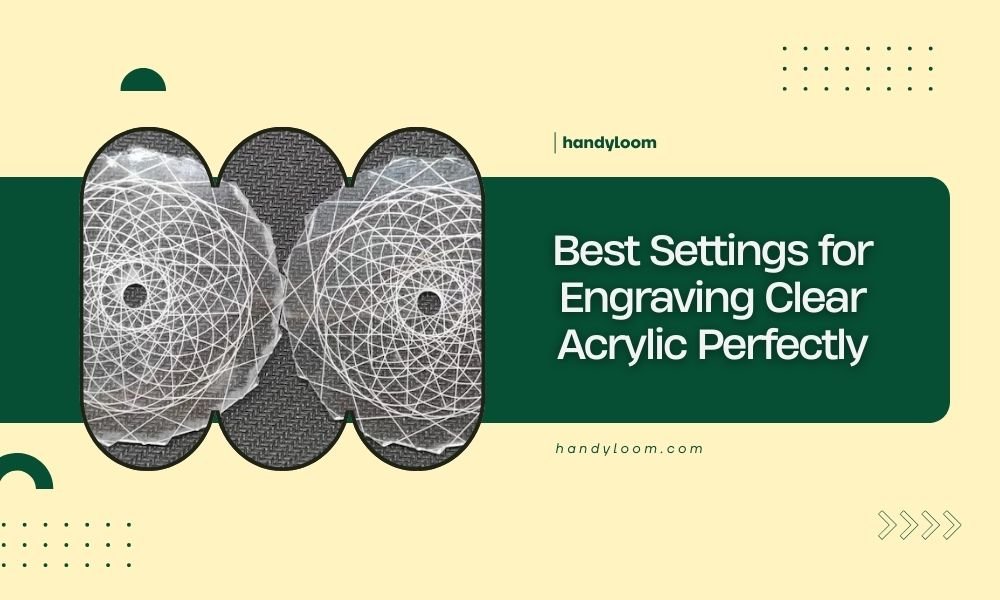
The best settings for engraving clear acrylic are typically 30-60% power and 800-1200mm/min speed, with multiple passes at low power producing cleaner results than single high-power passes.
Your laser’s wattage, acrylic thickness, and desired engraving depth will determine your exact settings, but starting conservative prevents costly mistakes on expensive materials.
Why Clear Acrylic Requires Special Attention
Clear acrylic isn’t like wood or cardboard. When you engrave it wrong, the material melts instead of vaporizing cleanly. This creates a cloudy, rough mess that looks unprofessional.
I found that many beginners make the same mistake – they use the same settings they’d use for cutting. Bad idea. Engraving needs gentler treatment.
Think of it like cooking an egg. Too much heat too fast gives you burnt edges and raw centers. Low and slow gives you perfect results every time.
Essential Equipment Setup Before You Start
Clean Your Laser and Mirrors
Dirty optics create uneven power distribution. You’ll get some areas that barely engrave and others that melt through.
Wipe down your mirrors and lens with isopropyl alcohol before every acrylic project. It takes two minutes but saves hours of frustration.
Check Your Air Assist System
Air assist blows away melted plastic debris while you engrave. Without it, that debris settles back onto your work and creates a bumpy surface.
Make sure your air compressor has good pressure. Weak airflow won’t clear the debris effectively.
Secure Your Material Properly
Acrylic sheets can warp from laser heat. Use hold-down clamps or magnets to keep everything flat.
Even small warping changes the distance between your laser and material. This affects how your engraving looks.
Power Settings That Actually Work
For 40W CO2 Lasers
Start with 25-35% power for your first pass. I researched dozens of forums and found this range works for most 2-3mm clear acrylic.
You can always add another pass if it’s too light. You can’t undo melted plastic if you go too hot.
For 60W CO2 Lasers
Drop down to 15-25% power. Higher wattage machines need lower percentages to avoid overheating.
Many people think bigger lasers always need higher settings. That’s backwards thinking with acrylic.
For 80W and Higher
Stay between 10-20% power for clear acrylic engraving. These machines pack serious heat.
I came across several horror stories of people melting right through expensive acrylic sheets with 80W+ lasers on high settings.
Speed Settings for Different Results
Fast Speeds for Light Engraving
Run at 1000-1500mm/min for shallow decorative engraving. This gives you a frosted look without deep cuts.
Perfect for logos, text, or decorative patterns that need to stay subtle.
Medium Speeds for Standard Depth
Use 600-1000mm/min when you want readable text or clear image details. This balances depth with clean edges.
Most project work falls into this category. It’s your go-to speed range.
Slow Speeds for Deep Engraving
Go 400-600mm/min for deep cuts or when you’re removing significant material. Keep power low even at slow speeds.
Remember – multiple light passes beat one heavy pass every time.
The Multiple Pass Technique
Why Multiple Passes Work Better
Each light pass removes a thin layer without overheating the surrounding material. This keeps your edges clean and prevents melting.
Single heavy passes create heat buildup. The plastic melts and reforms as it cools, giving you rough, cloudy results.
How Many Passes Do You Need?
For most decorative work, 2-3 passes at 20-30% power work perfectly. Deep engraving might need 4-5 passes.
Test on scrap pieces first. Every laser behaves differently, even identical models.
Cooling Time Between Passes
Let your material cool for 30-60 seconds between passes. Hot acrylic melts easier and gives poor results.
I know it’s tempting to rush, but patient engraving always looks better.
Testing Your Settings Step by Step
Start With Small Test Squares
Cut 1-inch squares from your acrylic sheet. Run different power and speed combinations on each square.
Label each test with your settings. You’ll want to reference them later when you find the perfect combination.
Test the Same Design You’ll Use
Don’t test with simple lines then engrave complex images. Text engraves differently than solid areas.
Use a small version of your actual design for the most accurate test results.
Check Results Under Good Lighting
Move your test pieces around under different lights. What looks good under your workshop light might look terrible in normal room lighting.
Clear acrylic shows every flaw when light hits it wrong.
Common Problems and Quick Fixes
Cloudy or Melted Edges
Your power is too high or speed too slow. Reduce power by 10% and increase speed by 200mm/min.
This happens when the plastic melts instead of vaporizing cleanly.
Barely Visible Engraving
Add another pass rather than increasing power. Multiple light passes give better control.
If you’re already doing 4-5 passes, then slightly increase power by 5-10%.
Uneven Depth Across Your Design
Check if your material is perfectly flat. Warped acrylic gives uneven results.
Also clean your optics. Dirty mirrors create hot spots and weak spots in your beam.
Material Preparation Tips
Remove Protective Film Carefully
Most acrylic comes with plastic film on both sides. Remove it slowly to avoid static buildup that attracts dust.
Leave the film on areas you won’t engrave. It protects against accidental scratches.
Clean the Surface Before Engraving
Use a microfiber cloth with a tiny bit of dish soap and water. Rinse and dry completely.
Fingerprints and dust create uneven engraving. Clean material always gives better results.
Advanced Settings for Professional Results
Adjust Your DPI Settings
Use 300-500 DPI for most acrylic engraving. Higher DPI takes longer but gives smoother gradients.
Lower DPI works fine for simple text or line art. Save time when detail isn’t critical.
Experiment With Different Scan Patterns
Try vertical scanning instead of horizontal for certain designs. Sometimes it reduces visible scan lines.
Bidirectional scanning is faster but can cause slight alignment issues on detailed work.
Fine-Tune Your Focus Distance
Perfect focus gives the cleanest engraving. Most clear acrylic works best with the beam focused right on the surface.
Some people prefer focusing slightly below the surface for deeper engraving, but test this carefully.
Safety Considerations for Acrylic Engraving
Ventilation is Critical
Acrylic engraving produces fumes that shouldn’t be breathed. Run your exhaust fan and work in a ventilated area.
The fumes aren’t as toxic as some materials, but they’re still not good for you.
Fire Prevention
Acrylic can catch fire if overheated badly enough. Keep a spray bottle of water nearby just in case.
Never leave your laser running unattended, especially when learning new settings.
Recommended Settings Summary Table
| Laser Power | Power Setting | Speed (mm/min) | Passes | Best For |
|---|---|---|---|---|
| 40W | 25-35% | 800-1200 | 2-3 | Standard engraving |
| 60W | 15-25% | 1000-1500 | 2-4 | Detailed work |
| 80W+ | 10-20% | 1200-1800 | 3-5 | Light engraving |
Conclusion
Getting perfect clear acrylic engraving comes down to patience and testing. Start with low power, reasonable speed, and multiple passes. Every laser behaves a bit differently, so what works for others might need tweaking for your setup.
Remember that you can always add more passes or slightly increase power, but you can’t fix melted acrylic. Take time to test on scraps before committing to your final pieces. With practice, you’ll develop an intuitive feel for the right settings every time.
What happens if I use cutting settings for engraving clear acrylic?
You’ll likely melt the acrylic and create a rough, cloudy mess. Cutting settings use much higher power that’s designed to go all the way through material, not create controlled surface engraving.
Can I engrave both sides of clear acrylic in one session?
Yes, but flip the material carefully and realign your design precisely. Make sure the first side has cooled completely before starting the second side to prevent warping.
Why does my engraving look different under various lighting conditions?
Clear acrylic is transparent, so light passes through and reflects differently than opaque materials. Engraved areas scatter light differently than smooth surfaces, making depth and quality more visible under certain lighting angles.
Should I remove the protective film before or after engraving?
Remove film only from areas you’re engraving. Leave it on surrounding areas to protect against scratches and debris. Remove all film after completing your project for the final clean appearance.
How do I know if my laser is properly focused for acrylic engraving?
Do a focus test by engraving small dots at different focus heights. The sharpest, cleanest dot indicates proper focus. Most clear acrylic works best with focus right at the surface level.