
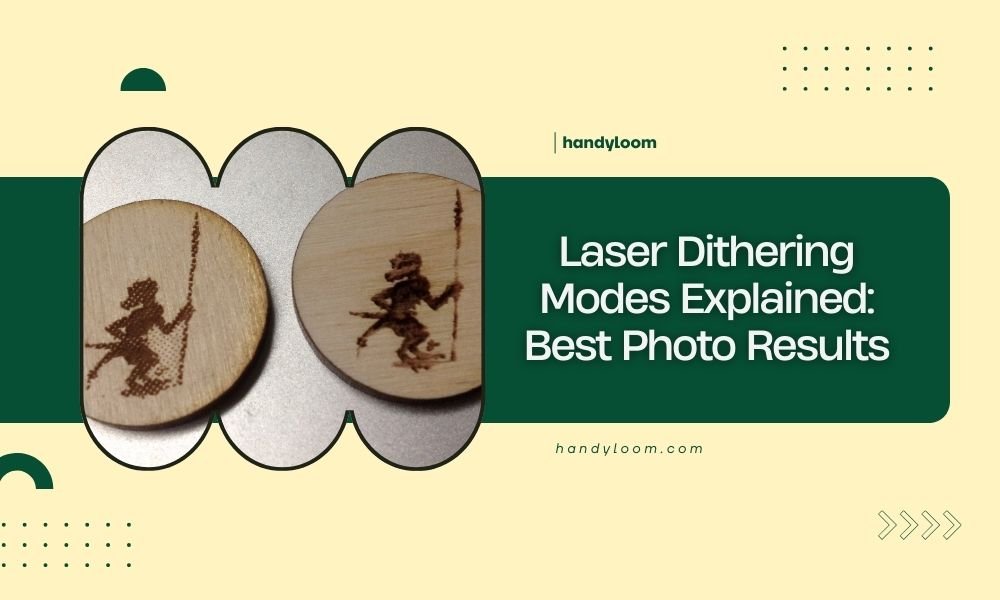
Laser dithering modes control how your laser cutter converts photo details into patterns of dots and lines for engraving.
The best dithering mode depends on your photo type: Floyd-Steinberg works great for portraits, while Ordered patterns suit logos and simple graphics.
What Are Laser Dithering Modes
Think of dithering like a translator between your computer and laser. Your photo has thousands of gray shades, but your laser can only burn or not burn. Dithering solves this problem by creating patterns that trick your eye into seeing different shades.
When I researched laser engraving forums, I found that most beginners skip learning about dithering. That’s a mistake. The right dithering mode can make your photos look professional instead of muddy.
How Dithering Creates Photo Detail
Your laser reads each pixel and decides where to place burn marks. Light pixels become sparse dots. Dark pixels become dense patterns or solid burns.
Different dithering algorithms arrange these dots in unique ways. Some spread errors randomly. Others follow strict patterns. The choice changes how your final photo looks.
The Science Behind Dithering Patterns
Dithering uses optical illusion. Your brain sees clusters of tiny dots as gray tones from a normal viewing distance. Up close, you see individual burn marks. Step back, and the image appears smooth.
This technique comes from old newspaper printing. Printers couldn’t use gray ink, so they arranged black dots to create the illusion of different shades.
Floyd-Steinberg Dithering Mode
Floyd-Steinberg creates the most natural-looking photos. It spreads conversion errors to nearby pixels, which reduces visible patterns and banding.
This mode works best for portraits, landscapes, and photos with smooth gradients. The random dot placement mimics how film grain looks in traditional photography.
When Floyd-Steinberg Works Best
- Portrait photos with skin tones
- Nature scenes with soft shadows
- Photos with lots of mid-tone details
- Images where you want photographic realism
Floyd-Steinberg Drawbacks
This mode takes longer to process than simple patterns. It also creates more complex tool paths, which can slow down your laser cutting time.
Fine details sometimes get lost in the random dot distribution. Text and sharp edges may look fuzzy compared to ordered dithering methods.
Ordered Dithering Patterns
Ordered dithering follows preset patterns instead of random distribution. Common patterns include crosshatch, diagonal lines, and dot matrices.
These modes process faster and create cleaner tool paths. Your laser follows predictable patterns, which reduces wear on moving parts.
Crosshatch Pattern Benefits
Crosshatch dithering creates a classic engraved look. The intersecting lines work well on wood and leather materials. Many craftspeople prefer this artistic style over photorealistic results.
This pattern also burns more evenly across different materials. The consistent line spacing prevents uneven heat buildup that can cause burning or charring.
Dot Matrix Patterns
Dot matrix dithering arranges burn marks in regular grids. This creates a newspaper or comic book appearance that works great for vintage-style projects.
The regular spacing makes this mode very predictable. You can easily estimate burn times and material usage before starting your project.
Stochastic Dithering Methods
Stochastic means random, and these methods scatter dots without obvious patterns. Blue noise and white noise dithering fall into this category.
Research from digital imaging experts shows that stochastic methods often produce the smoothest gradients. The human eye has trouble detecting patterns in truly random arrangements.
Blue Noise Dithering
Blue noise dithering spaces dots more evenly than pure random methods. It prevents clustering while avoiding obvious repetitive patterns.
This method works well for photos with large areas of similar tones, like sky backgrounds or smooth surfaces. The even spacing prevents blotchy areas that other random methods sometimes create.
Choosing the Right Mode for Your Project
Your material choice affects which dithering mode works best. Some combinations produce better results than others.
| Material | Best Dithering Mode | Why It Works |
|---|---|---|
| Wood | Floyd-Steinberg | Natural grain complements random patterns |
| Acrylic | Ordered patterns | Clean surfaces show precise patterns clearly |
| Leather | Crosshatch | Traditional engraved appearance |
| Metal | Blue noise | Even heat distribution prevents warping |
Photo Content Considerations
Portrait photos need smooth skin tones. Floyd-Steinberg or blue noise dithering work best for faces and people shots.
Logos and text require sharp edges. Ordered dithering maintains clean lines better than random methods.
Size and Viewing Distance
Large engravings benefit from ordered patterns. The regular structure looks good from far away and maintains detail up close.
Small engravings work better with random dithering. The dots blend together at small sizes, creating smoother appearance.
Software Settings and Adjustments
Most laser software lets you adjust dithering settings beyond just choosing the algorithm. Understanding these options helps you get better results.
Contrast and Gamma Adjustments
Increase contrast before dithering to make your photo pop. Most photos look flat when directly converted without contrast adjustment.
Gamma correction changes how mid-tones convert to dithered patterns. A gamma of 0.8 to 1.2 usually works well for laser engraving projects.
Resolution Settings
Higher DPI creates more detail but takes longer to process and cut. I found that 300-600 DPI works well for most photo projects.
Match your resolution to your material thickness. Thin materials can’t hold fine details that thick materials can display clearly.
Processing Speed vs Quality
Simple ordered patterns process in seconds. Complex algorithms like Floyd-Steinberg can take several minutes for large images.
Plan your time accordingly. Test small sections first to make sure you like the results before processing full-size images.
Common Dithering Problems and Solutions
Even experienced laser users run into dithering issues. Here are the most common problems and how to fix them.
Banding and Visible Patterns
Visible bands usually mean your original photo has too much contrast or not enough mid-tone detail. Try adjusting gamma before dithering.
Sometimes changing to a different dithering algorithm solves banding problems. Floyd-Steinberg often fixes issues that ordered patterns create.
Lost Detail in Shadows
Dark areas of photos often lose detail during dithering. Lighten your shadows slightly before processing to preserve more information.
You can also try increasing the number of dithering levels if your software supports this option. More levels mean better shadow detail preservation.
Overburning and Charring
Dense dithering patterns can cause overheating in dark image areas. Reduce your laser power or increase cutting speed in these sections.
Some software lets you adjust power based on dithering density automatically. This feature prevents burning while maintaining detail.
Advanced Dithering Techniques
Once you master basic dithering modes, you can try combining techniques for unique artistic effects.
Layered Dithering Approaches
Some artists use different dithering modes for highlights and shadows. This creates more dynamic range than single-mode processing.
Process your photo twice with different settings, then combine the results manually. This takes more work but gives you complete creative control.
Custom Pattern Creation
Advanced users sometimes create their own dithering patterns. This requires programming knowledge but allows completely unique artistic styles.
You can also modify existing patterns by adjusting spacing, rotation, or scaling parameters in your laser software.
Testing and Optimization Workflow
Smart laser users always test before running full projects. Here’s a workflow that saves time and materials.
Small Sample Testing
Cut small 1-inch squares with different dithering modes. Compare results side by side to see which mode works best for your specific photo and material.
Keep a reference library of test samples. This helps you choose settings for future projects without repeating tests.
Parameter Documentation
Write down your successful settings for each material and dithering mode combination. Include power, speed, and any software adjustments you made.
Digital photos look different on screen than on your finished material. Your notes become more valuable than your computer preview.
Conclusion
Mastering laser dithering modes transforms ordinary photos into professional-looking engravings. Floyd-Steinberg delivers photorealistic results for portraits and complex images. Ordered patterns work better for logos, text, and geometric designs. Stochastic methods like blue noise create the smoothest gradients for artistic projects.
Start with small test samples to find what works best for your materials and style preferences. Document your successful settings for future reference. With practice, you’ll instinctively know which dithering mode will give you the results you want before you even start cutting.
What’s the difference between dithering resolution and laser DPI?
Dithering resolution determines how many different gray levels your software calculates before converting to burn patterns. Laser DPI controls how finely spaced your actual burn marks are on the material. You can have high dithering resolution with low laser DPI, or vice versa, depending on your quality and speed needs.
Can I use multiple dithering modes on the same image?
Yes, advanced users often mask different parts of an image and apply different dithering modes to each section. For example, you might use Floyd-Steinberg for a person’s face and ordered dithering for text in the same design. This requires manual work in your design software but gives you complete creative control.
Why do my dithered images look different on wood versus acrylic?
Material surface texture and burning characteristics change how dithering patterns appear. Wood grain adds natural randomness that complements random dithering modes. Smooth acrylic shows every dot clearly, making ordered patterns look cleaner. The same dithering settings can produce dramatically different visual results on different materials.
How do I fix photos that look too dark after dithering?
Dark results usually come from photos that don’t have enough contrast in the original image. Increase brightness and contrast before dithering, not after. You can also adjust your laser power down or speed up to create lighter burns. Some laser software includes automatic exposure compensation for dithered images.
What file formats work best for dithered laser engraving?
High-quality grayscale images in TIFF or PNG formats preserve the most detail for dithering. JPEG compression can create artifacts that show up as unwanted patterns after dithering. Always work with the highest resolution original photo you have, then let your laser software handle the final resolution conversion.
