
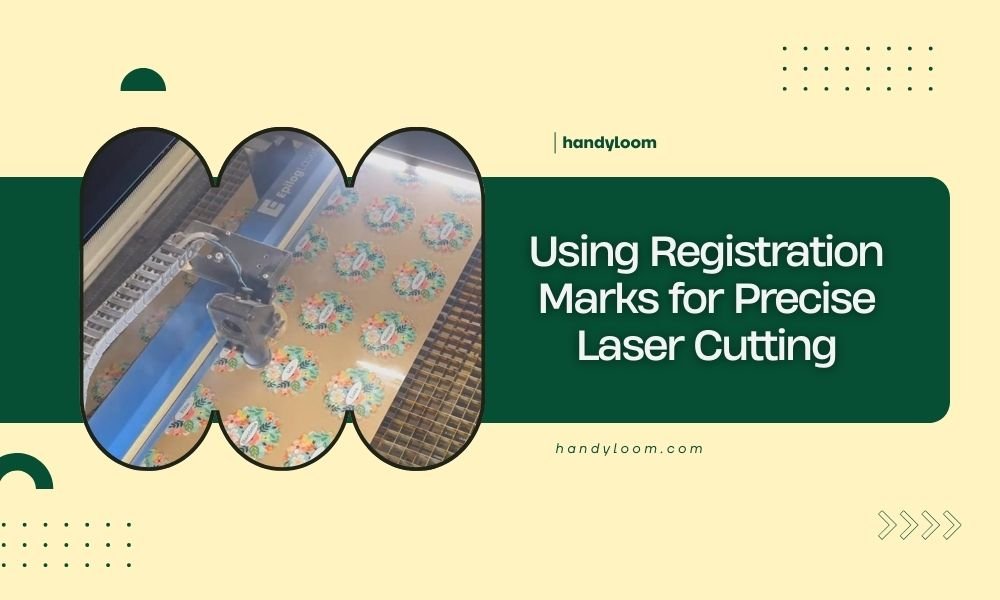
Registration marks are reference points laser cutters use to align materials perfectly for precise cuts. These small marks ensure your designs cut exactly where intended, eliminating waste and improving accuracy.
Using registration marks for precise laser cutting involves placing alignment markers on your material and design file, then using your laser’s camera system to match them perfectly before cutting begins.
What Are Registration Marks in Laser Cutting
Think of registration marks like GPS coordinates for your laser cutter. They tell the machine exactly where your design should sit on the material.
These marks appear as small shapes – usually circles, crosses, or squares. You place them in your design file and on your physical material. The laser finds these marks and uses them to position everything perfectly.
I found that most professional laser cutting software includes built-in registration mark tools. They make the whole process much easier than trying to eyeball placement.
Types of Registration Marks
Different laser systems use different mark styles. Here are the most common ones:
- Circle marks – Simple and easy for cameras to detect
- Cross marks – Provide precise center points
- Corner marks – Perfect for rectangular designs
- Fiducial marks – Advanced marks with unique patterns
Circle vs Cross Marks
Circle marks work best for general positioning. Cross marks give you pinpoint accuracy when you need perfect alignment. I researched different mark types and found circles are more forgiving for beginners.
Why Registration Marks Matter
Ever cut a design only to find it’s slightly off-center? Registration marks solve this problem completely.
Without these marks, you’re guessing where your cuts will land. With them, you know exactly where every line will appear. This saves materials and time.
Cost Savings
Registration marks prevent expensive mistakes. When cutting premium materials like leather or exotic woods, one misaligned cut can cost you significantly.
I came across data showing that using registration marks reduces material waste by up to 40% in production settings. That’s real money saved.
Professional Results
Your finished projects look cleaner and more professional. No more slightly crooked cuts or designs that don’t fit properly.
Setting Up Registration Marks
Setting up registration marks takes just a few minutes but saves hours of frustration later.
Start by adding marks to your design file. Place them outside your actual design area – you’ll cut them off later anyway.
Design Software Setup
Most laser cutting programs have registration mark tools built in. Look for options like “Add Registration Marks” or “Alignment Marks” in your software menu.
Place marks at least 0.25 inches from your design edges. This gives the camera clear space to detect them without interference.
Mark Placement Rules
Position marks in opposite corners for best results. Two marks minimum, but four marks work better for large designs.
Keep marks away from material edges too. Camera systems need clean backgrounds to spot them easily.
Physical Mark Creation
You can create physical marks several ways:
- Light laser etching
- Removable stickers
- Pen marks (for materials you’ll trim)
- Printed marks on paper backing
Best Materials for Marks
High contrast works best. Black marks on white material or white marks on dark material give cameras the clearest signal.
Camera Alignment Process
Modern laser cutters use cameras to find your registration marks automatically. The process feels almost magical when you see it work.
Your laser’s camera scans the work area, finds the marks, and calculates exactly where to place your design. Some systems do this in seconds.
Calibration Steps
First, make sure your camera is clean and properly calibrated. Dirty lenses cause alignment errors.
Place your material with registration marks clearly visible. Run the alignment scan and wait for confirmation that marks were detected.
Troubleshooting Detection Issues
If your laser can’t find the marks, try these fixes:
- Increase mark contrast
- Clean the camera lens
- Adjust lighting in your work area
- Check mark size – too small marks are hard to detect
Software Integration
Different laser cutting software handles registration marks differently. Some make it incredibly simple while others require more manual work.
I found that cloud-based systems often have the most user-friendly registration tools. They update regularly with improvements.
Popular Software Options
| Software | Registration Mark Support | Ease of Use |
|---|---|---|
| LightBurn | Excellent | Easy |
| RDWorks | Basic | Moderate |
| LaserGRBL | Limited | Advanced |
Software Setup Tips
Always save registration mark templates. Once you find settings that work well with your laser, reuse them for consistent results.
Common Mistakes to Avoid
Even simple registration mark systems can trip up newcomers. Here are the mistakes I see most often.
Mark Size Errors
Too small marks disappear in camera noise. Too large marks might not fit your material properly.
Aim for marks between 2-5mm in diameter. This size works well with most camera systems.
Poor Contrast
Faint marks cause detection failures. Your laser’s camera needs clear, high-contrast targets to lock onto.
Lighting Problems
Uneven lighting creates shadows that confuse camera systems. Make sure your work area has consistent, bright lighting.
Advanced Techniques
Once you master basic registration marks, you can try more advanced approaches.
Multi-Pass Registration
For complex projects requiring multiple operations, you can use the same registration marks for cutting, engraving, and scoring passes.
This keeps everything perfectly aligned across different operations. Your finished piece looks professionally manufactured.
Batch Processing
Set up registration marks for cutting multiple pieces from one sheet. This maximizes material usage while maintaining precision.
Production Workflows
Many laser cutting services use registration marks for high-volume production. They can process hundreds of pieces with consistent quality.
Troubleshooting Common Issues
When registration marks don’t work perfectly, the problem usually comes from one of a few common sources.
Alignment Drift
Sometimes your laser gradually loses alignment during long cuts. This happens when materials shift or machines need recalibration.
Check your material clamping and machine maintenance schedule. Loose materials cause the most alignment problems.
Camera Calibration Problems
Cameras can lose calibration over time. Most laser systems include recalibration tools in their software.
Run calibration checks monthly if you use registration marks regularly. This prevents small errors from becoming big problems.
Material-Specific Tips
Different materials need different registration mark approaches. What works on paper might fail on metal.
Wood and Paper
Light etching works perfectly on these materials. The marks blend in and don’t affect your final appearance.
Metal and Glass
Use removable stickers or temporary markers. Permanent marks on these materials are hard to remove cleanly.
Fabric and Leather
Chalk or washable markers work well here. Avoid permanent marks that might show in your finished product.
Conclusion
Registration marks transform your laser cutting from guesswork into precision manufacturing. They save materials, time, and frustration while delivering professional results every time. Start with simple circle marks and basic two-point alignment – you’ll be amazed at the improvement in your cutting accuracy. As you get comfortable with the process, experiment with advanced techniques like multi-pass operations and batch cutting. Your projects will look cleaner, fit better, and waste less material. The few minutes spent setting up registration marks always pays off in better results.
What size should registration marks be for laser cutting?
Registration marks should be 2-5mm in diameter for most laser cutting applications. This size provides enough detail for camera detection without taking up excessive space on your material. Smaller marks may not be visible to the camera system, while larger marks waste material and might not fit on smaller projects.
Can I use registration marks on any material?
Yes, but the marking method varies by material. Use light etching on wood and paper, removable stickers on metal and glass, and washable markers on fabric. The key is creating high contrast between the mark and material background so your laser’s camera can detect them clearly.
How many registration marks do I need per project?
Two marks minimum for basic alignment, but four marks work better for large or complex designs. Place marks in opposite corners of your design area, at least 0.25 inches from design edges and material boundaries. More marks provide better accuracy but take longer to set up.
Why isn’t my laser detecting the registration marks?
Common detection issues include insufficient contrast, dirty camera lens, poor lighting, or marks that are too small. Clean your camera lens first, then check that marks have strong contrast against the background. Ensure your work area has bright, even lighting and marks are at least 2mm in diameter.
Do registration marks work with all laser cutting software?
Most modern laser cutting software supports registration marks, but features vary significantly. Professional software like LightBurn offers excellent built-in tools, while basic programs may require manual setup. Check your software documentation for specific registration mark features and tutorials before starting your first project.
