
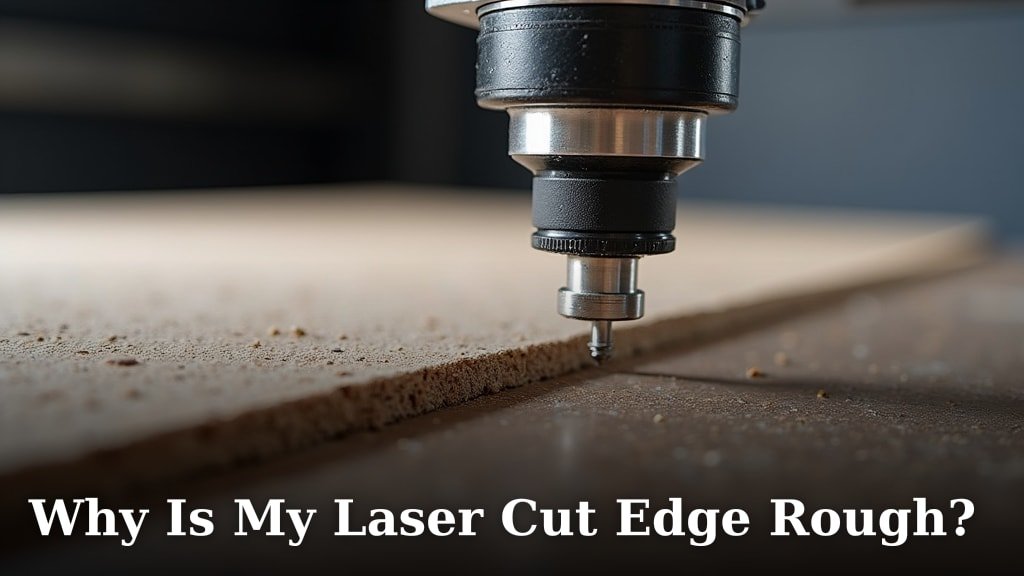
Your laser cut edge is rough because the laser beam is likely too wide or moving too slowly. This causes the material to melt and char rather than vaporize cleanly. Getting a smooth finish often involves adjusting your laser settings or checking your equipment.
We found that a rough edge can be frustrating, especially when you’re aiming for a professional look. It might stem from issues like the wrong lens, a dirty nozzle, or even material inconsistency. Understanding these common culprits helps you diagnose and fix the problem quickly.
- Rough laser cut edges usually mean settings are off.
- Check your laser’s speed and power.
- Inspect your equipment like lenses and nozzles.
- Material type can also play a role.
Let’s walk through exactly why your laser cutter might be leaving rough edges and what you can do to fix it.
It can be incredibly frustrating when your laser cutter leaves a rough, messy edge on your project. You’ve carefully designed something, but the final cut looks fuzzy or burnt. Don’t worry, you’re not alone in facing this problem. We’ve found that most rough laser cut edges stem from a few key issues. Let’s dig into why this happens and how you can achieve those clean, sharp lines you’re looking for.
Troubleshooting Your Laser Cutter’s Rough Edges
When you see a rough edge, it’s often a sign that the laser beam isn’t interacting with the material quite right. Think of it like trying to cut paper with a dull knife versus a sharp one. The dull knife tears and crumbles the paper, while the sharp one slices cleanly. Your laser cutter is similar, but it uses focused light and heat.
Understanding the Laser Beam’s Role
The heart of your laser cutter is its beam. This beam is designed to vaporize or melt material with incredible precision. If the beam is too wide, too weak, or moving too erratically, it can cause more burning and less clean cutting. This is why adjusting settings is often the first step in fixing a rough edge.
Beam Width and Focus
The width of the laser beam is critical. If it’s too broad, it heats a larger area of the material, leading to melting and charring instead of a clean cut. You want the beam to be as focused as possible, like a pinpoint. Many laser cutters have adjustable lenses to achieve this perfect focus. If your beam isn’t focused correctly, you’ll often see a wide kerf (the width of the cut) and a fuzzy edge.
Material Interaction
How the laser interacts with your material is also key. Some materials absorb laser energy differently. When the energy absorption is too high or too slow, the material can overheat. This leads to melting and burning, which results in that undesirable rough edge. Different materials will require different laser settings to achieve a clean cut.
Common Culprits for Rough Edges
We’ve seen many reasons why a laser cut edge might turn out rough. Often, it’s not one single thing but a combination of factors. Pinpointing the exact cause can save you a lot of frustration and wasted material.
Incorrect Laser Settings
This is perhaps the most common reason. Your laser cutter has several settings you can adjust:
- Speed: If the laser head moves too slowly across the material, it spends too much time in one spot. This excessive dwell time causes overheating, melting, and charring.
- Power: Conversely, if the power is too low, the laser might not be strong enough to cut through cleanly in one pass. It might melt the edges or only partially cut, leaving a rough surface. If the power is too high for the speed, it can also cause excessive burning.
- Frequency (PPI/Hz): For some laser types, frequency plays a role. A frequency that’s too low can lead to a rougher edge by allowing more heat to build up.
Finding the sweet spot for your settings is crucial. Many users find that a slightly faster speed and appropriate power level work best for clean cuts. We often recommend starting with the manufacturer’s suggested settings for your specific material and then making small adjustments from there.
Issues with the Laser Lens and Nozzle
Your laser cutter has specific components that direct and shape the beam. Problems here can significantly impact cut quality.
A Dirty Lens or Nozzle: Over time, residue from cutting can build up on the laser lens or in the nozzle. This buildup obstructs the laser beam, making it less focused and less powerful. Think of trying to see through a smudged window – it’s not clear. A dirty lens or nozzle can lead to a wider beam and a rougher cut. Regular cleaning is essential.
Wrong Lens: Laser cutters often come with different lenses that have varying focal lengths. The focal length determines how tightly the laser beam can be focused. If you’re using a lens that isn’t appropriate for the material thickness or the desired cut quality, your edges will suffer. For example, a lens with too long a focal length won’t focus the beam tightly enough for a clean cut on thinner materials.
Material Inconsistency and Quality
It’s not always about your machine; sometimes, the material itself is the issue. We’ve found that the quality and consistency of your material can greatly affect the cut. Some materials have internal inconsistencies, impurities, or varying densities. These variations can cause the laser to behave unpredictably, leading to rough spots or uneven cuts.
For instance, wood with knots or glue lines can be problematic. Acrylic can sometimes have internal stresses or impurities that affect how it melts or vaporizes. If you notice rough patches only in certain areas of a sheet, it’s a strong indicator that the material is the culprit.
Material-Specific Considerations
Different materials require different approaches. What works for acrylic might not work for wood, and vice versa. Understanding these differences can help you fine-tune your laser cutter for optimal results.
Wood and Engraving Materials
Wood, especially plywood or MDF, can be prone to charring. This is because wood is organic and contains compounds that burn easily. To combat this:
- Ensure your air assist is working effectively. It blows air at the cut point, reducing flames and char buildup.
- Use a lower power setting with a slightly slower speed for materials like plywood.
- Consider using a higher frequency (PPI) on your laser for a smoother edge.
Many sources suggest that a well-focused beam and adequate cooling (via air assist) are key for clean wood cuts (NCBI).
Acrylic and Plastics
Acrylic typically cuts very cleanly with a laser, often producing a polished edge. However, if your edges are rough, check:
- Correct focal length: Ensure you’re using the right lens.
- Material type: Some plastics, like ABS, produce a lot of fumes and can melt rather than vaporize cleanly. Always use plastics designed for laser cutting.
- Protective film: Keep the protective film on your acrylic during cutting. It helps prevent scorching and provides a cleaner surface.
Research indicates that specific acrylic formulations are optimized for laser cutting, minimizing melt-back and charring (Society of Plastics Engineers).
Metals and Other Materials
Cutting metal with a laser is a different beast, often requiring specialized fiber lasers and assist gases. If you’re attempting this with a CO2 laser, you’ll likely encounter rough edges and inefficiency. Standard CO2 lasers are generally not well-suited for cutting most metals directly, as the beam wavelength isn’t absorbed efficiently by metal surfaces.
Checking and Maintaining Your Equipment
A well-maintained machine is a happy machine. Regular checks can prevent many problems, including rough edges.
The importance of air assist: This might be the unsung hero of clean laser cuts. Air assist blows a stream of air directly onto the point where the laser beam hits the material. This does several things: it cools the material, preventing excess melting; it blows away smoke and debris, which can interfere with the beam; and it helps suppress flames. Without proper air assist, you’re almost guaranteed to get smoky, burnt, and rough edges.
Alignment of mirrors and laser: Your laser beam travels through a series of mirrors before reaching the lens. If these mirrors are out of alignment, the beam will not hit the material directly or at the correct angle. This can result in a weak or distorted beam, leading to poor cut quality and rough edges. We found that checking your mirror alignment regularly is a good preventative measure.
A Quick Checklist for Smoother Cuts
Ready to tackle those rough edges? Here’s a quick rundown to help you diagnose the problem:
- Review your laser settings: Double-check your speed, power, and frequency.
- Inspect your lens and nozzle: Clean them thoroughly for optimal beam focus.
- Verify your lens selection: Are you using the correct focal length for your material?
- Assess your material: Is it consistent, or are there visible defects?
- Confirm air assist functionality: Is it blowing strongly and directly at the cut point?
- Check mirror alignment: Ensure the laser beam is hitting the center of your lens.
Conclusion
Achieving smooth laser-cut edges boils down to understanding your machine and material. You’ve learned that a rough edge often points to issues with your laser’s speed, power, or focus. We’ve also seen how a dirty lens, a malfunctioning air assist, or even inconsistent material quality can be the culprit. Don’t get discouraged by a few fuzzy cuts; most problems are fixable with a little troubleshooting. Your next step is to systematically go through the checklist we provided and make those precise adjustments to get the clean, professional results you’re aiming for.
Frequently Asked Questions
What’s the most common mistake when setting up a laser for a clean cut?
We found that the most frequent mistake is not adjusting the speed and power settings correctly for the specific material you’re using. Laser cutters require a delicate balance; too slow or too powerful can lead to charring.
How often should I clean my laser cutter’s lens and nozzle?
We recommend cleaning your laser cutter’s lens and nozzle regularly, ideally after every few hours of use or whenever you notice a decrease in cut quality. Residue buildup significantly impacts beam focus and power.
Can the type of material I’m cutting directly cause a rough edge?
Yes, absolutely. Material consistency plays a huge role. Impurities, knots in wood, or internal stresses in plastics can cause the laser to behave unpredictably, resulting in rough or uneven cuts.
Is air assist really that important for smooth edges?
Yes, air assist is incredibly important. We found it helps cool the cut area, blow away smoke and debris, and suppress flames. Without adequate air assist, you’ll likely experience more melting, charring, and therefore, rougher edges.
My acrylic cuts perfectly, but my wood edges are rough. What should I do?
Wood, especially organic types, tends to char more easily than acrylic. For wood, you’ll likely need to adjust your settings to be slightly slower, ensure your air assist is strong and well-directed, and potentially increase the laser’s frequency (PPI) for a cleaner finish.
