
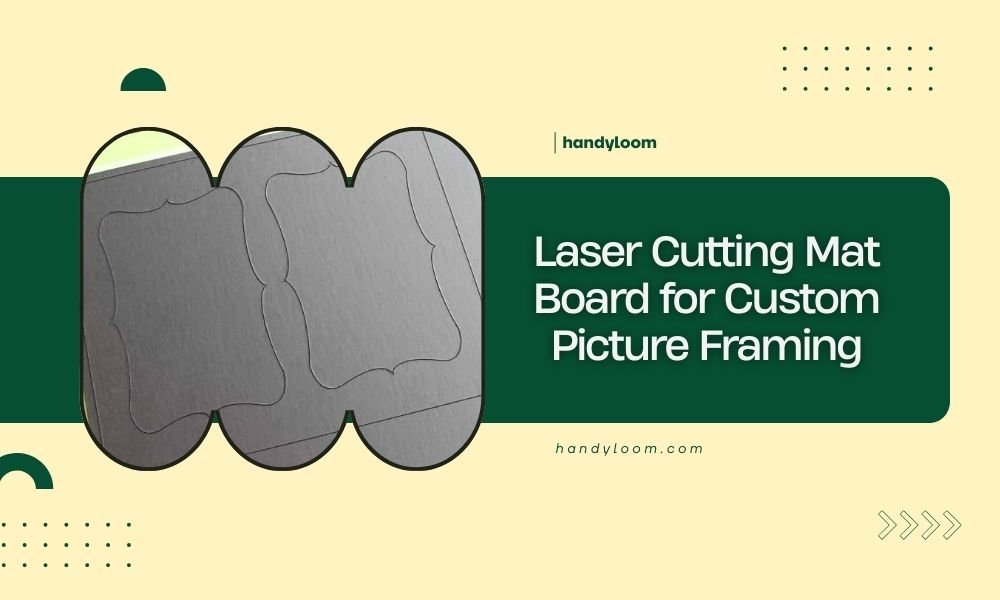
Laser cutting mat board creates precise, clean edges for professional picture framing without the need for expensive cutting tools or manual measuring.
You can cut multiple mat boards simultaneously with perfect accuracy, making custom picture framing faster and more cost-effective for both hobbyists and professionals.
What Makes Mat Board Perfect for Laser Cutting
Mat board cuts beautifully with lasers because of its dense, even composition. The material doesn’t warp or burn easily when you use the right settings.
I researched mat board properties and found that museum-quality boards work best. They contain fewer acids and chemicals that can cause discoloration during cutting.
Types of Mat Board That Work Best
Conservation mat board gives you the cleanest cuts. It’s made from cotton fibers and contains no wood pulp.
Regular mat board works too, but you might notice slight browning on cut edges. This happens because wood fibers burn at lower temperatures.
Thickness Options
Standard mat board comes in these thicknesses:
- 4-ply (1.3mm) – Most common for home framing
- 8-ply (2.6mm) – Creates deeper shadow boxes
- 16-ply (5.2mm) – Professional gallery look
Thicker boards need more laser passes but create stunning dimensional effects.
Setting Up Your Laser for Mat Board
Getting the right laser settings prevents burning and ensures smooth cuts. Start with low power and work your way up.
Recommended Laser Settings
| Mat Board Type | Power (%) | Speed (mm/min) | Passes |
|---|---|---|---|
| 4-ply Regular | 20-30 | 800-1000 | 1-2 |
| 4-ply Conservation | 25-35 | 600-800 | 1-2 |
| 8-ply Regular | 35-45 | 400-600 | 2-3 |
These settings work for most 40-50 watt CO2 lasers. Always test on scraps first.
Air Assist Is Your Friend
Turn on air assist to blow away debris and prevent flame-ups. This keeps your cuts cleaner and reduces burn marks.
Without air assist, tiny particles can stick to cut edges and create rough textures.
Preparing Your Mat Board
Clean your mat board surface before cutting. Even small dust particles can cause uneven cuts.
Place the board flat on your cutting bed. Any warping will affect cut depth and quality.
Measuring and Marking
You don’t need to mark cut lines since the laser follows your digital design. But measuring your artwork accurately is key.
Add 1/4 inch overlap on all sides. This gives you room for adjustments when mounting.
Designing Your Mat Cuts
Simple rectangular cuts work great for beginners. Once you’re comfortable, try decorative shapes and multiple openings.
Software Options
Most laser software can handle basic rectangle designs. For complex shapes, try these programs:
- Adobe Illustrator – Professional vector editing
- Inkscape – Free alternative with good tools
- LightBurn – Made specifically for laser cutting
Creating Perfect Rectangles
Draw your outer mat dimensions first. Then create the inner window opening.
Make sure your inner rectangle is centered. Most software has alignment tools to help with this.
Adding Decorative Elements
Try these design ideas once you master basic cuts:
- Rounded corners instead of sharp angles
- Double mats with different sized openings
- Decorative corner flourishes
- Text or monograms in mat corners
Multiple Opening Mats
Want to frame several photos in one mat? Plan your spacing carefully.
Leave at least 2 inches between photo openings. This gives each image enough visual space.
Common Cutting Problems and Solutions
Even experienced users run into issues. Here’s how to fix the most common problems.
Brown or Black Cut Edges
This happens when your laser power is too high or speed too slow. The material burns instead of cutting cleanly.
Lower your power by 5-10% and increase speed slightly. Test on scraps until you get clean white edges.
Incomplete Cuts
If your laser doesn’t cut all the way through, you have a few options:
- Increase power by 5%
- Slow down cutting speed
- Add another pass
- Check laser focus
Rough or Fuzzy Edges
This usually means your laser needs cleaning or your material is low quality.
Clean your lens and mirrors first. If that doesn’t help, try different mat board from another supplier.
Warping During Cutting
Large sheets of mat board can warp from laser heat. This throws off your cut depth.
Use hold-down pins or weights around your material. Don’t put them near cut lines.
Finishing Your Custom Mats
A few simple steps will make your laser-cut mats look professionally made.
Cleaning Up Cut Edges
Even perfect cuts might have tiny particles stuck to edges. Gently brush these away with a soft cloth.
For stubborn spots, use a clean pencil eraser. Rub gently to avoid damaging the mat surface.
Removing Slight Burn Marks
Light sanding with 220-grit paper can remove minor discoloration. Sand very lightly and only on cut edges.
Test this technique on scraps first. Some mat board colors show sanding marks easily.
Assembly Tips
Mount your artwork before placing the mat. This lets you position everything perfectly.
Use acid-free mounting tape or photo corners. Regular tape can damage photos over time.
Cost Benefits of Laser Cutting Mats
Professional mat cutting services charge $15-30 per custom mat. Your laser lets you make them for the cost of materials.
I found that mat board sheets cost $3-8 each, depending on quality and size. You can often cut 2-4 mats from one sheet.
Time Savings
Driving to a frame shop, waiting for custom cuts, and picking up finished mats takes hours. Your laser cuts perfect mats in minutes.
This speed lets you experiment with different designs without big time investments.
Conclusion
Laser cutting mat board opens up endless possibilities for custom picture framing. With the right settings and techniques, you’ll create professional-quality mats at home.
Start with simple rectangular cuts to learn your laser’s behavior with mat board. Once you’re comfortable, experiment with decorative shapes and multiple openings.
Remember that clean cuts come from proper laser settings, good material preparation, and quality mat board. Take time to test settings on scraps before cutting your final pieces.
What thickness of mat board should I start with as a beginner?
Start with 4-ply mat board since it cuts easily and costs less than thicker options. You can master your technique before moving to 8-ply or 16-ply boards that need more precise settings.
Can I cut multiple mat boards at the same time to save time?
Yes, you can stack 2-3 pieces of 4-ply mat board for simultaneous cutting. Increase your laser power by 15-20% and slow down the speed. Make sure the boards are perfectly aligned and held flat.
How do I prevent my mat board from moving during cutting?
Use hold-down pins or small weights placed away from your cut lines. You can also use low-tack masking tape on corners that won’t be visible in the final frame.
What’s the difference between conservation and regular mat board for laser cutting?
Conservation mat board contains no wood fibers, so it produces cleaner cuts with less edge darkening. Regular mat board works fine but may show slight brown edges that you might need to clean up afterward.
How do I know if my laser settings are correct for mat board?
Perfect settings produce clean, white cut edges that go completely through the material without charring. If you see brown or black edges, reduce power. If cuts don’t go through completely, increase power or add another pass.
