
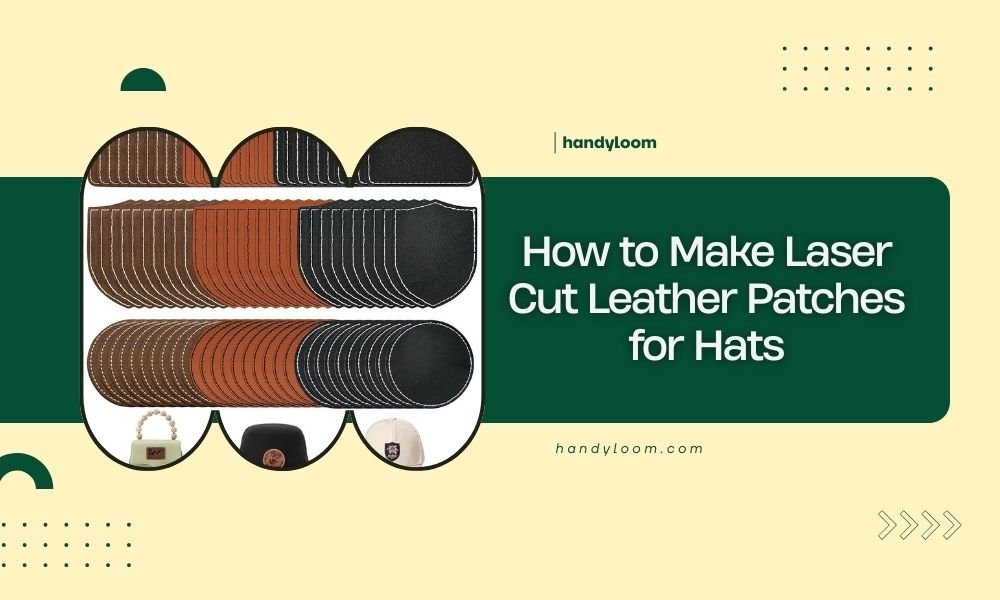
Making laser cut leather patches for hats requires choosing the right leather thickness, creating digital designs, and using proper laser settings for clean cuts without burning.
You can create professional-looking laser cut leather patches at home using 2-3 oz vegetable-tanned leather and basic design software like Inkscape or Adobe Illustrator.
What You Need to Get Started
Want to add some personal flair to your favorite hat? Laser cutting leather patches gives you that custom look without breaking the bank. Let’s walk through everything you need to make this happen.
First, you’ll need access to a laser cutter. Many makerspaces and libraries now offer these machines for public use. If you don’t have one nearby, online laser cutting services can handle the work for you.
Essential Materials for Your Project
The right materials make all the difference. Here’s what works best for hat patches:
- 2-3 oz vegetable-tanned leather (perfect thickness for patches)
- Design software (Inkscape is free and works great)
- Transfer paper or adhesive backing
- Leather conditioner for finishing
Why Vegetable-Tanned Leather Works Best
We researched various leather types and found that vegetable-tanned leather cuts cleanly without toxic fumes. Chrome-tanned leather releases harmful chemicals when laser cut, so avoid it completely.
The 2-3 oz thickness gives you flexibility without being flimsy. Thicker leather might not cut through properly on lower-powered machines.
Designing Your Patch
Your design determines how professional your patch looks. Keep it simple for your first few attempts.
Software Options That Actually Work
You don’t need expensive software to create great designs. From what I read online, these options work well for beginners:
- Inkscape (free and powerful)
- Adobe Illustrator (subscription-based)
- Fusion 360 (free for personal use)
- LightBurn (designed specifically for laser cutting)
Design Guidelines for Success
Small details disappear on patches. Stick to bold shapes and text that’s at least 6mm tall. Think of it like designing a logo that needs to be readable from across a room.
Vector graphics work best because they scale without losing quality. Always save your files as SVG, AI, or DXF formats.
Size Considerations for Hat Patches
Most hat patches range from 2-4 inches wide. Larger patches can overwhelm smaller hats, while tiny patches get lost on bigger ones.
Measure your hat’s front panel or side area before finalizing your design. You want the patch to complement the hat, not dominate it.
Setting Up Your Laser Cutter
Getting the settings right prevents burnt edges and incomplete cuts. Each machine is different, but these guidelines help you start strong.
Power and Speed Settings
Start with lower power settings and work your way up. I found that most experts recommend these starting points for 2-3 oz leather:
| Laser Power | Speed Setting | Expected Result |
|---|---|---|
| 40-60% | 15-25 mm/min | Clean cut, minimal burning |
| 70-80% | 10-15 mm/min | Deep cuts, some edge darkening |
| 30-40% | 25-35 mm/min | Light engraving only |
Test Cuts Save Time and Materials
Always run test cuts on scrap leather first. Cut small squares with different settings to see what works best with your specific machine and leather.
Label each test piece with its settings. You’ll thank yourself later when you find the perfect combination.
Preparing Your Leather
Flat leather cuts better than wrinkled leather. If your leather has creases, lightly dampen it and press it flat under heavy books overnight.
Clean the surface with a slightly damp cloth to remove any dust or oils that might affect the cut quality.
The Cutting Process Step by Step
Ready to make your first patch? Follow these steps for consistent results every time.
Loading and Positioning
Place your leather on the cutting bed with the smooth side up. The rough side can catch more debris and create uneven cuts.
Use the laser’s positioning feature to preview where your design will cut. This prevents waste and helps you fit multiple patches on one piece of leather.
Focus and Calibration
Proper focus makes the difference between clean cuts and ragged edges. Most laser cutters come with focus tools or automatic focusing features.
The laser beam should be at its smallest point right at the leather surface. Too high or too low creates wider, less precise cuts.
Running Your First Cut
Start the cut and watch the first few seconds closely. If you see excessive flames or heavy smoke, stop immediately and adjust your settings.
Light smoke is normal, but heavy burning means your power is too high or speed too slow.
Dealing with Common Issues
Not cutting all the way through? Increase power by 5-10% or slow down the speed slightly. Don’t jump to maximum power right away.
Burnt edges? Reduce power or increase speed. Sometimes masking tape on the leather surface helps prevent burning.
Finishing Your Patches
Raw leather patches look unfinished. A few simple steps transform them into professional-quality accessories.
Cleaning Up Cut Edges
Laser cutting can leave slight residue on the edges. A soft brush or cloth removes most of this easily.
For stubborn spots, very light sanding with 400-grit sandpaper smooths things out without damaging the leather.
Edge Treatment Options
You have several options for treating the cut edges:
- Leave them natural for a rustic look
- Apply leather conditioner for a subtle shine
- Use edge paint for a polished appearance
- Burnish with a bone folder for smoothness
Adding Color and Character
Vegetable-tanned leather takes dye beautifully. Leather dyes, alcohol-based markers, or even acrylic paints work well for adding color.
Apply color before adding any protective finish. Always test colors on scrap pieces first.
Attaching Patches to Your Hat
The attachment method depends on whether you want permanent or removable patches.
Permanent Attachment Methods
Contact cement creates the strongest bond for fabric hats. Apply thin coats to both the patch and hat, let them get tacky, then press together firmly.
For leather or canvas hats, you can also sew patches on with strong thread. Use a leather needle for best results.
Removable Options
Velcro backing lets you swap patches whenever you want. Sew the hook side to your patch and the loop side to your hat.
Strong double-sided tape works for temporary attachment, though it may leave residue when removed.
Positioning Tips
Most patches look best slightly off-center rather than perfectly centered. Try different positions before committing to one.
Take photos of different positions. Sometimes what looks good in person doesn’t photograph well, and vice versa.
Troubleshooting Common Problems
Every laser cutting project teaches you something new. Here are solutions to the most common issues I came across in my research.
Incomplete Cuts
If your laser isn’t cutting all the way through, don’t just crank up the power. Try slowing down the cutting speed first.
Sometimes the issue is focus. Double-check that your laser is properly focused at the leather surface.
Uneven Cut Quality
Inconsistent cuts usually mean dirty optics or an uneven cutting surface. Clean your laser’s lens and mirrors regularly.
Make sure your leather lies completely flat. Even small wrinkles can cause cut depth variations.
Excessive Burning
Nobody wants patches that look like they survived a campfire. Reduce power gradually until you find the sweet spot.
Air assist helps blow away debris and reduces burning. If your machine has this feature, use it.
Advanced Techniques
Once you master basic patch cutting, these techniques add professional touches.
Multi-Layer Designs
Cut different elements from different colored leathers, then layer them for complex designs. This technique works great for logos with multiple colors.
Plan your layers from bottom to top. The base layer should be slightly larger than upper layers for a professional look.
Engraving and Cutting Combined
Many designs benefit from both engraved details and cut outlines. Run the engraving pass first at lower power, then the cutting pass.
This prevents the cut pieces from shifting during engraving.
Creating Patch Sets
Design complementary patches that work together. A set of 3-5 related patches gives hat wearers options while maintaining a consistent style.
Keep the same fonts, color schemes, or design elements across the set for unity.
Care and Maintenance
Proper care keeps your leather patches looking good for years.
Regular Conditioning
Leather needs moisture to stay flexible. Apply leather conditioner every few months, or when the patch starts looking dry.
Use conditioners designed for vegetable-tanned leather. Products made for chrome-tanned leather may cause discoloration.
Cleaning Guidelines
For light cleaning, use a slightly damp cloth. For stubborn stains, leather cleaners work better than household cleaners.
Never soak leather patches or put them in washing machines. Water damage is often permanent.
Conclusion
Making laser cut leather patches for hats combines creativity with craftsmanship. Start with simple designs and quality materials, then work your way up to more complex projects. Remember that practice makes perfect, and each patch teaches you something new about working with leather and laser cutters. With the right approach, you’ll soon be creating patches that rival anything you can buy commercially. The best part? Each patch carries your personal touch and creative vision.
Can I use chrome-tanned leather for laser cutting?
No, chrome-tanned leather releases toxic chromium compounds when laser cut. Always use vegetable-tanned leather for safety and better cutting results.
What’s the thickest leather I can cut with a 40-watt laser?
Most 40-watt lasers handle up to 4 oz leather thickness, but 2-3 oz works best for clean cuts. Thicker leather may require multiple passes or higher power settings.
How long do leather patches last on hats?
Well-attached patches can last several years with proper care. The attachment method matters more than the patch itself – contact cement and sewing provide the longest-lasting bonds.
Can I wash a hat with a leather patch on it?
Hand washing works best for hats with leather patches. Avoid machine washing, which can damage both the patch and its attachment to the hat.
What file format should I use for laser cutting designs?
Vector formats like SVG, AI, or DXF work best because they maintain crisp edges at any size. Avoid raster formats like JPG or PNG for cutting applications.
