
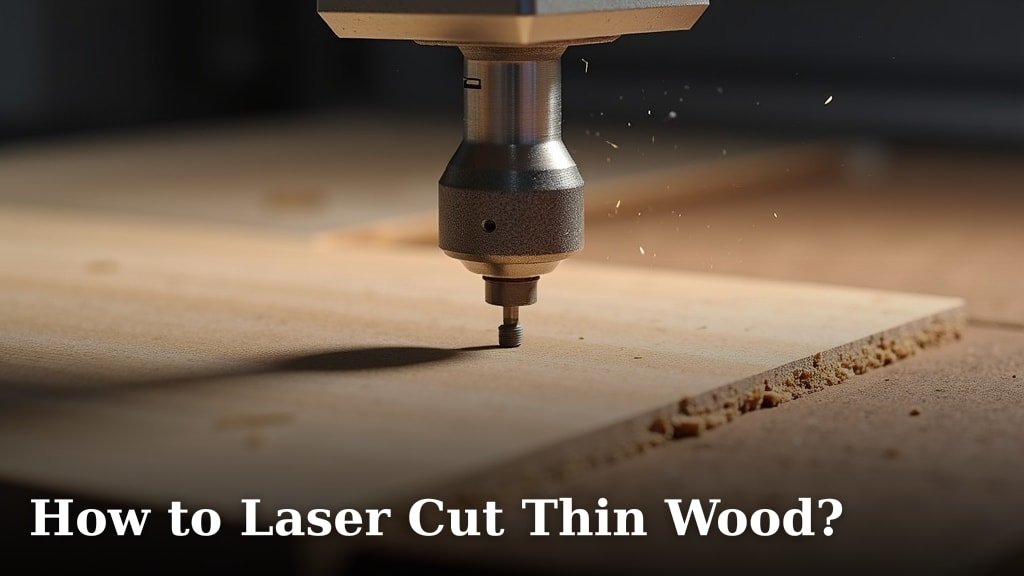
Yes, you can absolutely laser cut thin wood! With the right settings and techniques, you can achieve clean, precise cuts and even some beautiful engraved details. It’s a fantastic way to create intricate designs for crafts, models, or custom projects. We found that getting your laser cutter dialed in for thin wood is easier than you might think.
Laser cutting thin wood opens up a world of creative possibilities. Whether you’re working with balsa, basswood, or plywood, understanding the basics of power, speed, and focus is key. Many crafters successfully use laser cutters for everything from delicate jewelry to sturdy architectural models. You’ll want to pay attention to material thickness and the type of wood for the best results.
- Laser cut thin wood with precision.
- Adjust power and speed settings carefully.
- Focus is critical for clean edges.
- Practice on scrap pieces first.
- Consider ventilation for safety.
Let’s walk through exactly how to get started with laser cutting your thin wood projects. If you’re new to laser cutting, our guide on how to get started can help.
Getting Started with Laser Cutting Thin Wood
Laser cutting thin wood can be a rewarding experience. You can create beautiful projects with a laser cutter. It’s all about finding the right settings. We’ve found that with a little practice, you can achieve great results. This guide will walk you through the process step-by-step. You’ll learn how to make clean cuts and detailed engravings. Let’s get your laser cutter ready for some thin wood magic!
Choosing the Right Thin Wood for Your Project
Not all thin woods are created equal for laser cutting. The type of wood you choose matters. It affects how it cuts and engraves. Common choices include basswood, balsa wood, and thin plywood. Basswood is a favorite among crafters. It’s known for its smooth, consistent grain. This makes it easy to cut and engrave evenly.
Balsa wood is incredibly lightweight. It’s great for models and architectural projects. However, its open grain can sometimes lead to slightly rougher edges. Thin plywood, like Baltic birch, offers good strength. It’s often layered, which can create interesting edge details when cut. We found that the plywood’s core material can influence the cut quality.
Understanding Wood Thickness and Its Impact
The thickness of your wood is critical. Thicker wood requires more power or a slower speed. This can lead to burning or scorch marks. For thin woods, typically 1/16 inch to 1/4 inch (around 1.5mm to 6mm), you have more flexibility. We found that even small differences in thickness can require setting adjustments. Always measure your wood’s actual thickness.
Essential Laser Cutter Settings for Thin Wood
Getting your laser cutter settings right is the most important step. This involves adjusting three key parameters: power, speed, and focus. Each plays a vital role in achieving a clean cut without burning. Many laser cutting tutorials suggest starting with recommended settings for your specific laser model and wood type.
Power and Speed: Finding the Sweet Spot
Power controls the laser beam’s intensity. Speed controls how fast the laser head moves across the material. For thin wood, you generally want lower power and higher speed settings. This helps prevent the wood from catching fire or becoming overly scorched. We found that too much power will burn right through the wood.
Too slow a speed, even with low power, can also cause burning. It’s a delicate balance. A good starting point for engraving might be 20-40% power and 100-200 mm/sec speed. For cutting, you might use 40-70% power and 10-30 mm/sec speed, depending on the wood’s thickness. We recommend testing on scrap pieces first. This is your chance to experiment. It helps you find that perfect combination for your machine.
The Importance of Proper Focus
Focus determines the beam’s spot size. A precisely focused beam creates a narrow, intense point. This allows for cleaner cuts and finer detail. If your focus is off, the beam will be too wide. This can result in wider kerfs (the width of the cut) and less precise results. Many laser cutters have an automatic focusing feature. However, manually checking and adjusting focus is often more reliable, especially with different material thicknesses.
A common way to set focus is by using a small piece of material. You position the laser head so it just touches the material’s surface. Then, you adjust the laser’s height until it’s at the optimal distance. For thin woods, a sharp, thin line is what you’re aiming for. We found that ensuring your lens is clean is also part of achieving good focus. Dust or debris can scatter the beam.
Preparing Your Thin Wood for Laser Cutting
Before you send your design to the laser cutter, some preparation is needed. This ensures a smooth workflow and better results. Think of it like prepping ingredients before cooking.
Securing Your Material
Thin wood can be lightweight and prone to moving. This can ruin a cut. You need to secure your wood to the laser bed. A common method is using masking tape. You can tape down the edges of your wood to the bed. Some people also use small clamps or magnets, if your laser bed is magnetic. We found that ensuring the material is perfectly flat is key. Warped wood can lead to inconsistent cutting depth.
Ventilation is Non-Negotiable
Cutting wood produces smoke and fumes. These are not good for your health or your laser cutter. Proper ventilation is absolutely essential. Your laser cutter should have an exhaust system connected to the outside. If it doesn’t, you’ll need to create one or consider a fume extractor. Many air purifiers are not sufficient for laser cutting fumes. The American Lung Association advises against breathing in smoke from burning materials.
We found that even with good ventilation, you might notice a smoky smell. This is normal. Just make sure the air is being vented directly outside. Keeping your workspace well-ventilated is a top priority for safety. You don’t want to inhale those particles.
Designing and Setting Up Your Files
Your design file needs to be set up correctly for the laser cutter. This involves vector graphics for cutting and raster graphics for engraving. Software like Adobe Illustrator, Inkscape, or CorelDRAW are commonly used.
Vector vs. Raster for Thin Wood
For cutting, you’ll use vector lines. These are mathematical paths that tell the laser where to cut. Set your cut lines to a specific color and line weight, often red or blue, in your design software. For engraving, you’ll use raster images. This is like a high-resolution image where the laser moves back and forth, burning dots to create an image or text. We found that engraving on thin wood can be very delicate. For engraving on thin wood, consider learning how to create halftone images.
When setting up your file, make sure your cutting lines are contiguous. This means they form a continuous path. Gaps in your vector lines will result in incomplete cuts. For engraving, experiment with dithering patterns and resolution settings. These control how the image appears.
Test Cuts and Refinements
This is where your scrap pieces come in handy! Before committing to your final project piece, always perform test cuts. We recommend cutting small shapes, like squares or circles, and engraving a small text sample.
Here’s a quick checklist for your test runs:
- Cut a small square or circle.
- Engrave a few lines of text.
- Test different power and speed combinations.
- Ensure your focus is sharp.
- Check for any signs of excessive burning.
- See if the material cuts through cleanly.
If your test cuts are too light, increase power or decrease speed slightly. If they are too dark or burnt, decrease power or increase speed. You are looking for a cut that goes all the way through cleanly, with minimal charring. For engraving, you want a crisp, clear image without burning too deep.
Common Issues and How to Solve Them
Even with careful preparation, you might encounter a few hiccups. Don’t worry, these are usually fixable.
Scorched or Burnt Edges
This is often caused by too much power or too slow a speed. Try reducing the power setting by 5-10% or increasing the speed by 10-20 mm/sec. Ensure your material is properly focused. Sometimes, a thin layer of masking tape applied to the surface can help protect the wood and reduce scorching.
Incomplete Cuts
If your laser isn’t cutting all the way through, you likely need more power or a slower speed. Alternatively, your focus might be off, or your lens might be dirty. Check the laser’s alignment and ensure the exhaust system isn’t restricting airflow, which can affect laser intensity. We found that a dirty lens is a surprisingly common culprit.
Warping or Material Movement
As mentioned, securing your material is vital. If the wood warps during cutting, it can affect the cut quality. Ensure your laser bed is clean and flat. Use sufficient tape or clamps to keep the wood firmly in place. Some woods, especially very thin ones, can be sensitive to heat and might slightly warp even when secured.
Maintaining Your Laser Cutter for Wood Projects
Regular maintenance ensures your laser cutter performs optimally. This is especially true when working with wood. Keep your lenses and mirrors clean. Dust and debris can build up quickly.
Regularly clean the laser bed and the exhaust system. This prevents fire hazards and ensures good airflow. Many manufacturers provide maintenance schedules. Following these will help prolong the life of your machine. We found that a clean machine leads to better cuts.
| Wood Type | Typical Thickness | Suggested Power (Approximate) | Suggested Speed (Approximate) | Notes |
|---|---|---|---|---|
| Basswood | 1/16″ – 1/8″ | 30-50% | 50-100 mm/sec | Smooth engraving, clean cuts. |
| Balsa Wood | 1/16″ – 1/4″ | 20-40% | 80-150 mm/sec | Very lightweight, can char easily. |
| Thin Plywood (Baltic Birch) | 1/8″ – 1/4″ | 50-70% | 30-70 mm/sec | Stronger, may show layered edges. |
*Note: These settings are approximate and will vary based on your specific laser cutter, wattage, lens type, and the exact wood material. Always perform test cuts on scrap material.
Conclusion
You’ve learned that laser cutting thin wood is totally achievable with the right approach. We found that by focusing on your laser cutter’s power and speed settings, ensuring precise focus, and preparing your material properly, you can get amazing results. Don’t forget the critical step of good ventilation for your safety. Practice on scrap pieces is your best friend for dialing in those perfect settings. Now, it’s time to grab your thin wood and get creating!
Frequently Asked Questions
What’s the best way to prevent thin wood from catching fire during laser cutting?
To prevent fires, you’ll want to use lower power settings and higher speed settings. This helps the laser cut through quickly without lingering too long and igniting the material. Always perform test cuts on scrap pieces to find the safest combination for your specific wood and laser.
How do I know if my laser cutter’s focus is set correctly for thin wood?
A properly focused laser beam will create a very fine, sharp line. You can test this by looking at the laser dot on a piece of scrap wood; it should be as small as possible. Many laser cutters have auto-focus, but manually checking can ensure the best cut quality and detail.
Can I engrave text or images on very thin wood, like 1/16 inch?
Yes, you can engrave on very thin wood, but it requires very careful settings. Use low power and moderate speed for engraving to avoid burning through the material. It’s best to practice on scrap pieces to fine-tune the engraving depth and clarity.
What kind of ventilation is truly necessary for laser cutting thin wood?
Adequate ventilation is non-negotiable because wood smoke contains harmful particles. Your laser cutter needs an exhaust system that vents directly outside. Simple air purifiers are usually not sufficient to handle the fumes produced by laser cutting.
Why does my thin wood sometimes get scorched even with low power settings?
Scorched edges can happen if the laser speed is too slow, allowing the heat to build up. It can also be due to a dirty lens or incorrect focus, which can widen the laser beam. Double-checking your speed, focus, and lens cleanliness are good first steps to troubleshoot this.
