
Importing SVG files into Lightburn is a straightforward process. You can easily drag and drop your SVG directly into the Lightburn window or use the import file option from the menu. This lets you quickly bring your vector designs into the software for laser cutting or engraving.
SVG (Scalable Vector Graphics) files are perfect for laser work because they contain vector data, not pixel data. This means your designs will scale perfectly without losing quality. We found that using SVG files ensures your laser follows precise paths, leading to cleaner cuts and more accurate engravings every time.
- Import SVGs by dragging and dropping or using the file menu.
- SVG files are vector-based for perfect scaling.
- This ensures precise laser paths and high-quality results.
- No need to worry about pixelation with SVGs.
Let’s walk through exactly how to import your SVG files into Lightburn, step by step.
Getting Your SVG Files into Lightburn
Importing your SVG files into Lightburn is a piece of cake. You’ll be ready to cut or engrave in no time. We found that Lightburn makes this process super intuitive. You have a couple of easy options to get your designs from your computer into the software.
Method 1: Drag and Drop Your SVG
This is often the quickest and easiest way. Think of it like moving a file on your desktop. You just grab it and put it where you want it.
First, locate your SVG file on your computer. You can usually do this with File Explorer (on Windows) or Finder (on Mac). Next, open Lightburn. Once Lightburn is open, simply click and hold on your SVG file. Drag that file icon over to the main Lightburn window. Release the mouse button, and voilà! Your SVG should appear on the screen, ready for you to work with.
We found this method works best when you have both your file explorer and Lightburn open side-by-side. It saves you clicks and makes the whole operation feel very fluid. You can even drag multiple SVG files at once if you’re importing a batch of designs. Just select them all in your file explorer, then drag them over together.
Method 2: Using the Import Function
If drag-and-drop isn’t your style, or if you prefer using menus, the import function is your go-to. It’s just as effective and gives you a bit more control.
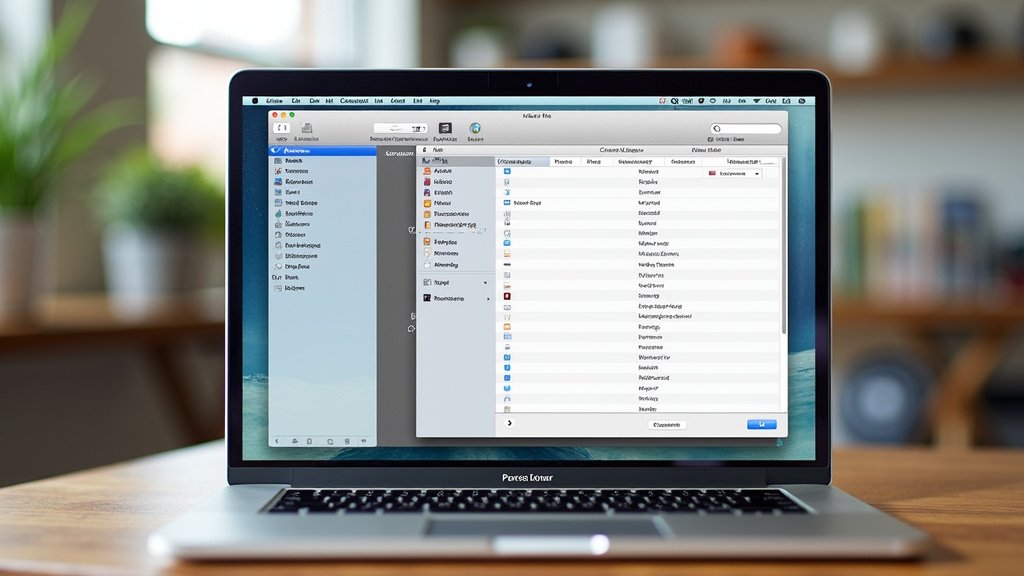
In Lightburn, look for the menu bar at the top. Click on ‘File’. From the dropdown menu that appears, select ‘Import’. A file browser window will pop up. Now, navigate through your folders to find the SVG file you want to import. Once you’ve found it, select the file by clicking on it, then click the ‘Open’ button. Lightburn will then load your SVG file onto the workspace.
This method is great for users who like to keep their screens tidy. It doesn’t require having multiple windows open simultaneously. You click, you browse, you open. Simple and direct. We found that some users prefer this because it feels more deliberate. It also gives you a chance to double-check you’re selecting the right file before it loads.
Understanding SVG Import Settings in Lightburn
When you import an SVG, Lightburn has some settings that can affect how the file appears and behaves. Most of the time, the default settings work perfectly. However, understanding these options can help you troubleshoot if something looks a little off.
The ‘Import SVG Options’ Window
After you select your SVG file using either drag-and-drop or the import menu, you might see a small window pop up. This is the ‘Import SVG Options’ window. Don’t be intimidated by it!
This window lets you fine-tune how Lightburn interprets your SVG. Here are the key settings you’ll typically find:
- Scale: This allows you to change the size of your imported SVG. You can enter a specific dimension or a scaling factor. For example, if your SVG is too small, you can scale it up here. We found that if you know the exact size you need, inputting it directly is the most accurate approach.
- Units: This tells Lightburn what units your SVG was created in (e.g., millimeters, inches). Lightburn will try to guess, but you can set it manually if needed. Mismatched units can cause your design to appear much larger or smaller than intended.
- Tolerance: This setting affects how Lightburn smooths out curves. A lower tolerance means more detail, while a higher tolerance can simplify shapes but might smooth out fine details. For most common SVGs, the default tolerance is a good starting point.
- Center on Page: Checking this box will automatically place the center of your imported SVG at the center of your Lightburn design canvas. This is super handy!
We found that for most users, accepting the default settings in this window is the best approach. Lightburn is usually very good at interpreting SVGs correctly. Only adjust these if you notice something isn’t quite right with your imported design’s size or shape.
What if My SVG Doesn’t Look Right?
Sometimes, an SVG might import with unexpected results. This can happen due to how the SVG was originally created. Here are a few common issues and how to address them:
- Design is too small or too big: Double-check the Scale and Units settings during import. You can also resize the object directly on the canvas after importing.
- Lines are broken or missing: This could be due to the Tolerance setting. Try importing again with a lower tolerance. Some SVGs might also have very thin lines that the laser can’t accurately cut.
- Shapes are distorted: Ensure the Units are set correctly. If the SVG was created with complex paths or effects, sometimes simplification in a vector editor is needed.
- Fonts are not appearing correctly: If your SVG contains text that uses fonts not installed on your computer, Lightburn may substitute a default font or outline the text. It’s best practice to convert text to paths in your design software before exporting as SVG for laser use.
We research and found that converting text to outlines is a widely recommended practice by laser professionals (LightBurn Software Blog). This ensures your text appears exactly as you designed it, regardless of font availability on different computers.
Troubleshooting Common SVG Import Issues
Even with straightforward methods, you might hit a snag. Don’t worry, these are usually simple to fix. Let’s look at some potential bumps in the road.
SVG Files That Won’t Import
If you try to drag and drop or use the import menu and nothing happens, or you get an error message, here’s what to check:
- File Type: Are you absolutely sure it’s an SVG file? Sometimes files can be misnamed. Try opening it in a web browser (like Chrome or Firefox) to see if it displays. If it does, it’s likely a valid SVG.
- File Corruption: Rarely, an SVG file can become corrupted. Try re-exporting the SVG from your original design software.
- Software Version: Ensure you’re using a recent version of Lightburn. Older versions might have compatibility issues with newer SVG features. We found that keeping your software updated is always a good idea for the best performance.
- File Size: Extremely large or complex SVG files can sometimes cause issues. If your file is unusually massive, try simplifying it in your design software.
Checking Your Vector Data After Import
Once your SVG is in Lightburn, it’s wise to do a quick check. This ensures your laser will follow the paths correctly.
Select your imported design on the canvas. Look at the ‘Laser Window’ (usually on the right side of the screen). Here, you’ll see a summary. Pay attention to ‘Total Length’ and ‘Number of Shapes’. If these numbers seem unusually high or low for your design, it might indicate a problem with how the SVG was imported or created.
Another quick check is to zoom in closely on the edges of your shapes. Do the lines look smooth and clean? Or are they jagged and pixelated? SVGs should be crisp and clean. If you see pixelation, it means the SVG might not be a true vector file, or it was created in a way that lost its vector quality.
We found that many design programs will offer an option to ‘Outline Text’ or ‘Convert to Curves’ before exporting. This is a fantastic safeguard. It ensures your text and shapes are solid vector paths, not just instructions that depend on external fonts or complex rendering.
A Quick Checklist for Smooth Imports
To help you remember the key steps for importing your SVGs successfully, here’s a handy checklist:
- Confirm your file is a true SVG.
- Use either drag-and-drop or the File > Import menu.
- Review ‘Import SVG Options’ if needed, but defaults are usually fine.
- Check Scale and Units for correct sizing.
- Inspect the imported design for clean, crisp lines.
- Convert text to outlines in your design software beforehand.
Conclusion
You’ve now seen how easy it is to get your SVG designs into Lightburn. Whether you prefer the quick drag-and-drop or the precise import function, Lightburn handles SVGs beautifully. Remember that understanding the import options can help you fine-tune results, but defaults are often perfect. We’ve also covered common troubleshooting steps to ensure your projects start smoothly. Now you’re ready to take your vector art from concept to creation with your laser! Your next step is to import your first SVG and experience the precision for yourself.
Frequently Asked Questions
Can I import multiple SVG files into Lightburn at once?
Yes, you absolutely can! If you’re using the drag-and-drop method, simply select all the SVG files you want to import in your computer’s file explorer, then drag them all into the Lightburn window together. This can save you a lot of time when working with a project that has several components.
What’s the difference between importing an SVG and a JPG into Lightburn?
The key difference is that SVGs are vector files, meaning they use mathematical paths to define shapes. This allows them to scale infinitely without losing quality, making them ideal for precise laser cutting. JPGs, on the other hand, are raster (bitmap) images made of pixels, which can become blurry or jagged when scaled up for laser work.
My SVG looks distorted after importing. What could be wrong?
Distorted SVGs usually stem from incorrect unit settings during import. Make sure the ‘Units’ selected in the ‘Import SVG Options’ window match the units your SVG was created in (e.g., mm or inches). If the SVG was created in a program that uses different units, Lightburn might misinterpret its size, leading to distortion.
Do I need to convert text to outlines before importing SVGs into Lightburn?
It’s highly recommended! If your SVG contains text using fonts you don’t have installed on your computer, Lightburn might substitute them or have trouble rendering them correctly. Converting text to outlines (or paths) in your design software before exporting ensures the text is treated as solid shapes, guaranteeing it appears exactly as you intended in Lightburn.
How do I know if my imported SVG is ready for cutting or engraving?
After importing, select your design in Lightburn. Check the ‘Laser Window’ for the ‘Total Length’ and ‘Number of Shapes’. If these numbers seem reasonable for your design, and if you zoom in to confirm the lines are crisp and clean (no pixelation), it’s likely ready. A quick manual inspection of key areas is always a good practice.
