
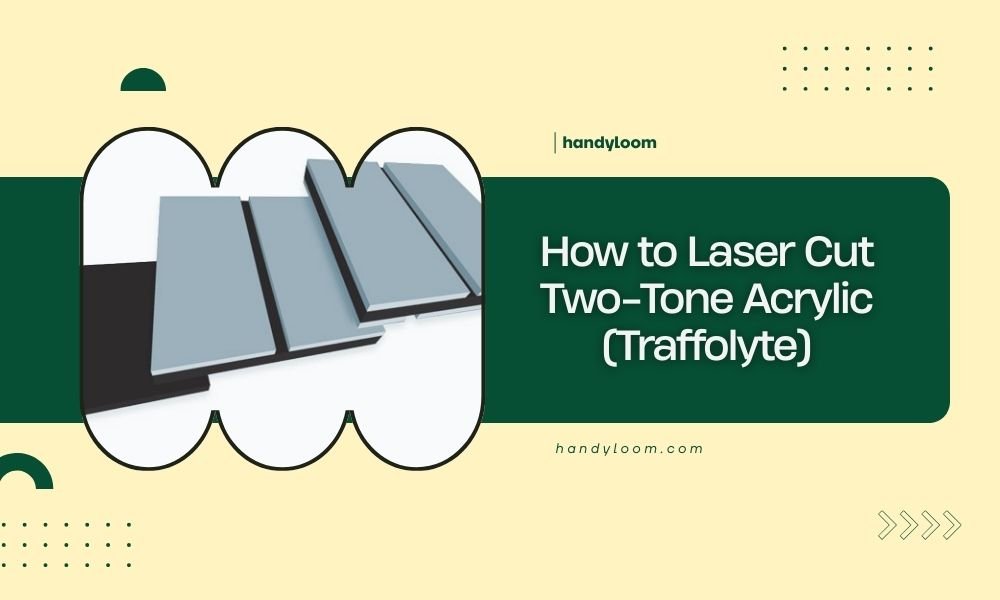
Laser cutting two-tone acrylic (Traffolyte) requires specific settings and techniques to achieve clean cuts without melting the layered material.
You need lower power settings, higher cutting speeds, and proper air assist to prevent the two different colored layers from separating or burning during the cutting process.
What Makes Two-Tone Acrylic Different
Two-tone acrylic, commonly called Traffolyte, consists of two layers of different colored acrylic bonded together. The top layer is usually thin, while the bottom layer provides the base color.
This layered structure creates unique challenges. Each layer responds differently to laser heat. If you use regular acrylic settings, you might melt the bond between layers or create uneven edges.
Why Standard Settings Don’t Work
Regular acrylic cutting uses higher power to slice through quickly. But Traffolyte needs gentler treatment. Too much heat causes the layers to separate or bubble along the cut line.
I found that most laser cutting forums recommend starting with 30% less power than you’d use for solid acrylic of the same thickness.
Essential Equipment Setup
Your laser cutter needs proper ventilation and air assist for clean Traffolyte cuts. The air flow prevents melted material from re-depositing on the surface.
Air Assist Settings
Set your air assist to medium-high flow. Too little air lets debris stick to the cut edges. Too much air can cool the laser spot too quickly, creating incomplete cuts.
Position your air nozzle about 1-2mm from the material surface. This distance gives you good airflow without interfering with the laser beam.
Bed Height and Focus
Focus your laser exactly on the surface of the top colored layer. Don’t focus in the middle of the material thickness like you might with solid acrylic.
Surface focusing prevents the thin top layer from overheating while the laser cuts through to the bottom layer.
Recommended Cutting Settings
Start with these baseline settings and adjust based on your results. Every laser cutter behaves differently, so treat these as starting points.
| Thickness | Power (%) | Speed (mm/min) | Passes |
|---|---|---|---|
| 1.5mm | 45-55 | 800-1000 | 1-2 |
| 2.4mm | 55-65 | 600-800 | 1-2 |
| 3.2mm | 65-75 | 400-600 | 2-3 |
Testing Your Settings
Cut small test squares first. Check that both layers cut completely without separating at the edges. The cut should look clean and uniform from top to bottom.
If the top layer looks melted or rounded, reduce power by 5-10%. If you see incomplete cuts, add another pass instead of increasing power.
Step-by-Step Cutting Process
Proper preparation makes the difference between success and wasted material. Follow these steps for consistent results.
Material Preparation
Remove both protective films from your Traffolyte sheet. Leaving film on can cause uneven heating and poor cut quality.
Clean the surface with isopropyl alcohol to remove fingerprints and dust. Even small particles can affect laser performance.
Design Considerations
Keep your cut lines at least 3mm apart for best results. Closer spacing can cause heat buildup that affects nearby cuts.
Avoid very small interior cutouts under 5mm diameter. The heat from tight curves can cause layer separation in small areas.
Corner Handling
Sharp corners need special attention. The laser pauses slightly at direction changes, creating heat spots. Round your corners by 0.5mm radius when possible.
For designs that need sharp corners, increase your cutting speed by 10-15% to reduce dwell time at corner points.
Cutting Order Strategy
Cut interior features first, then outer perimeters. This prevents pieces from shifting during cutting, which can cause alignment issues.
If cutting multiple pieces from one sheet, space them evenly. This distributes heat across the material and prevents warping.
Common Problems and Solutions
Even with correct settings, you might encounter issues. Here’s how to fix the most common problems.
Layer Separation
If layers separate along cut edges, your power is too high or speed too slow. Reduce power by 10% and test again.
Sometimes layer separation happens because the material got too warm. Let it cool for 5 minutes between cutting sessions.
Incomplete Cuts
Rather than increasing power, add another pass at the same settings. Multiple gentle passes work better than one aggressive pass.
Check your focus if cuts are consistently incomplete. Defocused beams create wider, weaker cutting zones.
Melted Edges
Melting usually means too much power or insufficient air assist. Increase air flow first, then reduce power if needed.
Very slow cutting speeds can also cause melting. Speed up by 100-200 mm/min and see if edge quality improves.
Uneven Cut Quality
If one side cuts better than the other, check your laser tube alignment. Misaligned beams create uneven power distribution.
Dirty lenses also cause uneven cuts. Clean all optical components before starting your project.
Safety Considerations
Traffolyte produces different fumes than solid acrylic. Make sure your ventilation system handles the increased particle load.
The bonding agents between layers can create additional smoke. Never cut without proper ventilation running.
Fire Prevention
Two-tone acrylic can ignite more easily than solid material due to the bonding layer. Keep a fire extinguisher nearby and never leave the laser running unattended.
If you see flames during cutting, stop immediately and increase air assist. Persistent flaming means your power is too high.
Finishing and Post-Processing
Fresh-cut Traffolyte edges might show slight roughness or small particles. Light sanding with 400-grit paper smooths any imperfections.
Sand gently in one direction to avoid creating scratches on the colored surface. Work from coarse to fine grits if heavy smoothing is needed.
Cleaning Cut Edges
Use compressed air to remove loose particles from cut edges. Follow with a soft brush to clear any stubborn debris.
Avoid solvents on the cut edges, as they might affect the bond between layers.
Advanced Techniques
Once you master basic cutting, try these advanced approaches for special effects.
Engraving Effects
Light engraving on the top surface reveals the bottom color underneath. Use 15-20% power at high speed for subtle effects.
Deep engraving can remove the entire top layer in selected areas, creating inlaid color patterns.
Graduated Engraving
Vary your engraving power across a design to create depth effects. Start with 10% power and increase gradually to 25% for smooth transitions.
This technique works great for creating raised letter effects or artistic shading.
Conclusion
Cutting two-tone acrylic successfully comes down to understanding the material’s layered structure and adjusting your approach accordingly. Lower power, proper air assist, and multiple gentle passes give you clean cuts without layer separation. Start with conservative settings and work up gradually. With practice, you’ll create professional-looking results that take advantage of Traffolyte’s unique two-color properties. Remember that every laser behaves differently, so keep notes on what works best with your specific equipment.
Can I use the same settings for different brands of two-tone acrylic?
Different manufacturers use varying bonding agents and layer thicknesses, so you’ll need to adjust settings between brands. Start with 10-15% less power when switching to a new brand and test cut small samples first.
Why do my cuts look fuzzy on one side but clean on the other?
This usually indicates your laser beam isn’t perfectly perpendicular to the material surface. Check your gantry alignment and ensure your material lies completely flat on the cutting bed without any warping or debris underneath.
How do I prevent the thin top layer from chipping during cutting?
Chipping happens when the laser power cycles on and off too quickly. Use continuous cutting modes instead of pulsed modes, and ensure your cutting speed stays consistent throughout the entire cut path.
What’s the maximum thickness of Traffolyte I can cut with a 40W CO2 laser?
Most 40W CO2 lasers handle up to 3.2mm Traffolyte effectively. Thicker materials require multiple passes and risk heat buildup that can separate the layers. Consider upgrading to higher wattage for materials over 4mm thick.
Is it normal for two-tone acrylic to smell different when cutting compared to regular acrylic?
Yes, the bonding layer between colors creates additional chemical compounds when heated, producing a slightly different odor. This is normal, but always ensure adequate ventilation as these fumes can be more irritating than standard acrylic cutting fumes.
