
Your laser engraving looks blurry because of a few common issues. Often, it’s due to the laser focus not being quite right for the material you’re working with. Sometimes, the material itself can absorb or scatter the laser beam. We found these are the top reasons for fuzzy lines.
Blurry engraving can be frustrating when you expect crisp, clean results. It might also happen if your laser’s power settings are too low, or if the engraving speed is too high. Many users report that adjusting these two settings makes a big difference in clarity.
- Laser focus is key.
- Material properties matter.
- Power and speed need fine-tuning.
- Dust or debris can interfere.
- Check your design files too.
Let’s get your laser engraving looking sharp. Below, we’ll walk through exactly why your engravings might be blurry and how you can fix it.
“`htmlTroubleshooting Your Blurry Laser Engravings
It can be really disappointing when your laser engraving doesn’t come out as sharp as you hoped. You put in the effort, set up your design, and then… fuzzy lines. We understand how frustrating that can be. Fortunately, most blurry engraving issues are quite common and have straightforward fixes.
Often, the problem isn’t with your machine or your design skills. It’s usually something subtle in the setup or material. Let’s look at the most frequent culprits. We’ll help you diagnose the exact reason and get your laser working perfectly.
The Laser’s Focus: Getting It Just Right
The most common reason for blurry laser engraving is incorrect focus. Think of your laser beam like a pencil. If the pencil lead isn’t close enough to the paper, your lines will be thick and smudged. The laser beam needs to be incredibly precise.
Your laser cutter has a lens. This lens concentrates the laser beam to a tiny point. This tiny point is what burns or vaporizes your material. If that point isn’t exactly the right distance from the surface, the beam will spread out. This spread causes those fuzzy, indistinct lines you’re seeing.
Understanding Focal Distance
Every laser engraver has a specific focal length. This is the ideal distance between the lens and the material surface. Your machine likely came with a tool or a guide to help you set this. It’s usually a small piece of plastic or metal.
You typically place this tool on the material. Then, you adjust the Z-axis (the height of the laser head) until the lens just touches the tool. This ensures the laser beam is at its narrowest point right on the material’s surface. We found that many users overlook this step, leading to blurry results.
Checking Your Focus on Different Materials
The focal distance can change slightly depending on the material you’re engraving. Thicker materials might require a slightly different Z-axis height than thinner ones. Even the air assist can sometimes affect how the beam hits the surface.
We recommend performing a focus test on each new material you use. This involves engraving a small test pattern at different focal heights. You can then choose the height that produces the sharpest lines. This small step can make a huge difference in clarity.
Material Matters: How It Affects Engraving Quality
The material you choose to engrave on plays a significant role in the final outcome. Some materials are inherently better suited for crisp laser engraving than others.
Different materials react differently to the laser’s heat and energy. Some absorb the beam evenly, while others scatter it. This scattering can lead to uneven burning and a blurry appearance. We’ve seen that smoother, denser materials tend to give the best results.
Surface Texture and Density
Rough or porous surfaces are harder to engrave sharply. The laser beam can hit tiny holes or imperfections, causing it to spread or reflect unpredictably. Think about trying to draw a fine line on sandpaper versus smooth wood.
Denser materials, like hard plastics or certain woods, tend to hold a finer detail. They don’t absorb as much heat into the surrounding area. This allows for cleaner, more defined edges. For instance, engraving on acrylic usually yields very crisp lines.
Material Coatings and Treatments
Some materials have coatings or treatments that can interfere with the laser. Anodized aluminum, for example, has a protective layer. This layer needs to be vaporized before the laser can engrave the metal underneath.
If the coating isn’t removed cleanly, or if it melts instead of vaporizes, it can cause smearing. This smearing will naturally lead to a blurry look. Always research your material’s properties. We found that knowing these details prevents many common engraving problems.
Speed and Power Settings: The Balancing Act
The speed at which your laser head moves and the power it uses are critical. These two settings work together. Finding the right balance is key to achieving sharp engravings.
If your speed is too high, the laser doesn’t have enough time to burn the material effectively. This results in weak, faint, and blurry lines. Conversely, if the power is too low, the laser might not be strong enough to create a deep, clear mark.
The Impact of Engraving Speed
Imagine drawing a line very quickly. It’s likely to be shaky and less precise. Laser engraving is similar. A slower speed allows the laser beam to dwell on the material longer.
This longer dwell time results in a more defined and deeper engrave. Many users find that reducing their engraving speed significantly improves sharpness. We recommend starting with slower speeds for new materials. You can always increase it later if needed.
Finding the Optimal Power Level
Laser power determines the intensity of the beam. Too much power can cause the material to burn too deeply. This excess heat can spread, blurring the edges of your design. It might even cause the material to melt or char, which looks messy.
Too little power, as mentioned, won’t create a strong enough mark. It might only lightly scorch the surface. This leads to faint, blurry lines that lack definition. The ideal power level creates a clean, precise burn without excessive heat spreading.
Using Test Patterns Effectively
How do you find that sweet spot between speed and power? The answer is test patterns. We found that creating small test grids or squares is the best method.
You can set up a series of squares. Each square uses a different combination of speed and power. For example, you might have 20 squares, each with a unique speed/power setting. After running the test, you can examine each square. You’ll be able to see which combination produced the clearest, sharpest lines. This systematic approach saves you time and materials in the long run.
Dust, Debris, and Lens Cleanliness
A often-overlooked factor affecting engraving clarity is cleanliness. Your laser cutter is a precision instrument. Even small amounts of dust or residue can cause problems.
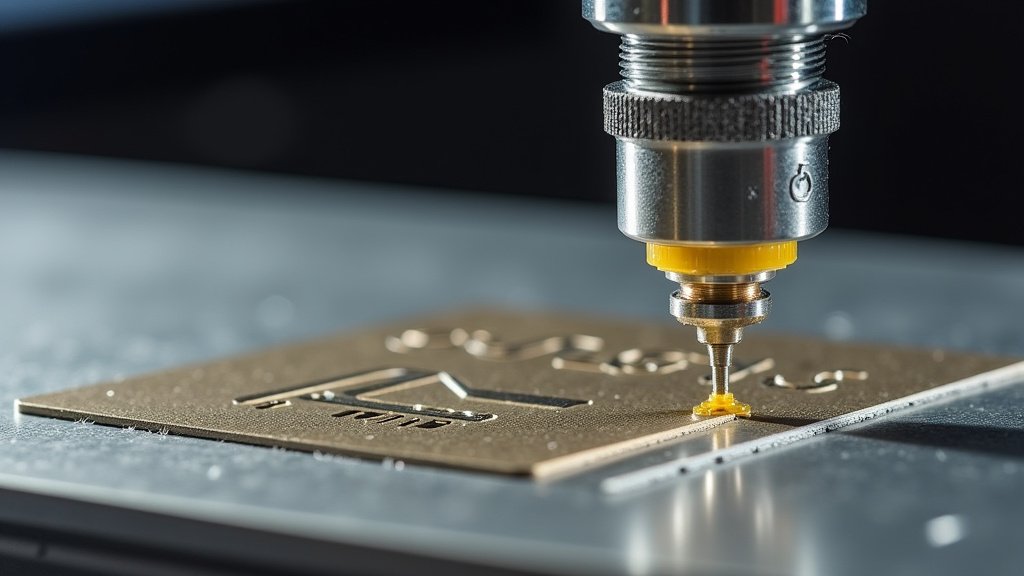
Dust particles on the lens can scatter the laser beam. This scattering prevents it from focusing properly. Think of it like looking through a smudged window. The view is never as clear.
The Importance of a Clean Lens
Your laser lens needs to be spotless. Any smudges, dust, or residue will diffuse the laser beam. This diffusion results in a larger, less defined spot size.
A dirty lens is a common culprit for blurry engravings. We strongly recommend cleaning your lens regularly. Use a lens cleaning solution specifically designed for optics and a lint-free cloth. Many experts suggest checking and cleaning your lens before each major project.
Keeping the Machine Interior Clean
Beyond the lens, the interior of your laser cutter should also be clean. Dust and debris can accumulate on mirrors and other optical components. This buildup can deflect or weaken the laser beam.
Ensure your exhaust system is working correctly. This helps to remove smoke and debris from the cutting area. A clean machine operates more efficiently and produces better results. We found that a clean environment is a foundation for quality laser engraving.
Design File Issues That Cause Blurriness
Sometimes, the problem isn’t with the laser itself, but with the design file you’re using. The way a design is created can impact how the laser interprets it.
Very fine details in a design might be too small for the laser to reproduce accurately. Vector lines that are too thin or too close together can also cause issues. We found that checking your design in your software is as important as checking your machine settings.
Vector vs. Raster Designs
Understanding the difference between vector and raster files is helpful. Vector graphics are made of mathematical paths. They can be scaled infinitely without losing quality.
Raster graphics are made of pixels. If you enlarge a raster image too much, it becomes pixelated and blurry. When laser engraving, vector files generally produce sharper results. Ensure your design is in a suitable format and resolution for laser engraving.
Checking Line Thickness and Resolution
Extremely thin lines in a vector file might be too fine for the laser to engrave distinctly. The laser kerf (the width of the material removed by the laser) can sometimes be wider than these fine lines.
Similarly, if you’re using a raster image, ensure it has a high enough resolution. A low-resolution image will naturally lead to a blurry engraving. We recommend setting your design resolution to at least 300 DPI for detailed work.
Here’s a quick checklist to help you troubleshoot:
- Focus Check: Ensure your laser is properly focused for the material.
- Material Test: Do a small test engrave on a scrap piece.
- Speed & Power: Adjust your settings – slower speeds and moderate power often work best.
- Clean Optics: Wipe down your laser lens and mirrors.
- Design Review: Check your design file for resolution and line thickness.
- Ventilation: Make sure your exhaust is clear of dust and debris.
Conclusion
Getting those crisp, clean laser engravings is definitely achievable. You’ve learned that the magic lies in getting your laser focus just right, choosing the right material, and mastering the speed and power settings. Don’t forget the simple but vital steps like keeping your lens clean and ensuring your design files are print-ready.
We know it can take a little trial and error. But by systematically checking these areas, you’ll be well on your way to producing professional-looking results. So, grab a scrap piece of material and start practicing those focus tests. Your next project is going to look fantastic!
Frequently Asked Questions
What is the “kerf” of a laser engraver?
The kerf is the width of the material that the laser beam removes during engraving or cutting. A wider kerf can make fine lines appear blurry. You can often adjust this indirectly by fine-tuning your laser’s focus and power settings.
Can air assist cause blurry engraving?
Yes, air assist can sometimes affect focus. It blows air onto the engraving point to clear debris and reduce flare-ups. Ensure your air assist isn’t too strong, as it can slightly shift the beam’s interaction with the material, potentially causing blurriness if not properly focused.
How often should I clean my laser engraver’s lens?
It’s best to clean your lens regularly, especially before important projects or if you notice a decline in engraving quality. We found that frequent cleaning, even a quick wipe-down, helps maintain optimal focus and clarity.
My design looks sharp on screen but is blurry when engraved. Why?
This often happens if the design’s resolution is too low for the engraving process. Even if it looks good on your monitor, a raster image with insufficient DPI (dots per inch) will translate to blurry lines when scaled for engraving. Aim for at least 300 DPI for detailed work.
Is there a universal “best setting” for speed and power?
Unfortunately, no. The ideal speed and power settings vary greatly depending on your specific laser engraver, the material you’re using, and even the thickness or density of that material. Always perform test engravings on scrap material to find the perfect balance for your project.
