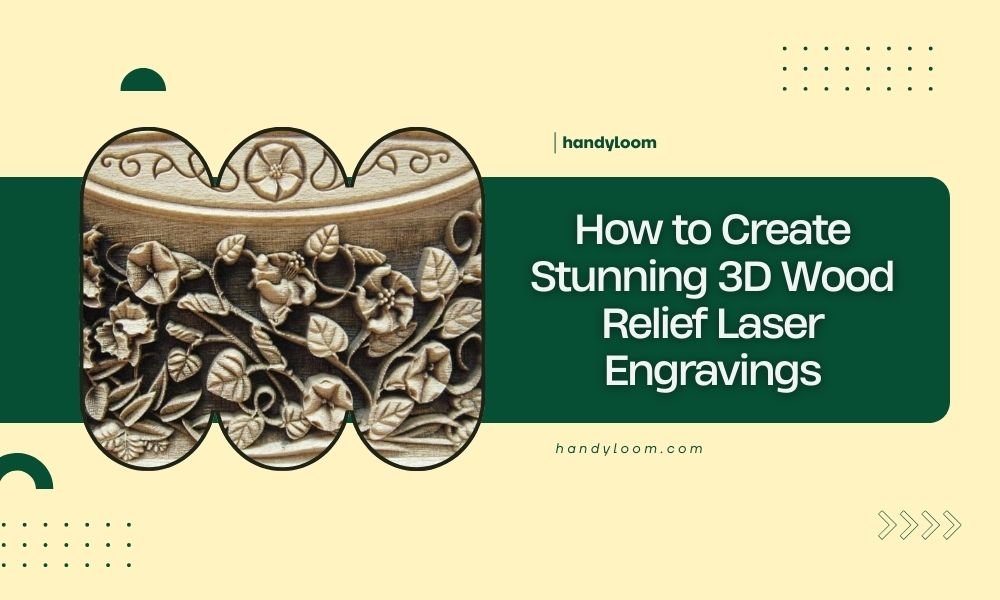
Creating stunning 3D wood relief laser engravings requires selecting the right wood type, optimizing your laser settings, and using proper grayscale images with good contrast and depth.
The key to professional 3D wood relief laser engravings lies in understanding how laser power and speed variations create different burn depths to form raised and recessed areas.
What Makes 3D Wood Relief Laser Engraving Special
Think of 3D wood relief engraving like carving, but with light instead of chisels. Your laser burns away material at different depths to create a three-dimensional effect that you can actually feel with your fingers.
Unlike flat engravings, relief work creates shadows and highlights that change as you move around the piece. This adds drama and visual interest that makes your projects stand out.
How Relief Engraving Differs from Regular Engraving
Regular laser engraving burns at a consistent depth. Relief engraving varies the burn depth based on your image’s grayscale values. Darker areas burn deeper, lighter areas burn less.
This depth variation creates the raised and lowered areas that give you that sculptural look.
Choosing the Right Wood for Relief Engraving
Your wood choice can make or break your project. Some woods handle depth variations beautifully, while others chip or burn unevenly.
Best Wood Types for Beginners
I found through research that these woods give consistent results:
- Maple – burns evenly with good contrast
- Cherry – creates rich, dark burns
- Birch plywood – affordable and predictable
- Basswood – soft and forgiving for learning
Wood Thickness Recommendations
Use wood that’s at least 1/4 inch thick. Thinner pieces can warp from heat. Thicker pieces give you more depth to work with.
Wood Preparation Steps
Sand your wood to 220 grit before engraving. Remove any dust with a tack cloth. Uneven surfaces create inconsistent burn patterns.
Woods to Avoid
Skip resinous woods like pine initially. The resin burns unpredictably and can damage your laser lens. Oak’s grain can overpower fine details.
Essential Equipment and Software Setup
You don’t need the most expensive laser to create beautiful relief work. Even entry-level machines can produce stunning results with the right approach.
Laser Power Requirements
A 40-watt laser handles most relief projects well. Higher wattage gives you more speed and depth options, but isn’t required for learning.
Software Options That Work
Most laser software can handle relief engraving. LightBurn offers excellent grayscale control. Even basic software like LaserGRBL works for simple projects.
Image Processing Features You Need
Look for software that lets you adjust contrast, invert images, and preview burn depth. These controls help you fine-tune your results.
Image Preparation for Relief Engraving
Your image quality determines your final result more than any other factor. Start with the right image, and you’re halfway to success.
Best Image Types for Relief Work
High-contrast black and white photos work best. Think dramatic lighting with clear shadows and highlights. Portrait photos with good side lighting create excellent relief pieces.
Resolution Requirements
Aim for 300 DPI at your final engraving size. Lower resolution creates pixelated results. Higher resolution doesn’t improve quality but slows processing.
Converting Color Images to Grayscale
Use photo editing software to convert color images. Adjust contrast after conversion to enhance the depth effect. Many images need tweaking to work well as relief engravings.
Image Enhancement Techniques
Increase contrast to make depth differences more dramatic. Blur fine details slightly – your laser can’t reproduce every tiny detail anyway.
| Image Adjustment | Effect on Engraving | When to Use |
|---|---|---|
| Increase Contrast | More dramatic depth | Flat-looking images |
| Reduce Highlights | Prevents over-burning | Very bright images |
| Slight Blur | Smoother transitions | Highly detailed images |
Laser Settings for Perfect Relief Depth
Getting your settings right takes some trial and error. Start conservative and work your way up to avoid ruining expensive wood pieces.
Power and Speed Combinations
Lower power with slower speeds gives you more control over depth. High power burns too aggressively for subtle relief work.
Start with 40% power and 800 mm/minute speed on maple. Adjust from there based on your results.
Lines Per Inch Settings
Use 300-400 LPI for smooth relief surfaces. Lower LPI creates visible lines. Higher LPI takes forever without improving quality.
Multiple Pass Techniques
Two lighter passes often work better than one heavy pass. This reduces scorching and gives more even burns.
Testing Your Settings
Always run a small test piece first. Use a simple gradient image to check how different gray levels translate to burn depth.
Step-by-Step Engraving Process
Now let’s put it all together. Following these steps in order prevents most common mistakes.
Pre-Engraving Checklist
Clean your laser lens and check focus height. Secure your wood piece firmly. Double-check your image placement and size.
Focus Height Adjustment
Focus on the wood surface, not partway through your intended burn depth. This gives the most consistent results across your entire image.
Running Your First Test
Engrave a small corner or test piece first. Check the depth and contrast before committing to the full piece.
Monitoring During Engraving
Watch for flare-ups or uneven burning. Stop immediately if you see flames. Keep a spray bottle handy for safety.
Troubleshooting Common Problems
Even experienced users run into issues. Here’s how to fix the most common problems quickly.
Uneven Burn Depth
This usually means dirty lenses or poor focus. Clean all optical components and re-check your focus height.
Scorching and Over-Burning
Reduce power or increase speed. Remove masking tape if you’re using it – it can cause heat buildup.
Fixing Contrast Issues
If your relief looks flat, increase image contrast before re-engraving. You can often improve pieces with a second pass at different settings.
Finishing and Enhancing Your Relief Engraving
The right finish transforms good relief work into stunning art pieces. Don’t skip this step.
Cleaning After Engraving
Remove all ash and debris with compressed air. Use a soft brush for stubborn residue. Clean pieces accept finish better.
Finishing Options
Clear coat preserves the wood tone. Danish oil darkens the burns for more contrast. Experiment on test pieces first.
Color Enhancement Techniques
Light sanding with 400 grit can even out rough burns. Wood stain in the burns only creates dramatic two-tone effects.
Advanced Techniques for Better Results
Once you master the basics, these advanced methods will take your work to the next level.
Combining Relief with Vector Cutting
Add cut lines around your relief for framing effects. Cut after engraving to avoid smoke staining.
Multi-Layer Relief Projects
Create deeper relief by engraving the same image multiple times with different settings. This builds up more dramatic depth differences.
Conclusion
Creating stunning 3D wood relief laser engravings comes down to preparation and patience. Choose the right wood, prepare your images carefully, and test your settings before committing to final pieces. Remember that relief engraving is part art, part science – each piece teaches you something new about the process.
Start simple with high-contrast portraits or nature scenes. Master the basics before attempting complex multi-layer projects. With practice, you’ll develop an eye for which images will translate well to relief and learn to predict how different settings affect your results.
Can I create 3D relief engravings on any type of wood?
Not all woods work equally well for relief engraving. Hardwoods like maple and cherry give the most consistent results, while resinous woods like pine can burn unpredictably and potentially damage your laser. Start with proven woods before experimenting with exotic species.
How deep can I safely engrave for relief effects?
Generally, you can safely engrave up to 1/8 inch deep in most hardwoods without structural issues. Going deeper requires thicker stock and may cause warping. The visual impact comes more from contrast than extreme depth.
Why does my relief engraving look flat instead of three-dimensional?
Flat-looking results usually come from low-contrast source images or incorrect laser settings. Your original image needs strong light and dark areas to translate into meaningful depth variations. Increase image contrast or adjust your power settings to create more dramatic burn depth differences.
Should I use masking tape when doing relief engraving?
Skip masking tape for relief work. It can cause uneven heat distribution and affect burn depth consistency. The tape also makes it harder to see your progress during engraving. Clean your wood well afterward instead of relying on masking.
How long does a typical relief engraving take compared to regular engraving?
Relief engraving takes 2-3 times longer than regular engraving because it requires slower speeds and often multiple passes for optimal results. A portrait that might take 20 minutes as a regular engraving could take 45-60 minutes as a relief piece, depending on size and detail level.